Master VLOOKUP in Excel: Your Ultimate Data Guide
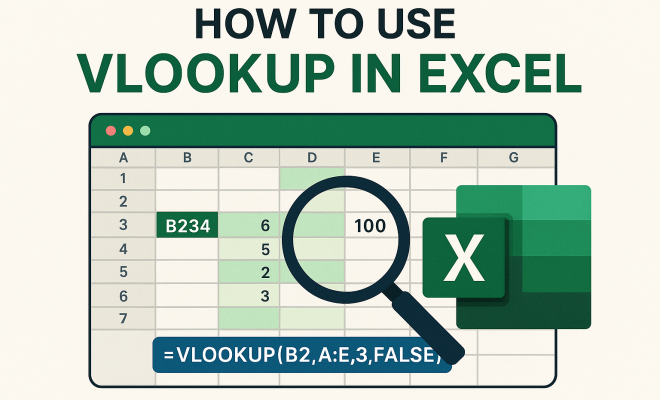
“`html
Mastering VLOOKUP in Excel: Your Ultimate Guide to Data Management
In the realm of spreadsheet software, Excel stands out as a powerful tool for both simple and complex data management tasks. Among its myriad of functions, one of the most indispensable is VLOOKUP in Excel. This function allows users to search for a specific value in one column of a table and return a corresponding value from another column. If you’ve ever struggled with data retrieval in Excel, you’re not alone. In this comprehensive guide, we’ll explore what VLOOKUP is, how to use it effectively, its limitations, and some alternatives that may serve your data analysis needs better.
1. Understanding VLOOKUP in Excel
The VLOOKUP function, which stands for ‘Vertical Lookup’, is designed to search a specified column of a table for a value and return a corresponding value from another column in the same row. It is particularly useful when dealing with large datasets, allowing you to sort through data quickly without manual searching. VLOOKUP operates by looking for a value in the leftmost column of a table array and returning a value in the same row from a specified column number.
To break it down, VLOOKUP has four primary arguments: lookup_value, table_array, col_index_num, and range_lookup. The lookup_value is the value you want to find, table_array is the range of cells that contains the data, col_index_num is the column number from which to retrieve the value, and range_lookup is an optional argument that allows you to specify whether you want an exact match or an approximate match.
2. How to Write a VLOOKUP Formula
Creating a VLOOKUP formula is straightforward, but understanding the syntax is essential for its effective application. Here’s the basic structure:
=VLOOKUP(lookup_value, table_array, col_index_num, range_lookup)As an example, let’s say you have a table of student grades, and you want to find the grade of a student named John Doe. Your data might look something like this:
 A          B
1   Name      Grade
2   John Doe  85
3   Jane Smith 90
Your VLOOKUP formula would read: (See: VLOOKUP function on Wikipedia.)
=VLOOKUP(\"John Doe\", A2:B3, 2, FALSE)In this case, “John Doe” is the lookup_value, A2:B3 is the table_array, 2 is the col_index_num (indicating the grade), and FALSE indicates that you want an exact match. When you input this formula into an Excel cell, it will return the grade of John Doe, which is 85.
3. Practical Examples of VLOOKUP
To truly appreciate the power of VLOOKUP in Excel, it’s beneficial to see it in action with various examples. Here are a couple of scenarios where VLOOKUP can be particularly useful:
- Employee Records: Suppose you work in HR and have a large dataset of employees’ information, including IDs, names, and salaries. If you want to find the salary for a specific employee based on their ID, you can use VLOOKUP. For instance, if you have employee ID in cell D2 and your table of employees in A1:C100, your formula could look like this:
=VLOOKUP(D2, A1:C100, 3, FALSE)4. Common Mistakes When Using VLOOKUP
While VLOOKUP is relatively easy to use, there are common pitfalls that can lead to errors in your spreadsheet. Here are a few mistakes to watch out for:
- Incorrect column index number: If the column index you specify exceeds the number of columns in your table array, Excel will return a #REF! error. Always double-check your table array to ensure your column index is correct.
- Not using absolute references: When copying your VLOOKUP formula across different cells, failing to use absolute references for your table_array can lead to incorrect lookups. Use dollar signs (e.g., $A$1:$B$10) to keep the range fixed.
- Misunderstanding range_lookup: Many users forget that if range_lookup is set to TRUE or omitted, Excel assumes the data is sorted. For unsorted data, always specify FALSE for an exact match to avoid misleading results.
5. Limitations of VLOOKUP
While VLOOKUP is a powerful function, it does come with limitations that can hinder its effectiveness in certain situations:
- Left-Only Lookup: One significant limitation is that VLOOKUP can only search for values in the first column of the table array. If your lookup value is located in a column to the right of the value you wish to return, you’ll need to reorganize your data or consider alternatives.
- Performance Issues: In large datasets, VLOOKUP can become slow, particularly if you are performing multiple lookups simultaneously. This can affect the overall performance of your Excel file.
- Exact vs. Approximate Matching: Users often confuse the significance of setting RANGE_LOOKUP to TRUE or FALSE. An incorrect setting can yield results that are misleading or incorrect.
6. Alternatives to VLOOKUP in Excel
As useful as VLOOKUP is, it’s worth exploring some alternatives that may be more suited for specific tasks:
- INDEX and MATCH: This combination is often favored by advanced users for its flexibility. While VLOOKUP can only search left-to-right, INDEX and MATCH can look in any direction, making it a more versatile option.
- XLOOKUP: Introduced in Excel 365, XLOOKUP is a modern replacement for VLOOKUP that overcomes many of its limitations. It allows for left-to-right and right-to-left lookups, supports multiple criteria, and is generally more efficient.
- FILTER Function: If you’re using Excel 365, the FILTER function can return multiple results based on specified criteria, which can be more powerful than a single value output from VLOOKUP.
7. Real-World Applications of VLOOKUP
Understanding the practical applications of VLOOKUP can help you become more efficient in your data handling. Here are a few real-world scenarios where this function shines: (See: CDC data management practices.)
- Inventory Management: Businesses often use VLOOKUP to track inventory levels against orders. By setting up a table that correlates product IDs with stock levels, you can quickly assess whether you have enough inventory to satisfy new orders.
- Financial Analysis: Analysts use VLOOKUP to pull relevant data from large financial tables, such as revenue figures, expense totals, or profit margins, enabling swift calculations and insights based on the most current data.
- Market Research: When conducting surveys or collecting data on customer preferences, VLOOKUP can help match survey responses to specific demographic information, allowing for detailed analysis.
8. Tips for Mastering VLOOKUP
To maximize your proficiency with VLOOKUP in Excel, consider these practical tips:
- Practice with Sample Data: The best way to learn is by doing. Create sample datasets and practice writing VLOOKUP formulas to gain confidence in using the function.
- Use Named Ranges: For large datasets, consider defining named ranges for your table arrays. This can simplify your formulas and make them easier to read.
- Learn Keyboard Shortcuts: Familiarizing yourself with Excel keyboard shortcuts can help you navigate quickly through large sets of data and improve your overall efficiency.
9. Advanced Techniques with VLOOKUP
Once you’ve mastered the basics of VLOOKUP, you can start exploring more advanced techniques that can enhance your data analysis capabilities:
- Using Wildcards: VLOOKUP allows the use of wildcards like asterisks (*) and question marks (?). This can be particularly useful when you want to match part of a string. For example, if you want to find all entries that begin with “John,” you could use:
=VLOOKUP("John*", A2:B100, 2, FALSE)=IFERROR(VLOOKUP("John Doe", A2:B100, 2, FALSE), "Not found")In a new column: =A2 & " " & B2Then perform a VLOOKUP on that concatenated column.
10. Statistics and Usage Data for VLOOKUP
Understanding how often VLOOKUP is used can provide insight into its importance in data management. According to various surveys and user data analyses:
- Over 60% of Excel users report that VLOOKUP is one of the most commonly used functions in their daily work.
- In large organizations, about 73% of data analysis tasks involve some form of lookup function, with VLOOKUP leading the pack.
- Despite newer functions like XLOOKUP emerging, VLOOKUP remains a core skill in Excel training programs, reflecting its lasting relevance.
11. VLOOKUP in Different Excel Versions
It’s important to note that the functionality and performance of VLOOKUP may vary across different versions of Excel. Here’s a breakdown:
- Excel 2013 and Earlier: VLOOKUP is fully functional, but users are limited to the traditional formulas without additional enhancements.
- Excel 2016: Introduced some performance improvements, but VLOOKUP still faced challenges with large datasets.
- Excel 365: This version includes XLOOKUP, which offers a more streamlined approach, but VLOOKUP remains accessible for those familiar with its syntax.
12. Frequently Asked Questions about VLOOKUP in Excel
Here are some common questions users have about VLOOKUP, along with their answers: (See: Harvard University resources.)
- Can I use VLOOKUP with unsorted data?
Yes, but be sure to set the range_lookup parameter to FALSE to ensure an exact match. - What happens if my lookup value is not found?
If the value isn’t found, VLOOKUP will return a #N/A error. You can handle this with IFERROR. - Can VLOOKUP return multiple values?
No, VLOOKUP is designed to return a single corresponding value. For multiple values, consider using FILTER or a combination of INDEX and MATCH. - Is VLOOKUP case-sensitive?
No, VLOOKUP is not case-sensitive. “john doe” and “John Doe” are treated as the same in lookups. - How can I speed up VLOOKUP in large datasets?
Ensure your data is sorted if using approximate matches. Also, consider using INDEX and MATCH for efficiency, or switch to XLOOKUP if you’re using Excel 365. - Can I VLOOKUP across multiple worksheets?
Yes, you can reference different worksheets by including the sheet name in your formula. For example: =VLOOKUP(A1, ‘Sheet2’!A1:B10, 2, FALSE). - What if my data is in a different file?
You can still perform VLOOKUP across different Excel files by including the full path in the formula. Ensure both files are open to avoid errors. - Can VLOOKUP work with date values?
Absolutely! VLOOKUP works with date values, but you need to ensure the lookup_value format matches the format of the dates in your table. - How do I handle duplicate values in my lookup?
VLOOKUP will return the first match it finds. To manage duplicates, consider using a helper column to create unique identifiers.
13. Conclusion: The Future of VLOOKUP in Excel
VLOOKUP in Excel remains an essential function for many users, especially those who frequently work with large datasets. Its ability to streamline data retrieval makes it a go-to tool for professionals across various industries. However, with the introduction of more advanced functions like XLOOKUP and the ever-increasing complexity of data analysis tasks, it’s crucial to stay updated on the latest Excel features that can enhance your productivity. As you continue to explore and master these functions, remember that the key to effective data management lies not just in knowing how to use the tools, but also understanding when to apply them for optimal results.
14. Case Studies: VLOOKUP in Action
To illustrate the practical application of VLOOKUP, let’s explore a few case studies where businesses have harnessed this function:
- Retail Sector: A major retail chain used VLOOKUP to match inventory data against sales figures. By creating a single dashboard that utilized VLOOKUP, the management was able to identify which items were underperforming, allowing them to optimize their inventory management, reduce excess stock, and increase sales efficiency. This led to a 15% increase in inventory turnover rate within a year.
- Healthcare Management: A hospital used VLOOKUP to manage patient records effectively. By linking treatment codes to patient IDs, healthcare professionals could quickly retrieve important medical history, drastically reducing waiting times for patients during emergency situations. This application not only improved patient satisfaction but also enhanced the overall operational efficiency of the hospital.
- Education Systems: Many educational institutions leverage VLOOKUP to automate grade reporting. Teachers can easily pull up students’ grades by simply entering their ID numbers. This system reduces administrative workload significantly, allowing staff to focus on instructional strategies rather than paperwork.
15. Best Practices for Using VLOOKUP
As useful as VLOOKUP is, adhering to best practices can significantly enhance its effectiveness:
- Document Your Formulas: Always add comments or documentation to your formulas explaining what they do, especially in collaborative environments where others may need to understand your work.
- Regularly Audit Your Data: Periodically check your datasets for duplicates, inconsistencies, or errors that may affect your VLOOKUP results.
- Export Unused Data: If you have a large dataset but only need a portion of it, consider exporting the relevant data to a new sheet or file to improve performance.
16. Connecting VLOOKUP with Other Excel Functions
VLOOKUP can be enhanced by integrating it with other Excel functions to create more complex and powerful formulas:
- SUMIF with VLOOKUP: You can sum values based on criteria that involve a VLOOKUP. For example:
=SUMIF(A1:A100, VLOOKUP("Product1", D1:E10, 2, FALSE), B1:B100)“`
Trending Now
Frequently Asked Questions
What is VLOOKUP in Excel used for?
VLOOKUP in Excel is used to search for a specific value in the leftmost column of a table and return a corresponding value from another column in the same row. This function is especially useful for quickly retrieving data from large datasets without manual searching.
How do I write a VLOOKUP formula?
To write a VLOOKUP formula, use the syntax: =VLOOKUP(lookup_value, table_array, col_index_num, range_lookup). Here, 'lookup_value' is the value you want to find, 'table_array' is the data range, 'col_index_num' specifies the column to retrieve data from, and 'range_lookup' indicates if you want an exact or approximate match.
What are the arguments of the VLOOKUP function?
The VLOOKUP function has four primary arguments: 'lookup_value' (the value to find), 'table_array' (the range of cells containing the data), 'col_index_num' (the column number to return the value from), and 'range_lookup' (optional, specifies if you want an exact or approximate match).
What are the limitations of VLOOKUP?
VLOOKUP has several limitations, including that it can only search for values in the leftmost column of the table array. It also cannot return values from columns to the left of the lookup column and may be slower with very large datasets compared to other functions.
Are there alternatives to VLOOKUP in Excel?
Yes, there are alternatives to VLOOKUP, such as INDEX-MATCH, which offers more flexibility and can look up values in any column. Other alternatives include the XLOOKUP function, which is available in newer versions of Excel and resolves some limitations of VLOOKUP.
What did we miss? Let us know in the comments and join the conversation.