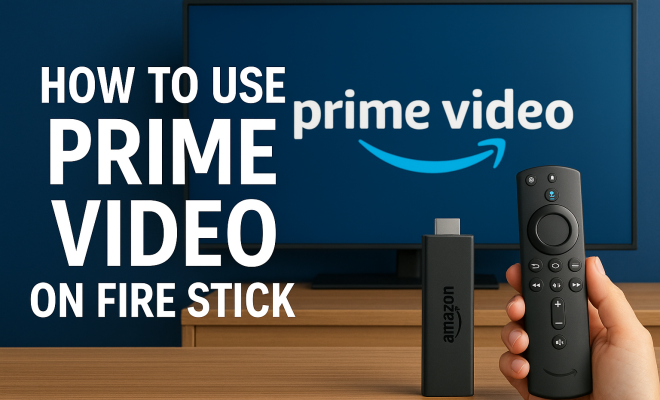
How to use Prime Video on Fire Stick
“`html
Amazon’s Fire Stick has transformed the way we consume content at home. With its user-friendly interface and vast offerings, many users are turning to it for an immersive viewing experience. A standout feature of the Fire Stick is its integration with Prime Video. If you’re asking yourself how to use Prime Video on Fire Stick, you’re not alone. In this comprehensive guide, we’ll break down everything you need to know to make the most out of your streaming experience.
1. Setting Up Your Fire Stick: Initial Steps
Before you can dive into how to use Prime Video on Fire Stick, you first need to set up the device. Start by plugging the Fire Stick into an available HDMI port on your TV. Make sure to connect the included power adapter for optimal performance. Once plugged in, turn on your TV and select the correct HDMI input. You should see the welcoming screen guiding you through the initial setup.
Follow prompts to connect your Fire Stick to your Wi-Fi network. If you already have an Amazon account, simply log in. This is crucial, as your account ties directly into your Prime Video access. For newcomers, creating an account is straightforward — just provide the necessary details, and you’re ready to go!
2. Finding Prime Video on Fire Stick: The Interface
Once your Fire Stick is set up, finding Prime Video is simple. Right on the home screen, you’ll see the Prime Video app icon featured prominently among other apps. You can navigate to it using your remote. If it’s not immediately visible, look for the search function, typically represented by a magnifying glass icon. Type “Prime Video” using the on-screen keyboard, and it will appear in your results.
The Fire Stick’s interface is designed for ease of use. The main menu allows you to browse various categories such as Movies, TV Shows, and Originals. Scrolling through these categories reveals both popular titles and personalized recommendations based on your viewing history.
3. Exploring Content on Prime Video: Categories and Recommendations
As you delve into Prime Video, you’ll find a treasure trove of content. The platform is known for its extensive library, from blockbuster movies to indie films and critically acclaimed series. One of the features that enhance user experience is personalized recommendations. Based on your past viewing habits, the algorithm suggests titles that you might enjoy.
Don’t overlook the genre categories. Whether you’re in the mood for action, drama, or documentaries, you can easily navigate through a wide array of options. Additionally, you can filter search results by ratings, new releases, and even by whether the content is available to stream for free with your Prime membership.
4. How to Use Prime Video on Fire Stick: Streaming Content
Now that you’ve located Prime Video, it’s time to start streaming. Simply select a movie or show you’d like to watch. If the title is included with your Prime membership, you’ll see an option to stream it for free. For titles not covered by your subscription, you can often rent or buy them directly through the platform.
Once you’ve selected a title, the playback screen will appear. Here, you can play, pause, fast forward, or rewind the content. Use the remote’s directional buttons to navigate through options. Don’t forget about the subtitle feature, which can enhance your viewing experience. You can easily turn on or off subtitles based on your preferences from the playback menu.
5. Managing Your Watchlist: Keeping Track of Favorites
As you explore Prime Video, you’ll likely find numerous shows or movies you want to watch later. The watchlist feature is a lifesaver here. To add a title, simply select it and choose the “Add to Watchlist” option. This keeps all your desired content in one accessible spot, making it easier to find when you’re ready to watch.
Managing your watchlist is equally simple. You can delete titles once you’ve watched them or if you’ve lost interest. Maintaining an organized watchlist not only saves time but also enhances your overall viewing experience by keeping your favorite titles front and center.
6. Using Alexa with Fire Stick: Voice Controls
If you have a Fire Stick that supports Alexa, using voice commands can significantly streamline your experience. Say, “Alexa, open Prime Video,” or “Alexa, find movies starring [Actor’s Name],” and watch as the device responds instantly. This feature adds convenience, especially for those times when you can’t find the remote or prefer hands-free control. (See: Amazon Prime Video overview.)
Moreover, advanced voice commands allow you to search by genre, ask for recommendations, or even control playback with phrases like “pause,” “rewind,” or “play next episode.” This integration makes navigating through Prime Video seamless and enjoyable.
7. Downloading Content for Offline Viewing: Prime Video’s Perks
One of the significant advantages of Prime Video is the ability to download content for offline viewing. This is especially useful for travelers or those with limited internet access. To download a title, look for the download icon next to the movie or show. Once downloaded, you can access it from the “Downloads” section in the app.
Keep in mind that not all titles are available for download, but a substantial portion is. It’s worth downloading content when you know you’ll be without a reliable internet connection, ensuring your binge-watching plans remain intact.
8. Understanding Prime Video’s Additional Features: Beyond Basic Streaming
Prime Video isn’t just about streaming; it offers a range of features that enhance your viewing experience. One such feature is X-Ray, which provides background information on cast, songs, and trivia while you’re watching. This interactive element can add depth to your viewing experience, making it more engaging.
Moreover, the platform also provides options for renting or purchasing titles outside of your Prime subscription. This flexibility allows you to access a broader range of content, ensuring you never run out of options. From new releases to exclusive content, Prime Video is designed to cater to varying preferences and tastes.
9. Troubleshooting Common Issues: Keeping Your Streaming Smooth
No technology is without its hiccups, and Fire Stick users might occasionally encounter issues while using Prime Video. Common problems include buffering, app crashes, or difficulties connecting to Wi-Fi. If you find that your streaming is lagging, try restarting your Fire Stick and checking your Wi-Fi connection.
For app-related issues, clearing the cache can often resolve glitches. Go to Settings > Applications > Manage Installed Applications > Prime Video, and select Clear Cache. By proactively managing these issues, you can ensure a smoother streaming experience.
10. Utilizing Prime Video Channels: Expanding Your Content Library
Another great feature of Prime Video is the option to subscribe to additional channels. Prime Video Channels allow you to add subscriptions to other streaming services, such as HBO, Showtime, and Starz, without needing separate apps. This can help you centralize your viewing experience and access more content with your Prime account.
To explore available channels, navigate to the “Channels” section within the Prime Video app. You’ll find a variety of options that can be added to your account for a monthly fee. This can be a great way to watch exclusive shows and movies that aren’t available with a standard Prime membership.
11. Parental Controls: Keeping Content Age-Appropriate
If you’re using Prime Video with kids in the house, setting up parental controls is a smart move. This feature allows you to restrict access to certain content based on age ratings. To set this up, go to Settings > Preferences > Parental Controls. You can create a PIN that will be required to access specific content or to make purchases.
Additionally, Prime Video offers a dedicated Kids section that features age-appropriate shows and movies. This can make it easier to find suitable content for younger viewers while giving parents peace of mind about what their children are watching. top streaming options for 2023 offers useful background here.
12. Differences Between Prime Video and Competing Services: What Sets It Apart?
While there are numerous streaming platforms available today, Prime Video stands out for several reasons. First, the integration with Amazon’s broader ecosystem is seamless, enabling users to access music, books, and shopping right from the same account.
Another differentiator is the availability of exclusive content. Prime Video produces original series like “The Marvelous Mrs. Maisel” and “The Boys,” which are critically acclaimed and have garnered numerous awards. This original content can often sway viewers to choose Prime Video over competitors. (See: technology and youth engagement.)
Furthermore, Prime Video tends to offer a more extensive selection of older films and TV series, which appeals to viewers looking for nostalgia or classic titles. Many other platforms focus primarily on new releases and original content, making Prime Video a great choice for those who enjoy a broader variety of viewing options.
13. Frequently Asked Questions (FAQ)
Q1: Can I use Prime Video without an Amazon Prime subscription?
Yes, you can access Prime Video without a Prime subscription, but your options will be limited. You can purchase or rent titles individually, but you won’t have access to the full library included with a subscription.
Q2: Is there a way to watch Prime Video on multiple devices?
Absolutely! You can download the Prime Video app on various devices, including smartphones, tablets, smart TVs, and more. Just log in with your Amazon account, and you’ll have access to your account on all devices. This builds on recommended screen time limits.
Q3: What should I do if Prime Video isn’t working on my Fire Stick?
If you’re experiencing issues, try restarting your Fire Stick or reinstalling the Prime Video app. Ensure that your internet connection is stable as well. If issues persist, consult Amazon’s troubleshooting guide or contact their customer support.
Q4: Are there any additional costs for renting or purchasing movies on Prime Video?
Yes, while many titles are included with your Prime membership, others may require an additional fee to rent or purchase. The cost can vary widely depending on the title.
Q5: Can I cancel my Prime Video subscription at any time?
Yes, you can cancel your Prime Video subscription anytime through your Amazon account settings. If you cancel, you’ll still have access to Prime Video until the end of your current billing period.
Q6: Does Prime Video offer 4K content?
Yes, Prime Video offers a selection of titles in 4K Ultra HD, provided that you have a compatible device and a strong internet connection capable of handling the increased data.
14. Using Prime Video on Fire Stick: Tips and Tricks
To enhance your experience even further, consider these tips and tricks. First, familiarize yourself with the Fire Stick’s remote control features. The remote not only allows you to navigate but also has shortcuts for Prime Video and other apps. This can save you time when switching between shows or channels.
Another trick is to use the “Watch Next” feature. After you’ve finished a series or movie, Fire Stick can suggest what you might want to watch next based on your viewing behavior. This can help you discover new content that aligns with your tastes without much effort.
Finally, take advantage of Prime Video’s “Free with Ads” content. While not all titles will be available this way, you can find a variety of movies and shows that are accessible at no cost, as long as you don’t mind some advertisements during playback.
15. Prime Video’s Original Programming: A Closer Look
Amazon has invested significantly in creating original content, which has paid off well in terms of viewer engagement and critical acclaim. Series like “The Boys” and “The Marvelous Mrs. Maisel” have not only won numerous awards but have also become cultural phenomena. The investment in original programming is one of the aspects that sets Prime Video apart from its competitors.
Additionally, these original titles often explore unique storytelling elements and perspectives that are hard to find elsewhere. This exclusive content can make a Prime membership feel more worthwhile as you gain access to shows that you can’t find on other platforms. (See: latest trends in streaming media.)
Amazon is also expanding its original content library by signing deals with popular directors and writers, ensuring that they continue to release high-quality programming regularly. Keeping an eye on new releases can help you stay updated on the latest and most exciting offerings.
16. Compatibility and Device Support: What You Need to Know
One of the most significant advantages of using Prime Video on Fire Stick is its compatibility with various devices. Fire Stick works seamlessly with most modern televisions that have an HDMI port. However, Amazon has also ensured that Prime Video can be accessed on a range of other devices, such as smart TVs, game consoles, mobile devices, and even select browsers on computers.
If you’re considering using Prime Video on devices other than Fire Stick, make sure those devices meet the necessary requirements. Many smart TVs come pre-installed with the Prime Video app, but check their specifications to confirm that they support the latest updates.
Moreover, if you’re a gamer, you can enjoy Prime Video through gaming consoles like Xbox and PlayStation, making it easy to switch from gaming to streaming without the need for additional hardware.
17. How to Maximize Your Streaming Experience: Internet Speed and Quality Settings
Streaming quality can heavily depend on your internet connection. To maximize your streaming experience, aim for a stable connection with a minimum speed of 25 Mbps for 4K content, and at least 10 Mbps for HD. If your speeds are lower, consider upgrading your internet plan or using a wired connection via Ethernet if your router permits.
Moreover, you can manually adjust the streaming quality in the app settings. While higher quality offers a better visual experience, it can also consume more data. If you’re on a limited data plan, opt for a lower quality setting to avoid unexpected charges.
Lastly, consider using a VPN if you’re traveling or trying to access content that isn’t available in your region. However, be cautious, as using a VPN can sometimes cause buffering or slower speeds if not configured correctly.
18. Conclusion: Enjoying Your Prime Video Experience
As you can see, knowing how to use Prime Video on Fire Stick can dramatically enhance your home entertainment experience. With streamlined navigation, voice commands, and a wealth of content, you’re equipped to enjoy the best that streaming has to offer. So grab your remote, settle in, and start exploring the limitless opportunities that await you with Prime Video on Fire Stick.
“`
Trending Now
Frequently Asked Questions
How do I set up Prime Video on my Fire Stick?
To set up Prime Video on your Fire Stick, first plug the device into an HDMI port on your TV and connect it to power. Turn on your TV, select the correct HDMI input, and follow the on-screen setup prompts to connect to Wi-Fi and log into your Amazon account.
Where can I find the Prime Video app on Fire Stick?
You can find the Prime Video app on the Fire Stick's home screen, where it is prominently displayed among other apps. If it's not visible, use the search function represented by a magnifying glass icon to type 'Prime Video' and access it.
Do I need an Amazon account to use Prime Video on Fire Stick?
Yes, you need an Amazon account to access Prime Video on your Fire Stick. If you already have an account, simply log in during the setup process. New users can easily create an account by providing the necessary details.
What features does Prime Video offer on Fire Stick?
Prime Video on Fire Stick offers a vast library of movies, TV shows, and original content. The user-friendly interface allows you to browse categories, access personalized recommendations, and enjoy streaming in high quality.
Can I use Prime Video without a subscription on Fire Stick?
While you can access some content for free with a Prime Video subscription, many titles require rental or purchase fees. To enjoy the full range of offerings, a Prime membership is recommended.
Have you experienced this yourself? We'd love to hear your story in the comments.