How to use portrait mode on iPhone
“`html
Portrait mode iPhone — it’s not just a feature; it’s a way to transform your photography, creating professional-looking images right from your pocket. Whether you’re capturing a child’s first steps, a family gathering, or a breathtaking sunset, mastering this mode can elevate your photos to a new level. But how exactly do you navigate this feature? Let’s dive into the nuances of using Portrait mode effectively and explore tips that will help you make the most of this powerful tool.
1. What is Portrait Mode?
Portrait mode is a photographic setting introduced by Apple that allows users to create stunning images with a shallow depth of field. This means that the subject in focus appears sharp and clear, while the background is beautifully blurred, giving your photos a professional touch. The result mimics the effect typically seen in DSLR cameras, where the background fades away, drawing attention to the subject.
To achieve this, portrait mode utilizes advanced algorithms and machine learning to identify the subject and separate it from the background. With each iteration of the iPhone, Apple has improved this technology, enhancing the ability to create natural-looking bokeh effects and replicating how a camera lens functions.
2. Understanding the Requirements
Before you start snapping away, it’s essential to know which iPhone models support Portrait mode. Initially launched with the iPhone 7 Plus, this feature has been a staple in the camera capabilities of newer models, including the iPhone X, iPhone 11, iPhone 12, iPhone 13, and beyond. All models featuring dual cameras are equipped with Portrait mode.
Moreover, Portrait mode is not limited to just human subjects. With the introduction of the Portrait mode for pets in the iPhone 8 and later, you can capture your furry friends with that same soft background blur. However, ensure that your subject is well-lit and reasonably close to the camera for the best results.
3. How to Activate Portrait Mode
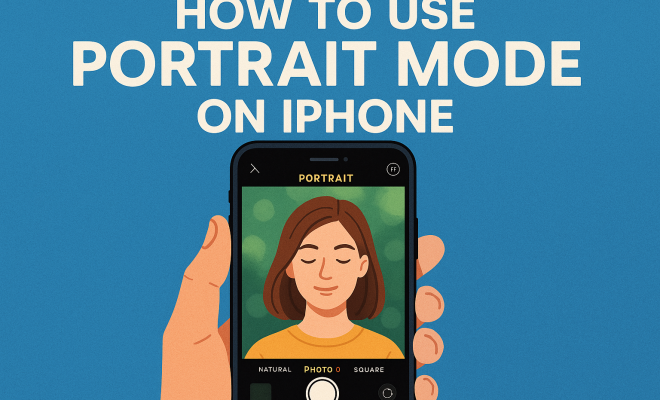
Activating Portrait mode on your iPhone is simple. Open the Camera app and follow these steps:
- Swipe to the “Portrait” setting by navigating through the available options (Photo, Video, Square, etc.).
- Position your subject within the frame.
- Ensure that the app indicates “Natural Light” at the top of the screen, which means you’re in the right mode.
- Tap the shutter button to take your photo.
It’s worth mentioning that Portrait mode also gives you a preview of how the background will appear, allowing you to adjust your framing and distance before taking the shot. Once you’ve captured the image, the editing options available through the Photos app can further enhance your photo.
4. Adjusting Portrait Lighting Effects
One of the standout features of Portrait mode is its ability to apply different lighting effects to your photos. After taking a picture in Portrait mode, tap on the “Edit” option in the Photos app. You can choose from several lighting styles:
- Natural Light: Standard lighting that offers a true-to-life representation of your subject.
- Studio Light: Brightens the subject’s face while subtly darkening the background.
- Contour Light: Adds dramatic shadows for a more defined look.
- Stage Light: Creates a spotlight effect, isolating the subject against a black background.
- Stage Light Mono: Similar to Stage Light but in monochrome.
Experimenting with these effects can add a unique touch to your portraits, so don’t hesitate to try them out. Each effect can change the tone and feel of your image, letting you express creativity in different ways. (See: Understanding Portrait Mode in Photography.)
5. Editing Portraits Like a Pro
After capturing your image in Portrait mode, the editing process is just as crucial. In the Photos app, you can enhance your images by adjusting exposure, brightness, contrast, and saturation. Here’s how to make edits:
- Select the image you want to edit.
- Tap “Edit,” then adjust the sliders for each setting until you achieve your desired look.
- Use the “Crop” feature to refine the composition of your image.
- Finally, tap “Done” to save your edits.
For deeper edits, consider third-party applications like Adobe Lightroom or Snapseed, which offer advanced tools and filters that can give your portraits a polished finish. These apps allow for more specialized adjustments, like removing blemishes or background distractions.
6. Common Mistakes to Avoid
Even the best photographers can run into pitfalls, and when using the portrait mode on your iPhone, it’s no different. Here are some common mistakes to steer clear of:
- Poor Lighting: Low light conditions can affect the quality of your portrait. Always aim for good, natural light whenever possible.
- Distance from Subject: Standing too far away can make it difficult for the iPhone to detect the subject accurately. Try to stay within the recommended distance of about 2-8 feet.
- Ignoring Background Clutter: A busy background can distract from your subject. Look for clean, simple backgrounds that complement your portrait.
Learning from these mistakes can enhance your photography skills and lead to more stunning results in your portrait photography.
7. Portrait Mode Tips for Different Subjects
When using Portrait mode, different subjects may require tailored approaches. Here are some tips for various subjects:
- People: For human subjects, encourage them to engage with the camera. Natural expressions tend to yield the best results.
- Pets: Capture pets in action or during playtime to get the best candid shots. Use treats or toys to grab their attention.
- Objects: For inanimate objects, consider using interesting angles or dynamic compositions. Experiment with reflections, shadows, and different textures.
Regardless of the subject, always focus on creating a connection and evoking emotion within the photograph. This is what makes a portrait stand out.
8. The Future of Portrait Mode and AI
As technology evolves, so too does the portrait mode iPhone. The future looks promising, with advancements in artificial intelligence and machine learning set to enhance how we capture and edit images. Apple continuously refines its algorithms, making it easier for users to achieve stunning results with minimal effort.
Looking ahead, we can expect improved features such as real-time background replacement, advanced color grading options, and possibly even augmented reality enhancements that allow users to more seamlessly integrate their subjects into various environments. This integration could revolutionize how we think about portrait photography.
9. Portrait Mode: Not Just for Humans
While Portrait mode has gained popularity for capturing people, it’s essential to remember that it can also be an excellent tool for other subjects. The iPhone’s ability to recognize pets and even inanimate objects means that you can explore diverse subjects with this powerful feature.
For example, photographing a pet might require patience to get them in the right position. Use treats or toys to capture their attention, and make the environment playful to ensure a genuine expression. The results can range from heartwarming to hilarious, providing you with memorable images. (See: New York Times on iPhone Portrait Mode.)
When shooting objects, consider their placement and the surrounding environment. Items like flowers, books, or art pieces can benefit from the soft background blur that Portrait mode provides, making them stand out in a unique way. Think about how the object’s texture and colors can contrast with the background to create a striking visual.
10. Real-World Examples of Stunning Portraits
Sometimes, seeing is believing. Here are some real-world examples of portraits taken in Portrait mode on an iPhone that illustrate its versatility and capabilities:
- Family Gatherings: Family portraits featuring multiple generations can create a beautiful legacy. A recent shot of a multigenerational family during a picnic, with the soft blur of the park’s greenery in the background, showcases how Portrait mode can capture emotions and connections.
- Outdoor Portraits: A couple’s engagement photoshoots in a scenic location, like a beach or mountain, can be stunning. With the right lighting, the iPhone can capture the couple in focus, with a stunning landscape blurred behind them, creating a magical feel.
- Pet Photography: A picture of a dog running toward the camera with its ears flapping can be heartwarming. The blurred grass behind the dog focuses attention on its playful expression, showcasing the joy pets bring to our lives.
- Product Photography: Small businesses can utilize Portrait mode to elevate their product images. For example, an artisan’s handmade jewelry can be photographed with a blurred background to emphasize the details and craftsmanship of the pieces.
11. Statistical Insights on Smartphone Photography
With the rise of smartphones, photography has become more accessible than ever. Here are some statistics that highlight the significance of smartphone photography:
- According to a report by Statista, over 85% of photos taken in 2021 were taken with a smartphone, indicating a shift away from traditional cameras.
- A survey conducted by Adobe found that 68% of millennials and Gen Z users believe that their phone’s camera is sufficient for capturing quality images, reflecting the confidence in smartphone camera technology.
- Forty-five percent of respondents reported using their smartphones for photography more than any other form of visual media.
These statistics reflect a growing trend in the adoption of smartphone photography, with features like Portrait mode playing a significant role in this evolution.
12. Frequently Asked Questions about Portrait Mode
What iPhone models support Portrait mode?
Portrait mode is available on all iPhone models starting from the iPhone 7 Plus and later versions, including the iPhone X and all subsequent models with dual cameras.
Can I use Portrait mode for landscape photography?
Portrait mode is specifically designed to capture subjects in focus with a blurred background, making it less suitable for landscape photography, where you typically want all elements in focus.
Why are some images taken in Portrait mode not sharp?
If your images are not sharp, it may be due to poor lighting, being too close or far from the subject, or camera movement during the shot. Ensuring optimal conditions can mitigate these issues.
Can I use Portrait mode indoors?
Absolutely! Just make sure to have good lighting, as low light can impact the results. Using additional light sources, like lamps or flash, can help improve the quality of your shots.
How can I improve my Portrait mode skills?
Practice is key to mastering Portrait mode. Experiment with different subjects, lighting conditions, and angles. Studying successful portrait photography can also provide inspiration and techniques to implement in your work. (See: Scientific research on photography techniques.)
13. Advanced Tips for Professional-Looking Portraits
Once you’ve grasped the basics of using Portrait mode, consider these advanced tips to take your portraits to the next level:
- Use Natural Elements: Incorporating natural elements into your composition can enhance your portraits. Trees, flowers, and water features can add depth and context, making your images more visually appealing.
- Play with Angles: Instead of shooting straight on, try different angles. Low angles can create a sense of drama, while high angles can provide a more intimate perspective. Don’t be afraid to move around your subject to find the most flattering angle.
- Utilize Negative Space: Don’t feel compelled to fill every inch of the frame. Using negative space can draw more attention to your subject and give your portrait an artistic touch.
- Incorporate Movement: Capturing a subject in motion can make for dynamic portraits. Whether it’s a child running or a couple dancing, movement can bring life to your images.
14. Portrait Mode and Social Media
In the age of social media, sharing your portraits has become easier and more common than ever. Here are some tips on how to effectively use Portrait mode for your social media posts:
- Consider Your Audience: Think about the platform you’re posting on. Instagram may require a different style than Facebook or Twitter. Tailor your images to suit the audience of each platform.
- Use Hashtags Wisely: When sharing your portraits, include relevant hashtags like #PortraitMode, #iPhonePhotography, or #PortraitPhotography to reach a wider audience and connect with other photography enthusiasts.
- Engage with Your Audience: Encourage feedback and interaction by asking questions about your portraits in the captions. This can help foster a community around your photography.
- Maintain Consistency: A consistent style can help your profile stand out. Whether it’s through color grading or subject matter, maintaining a cohesive aesthetic can be beneficial for brand-building on social media.
15. Final Thoughts: Embracing Portrait Mode
Mastering portrait mode iPhone opens up a world of creative possibilities and can transform everyday moments into extraordinary keepsakes. With the tips and tricks outlined in this article, you can elevate your photography skills and create breathtaking images that capture the essence of your subjects.
So grab your iPhone, experiment with different settings, and let your creativity flow. With practice and a little know-how, you’ll be well on your way to taking stunning portraits that you’ll cherish for years to come.
16. Resources for Further Learning
If you’re eager to expand your skills and knowledge in smartphone photography, here are some resources to consider:
- YouTube Tutorials: Many experts share their tips and techniques for using Portrait mode effectively. Channels like Peter McKinnon and iPhone Photography School provide valuable insights.
- Online Photography Courses: Websites like Skillshare or Udemy offer courses focused on smartphone photography, covering everything from basics to advanced techniques.
- Photography Blogs: Follow blogs like Fstoppers or Petapixel for the latest trends in photography, including smartphone tips and tricks.
- Local Workshops: Check out local photography workshops or community colleges that offer courses on mobile photography for hands-on learning and feedback.
Feel free to explore these avenues for more in-depth information and inspiration to help you make the most of portrait mode on your iPhone.
“`
Trending Now
Frequently Asked Questions
What is Portrait mode on iPhone?
Portrait mode is a camera feature on iPhones that creates professional-looking images with a shallow depth of field. It focuses sharply on the subject while blurring the background, mimicking the effect seen in DSLR photography. This mode uses advanced algorithms to distinguish the subject from the background, enhancing the overall image quality.
How do you use Portrait mode on iPhone?
To use Portrait mode on your iPhone, open the Camera app and swipe to select 'Portrait' from the mode options. Frame your subject within the viewfinder, ensuring good lighting, and tap the shutter button to capture the photo. Adjust your distance to achieve the desired blur effect, and explore different lighting effects for added creativity.
Which iPhone models support Portrait mode?
Portrait mode is available on iPhone models that have dual cameras, starting from the iPhone 7 Plus and including newer models like the iPhone X, 11, 12, 13, and beyond. Additionally, iPhone 8 and later also support Portrait mode for pets, allowing you to capture your furry friends with a soft background blur.
Can you use Portrait mode for pets?
Yes, Portrait mode can be used for pets starting with the iPhone 8. This feature allows you to capture stunning images of your animals with a blurred background, emphasizing their features. Ensure your pet is well-lit and positioned close to the camera for the best results.
What are the best tips for using Portrait mode?
To maximize your use of Portrait mode, ensure your subject is well-lit and positioned close to the camera. Experiment with different distances to achieve the desired background blur. Additionally, try using various lighting effects available in the mode to enhance the visual appeal of your photos.
What’s your take on this? Share your thoughts in the comments below — we read every one.