How to use Pablo by Buffer Android
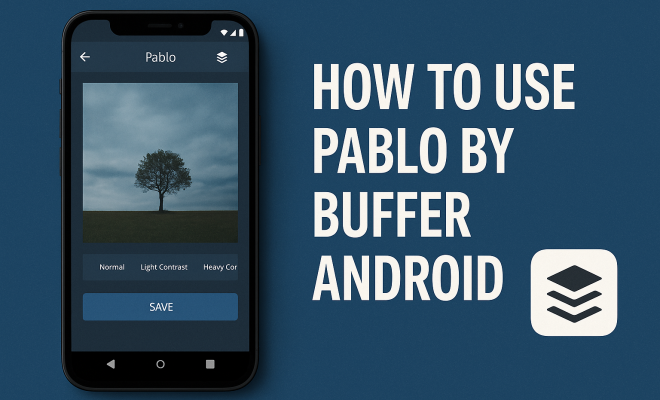
When you’re trying to make an impact on social media, a compelling image isn’t just nice to have; it’s absolutely essential. We live in a visually driven world, and if your content doesn’t grab attention with a strong visual, it’s likely to get lost in the endless scroll. That’s where tools like Pablo by Buffer Android come into play. It’s not about being a professional graphic designer; it’s about making professional-looking images quickly and efficiently, even if you’re working on the go from your Android device. This tool was designed with speed and simplicity in mind, helping individuals and small businesses elevate their social media presence without needing complex software or a steep learning curve.
Think about it: every platform, from Instagram to Twitter to LinkedIn, prioritizes visuals. A well-crafted image can stop a user mid-scroll, convey your message instantly, and significantly boost engagement. But for many, the idea of creating these visuals can feel daunting. You might not have the budget for a designer, or the time to learn Photoshop. That’s precisely the gap Pablo by Buffer Android aims to fill, offering a streamlined experience that lets you create stunning, shareable graphics in minutes. It’s about empowering you to tell your story visually, making your brand or personal message stand out in a crowded digital landscape. Let’s dive into how this powerful yet simple tool can transform your social media strategy.
1. Getting Started with Pablo by Buffer Android: The Initial Setup
Before you can unleash your inner visual storyteller, you need to get set up. The beauty of Pablo by Buffer Android is its sheer accessibility. Unlike many other design tools, you won’t find a dedicated app for Pablo on the Google Play Store. Instead, Pablo is a web-based tool that’s incredibly mobile-friendly. This means you can access it directly through your Android device’s web browser, offering a seamless experience that feels just like a native app. Just open Chrome, Firefox, or your browser of choice, type in ‘Pablo by Buffer,’ and you’re good to go. This approach means no downloads, no installations, and no constant updates to worry about – just pure, unadulterated image creation.
Once you navigate to the Pablo website on your Android device, you’ll immediately notice its clean, intuitive interface. It’s designed to be straightforward, presenting you with a canvas and a few key options right off the bat. There’s no complex onboarding process or myriad of menus to wade through. This simplicity is a deliberate design choice, reflecting Buffer’s philosophy of making social media management as effortless as possible. You’re not just looking at a tool; you’re looking at an extension of your creative workflow, ready to transform your ideas into engaging visuals with minimal fuss.
2. Choosing the Right Canvas Size: Optimizing for Every Platform
One of the most critical aspects of effective social media visuals is ensuring they’re properly sized for each platform. An image that looks fantastic on Instagram might be cropped awkwardly on Twitter, or appear too small on LinkedIn. Pablo by Buffer Android takes the guesswork out of this by offering pre-set canvas sizes optimized for the most popular social media networks. This feature alone is a huge time-saver and a common pain point for anyone managing multiple social profiles.
When you start a new image in Pablo, you’ll see options like ‘Instagram,’ ‘Pinterest,’ ‘Facebook,’ and ‘Twitter.’ Selecting the appropriate size immediately adjusts your canvas, ensuring your design will look perfect no matter where you post it. This attention to detail means you don’t have to remember specific pixel dimensions or constantly resize your work; Pablo handles it for you. It’s a small but powerful feature that demonstrates the tool’s understanding of real-world social media challenges, allowing you to focus on your message rather than technical specifications.
3. Selecting Your Background Image: The Visual Foundation
Every great visual starts with a strong background, and Pablo by Buffer Android provides several avenues for finding the perfect one. You have three primary options here, each offering distinct advantages depending on your needs and resources. First, Pablo integrates directly with a vast library of free stock photos. These are high-quality, royalty-free images you can use without worrying about licensing issues. This is a godsend for small businesses or individuals who don’t have access to professional photography but still want to maintain a polished aesthetic.
Second, if you have your own brand-specific imagery or a photo you’ve taken yourself, you can easily upload it. This is crucial for maintaining brand consistency and personalizing your content. Simply tap the upload option, select your desired image from your Android device’s gallery, and it will appear on your canvas. Finally, for those times when a solid color or a gradient is all you need, Pablo offers that too. Sometimes simplicity is key, and a clean background can make your text or logo pop. The flexibility in background selection ensures you always have the right visual foundation for your message.
4. Adding Compelling Text: Crafting Your Message
An image might grab attention, but it’s often the text that delivers the message. Pablo by Buffer Android excels here, offering robust text editing capabilities that are surprisingly powerful for a web-based mobile tool. You can add multiple text boxes, allowing for creative layering of headlines, subheadings, and calls to action. The interface for text editing is intuitive: tap on the text box, and a keyboard appears, letting you type your message. From there, you’ll find a range of customization options.
You can choose from a diverse selection of fonts, allowing you to match your brand’s typography or experiment with different styles to convey specific emotions. Adjusting the font size, color, and alignment is also straightforward. Need to emphasize a word? You can bold or italicize it. Want to add a shadow for better readability against a busy background? Pablo has you covered. The ability to control these elements so easily on your Android device means you can craft professional-looking typographic designs without needing advanced software, ensuring your message is clear, impactful, and visually appealing. (See: Understanding social media's impact.)
5. Incorporating Logos and Graphics: Branding Your Content
Branding is paramount in social media, and consistently applying your logo to your visuals is a non-negotiable step for any business or personal brand. Pablo by Buffer Android makes this process incredibly simple. You can upload your own logo or any other graphic element you wish to include, such as an icon or a watermark. Just like uploading a background image, you’ll find an option to add your logo directly from your Android device’s storage. Once uploaded, you can resize it, reposition it, and even adjust its transparency.
This flexibility allows you to place your logo discreetly in a corner or make it a more prominent feature, depending on your design goals. The transparency option is particularly useful for watermarking images or ensuring your logo doesn’t overpower the main visual. Beyond logos, you can also add other graphical elements, perhaps a small icon to highlight a specific point or a branded frame to your image. This ensures every piece of content you create with Pablo isn’t just visually appealing but also unequivocally tied back to your brand, reinforcing recognition and trust with your audience.
6. Applying Filters and Effects: Enhancing Visual Appeal
Sometimes, an image needs a little extra polish to truly shine. Filters and effects can dramatically alter the mood and aesthetic of your visuals, and Pablo by Buffer Android offers a concise but effective set of options to help you achieve the desired look. You’ll find a selection of pre-set filters that can instantly change the tone of your background image, from vibrant and punchy to muted and vintage. Experimenting with these can give your visuals a consistent look and feel across your social media channels, which is key for brand cohesion.
Beyond filters, Pablo also provides basic image adjustments. You might be able to tweak the contrast, brightness, or saturation, allowing for finer control over the overall appearance. While it’s not a full-fledged photo editor, these subtle enhancements can make a significant difference in how professional and engaging your final graphic appears. Remember, the goal here is not to over-edit but to refine and enhance, making sure your image supports your message without distracting from it. These tools are designed to be quick and impactful, perfect for on-the-go adjustments.
7. Previewing and Sharing Your Creation: The Final Steps
Once you’ve crafted your masterpiece, the next logical step is to share it with the world. Pablo by Buffer Android streamlines this process, ensuring your hard work can be distributed effortlessly. Before you commit, you’ll want to preview your creation. Pablo offers a clear view of your finalized image, allowing you to catch any last-minute adjustments or typos. This preview stage is critical; it’s your final check before your visual goes live across your social channels.
After you’re satisfied, Pablo offers direct integration with Buffer, the social media scheduling tool. If you use Buffer, you can send your image directly to your queue for scheduling, saving you steps and ensuring a smooth workflow. Even if you don’t use Buffer, you can easily download the image to your Android device’s gallery. From there, sharing to any social platform is as simple as uploading a photo. This flexibility ensures that no matter your social media management strategy, Pablo by Buffer Android fits seamlessly into your process, making the journey from idea to shared post remarkably efficient.
8. Tips for Maximizing Your Pablo by Buffer Android Experience: Going Beyond the Basics
To truly get the most out of Pablo by Buffer Android, think beyond just creating a single image. Consistency is key in social media. Try to develop a visual style guide for your brand: specific fonts, colors, and perhaps a recurring filter. This makes your content instantly recognizable and builds brand recall. Use Pablo to create templates for common post types, like quotes, announcements, or calls to action. While Pablo doesn’t have a formal ‘template’ feature, you can create a base design, download it, and then re-upload it to quickly add new text or adjust elements for future posts.
Don’t be afraid to experiment with different layouts and text placements. Sometimes, a slight shift in your text box or logo can dramatically improve readability and visual hierarchy. Remember the power of negative space – sometimes what you *don’t* put on the image is as important as what you do. Finally, always keep your audience in mind. What kind of visuals resonate with them? What messages are they most likely to engage with? Pablo by Buffer Android is a powerful tool, but its effectiveness ultimately rests on your creative vision and understanding of your audience. This builds on Graphic Design Certification.
So, whether you’re a small business owner, a marketing professional, or just someone looking to make their personal social media feed more engaging, Pablo by Buffer Android offers an accessible and efficient way to create stunning visuals. It removes many of the common barriers to graphic design, empowering you to tell your story visually and make a genuine impact in the crowded digital space. Give it a try; you might be surprised at how quickly you can transform your social media presence.
9. The Psychology Behind Engaging Visuals: Why Pablo Works
It’s not just about pretty pictures; there’s a real science to why visuals work so well on social media, and why a tool like Pablo by Buffer Android is so effective. Our brains process visuals 60,000 times faster than text. Think about that for a second. When someone scrolls through their feed, they’re not reading every word; they’re scanning. A striking image can convey an entire concept or emotion in milliseconds, something text simply can’t achieve as quickly.
Color psychology plays a huge role here. Different colors evoke different feelings and can influence perception. For example, blue often conveys trust and reliability, while red can signify urgency or passion. Pablo’s ability to let you select specific colors for text and backgrounds, or apply filters that change the overall color tone, means you’re subtly influencing your audience’s emotional response. Also, faces in images tend to draw attention, and high-quality, relevant images increase content retention by a significant margin. When you use Pablo to quickly create a graphic with a compelling image and clear text, you’re tapping into these fundamental psychological principles, making your content more memorable and impactful. It’s about leveraging innate human visual processing to get your message across more effectively. (See: CDC on media's role in health.)
10. Comparing Pablo by Buffer Android to Other Mobile Design Tools
While Pablo by Buffer Android shines in its simplicity and speed, it’s helpful to understand where it fits in the broader landscape of mobile design tools. You’ve got a spectrum, from super-basic editors to complex, feature-rich apps. On one end, you have simple photo editors built into your phone’s gallery, which offer basic crops and filters. They’re great for personal photos but lack branding and text options.
Then there are more robust mobile apps like Canva or Adobe Express (formerly Spark Post). These offer extensive template libraries, a wider range of fonts, more advanced editing features, and often allow for multi-page designs. They’re powerful, but they also come with a steeper learning curve, more features that can overwhelm a quick workflow, and often require downloads and subscriptions for full functionality. Pablo sits comfortably in the middle, leaning towards the simpler side. It strips away the complexity, focusing on the core elements needed for effective social media graphics: a good image, clear text, and branding. It’s perfect for someone who needs to create professional-looking content fast, without getting bogged down by too many choices or needing to install another app. It prioritizes efficiency, making it ideal for on-the-go content creation where time is often limited.
11. Case Studies: Real-World Impact with Pablo by Buffer Android
Let’s look at a couple of hypothetical, but very common, scenarios where Pablo by Buffer Android could make a significant difference. Imagine Sarah, a small business owner running a local bakery. She’s constantly busy baking, managing staff, and serving customers. She knows she needs to post daily on Instagram to showcase her delicious treats and daily specials, but she doesn’t have time to learn complicated design software or hire a designer.
With Pablo, Sarah can snap a quick photo of her fresh croissants, upload it, add text like “Freshly Baked Croissants! Get yours before they’re gone!” in her brand’s font, pop her bakery logo in the corner, and share it in under five minutes. This quick, visually appealing post drives customers to her store. Or consider Mark, a freelance writer who uses Twitter to share snippets of his articles and thought leadership. He wants his quotes to stand out from plain text tweets. Using Pablo, he can quickly paste a powerful quote onto a striking background image from Pablo’s stock library, choose an elegant font, and share it. His engagement rates jump because his tweets are now visually arresting, making his insights more likely to be noticed and retweeted. These examples highlight how the tool empowers individuals and small businesses to maintain a strong, consistent visual presence without significant investment of time or money.
12. Future Trends in Visual Content and Pablo’s Role
The landscape of visual content is always evolving. We’re seeing a continuous shift towards more dynamic, interactive, and personalized visuals. While Pablo by Buffer Android currently focuses on static image creation, its core philosophy of simplicity and speed positions it well to adapt to future trends. For instance, the rise of short-form video content (think Reels, TikTok) is undeniable. While Pablo isn’t a video editor, the principles of strong visuals, clear messaging, and branding it champions are still crucial for creating effective video thumbnails or intro/outro screens for video content.
We might see future iterations of Pablo incorporating very basic animated text effects or simple collage options to keep pace. The demand for user-generated content and authentic visuals is also growing. Pablo, by making it easy to upload your own photos and add professional overlays, already supports this trend. Ultimately, as social media platforms continue to emphasize visuals and content creators seek efficient workflows, tools that simplify complex tasks, like Pablo, will remain invaluable. The key will be maintaining that balance between power and simplicity, ensuring it evolves without losing its user-friendly edge.
Frequently Asked Questions about Pablo by Buffer Android
Q1: Is Pablo by Buffer a free tool?
Yes, Pablo by Buffer Android is completely free to use. You don’t need a Buffer subscription to access its features, though it integrates seamlessly if you do use Buffer for scheduling. This makes it a fantastic, no-cost option for anyone looking to create professional social media graphics.
Q2: Do I need to download an app to use Pablo on my Android device?
No, you don’t. Pablo by Buffer Android is a web-based tool. You can access it directly through your Android device’s web browser (like Chrome or Firefox) by visiting the Pablo by Buffer website. This means no downloads, no installations, and no app updates taking up space on your phone.
Q3: What kind of images can I use as backgrounds in Pablo?
You have three main options: you can choose from Pablo’s extensive library of high-quality, royalty-free stock photos; you can upload your own images from your Android device’s gallery; or you can select a solid color or gradient background. This flexibility ensures you always have the right visual starting point. (See: New York Times on visuals in social media.)
Q4: Can I add my own logo to images created with Pablo by Buffer Android?
Absolutely! Branding is a key feature. You can easily upload your own logo or other graphic elements from your Android device. Once uploaded, you can resize, reposition, and adjust the transparency of your logo to perfectly brand your content.
Q5: Are there specific canvas sizes for different social media platforms?
Yes, Pablo by Buffer Android offers pre-set canvas sizes optimized for popular social media platforms like Instagram, Facebook, Twitter, and Pinterest. This saves you the hassle of remembering specific dimensions and ensures your images look great on every platform.
Q6: What text customization options are available?
Pablo offers a good range of text customization. You can choose from various fonts, adjust font size, change text color, set alignment (left, center, right), and even add shadows for better readability. You can also bold or italicize text to emphasize specific words or phrases.
Q7: Can I save my designs as templates for future use?
While Pablo doesn’t have a formal “save as template” feature, you can create a base design with your branding, download it, and then re-upload it as a background for future posts. This allows you to quickly add new text or make minor adjustments while maintaining a consistent look.
Q8: How do I share my finished images from Pablo?
Once your design is complete, you can either download the image directly to your Android device’s gallery, or if you use Buffer, you can send it directly to your Buffer queue for scheduled posting. From your gallery, you can easily upload it to any social media platform.
Q9: What if I need more advanced photo editing features?
Pablo by Buffer Android is designed for quick, simple social media graphic creation, not extensive photo editing. If you need advanced features like retouching, complex layers, or intricate filters, you might want to use a dedicated photo editing app first, and then bring the polished image into Pablo for text and branding.
Q10: Is Pablo suitable for beginners in graphic design?
Absolutely! Pablo’s strength lies in its simplicity and intuitive interface, making it perfect for beginners or anyone without graphic design experience. The tool guides you through the process, allowing you to create professional-looking visuals without needing to learn complex software.
Trending Now
Frequently Asked Questions
What is Pablo by Buffer?
Pablo by Buffer is a web-based tool designed for creating professional-looking images quickly and easily, specifically for social media. It allows users to design visually appealing graphics without needing extensive design skills or software, making it accessible for individuals and small businesses on the go.
How do I use Pablo by Buffer on Android?
To use Pablo by Buffer on Android, simply access the tool through your device's web browser. It is mobile-friendly and doesn’t require a dedicated app, providing a seamless experience for designing and sharing graphics for your social media platforms.
Is Pablo by Buffer free to use?
Yes, Pablo by Buffer is free to use, making it an accessible option for anyone looking to create eye-catching graphics without incurring costs. It is designed to help users enhance their social media presence without the need for expensive software or hiring a designer.
What features does Pablo by Buffer offer?
Pablo by Buffer offers a variety of features including customizable templates, text overlays, and image libraries, allowing users to create unique and engaging visuals easily. Its focus on speed and simplicity helps users produce graphics quickly for effective social media engagement.
Can I access Pablo by Buffer on other devices?
Yes, since Pablo by Buffer is a web-based tool, it can be accessed on any device with a web browser, including desktops and tablets. This flexibility allows users to create and edit graphics from anywhere, making it a convenient option for on-the-go social media management.
Agree or disagree? Drop a comment and tell us what you think.