How to use magnifier on iPhone
“`html
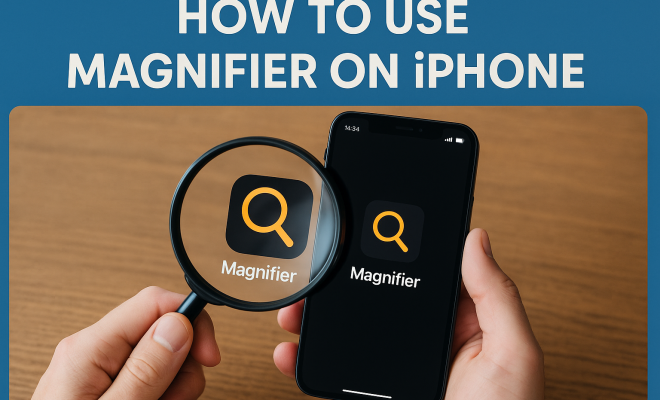
In a world where technology continuously adapts to our needs, the iPhone has become a versatile tool catering to various user requirements. One particularly helpful feature is the Magnifier, designed for those who may need assistance with visual details. Whether you’re trying to read small print, inspect intricate details, or simply enhance your view of the world around you, knowing how to use the magnifier on iPhone can transform your everyday experiences. Let’s explore this handy feature in detail.
1. Understanding the Magnifier Feature
The Magnifier is an accessibility tool built into iOS, making it easier for users with visual impairments to interact with their environment. Introduced in iOS 10, it allows users to instantly zoom in on objects in their vicinity using their iPhone’s camera. Think of it as a digital magnifying glass that offers flexibility and convenience right from your pocket.
This feature is not just for those with significant visual disabilities; it’s also incredibly useful for anyone who has ever struggled to read fine print on medication bottles, menus, or labels. By utilizing the iPhone’s powerful camera and display, the Magnifier enhances your ability to see while also providing additional tools to optimize your viewing experience.
2. Enabling the Magnifier on Your iPhone
Before you can use the Magnifier, you need to ensure it’s enabled in your device settings. Here’s how to do it:
- Open the Settings app on your iPhone.
- Scroll down and tap on Accessibility.
- Select Magnifier from the list.
- Toggle the Magnifier switch to activate it.
- Optionally, you can add Magnifier to your Control Center for easy access by tapping on Control Center, then Customize Controls, and finally adding Magnifier.
Once these steps are completed, you’re ready to start using the Magnifier. It’s that simple! With the feature activated, you can access it quickly from your Control Center or by triple-clicking the side button (or home button for older models).
3. How to Use the Magnifier
With the Magnifier enabled, using it is straightforward. Here’s a step-by-step guide on how to utilize this feature:
- Open the Magnifier by either swiping down from the top-right corner of the screen to access the Control Center or triple-clicking the side button.
- The camera will activate, displaying a live view of what’s in front of you.
- Use the slider at the bottom of the screen to zoom in or out, allowing you to adjust the magnification level as needed.
- Tap on the screen to focus on specific details, ensuring clarity.
- If desired, you can also switch between the front and rear cameras for different perspectives.
This functionality provides a seamless way to magnify items in your environment. You can hold your iPhone steady or adjust it to enhance detail as you see fit.
4. Advanced Features of the Magnifier
Beyond just magnification, the iPhone’s Magnifier offers several advanced features that enhance usability:
- Filters: You can apply different color filters to improve contrast and visibility, which is particularly helpful for individuals with color blindness or specific visual impairments.
- Flashlight: If you’re in a poorly lit area, the built-in flashlight can illuminate your subject. Just tap the flashlight icon to turn it on or off.
- Freeze Frame: You can freeze the current image on the screen by tapping the freeze button, allowing you to examine details without holding the camera.
- Take a Photo: Captured images can be saved directly to your Photos app for future reference. This can be incredibly useful for remembering complicated instructions or details.
These features collectively make the Magnifier an even more powerful tool, adapting to various situations where visual assistance is required.
5. Using the Magnifier for Practical Everyday Tasks
The Magnifier can be a game-changer in daily life. Here are a few practical applications:
- Reading Small Text: Whether it’s a medication label or a menu in a dimly lit restaurant, the Magnifier can help you read text that’s otherwise difficult to see.
- Inspecting Details: If you’re an artist or a craftsman, the ability to closely examine the fine details of your work can enhance your precision and creativity.
- Identifying Small Objects: Perfect for hobbies such as birdwatching or botanical studies, the Magnifier allows you to study small plants or insects closely.
- Navigation Assistance: When navigating unfamiliar areas, you can use the Magnifier to read street signs or maps more easily.
These features not only enhance your daily activities but also empower you to engage with your surroundings in ways that may have previously been challenging. (See: Importance of accessible technology.)
6. Accessibility Settings and Customizations
Apple is known for its commitment to accessibility, and the Magnifier is just one part of a larger suite of tools designed to help users with different needs. You can customize various settings to enhance your experience:
- Open your Settings app and navigate to Accessibility.
- Explore options such as VoiceOver, Zoom, and Display & Text Size to complement the Magnifier.
- Adjust color filters and contrast settings for the best viewing experience when using the Magnifier.
By fine-tuning these settings, you can create an optimal experience tailored to your specific needs, making the Magnifier even more effective as a visual aid.
7. Battery Life Considerations
Using the Magnifier feature can be battery intensive, especially if you’re using it for extended periods or with the flashlight activated. Here’s how to be mindful of your battery usage while utilizing this tool:
- Try to limit the use of the flashlight unless absolutely necessary.
- Close the Magnifier when not in use to conserve battery power.
- Consider carrying a portable charger if you frequently rely on the Magnifier throughout the day.
Battery management becomes an essential skill, especially during outings where you may depend on your iPhone for navigation and other tasks alongside using the Magnifier.
8. Comparing the Magnifier with Other Accessibility Features
While the Magnifier is an excellent standalone tool, it’s worth considering how it compares to other accessibility features on the iPhone. For example:
- Zoom: The Zoom feature allows users to magnify the entire screen, which is beneficial for those who need larger text or visual elements across all apps, not just what’s in front of the camera.
- VoiceOver: For users with more significant visual impairments, VoiceOver provides auditory descriptions of onscreen elements, facilitating a different interaction method.
- Display Settings: Adjusting text size and contrast can complement the Magnifier, ensuring better visibility across the device.
Each feature serves distinct purposes, but when combined, they create a highly customizable and supportive environment for individuals with varying levels of visual abilities.
9. Feedback from Users: Real-World Experiences
Users have shared numerous positive experiences regarding the Magnifier, praising its utility and ease of use. Stories highlight how the feature has changed everyday interactions. For instance:
- One user mentioned how the Magnifier has drastically improved their ability to read library books and labels on groceries, calling it a “lifesaver” in daily tasks.
- Another noted that students with visual impairments find it invaluable during lectures, allowing them to read text on whiteboards from a distance.
Feedback like this emphasizes the real-world impact of accessibility features like the Magnifier, underscoring its importance in the lives of many iPhone users.
10. Future of the Magnifier and Accessibility Features
As technology continues to evolve, so too will accessibility features like the Magnifier. Apple regularly updates its software to enhance functionality and user experience, and future iterations may include even more advanced capabilities. Potential enhancements could include:
- Increased integration with augmented reality (AR) to provide contextual information about objects being magnified.
- Improved AI recognition that could help identify objects and provide additional data directly through the Magnifier.
- More customizable options to tailor the feature to specific user needs.
In an increasingly digital world, the importance of accessible technology cannot be overstated. The Magnifier on iPhone is not just a tool; it’s a reflection of Apple’s commitment to inclusivity and user-centered design. Understanding how to use the magnifier on iPhone is just the beginning of what this feature can offer in helping users engage with their environment effectively.
11. Common Issues and Troubleshooting the Magnifier
Like any technology, users may encounter issues while using the Magnifier feature on their iPhones. Here are some common problems and their potential solutions:
- Magnifier Doesn’t Open: If you find that the Magnifier won’t launch, check to ensure that it’s enabled in the Accessibility settings. Restarting your iPhone can also resolve minor glitches.
- Low-Quality Image: If the image appears blurry or pixelated, try to hold your iPhone steady or adjust the zoom level. Ensure that the lens is clean, as dirt or smudges can affect the clarity.
- Flashlight Not Working: If the flashlight isn’t illuminating your subject, ensure that the flashlight is enabled in the Magnifier interface. Additionally, check that your iPhone’s flashlight is functioning outside of the Magnifier app.
These troubleshooting steps can help restore functionality and ensure a smooth experience using the Magnifier. (See: Research on technology accessibility.)
12. Magnifier Accessibility for Seniors
The Magnifier feature can be exceptionally beneficial for seniors who may face challenges with vision. Many older adults struggle with reading fine print, whether it be medication instructions or restaurant menus. Here’s how the Magnifier can assist:
- User-Friendly Interface: The simple interface allows seniors to easily access and utilize the Magnifier without needing to navigate complicated settings.
- Adjustable Magnification: Seniors can zoom in to a level that is comfortable for them, making reading much easier and less straining on their eyes.
- Built-In Flashlight: The flashlight functionality can help illuminate text in dimly lit environments, which can be common in many public places like restaurants or theaters.
Encouraging seniors to use this feature can significantly enhance their independence and confidence in navigating everyday tasks.
13. FAQs About Using the Magnifier on iPhone
Here are some frequently asked questions about using the Magnifier on iPhone:
What devices support the Magnifier feature?
The Magnifier feature is available on all iPhones running iOS 10 or later. This includes models from iPhone 5s and newer.
Can I use the Magnifier while I am wearing glasses?
Yes, you can use the Magnifier while wearing glasses. It’s designed to assist users regardless of their visual aids, so you can simply adjust the magnification to your comfort level.
Is the Magnifier available in other languages?
Yes, the Magnifier feature supports multiple languages, as it is integrated within the iOS system. Users can change their device’s language settings to access the Magnifier in their preferred language.
Can I take video with the Magnifier?
Currently, the Magnifier feature only supports still images. You can take photos of what you magnify for later reference, but live video recording isn’t a feature available within the Magnifier interface.
How does the Magnifier compare to third-party magnifying apps?
While there are many third-party magnifying apps available, the iPhone’s built-in Magnifier is seamlessly integrated into the system and benefits from consistent updates and support from Apple. Additionally, it offers features like the flashlight and freeze frame that may not be present in all third-party options.
Can I share photos taken with the Magnifier?
Absolutely! Photos captured with the Magnifier can be accessed from your Photos app, and you can share them via email, messaging apps, or social media just like any other photo.
Is there a limit to how much I can magnify?
The maximum magnification level can vary based on your specific iPhone model, but generally, most devices allow for significant magnification that should meet the needs of most users. Adjust the slider to find the right level for you.
Are there any alternative magnification methods on iPhone?
Yes, aside from the Magnifier, you can use the Zoom feature which allows you to magnify any part of your iPhone’s screen. This is particularly useful for enhancing text or images in apps, thus providing users with multiple ways to improve visibility based on their specific needs.
Is the Magnifier feature free to use?
Yes, the Magnifier feature is completely free to use and comes pre-installed with iOS. There are no hidden fees or subscriptions required to access its functionality.
Can the Magnifier assist with color differentiation?
While the Magnifier primarily focuses on magnification, the color filters feature can help individuals with color blindness or poor color differentiation by altering how colors appear, making some distinctions easier to see.
14. Tips for Maximizing the Use of the Magnifier
To get the most out of the Magnifier feature, consider these helpful tips:
- Experiment with Filters: Try different color filters to see which combination provides the best visibility for your unique needs. Some users find that specific filters dramatically improve their ability to see details.
- Practice Steadying Your Hand: If you find it difficult to hold the iPhone steady, consider resting your elbow on a nearby surface or using both hands to minimize shake.
- Use in Varied Lighting Conditions: Test the Magnifier in different lighting environments. Sometimes bright light may help, while at other times the built-in flashlight may be necessary.
- Share Tips with Others: If you know someone who might benefit from the Magnifier, share your experiences and tips. This could support them in utilizing the feature effectively.
By implementing these tips, users can enhance their experience and takeaway even more utility from the Magnifier feature.
15. The Role of Community and Support
The conversation surrounding accessibility features like the Magnifier is essential. Online communities and forums often provide invaluable support and shared experiences, making it easier for users to discover tips, tricks, and alternative solutions. Engaging with these communities can be beneficial:
- Learning from Others: Hearing how others effectively use the Magnifier can spark new ideas about applications you may not have considered.
- Sharing Experiences: Sharing your own experiences can help others to gain confidence in using the Magnifier and encourage them to explore its features.
- Finding Resources: Many community platforms offer resources and articles on accessibility, providing deeper insights into iPhone features and overall technological support.
Building a network around accessibility can create a sense of belonging and empowerment, allowing users to make the most out of their technological tools.
“`
Trending Now
Frequently Asked Questions
How do I turn on the magnifier on my iPhone?
To turn on the magnifier on your iPhone, go to the Settings app, tap on Accessibility, select Magnifier, and toggle the switch to activate it. You can also add it to your Control Center for quick access.
What is the magnifier feature on iPhone?
The magnifier feature on iPhone is an accessibility tool that allows users to zoom in on objects using the camera. It's designed to assist those with visual impairments and is useful for reading fine print or inspecting details.
Can I customize the magnifier settings on my iPhone?
Yes, you can customize the magnifier settings on your iPhone. Once activated, you can adjust options like brightness, contrast, and filters to enhance your viewing experience according to your needs.
Is the magnifier on iPhone only for visually impaired users?
No, the magnifier on iPhone is not just for visually impaired users. It's a versatile tool beneficial for anyone needing help reading small text or examining intricate details in their surroundings.
How do I access the magnifier quickly on iPhone?
You can access the magnifier quickly on your iPhone by adding it to your Control Center. Alternatively, you can triple-click the side button to open the magnifier instantly.
Have you experienced this yourself? We’d love to hear your story in the comments.