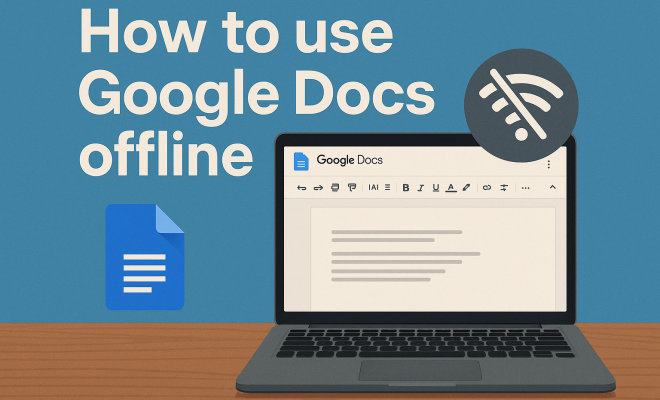
How to use Google Docs offline
1. Understanding Google Docs and Its Online Nature
Google Docs is a powerful web-based word processing tool that provides users with a collaborative platform to create, edit, and share documents online. Since its launch in 2006, it has gained immense popularity due to its user-friendly interface and seamless integration with other Google services. However, its reliance on an internet connection can be a double-edged sword. Whether you’re on the go, experiencing network issues, or simply prefer working offline, knowing how to use Google Docs offline can be a game-changer.
Before diving deep into offline functionality, it’s essential to grasp the basic mechanics of Google Docs. The service operates in the cloud, meaning your documents are saved online and can be accessed from any device with internet connectivity. This cloud-native design allows for real-time collaboration, automatic saving, and sharing capabilities that enhance productivity. However, it leaves users vulnerable to disruptions in connectivity, making offline access a valuable feature for many.
2. Why Offline Access is Important
Using Google Docs offline can significantly improve your productivity and flexibility. Imagine being on a long flight, in a remote area without Wi-Fi, or experiencing a sudden internet outage. In these situations, the ability to use Google Docs offline means you can continue working without interruption. This can be particularly beneficial for students, writers, and professionals who often find themselves in environments where internet access is unreliable.
Moreover, offline access allows for a more focused working environment. Without the distractions of constant notifications and the temptation to browse online, users can dedicate their time to writing and editing. It creates an opportunity to work in a more controlled setting, ultimately leading to higher quality output.
Statistics show that distractions can reduce productivity by as much as 40%. By working offline, you can mitigate these distractions, allowing for more complete concentration on your tasks. Studies have also indicated that the act of switching between tasks can double the time it takes to complete them, so the uninterrupted nature of offline work can help you complete projects more efficiently.
3. Enabling Offline Access in Google Docs
To start using Google Docs offline, you’ll first need to ensure that you have the right setup. Here’s a step-by-step guide to get you started:
- Use Google Chrome: Offline functionality is best supported on Google’s own Chrome browser. Make sure you have it installed.
- Install Google Docs Offline Extension: Navigate to the Chrome Web Store and install the Google Docs Offline extension. This extension enables offline editing capabilities.
- Open Google Drive: Once the extension is installed, go to Google Drive and click on the gear icon in the top right corner to access Settings.
- Enable Offline Access: In the settings menu, check the box that says “Create, open, and edit your recent Google Docs, Sheets, and Slides files on this device while offline.”
Once these steps are complete, you are set to use Google Docs offline. Remember that you’ll need to sync your documents while online, so any changes made offline can be saved when you reconnect.
4. Making Documents Available Offline
Not all documents in Google Docs are available for offline use by default. To ensure you can access the documents you need, it’s crucial to mark specific files for offline access. Here’s how:
- Open Google Drive: On your desktop or laptop, open Google Drive.
- Select Files: Right-click on the documents you want to use offline and select the option “Available offline.” A checkmark will appear next to the file name, indicating it’s ready for offline access.
- Syncing Documents: Ensure you are online when you perform this action. This will sync the document for offline use, allowing you to access it anytime.
For mobile users, the Google Docs app also provides the option to make documents available offline. You can do this by opening the app, selecting the desired document, and enabling the “Available Offline” toggle in the file menu. This feature is especially useful for users who rely on their mobile devices for work.
5. Limitations of Using Google Docs Offline
While using Google Docs offline is incredibly helpful, it’s essential to be aware of its limitations. For starters, not all features are available in offline mode. For example, real-time collaboration and commenting functionalities are disabled. This means you won’t be able to see changes made by others during your offline session. (See: Wikipedia page on Google Docs.)
Another limitation is the need for a stable internet connection at least once in a while to sync your documents for offline access. Additionally, some advanced features, like certain add-ons and third-party integrations, might not work without an internet connection. Understanding these limitations will help you plan your work effectively and avoid surprises when you’re offline.
It’s also worth noting that certain file formats, like Microsoft Word documents, might require conversion to Google Docs format for offline editing. This can lead to formatting changes that might not be apparent until you reconnect to the internet. So if you’re collaborating with others who use different word processors, it’s wise to double-check formatting compatibility beforehand.
6. Best Practices for Working Offline
When utilizing Google Docs offline, certain best practices can enhance your experience and ensure your work is seamless. First, always ensure your work is synced before going offline. This will prevent any incidents of unexpected data loss or unsaved changes.
Second, keep your documents organized. Create folders in Google Drive to categorize your files. This will make it easier to locate documents while working offline. Lastly, consider making a checklist of the most critical tasks or documents you need before you lose internet access. This way, you’ll have everything you need at your fingertips when you go offline.
Another tip is to familiarize yourself with keyboard shortcuts for Google Docs. Working offline can sometimes slow you down due to the absence of real-time features, but knowing these shortcuts can help you navigate and edit documents more efficiently. For example, using shortcuts like Ctrl + B for bold or Ctrl + K to insert a link can save valuable time.
7. Using Google Docs Offline on Mobile Devices
For users who rely on smartphones and tablets, Google Docs offers robust offline functionality through its mobile app. Here’s how you can use Google Docs offline on your mobile device:
- Install the App: First, make sure you have the Google Docs app installed on your device. It’s available on both Android and iOS platforms.
- Enable Offline Access: Open the app and navigate to the document you wish to access offline. Tap the three dots in the upper right corner and toggle on the “Available Offline” option.
- Edit and Save: You can now edit your document anytime, and any changes made will automatically sync back to Google Docs when you reconnect to the internet.
This offline functionality is particularly useful for students and professionals who may need to write or edit documents during commutes or while traveling. It’s a handy feature that truly enhances the usability of Google Docs across various devices.
8. Real-World Applications of Offline Google Docs Usage
The ability to use Google Docs offline has real-world applications that can significantly enhance productivity. For instance, many writers prefer to work in quiet, distraction-free environments. By using Google Docs offline, they can focus solely on their writing without the temptation to browse the web.
Similarly, journalists often find themselves in situations where internet access is limited. Drafting articles, conducting interviews, and jotting down notes can be done using Google Docs offline. Once they have a reliable connection, they can easily upload their work, ensuring they meet tight deadlines.
In another example, educators can utilize offline access during field trips or outdoor activities where internet connectivity is sparse. They can prepare lesson plans, take notes on student performance, and collaborate with colleagues without worrying about internet issues. This flexibility enhances teaching and learning experiences significantly. (See: CDC on using online tools effectively.)
9. The Future of Google Docs Offline Access
As we look ahead, the demand for offline functionality in cloud-based applications like Google Docs will only continue to grow. With more people working remotely and requiring access to their documents anywhere, Google is likely to enhance offline capabilities further. Future updates may improve the user experience, expand available features offline, and allow for more seamless transitions between online and offline modes.
It’s also likely that advancements in technology will lead to improved compatibility with different devices and operating systems, making offline access a smoother experience for all users. As mobile devices become more powerful, users may expect even more robust offline capabilities, including complex formatting options and advanced editing features.
10. Frequently Asked Questions about Using Google Docs Offline
1. Can I use Google Docs offline without the Chrome browser?
No, Google Docs offline functionality is best supported in the Chrome browser. While offline capabilities may be available in other browsers, they are not guaranteed to work as effectively as in Chrome.
2. What happens if I forget to sync my documents before going offline?
If you forget to sync your documents before going offline, you won’t be able to access the most recent changes made to those documents. It’s a good practice to check the sync status before disconnecting from the internet.
3. Are all my Google Docs automatically available offline once I enable the feature?
No, enabling offline access does not automatically make all documents available offline. You need to manually select specific documents to make them available for offline use.
4. Can I collaborate with others while working offline?
Collaboration features are not available while you are offline. Any changes you make will only be visible to you until you reconnect to the internet and sync your document.
5. How do I know if a document is available offline?
Documents that are available offline will have a checkmark next to them in Google Drive. If you’re using the mobile app, the “Available Offline” toggle will be highlighted for those documents.
6. Is there a limit to how many documents I can make available offline?
There is no explicit limit on the number of documents you can make available offline, but keep in mind that having too many large files stored offline may take up significant space on your device.
7. Can I use Google Docs offline on any mobile device?
Yes, you can use Google Docs offline on most smartphones and tablets as long as you have the Google Docs app installed and have enabled offline access for your desired documents. (See: NY Times article on Google Docs offline usage.)
8. Does using Google Docs offline consume any data?
No, using Google Docs offline does not consume data since you are not connected to the internet. However, any changes you make will sync and consume data when you reconnect online.
11. Advanced Features for Offline Use
Even with its limitations, Google Docs provides several advanced features that can enhance your experience while using it offline. One notable feature is the ability to create templates. Once you’ve set up a document as a template while online, you can access this template offline as well. This is particularly useful for users who frequently create similar types of documents, such as reports or meeting notes.
Additionally, the integration of voice typing is another feature you can utilize offline. If you’re in an environment where typing is inconvenient, voice typing can allow you to dictate your thoughts into a document seamlessly. Just remember to activate this feature while you’re online to ensure it remains available offline.
Another advanced feature is the ability to use comments and suggested edits. While you cannot collaborate in real-time, you can still leave comments for yourself or for others to see once you’re back online. This can help streamline the editing process, making it easier to remember points to address later.
12. Common Issues and Troubleshooting
Despite its benefits, users may encounter issues when trying to use Google Docs offline. Here are some common problems and their troubleshooting tips:
- Documents Not Syncing: If your documents aren’t available offline, ensure that you’re online to sync them first. Sometimes, you may need to refresh the Google Docs interface or restart your browser to see changes.
- Slow Performance: If Google Docs runs slowly while offline, it could be due to heavy documents. Try breaking large files into smaller sections or minimize the number of documents open at the same time.
- Lost Changes: If you’ve made changes offline and they don’t appear after syncing, check your internet connection. If it’s unstable, your changes may not have been saved properly.
Many of these issues can be resolved with simple troubleshooting steps. However, if problems persist, consulting Google’s support forums or help documentation can provide further assistance.
13. Conclusion
Knowing how to use Google Docs offline not only empowers you to work without interruptions but also enhances your overall efficiency. By following the steps outlined, understanding the limitations, and employing best practices, you can maximize your productivity, whether you’re connected to the internet or not. No matter the situation, Google Docs remains a versatile tool in your productivity arsenal.
Trending Now
Frequently Asked Questions
Can you use Google Docs offline?
Yes, you can use Google Docs offline by enabling offline access. This allows you to create, edit, and view documents without an internet connection. Make sure to set this up while you are still online to ensure your documents are available offline.
How do I enable offline access for Google Docs?
To enable offline access for Google Docs, open Google Drive, click on the settings gear icon, and select 'Settings'. Then, check the box for 'Create, open and edit your recent Google Docs, Sheets, and Slides files on this device while offline'.
What are the benefits of using Google Docs offline?
Using Google Docs offline can enhance productivity by allowing you to work without internet interruptions. It also helps minimize distractions, enabling a more focused environment for writing and editing, which can lead to higher quality work.
Do I need to install anything to use Google Docs offline?
No additional installation is required to use Google Docs offline, but you need to enable offline access in Google Drive settings. Ensure you are using the Google Chrome browser for the best experience.
What happens to changes made in offline mode?
Changes made to documents in offline mode are automatically saved locally and will sync to your Google Drive once you reconnect to the internet. This ensures that your work is not lost and is updated across devices.
What did we miss? Let us know in the comments and join the conversation.