The Tech Edvocate

Top Menu

  • Advertisement
  • Apps
  • Home Page
  • Home Page Five (No Sidebar)
  • Home Page Four
  • Home Page Three
  • Home Page Two
  • Home Tech2
  • Icons [No Sidebar]
  • Left Sidbear Page
  • Lynch Educational Consulting
  • My Account
  • My Speaking Page
  • Newsletter Sign Up Confirmation
  • Newsletter Unsubscription
  • Our Brands
  • Page Example
  • Privacy Policy
  • Protected Content
  • Register
  • Request a Product Review
  • Shop
  • Shortcodes Examples
  • Signup
  • Start Here
    • Governance
    • Careers
    • Contact Us
  • Terms and Conditions
  • The Edvocate
  • The Tech Edvocate Product Guide
  • Topics
  • Write For Us
  • Advertise

Main Menu

  • Start Here
    • Our Brands
    • Governance
      • Lynch Educational Consulting, LLC.
      • Dr. Lynch’s Personal Website
      • Careers
    • Write For Us
    • The Tech Edvocate Product Guide
    • Contact Us
    • Books
    • Edupedia
    • Post a Job
    • The Edvocate Podcast
    • Terms and Conditions
    • Privacy Policy
  • Topics
    • Assistive Technology
    • Child Development Tech
    • Early Childhood & K-12 EdTech
    • EdTech Futures
    • EdTech News
    • EdTech Policy & Reform
    • EdTech Startups & Businesses
    • Higher Education EdTech
    • Online Learning & eLearning
    • Parent & Family Tech
    • Personalized Learning
    • Product Reviews
  • Advertise
  • Tech Edvocate Awards
  • The Edvocate
  • Pedagogue
  • School Ratings

logo

The Tech Edvocate

  • Start Here
    • Our Brands
    • Governance
      • Lynch Educational Consulting, LLC.
      • Dr. Lynch’s Personal Website
        • My Speaking Page
      • Careers
    • Write For Us
    • The Tech Edvocate Product Guide
    • Contact Us
    • Books
    • Edupedia
    • Post a Job
    • The Edvocate Podcast
    • Terms and Conditions
    • Privacy Policy
  • Topics
    • Assistive Technology
    • Child Development Tech
    • Early Childhood & K-12 EdTech
    • EdTech Futures
    • EdTech News
    • EdTech Policy & Reform
    • EdTech Startups & Businesses
    • Higher Education EdTech
    • Online Learning & eLearning
    • Parent & Family Tech
    • Personalized Learning
    • Product Reviews
  • Advertise
  • Tech Edvocate Awards
  • The Edvocate
  • Pedagogue
  • School Ratings
  • 100 Best Freelancing Apps

  • 100 Best Consulting Apps

  • 100 Best Insurance Apps

  • 100 Best Legal Apps

  • 100 Best Payroll Apps

  • 100 Best HR Apps

  • 100 Best Project Management Apps

  • 100 Best Invoicing Apps

  • 100 Best CRM Apps

  • The Game-Changing September Beauty Products You Need to Try

Digital & Mobile Technology
Home›Digital & Mobile Technology›How to Upgrade Your Router’s Firmware

How to Upgrade Your Router’s Firmware
By Matthew Lynch
June 4, 2023
0
Spread the love

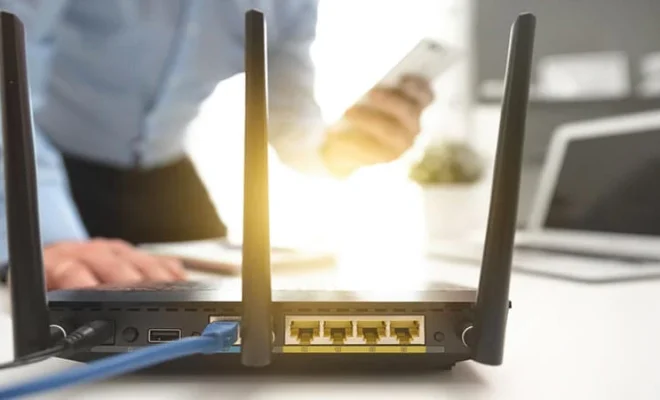
Upgrading your router’s firmware can significantly improve your device’s performance and security. A firmware update can fix bugs, add new features, and enhance the router’s stability. Installing a new firmware version is easy, and in this article, we’ll guide you through the process.

Step 1: Check the Router’s Model and Version

Before upgrading your router’s firmware, identify your router’s model and version number. You can find this information on the router’s label or in the device’s manual. To avoid bricking your router, make sure to download the correct firmware version for your router.

Step 2: Download the Firmware

Once you have identified your router’s model and version number, download the latest firmware from the manufacturer’s website. Download the firmware to your computer or smartphone’s local storage. Do not download the firmware to your router.

Step 3: Connect to the Router

Connect to your router using an Ethernet cable or via Wi-Fi. Launch a web browser and enter the router’s IP address in the address bar. You can find your router’s IP address on the router label, in the manual, or via the command prompt on a computer connected to the router.

Step 4: Enter Username and Password

Enter the username and password required to access the router. If you have not changed the login credentials, the default username and password should be listed on the router’s label or in the manual.

Step 5: Navigate to Firmware Upgrade Menu

Once you have logged in, navigate to the firmware upgrade menu. You will find this option in the router’s settings. The location of the firmware upgrade option may vary depending on the router model and version.

Step 6: Select the Firmware File

Click on the browse button or choose file to select the firmware upgrade file downloaded earlier. After selecting the file, click on the update button, and wait for the firmware to upload to the router. The updating process may take several minutes, depending on your router’s model and speed.

Step 7: Wait for the Router to Reboot

After the firmware has uploaded, the router will automatically reboot. Once the router has rebooted, the new firmware version will be installed. The default login credentials may change after the firmware update, so make sure to note any changes in the manual.

In conclusion, upgrading your router’s firmware is a simple process that can significantly improve the performance and security of the device. By following these easy steps, you can upgrade your router’s firmware and experience improved router functionality.

Previous Article

How to Send iTunes Songs and Albums ...

Next Article

What is Microsoft 365 Apps for Enterprise?

Matthew Lynch

Related articles More from author

  • Digital & Mobile Technology

    How to Download and Install Windows XP for Free

    June 23, 2023
    By Matthew Lynch
  • Digital & Mobile Technology

    How to Change the Safari Background on iPhone and iPad

    June 23, 2023
    By Matthew Lynch
  • Digital & Mobile Technology

    How to See Where You’ve Been With the Google Maps Timeline

    August 5, 2023
    By Matthew Lynch
  • Digital & Mobile Technology

    iPhone Getting Hot? Here’s Why and How to Fix It

    September 7, 2023
    By Matthew Lynch
  • Digital & Mobile Technology

    10 Ways to Speed Up a Bluetooth Data Transfer

    July 31, 2023
    By Matthew Lynch
  • Digital & Mobile Technology

    How to Convert a Word Document to HTML

    June 2, 2023
    By Matthew Lynch

Search

Login & Registration

  • Log in
  • Entries feed
  • Comments feed
  • WordPress.org

Newsletter

Signup for The Tech Edvocate Newsletter and have the latest in EdTech news and opinion delivered to your email address!

About Us

Since technology is not going anywhere and does more good than harm, adapting is the best course of action. That is where The Tech Edvocate comes in. We plan to cover the PreK-12 and Higher Education EdTech sectors and provide our readers with the latest news and opinion on the subject. From time to time, I will invite other voices to weigh in on important issues in EdTech. We hope to provide a well-rounded, multi-faceted look at the past, present, the future of EdTech in the US and internationally.

We started this journey back in June 2016, and we plan to continue it for many more years to come. I hope that you will join us in this discussion of the past, present and future of EdTech and lend your own insight to the issues that are discussed.

Newsletter

Signup for The Tech Edvocate Newsletter and have the latest in EdTech news and opinion delivered to your email address!

Contact Us

The Tech Edvocate
910 Goddin Street
Richmond, VA 23231
(601) 630-5238
[email protected]

Copyright © 2026 Matthew Lynch. All rights reserved.