The Tech Edvocate

Top Menu

  • Advertisement
  • Apps
  • Home Page
  • Home Page Five (No Sidebar)
  • Home Page Four
  • Home Page Three
  • Home Page Two
  • Home Tech2
  • Icons [No Sidebar]
  • Left Sidbear Page
  • Lynch Educational Consulting
  • My Account
  • My Speaking Page
  • Newsletter Sign Up Confirmation
  • Newsletter Unsubscription
  • Our Brands
  • Page Example
  • Privacy Policy
  • Protected Content
  • Register
  • Request a Product Review
  • Shop
  • Shortcodes Examples
  • Signup
  • Start Here
    • Governance
    • Careers
    • Contact Us
  • Terms and Conditions
  • The Edvocate
  • The Tech Edvocate Product Guide
  • Topics
  • Write For Us
  • Advertise

Main Menu

  • Start Here
    • Our Brands
    • Governance
      • Lynch Educational Consulting, LLC.
      • Dr. Lynch’s Personal Website
      • Careers
    • Write For Us
    • The Tech Edvocate Product Guide
    • Contact Us
    • Books
    • Edupedia
    • Post a Job
    • The Edvocate Podcast
    • Terms and Conditions
    • Privacy Policy
  • Topics
    • Assistive Technology
    • Child Development Tech
    • Early Childhood & K-12 EdTech
    • EdTech Futures
    • EdTech News
    • EdTech Policy & Reform
    • EdTech Startups & Businesses
    • Higher Education EdTech
    • Online Learning & eLearning
    • Parent & Family Tech
    • Personalized Learning
    • Product Reviews
  • Advertise
  • Tech Edvocate Awards
  • The Edvocate
  • Pedagogue
  • School Ratings

logo

The Tech Edvocate

  • Start Here
    • Our Brands
    • Governance
      • Lynch Educational Consulting, LLC.
      • Dr. Lynch’s Personal Website
        • My Speaking Page
      • Careers
    • Write For Us
    • The Tech Edvocate Product Guide
    • Contact Us
    • Books
    • Edupedia
    • Post a Job
    • The Edvocate Podcast
    • Terms and Conditions
    • Privacy Policy
  • Topics
    • Assistive Technology
    • Child Development Tech
    • Early Childhood & K-12 EdTech
    • EdTech Futures
    • EdTech News
    • EdTech Policy & Reform
    • EdTech Startups & Businesses
    • Higher Education EdTech
    • Online Learning & eLearning
    • Parent & Family Tech
    • Personalized Learning
    • Product Reviews
  • Advertise
  • Tech Edvocate Awards
  • The Edvocate
  • Pedagogue
  • School Ratings
  • Viaim Opennote Review: The AI Note-Taker That Disappears Into Your Daily Routine

  • A Visitors Guide to Long Beach (CA), United States

  • A Visitor’s Guide to Fresno (CA), United States

  • A Visitors Guide to New Orleans (LA), United States

  • A Visitors Guide to Sacramento (CA), United States

  • A Visitors Guide to Lyon, France

  • JisuLife Ultra2 Portable Fan: A Powerful Multi-Function Cooling Solution

  • A Visitors Guide to Viña del Mar, Chile

  • A Visitors Guide to Århus, Denmark

  • A Visitors Guide to Bakersfield (CA), United States

Digital & Mobile Technology
Home›Digital & Mobile Technology›How to Upgrade Your Laptop Hard Drive

How to Upgrade Your Laptop Hard Drive
By Matthew Lynch
May 30, 2023
0
Spread the love

Laptops, like any other technological device, have a lifespan. As they age, performance slows down, and storage fills up. One of the most common reasons for a slow laptop is a hard drive that is too full or outdated. So, if you want to boost the performance of your laptop, upgrading the hard drive is a must. In this article, we’ll show you how to upgrade your laptop hard drive.

1. Back up your data

Before you start upgrading your laptop hard drive, back up all your important data to an external drive, cloud, or any other storage device. This is to ensure that you don’t lose any valuable data during the upgrade process.

2. Purchase a new hard drive

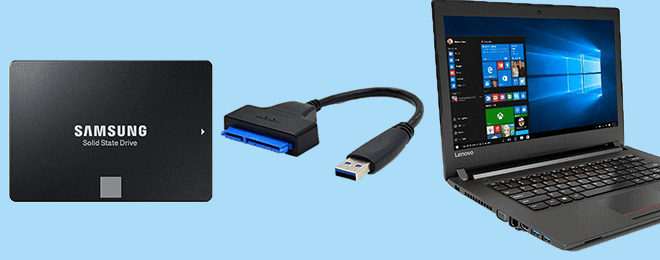
The next step is to purchase a new hard drive that is compatible with your laptop. You’ll need to know the size of the current hard drive, so you don’t end up buying one that doesn’t fit. You can either choose a traditional hard disk drive or a solid-state drive (SSD). SSDs are faster and more reliable than traditional hard drives, but they are more expensive.

3. Turn off your laptop and remove the battery

Once you have your new hard drive, turn off your laptop and remove the battery. You should also unplug your laptop from the power source and any other external devices.

4. Remove the old hard drive

Find the compartment where the hard drive is located. Depending on the laptop, you may need to remove some screws or pop off a plastic cover to access the hard drive. Once you have access, remove the old hard drive by gently pulling it out.

5. Install the new hard drive

Carefully insert the new hard drive into the empty slot. Make sure it is securely in place. If you are using a traditional hard drive, you’ll also need to attach the mounting bracket and screws to hold it in place.

6. Reassemble your laptop

Reinstall any screws or plastic covers that you removed to access the hard drive. Then, replace the battery and connect any external devices. Finally, turn on your laptop and make sure it recognizes the new hard drive.

7. Install the operating system and drivers

If you’ve installed a new, empty hard drive, you’ll need to install your operating system and drivers. Insert your operating system installation disc or USB drive and follow the prompts to install it. You’ll also need to download and install any drivers for your laptop’s hardware components.

In conclusion, upgrading your laptop hard drive is a simple process that can significantly improve your laptop’s performance. With these steps, you can easily upgrade your laptop’s hard drive by yourself. However, if you’re not comfortable doing it yourself, seek help from a professional.


Previous Article

How to Upgrade From Windows 7 to ...

Next Article

How to Upgrade Windows XP to Windows ...

Matthew Lynch

Related articles More from author

  • Digital & Mobile Technology

    How to Find Your Lost Windows or Office Product Keys

    May 28, 2023
    By Matthew Lynch
  • Digital & Mobile Technology

    The Ultimate Minecraft Commands Cheat Sheet

    June 12, 2023
    By Matthew Lynch
  • Digital & Mobile Technology

    Cryptology vs. Cryptography: What’s the Difference?

    June 13, 2023
    By Matthew Lynch
  • Digital & Mobile Technology

    Why Does Windows Crash? The 9 Most Common Reasons

    July 31, 2023
    By Matthew Lynch
  • Digital & Mobile Technology

    What to Check When a Computer Won’t Detect Network Printers

    May 15, 2023
    By Matthew Lynch
  • Digital & Mobile Technology

    Wireless Problems — Dropped Signals and Spotty Connections

    June 23, 2023
    By Matthew Lynch

Search

Login & Registration

  • Register
  • Log in
  • Entries feed
  • Comments feed
  • WordPress.org

Newsletter

Signup for The Tech Edvocate Newsletter and have the latest in EdTech news and opinion delivered to your email address!

About Us

Since technology is not going anywhere and does more good than harm, adapting is the best course of action. That is where The Tech Edvocate comes in. We plan to cover the PreK-12 and Higher Education EdTech sectors and provide our readers with the latest news and opinion on the subject. From time to time, I will invite other voices to weigh in on important issues in EdTech. We hope to provide a well-rounded, multi-faceted look at the past, present, the future of EdTech in the US and internationally.

We started this journey back in June 2016, and we plan to continue it for many more years to come. I hope that you will join us in this discussion of the past, present and future of EdTech and lend your own insight to the issues that are discussed.

Newsletter

Signup for The Tech Edvocate Newsletter and have the latest in EdTech news and opinion delivered to your email address!

Contact Us

The Tech Edvocate
910 Goddin Street
Richmond, VA 23231
(601) 630-5238
[email protected]

Copyright © 2025 Matthew Lynch. All rights reserved.