The Tech Edvocate

Top Menu

  • Advertisement
  • Apps
  • Home Page
  • Home Page Five (No Sidebar)
  • Home Page Four
  • Home Page Three
  • Home Page Two
  • Home Tech2
  • Icons [No Sidebar]
  • Left Sidbear Page
  • Lynch Educational Consulting
  • My Account
  • My Speaking Page
  • Newsletter Sign Up Confirmation
  • Newsletter Unsubscription
  • Our Brands
  • Page Example
  • Privacy Policy
  • Protected Content
  • Register
  • Request a Product Review
  • Shop
  • Shortcodes Examples
  • Signup
  • Start Here
    • Governance
    • Careers
    • Contact Us
  • Terms and Conditions
  • The Edvocate
  • The Tech Edvocate Product Guide
  • Topics
  • Write For Us
  • Advertise

Main Menu

  • Start Here
    • Our Brands
    • Governance
      • Lynch Educational Consulting, LLC.
      • Dr. Lynch’s Personal Website
      • Careers
    • Write For Us
    • The Tech Edvocate Product Guide
    • Contact Us
    • Books
    • Edupedia
    • Post a Job
    • The Edvocate Podcast
    • Terms and Conditions
    • Privacy Policy
  • Topics
    • Assistive Technology
    • Child Development Tech
    • Early Childhood & K-12 EdTech
    • EdTech Futures
    • EdTech News
    • EdTech Policy & Reform
    • EdTech Startups & Businesses
    • Higher Education EdTech
    • Online Learning & eLearning
    • Parent & Family Tech
    • Personalized Learning
    • Product Reviews
  • Advertise
  • Tech Edvocate Awards
  • The Edvocate
  • Pedagogue
  • School Ratings

logo

The Tech Edvocate

  • Start Here
    • Our Brands
    • Governance
      • Lynch Educational Consulting, LLC.
      • Dr. Lynch’s Personal Website
        • My Speaking Page
      • Careers
    • Write For Us
    • The Tech Edvocate Product Guide
    • Contact Us
    • Books
    • Edupedia
    • Post a Job
    • The Edvocate Podcast
    • Terms and Conditions
    • Privacy Policy
  • Topics
    • Assistive Technology
    • Child Development Tech
    • Early Childhood & K-12 EdTech
    • EdTech Futures
    • EdTech News
    • EdTech Policy & Reform
    • EdTech Startups & Businesses
    • Higher Education EdTech
    • Online Learning & eLearning
    • Parent & Family Tech
    • Personalized Learning
    • Product Reviews
  • Advertise
  • Tech Edvocate Awards
  • The Edvocate
  • Pedagogue
  • School Ratings
  • Shocking: Your Smart Ring Knows When You’re Having Sex

  • The SwiftRefi Scandal: 7 Astonishing Truths About Their ‘Zero-Fee’ Refinance

  • The AION 2 Scandal: Why This Korean MMO Controversy Is Boiling Over

  • The Bombshell Truth About Gaming’s Legal Reckoning

  • Staggering: AI’s ALS Breakthrough Comes With a $5 Million Price Tag

  • The Astonishing AI Predicting Housing Trends With 98% Accuracy — Regulators Are Freaking Out

  • Your Kids’ Classrooms Are Changing: Here’s What’s Coming by 2026

  • Jaw-Dropping: Millions Face Triple Tax Bills on Forgiven Student Loans

  • Mind-Blowing: Critical Infrastructure Faces Collapse From This Overlooked Threat

  • Unsettling: AI Agents Just Hacked 7 Major Banks — Here’s What It Means For Your Money

Digital & Mobile Technology
Home›Digital & Mobile Technology›How to Update Your Roku Device Manually

How to Update Your Roku Device Manually
By Matthew Lynch
May 30, 2023
0
Spread the love

Roku is a popular media streaming device that offers seamless access to a vast collection of TV shows, movies, and other video-related content. One of the best things about Roku is that it is very user-friendly, and updates are automated. However, there may come a time when you need to update your device manually, and in this article, we will take you through the steps on how to do it.

1. Check Your Roku Software Version

The first step to updating your Roku device manually is to check which software version you have installed. Follow these instructions to check your Roku software version:

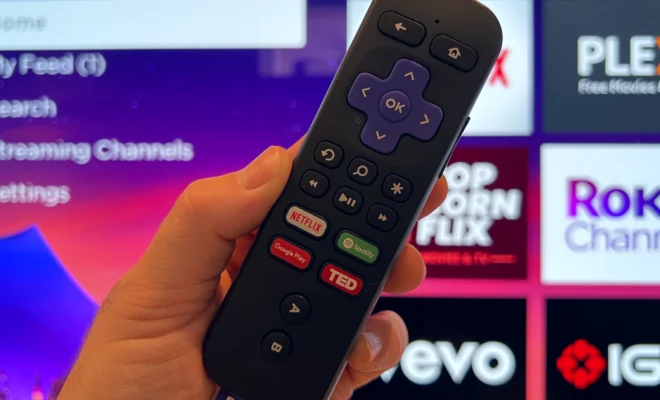
Step 1: Press the Home button on your Roku remote.

Step 2: Scroll down to the Settings option and select it.

Step 3: Navigate to the System option and click on it.

Step 4: Click on System Update and then select Check Now.

Step 5: Your Roku device will check for any available software updates, and if you have the latest version installed, it will display the message: “Your software is up to date.”

2. Manually Update Your Roku Device

If an update is available, follow these steps to manually update your Roku device:

Step 1: On your Roku remote, press the Home button.

Step 2: Navigate to the Settings option and select it.

Step 3: Select System, then select System Update.

Step 4: Choose the option “Check Now.”Your Roku device will start downloading any necessary updates.

Step 5: Wait for your Roku device to complete the update process. This may take several minutes, depending on the size of the update file.

Step 6: Once the update is complete, your Roku device will automatically restart to apply the changes.

3. Troubleshooting Updates

If you encounter any problems during the update process, try these troubleshooting tips:

– Check your internet connection. Make sure you have a stable internet connection for the update to proceed without any glitch.
– Check your Roku device’s storage space. Ensure that there is enough free space on your device to accommodate the latest software update. Overcrowding your device’s storage can create conflicts and prevent updates from installing.
– Unplug your Roku device. If your device seems to be stuck in the update process, unplug it from the power source the plug it back in after a few minutes.

In conclusion, updating your Roku device manually is easy and straightforward. Ensure that you follow the steps outlined above to prevent any issues from occurring while updating. Also, remember to check periodically for software updates so that your device can function optimally.


Previous Article

How to update your iPhone and What ...

Next Article

How to Update Your Router’s Firmware

Matthew Lynch

Related articles More from author

  • Digital & Mobile Technology

    How to Read a Graph

    August 3, 2023
    By Matthew Lynch
  • Digital & Mobile Technology

    How to Leave a Facebook Group

    September 7, 2023
    By Matthew Lynch
  • Digital & Mobile Technology

    What is deception technology?

    May 6, 2023
    By Matthew Lynch
  • Digital & Mobile Technology

    How to Add Text to a PDF File How to Edit a PDF on Chromebook

    June 4, 2023
    By Matthew Lynch
  • Digital & Mobile Technology

    What Is Google Docs?

    May 30, 2023
    By Matthew Lynch
  • Digital & Mobile Technology

    Apple’s Dynamic Island: Form Over Function?

    August 5, 2023
    By Matthew Lynch

Search

Login & Registration

  • Log in
  • Entries feed
  • Comments feed
  • WordPress.org

Newsletter

Signup for The Tech Edvocate Newsletter and have the latest in EdTech news and opinion delivered to your email address!

About Us

Since technology is not going anywhere and does more good than harm, adapting is the best course of action. That is where The Tech Edvocate comes in. We plan to cover the PreK-12 and Higher Education EdTech sectors and provide our readers with the latest news and opinion on the subject. From time to time, I will invite other voices to weigh in on important issues in EdTech. We hope to provide a well-rounded, multi-faceted look at the past, present, the future of EdTech in the US and internationally.

We started this journey back in June 2016, and we plan to continue it for many more years to come. I hope that you will join us in this discussion of the past, present and future of EdTech and lend your own insight to the issues that are discussed.

Newsletter

Signup for The Tech Edvocate Newsletter and have the latest in EdTech news and opinion delivered to your email address!

Contact Us

The Tech Edvocate
910 Goddin Street
Richmond, VA 23231
(601) 630-5238
[email protected]

Copyright © 2026 Matthew Lynch. All rights reserved.