The Tech Edvocate

Top Menu

  • Advertisement
  • Apps
  • Home Page
  • Home Page Five (No Sidebar)
  • Home Page Four
  • Home Page Three
  • Home Page Two
  • Home Tech2
  • Icons [No Sidebar]
  • Left Sidbear Page
  • Lynch Educational Consulting
  • My Account
  • My Speaking Page
  • Newsletter Sign Up Confirmation
  • Newsletter Unsubscription
  • Our Brands
  • Page Example
  • Privacy Policy
  • Protected Content
  • Register
  • Request a Product Review
  • Shop
  • Shortcodes Examples
  • Signup
  • Start Here
    • Governance
    • Careers
    • Contact Us
  • Terms and Conditions
  • The Edvocate
  • The Tech Edvocate Product Guide
  • Topics
  • Write For Us
  • Advertise

Main Menu

  • Start Here
    • Our Brands
    • Governance
      • Lynch Educational Consulting, LLC.
      • Dr. Lynch’s Personal Website
      • Careers
    • Write For Us
    • The Tech Edvocate Product Guide
    • Contact Us
    • Books
    • Edupedia
    • Post a Job
    • The Edvocate Podcast
    • Terms and Conditions
    • Privacy Policy
  • Topics
    • Assistive Technology
    • Child Development Tech
    • Early Childhood & K-12 EdTech
    • EdTech Futures
    • EdTech News
    • EdTech Policy & Reform
    • EdTech Startups & Businesses
    • Higher Education EdTech
    • Online Learning & eLearning
    • Parent & Family Tech
    • Personalized Learning
    • Product Reviews
  • Advertise
  • Tech Edvocate Awards
  • The Edvocate
  • Pedagogue
  • School Ratings

logo

The Tech Edvocate

  • Start Here
    • Our Brands
    • Governance
      • Lynch Educational Consulting, LLC.
      • Dr. Lynch’s Personal Website
        • My Speaking Page
      • Careers
    • Write For Us
    • The Tech Edvocate Product Guide
    • Contact Us
    • Books
    • Edupedia
    • Post a Job
    • The Edvocate Podcast
    • Terms and Conditions
    • Privacy Policy
  • Topics
    • Assistive Technology
    • Child Development Tech
    • Early Childhood & K-12 EdTech
    • EdTech Futures
    • EdTech News
    • EdTech Policy & Reform
    • EdTech Startups & Businesses
    • Higher Education EdTech
    • Online Learning & eLearning
    • Parent & Family Tech
    • Personalized Learning
    • Product Reviews
  • Advertise
  • Tech Edvocate Awards
  • The Edvocate
  • Pedagogue
  • School Ratings
  • Miro vs Conceptboard for project management

  • How to use Teamwork for resource management

  • How much does Procore cost per month

  • How to organize Microsoft Planner buckets

  • Is Teamwork good for billable hours

  • Procore vs Buildertrend which is better

  • Airtable project management templates

  • Can Miro track project progress

  • How to use Basecamp for client work

  • Can Lucidchart create swimlane diagrams

Digital & Mobile Technology
Home›Digital & Mobile Technology›How to Update a Lenovo Laptop

How to Update a Lenovo Laptop
By Matthew Lynch
June 4, 2023
0
Spread the love

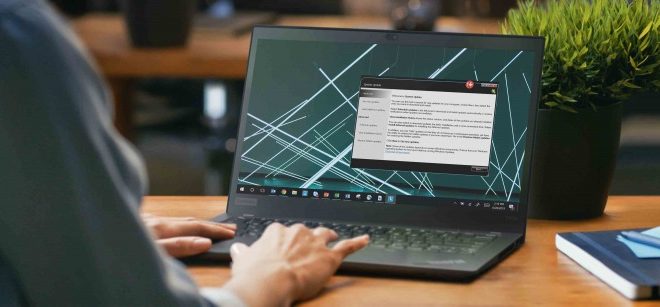
Updating your Lenovo laptop is crucial if you want to keep your device running smoothly and efficiently. Outdated systems or applications can cause your laptop to perform poorly, and can even lead to security concerns. In this article, we will explore how to update your Lenovo laptop in the easiest and most effective ways.

Check for System Updates

The first step when updating your Lenovo laptop is to check for and install system updates. These updates include firmware updates, BIOS updates, and driver updates. These updates are important to keep your laptop up to date with the latest operating system and performance updates.

To check for system updates on your Lenovo laptop, follow these steps:

1. Click on the Windows icon in the bottom left of your screen.
2. Click on Settings.
3. From the Settings menu, click on Update & Security.
4. In the Update & Security menu, click on Check for Updates.

Once you click on Check for Updates, your laptop will start searching for any available updates for your system. If any updates are available, click on Download and Install to begin the update process.

Check for Application Updates

Once you’ve checked for system updates, the next step is to check for application updates. These updates help to fix bugs, increase performance speed, and enhance security measures.

To check for application updates on your Lenovo laptop, follow these steps:

1. Open the Microsoft Store app on your laptop.
2. Click on the three dots icon located in the top right corner of the app.
3. Click on Downloads and Updates.
4. From the Downloads and Updates menu, click on Get Updates.

Once you click on Get Updates, your laptop will start searching for any application updates that are available for your system. If any updates are available, click on Update All to begin the update process.

Conclusion

Updating your Lenovo laptop is crucial for its performance, security, and longevity. By following these simple steps, you can ensure that your laptop is up to date with the latest software and applications. Always remember to regularly check for system and application updates and install them promptly to keep your laptop running smoothly.


Previous Article

How to Fix Netflix Error Code UI-800-2

Next Article

How Base64 Encoding Works

Matthew Lynch

Related articles More from author

  • Digital & Mobile Technology

    How to Check an AirTag’s Battery Life

    June 8, 2023
    By Matthew Lynch
  • Digital & Mobile Technology

    What Is MirrorLink? A Guide to the Car Smartphone Communication Standard

    June 23, 2023
    By Matthew Lynch
  • Digital & Mobile TechnologyGamification

    Top  Cross-Platform Gaming Headsets

    April 13, 2023
    By Matthew Lynch
  • Digital & Mobile Technology

    Best Couch Co-Op Games for Xbox Series X|S

    June 26, 2023
    By Matthew Lynch
  • Digital & Mobile Technology

    How to Install and Set Up the SimpliSafe Security System

    April 27, 2023
    By Matthew Lynch
  • Digital & Mobile Technology

    Apple Watch Battery Draining Fast? Try This Simple Fix

    August 3, 2023
    By Matthew Lynch

Search

Login & Registration

  • Log in
  • Entries feed
  • Comments feed
  • WordPress.org

Newsletter

Signup for The Tech Edvocate Newsletter and have the latest in EdTech news and opinion delivered to your email address!

About Us

Since technology is not going anywhere and does more good than harm, adapting is the best course of action. That is where The Tech Edvocate comes in. We plan to cover the PreK-12 and Higher Education EdTech sectors and provide our readers with the latest news and opinion on the subject. From time to time, I will invite other voices to weigh in on important issues in EdTech. We hope to provide a well-rounded, multi-faceted look at the past, present, the future of EdTech in the US and internationally.

We started this journey back in June 2016, and we plan to continue it for many more years to come. I hope that you will join us in this discussion of the past, present and future of EdTech and lend your own insight to the issues that are discussed.

Newsletter

Signup for The Tech Edvocate Newsletter and have the latest in EdTech news and opinion delivered to your email address!

Contact Us

The Tech Edvocate
910 Goddin Street
Richmond, VA 23231
(601) 630-5238
[email protected]

Copyright © 2026 Matthew Lynch. All rights reserved.