The Tech Edvocate

Top Menu

  • Advertisement
  • Apps
  • Home Page
  • Home Page Five (No Sidebar)
  • Home Page Four
  • Home Page Three
  • Home Page Two
  • Home Tech2
  • Icons [No Sidebar]
  • Left Sidbear Page
  • Lynch Educational Consulting
  • My Account
  • My Speaking Page
  • Newsletter Sign Up Confirmation
  • Newsletter Unsubscription
  • Our Brands
  • Page Example
  • Privacy Policy
  • Protected Content
  • Register
  • Request a Product Review
  • Shop
  • Shortcodes Examples
  • Signup
  • Start Here
    • Governance
    • Careers
    • Contact Us
  • Terms and Conditions
  • The Edvocate
  • The Tech Edvocate Product Guide
  • Topics
  • Write For Us
  • Advertise

Main Menu

  • Start Here
    • Our Brands
    • Governance
      • Lynch Educational Consulting, LLC.
      • Dr. Lynch’s Personal Website
      • Careers
    • Write For Us
    • The Tech Edvocate Product Guide
    • Contact Us
    • Books
    • Edupedia
    • Post a Job
    • The Edvocate Podcast
    • Terms and Conditions
    • Privacy Policy
  • Topics
    • Assistive Technology
    • Child Development Tech
    • Early Childhood & K-12 EdTech
    • EdTech Futures
    • EdTech News
    • EdTech Policy & Reform
    • EdTech Startups & Businesses
    • Higher Education EdTech
    • Online Learning & eLearning
    • Parent & Family Tech
    • Personalized Learning
    • Product Reviews
  • Advertise
  • Tech Edvocate Awards
  • The Edvocate
  • Pedagogue
  • School Ratings

logo

The Tech Edvocate

  • Start Here
    • Our Brands
    • Governance
      • Lynch Educational Consulting, LLC.
      • Dr. Lynch’s Personal Website
        • My Speaking Page
      • Careers
    • Write For Us
    • The Tech Edvocate Product Guide
    • Contact Us
    • Books
    • Edupedia
    • Post a Job
    • The Edvocate Podcast
    • Terms and Conditions
    • Privacy Policy
  • Topics
    • Assistive Technology
    • Child Development Tech
    • Early Childhood & K-12 EdTech
    • EdTech Futures
    • EdTech News
    • EdTech Policy & Reform
    • EdTech Startups & Businesses
    • Higher Education EdTech
    • Online Learning & eLearning
    • Parent & Family Tech
    • Personalized Learning
    • Product Reviews
  • Advertise
  • Tech Edvocate Awards
  • The Edvocate
  • Pedagogue
  • School Ratings
  • Ramp’s Staggering $60 Billion Valuation: 8 Reasons Why Investors Are Piling In

  • Uncovering the Cost: Why This AI Startup’s Collapse Is a Troubling Sign for Tech

  • The Silent Crisis: Why Your Next Console Will Cost a Fortune

  • Advisers urged to steer clear of ‘hyperscale’ AI models

  • The Quiet Crisis: Is AI in Education Creating an ‘Illusion of Learning’?

  • 84% of Ransomware Attacks Use AI: This Is How Your Own Systems Are Turning Against You

  • The Staggering Truth About Healthcare Cyberattacks: 76.6 Million Records Exposed in 2026

  • This Crucial Deadline For Rogue AI Is Much Closer Than You Think

  • This RNA Breakthrough Could Rewrite Alzheimer’s Treatment

  • This One Thing Is Silently Crushing US Consumer Inflation — And Your Wallet

Assistive Technology
Home›Assistive Technology›How to Type Symbols and Characters in Windows and macOS

How to Type Symbols and Characters in Windows and macOS

By Matthew Lynch
June 6, 2023
0
Spread the love

As technology has evolved over the years, the use of symbols and special characters has become more frequent, especially with the rise of social media and digital communication. To keep pace with the ever-changing landscape, it’s important to know how to type these symbols and characters on your computer. In this article, we will explore the methods involved in typing symbols and characters on Windows and macOS.

Windows

  1. Keyboard Shortcuts

One of the quickest and easiest ways to type symbols and characters on Windows is by using keyboard shortcuts. These shortcuts involve holding down the Alt key on your keyboard while typing in a specific combination of numbers on the numeric keypad. Here are a few examples:

– ☺ (Alt + 1)

– ☻ (Alt + 2)

– ♥ (Alt + 3)

– ♦ (Alt + 4)

– ♣ (Alt + 5)

– ♠ (Alt + 6)

– • (Alt + 7)

– ◘ (Alt + 8)

– ○ (Alt + 9)

– ◙ (Alt + 10)

To make sure that the numeric keypad is turned on, press Num Lock on the keyboard. Keep in mind that not every symbol or character can be typed using keyboard shortcuts.

  1. Character Map

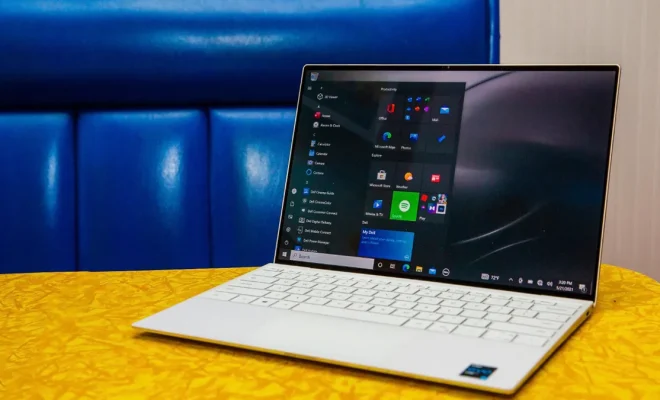
If you can’t find the symbol or character you’re looking for using a keyboard shortcut, you can try using the Character Map. To access this tool, go to the Start menu and type “Character Map” in the search bar.

The Character Map will show you a grid of symbols and characters with the option to filter them by font and category. Once you find the symbol or character you want, click on it to select it, and then click on the “Copy” button to copy it to your clipboard. You can then paste the symbol or character into any document or text field.

MacOS

  1. Keyboard Shortcuts

Like Windows, macOS has its own set of keyboard shortcuts for typing symbols and characters. However, these shortcuts involve holding down the Option key instead of the Alt key. Here are a few examples:

– ☺ (Option + 1)

– ☻ (Option + 2)

– ♥ (Option + 3)

– ♦ (Option + 4)

– ♣ (Option + 5)

– ♠ (Option + 6)

– • (Option + 8)

– ⌥ (Option)

– ⌘ (Command)

– ⏏ (Control + Shift + Eject)

  1. Character Viewer

If you’re having trouble finding the symbol or character you want using keyboard shortcuts, macOS has a Character Viewer that can help you out. To access this tool, click on the Apple menu and select “System Preferences”. From there, select “Keyboard” and then click on the “Input Sources” tab. Check the box next to “Show Input menu in menu bar”.

Next, click on the Input menu in the menu bar and select “Show Emoji & Symbols”. This will open up the Character Viewer, which allows you to browse through a wide range of symbols and characters. Once you find the symbol or character you want, simply click on it to insert it into your document or text field.

In conclusion, typing symbols and characters on your computer is essential for modern communication. By using the above methods to find and insert these symbols and characters, you can spice up your text and make it more visually appealing. Now, start exploring and discover a broad range of symbols and characters that can make you an expert in digital expressions.


Previous Article

MHL: What It Is and How to ...

Next Article

How to Find a Modem’s IP Address

Matthew Lynch

Related articles More from author

  • Assistive Technology

    How to Remove Text From a PDF

    June 15, 2023
    By Matthew Lynch
  • Assistive Technology

    Adding an Auxiliary Battery

    June 3, 2023
    By Matthew Lynch
  • Assistive Technology

    Ways to Fix Windows SafeSearch When You Can’t Turn It Off

    June 21, 2023
    By Matthew Lynch
  • Assistive Technology

    How to Fix Antimalware Service Executable High CPU Usage on Windows 10

    June 14, 2023
    By Matthew Lynch
  • Assistive Technology

    6 Ways That Edtech Can Help Students with Autism

    September 12, 2017
    By Matthew Lynch
  • Assistive Technology

    How to Delete Apps on Chromebook

    June 23, 2023
    By Matthew Lynch

Search

Login & Registration

  • Log in
  • Entries feed
  • Comments feed
  • WordPress.org

Newsletter

Signup for The Tech Edvocate Newsletter and have the latest in EdTech news and opinion delivered to your email address!

About Us

Since technology is not going anywhere and does more good than harm, adapting is the best course of action. That is where The Tech Edvocate comes in. We plan to cover the PreK-12 and Higher Education EdTech sectors and provide our readers with the latest news and opinion on the subject. From time to time, I will invite other voices to weigh in on important issues in EdTech. We hope to provide a well-rounded, multi-faceted look at the past, present, the future of EdTech in the US and internationally.

We started this journey back in June 2016, and we plan to continue it for many more years to come. I hope that you will join us in this discussion of the past, present and future of EdTech and lend your own insight to the issues that are discussed.

Newsletter

Signup for The Tech Edvocate Newsletter and have the latest in EdTech news and opinion delivered to your email address!

Contact Us

The Tech Edvocate
910 Goddin Street
Richmond, VA 23231
(601) 630-5238
[email protected]

Copyright © 2026 Matthew Lynch. All rights reserved.