The Tech Edvocate

Top Menu

  • Advertisement
  • Apps
  • Home Page
  • Home Page Five (No Sidebar)
  • Home Page Four
  • Home Page Three
  • Home Page Two
  • Home Tech2
  • Icons [No Sidebar]
  • Left Sidbear Page
  • Lynch Educational Consulting
  • My Account
  • My Speaking Page
  • Newsletter Sign Up Confirmation
  • Newsletter Unsubscription
  • Our Brands
  • Page Example
  • Privacy Policy
  • Protected Content
  • Register
  • Request a Product Review
  • Shop
  • Shortcodes Examples
  • Signup
  • Start Here
    • Governance
    • Careers
    • Contact Us
  • Terms and Conditions
  • The Edvocate
  • The Tech Edvocate Product Guide
  • Topics
  • Write For Us
  • Advertise

Main Menu

  • Start Here
    • Our Brands
    • Governance
      • Lynch Educational Consulting, LLC.
      • Dr. Lynch’s Personal Website
      • Careers
    • Write For Us
    • The Tech Edvocate Product Guide
    • Contact Us
    • Books
    • Edupedia
    • Post a Job
    • The Edvocate Podcast
    • Terms and Conditions
    • Privacy Policy
  • Topics
    • Assistive Technology
    • Child Development Tech
    • Early Childhood & K-12 EdTech
    • EdTech Futures
    • EdTech News
    • EdTech Policy & Reform
    • EdTech Startups & Businesses
    • Higher Education EdTech
    • Online Learning & eLearning
    • Parent & Family Tech
    • Personalized Learning
    • Product Reviews
  • Advertise
  • Tech Edvocate Awards
  • The Edvocate
  • Pedagogue
  • School Ratings

logo

The Tech Edvocate

  • Start Here
    • Our Brands
    • Governance
      • Lynch Educational Consulting, LLC.
      • Dr. Lynch’s Personal Website
        • My Speaking Page
      • Careers
    • Write For Us
    • The Tech Edvocate Product Guide
    • Contact Us
    • Books
    • Edupedia
    • Post a Job
    • The Edvocate Podcast
    • Terms and Conditions
    • Privacy Policy
  • Topics
    • Assistive Technology
    • Child Development Tech
    • Early Childhood & K-12 EdTech
    • EdTech Futures
    • EdTech News
    • EdTech Policy & Reform
    • EdTech Startups & Businesses
    • Higher Education EdTech
    • Online Learning & eLearning
    • Parent & Family Tech
    • Personalized Learning
    • Product Reviews
  • Advertise
  • Tech Edvocate Awards
  • The Edvocate
  • Pedagogue
  • School Ratings
  • The Silent Revolution: How AI Property Valuation Is Quietly Reshaping Real Estate

  • The Astonishing Truth: Why Your Dream Car Is Now a $52,000 Illusion

  • Toxic Algorithms: Why Your Bank’s AI Could Cost You Everything

  • OpenAI’s GPT-6 Cyber: A Dangerous New AI Threat or Our Ultimate Digital Guardian?

  • This Game-Changing Natural Ozempic Alternative Just Blew Up on Social Media

  • Bónuszösszeg, ingyen pörgetés és befizetési feltétel: üdvözlő és befizetés nélküli kaszinóajánlatok magyar játékosoknak

  • 9 Critical Reasons Why Athexio Might Be The Investment You Need (Or Should Avoid)

  • A Single Breakthrough Could Finally Kill Range Anxiety for Millions of EV Owners

  • Your Money, Their AI: The Secret Agents Invading Bank Accounts

  • US Battery as a Service Market Shifts Toward Fleet-Based Energy

Digital & Mobile Technology
Home›Digital & Mobile Technology›How to Transfer Data From Mac to Mac With Migration Assistant

How to Transfer Data From Mac to Mac With Migration Assistant
By Matthew Lynch
June 4, 2023
0
Spread the love

As a Mac user, you may encounter situations where you need to transfer data from one Mac to another. This could be due to a variety of reasons such as upgrading to a new Mac or transferring files to a colleague or family member. Fortunately, Apple makes this process incredibly easy with the built-in Migration Assistant tool. In this article, we’ll take a closer look at how to transfer data from Mac to Mac with Migration Assistant.

What is Migration Assistant?

Before we dive into the steps involved, it’s important to have a basic understanding of what Migration Assistant is. Migration Assistant is a utility that comes pre-installed on every Mac that allows you to transfer data, settings, and applications from one Mac to another. It simplifies the data transfer process by automatically detecting the data that needs to be transferred and transferring it seamlessly.

Step 1: Update your Macs

The first step before transferring data is to ensure that both Macs are running the latest version of macOS. This will help ensure that any compatibility issues between the two Macs are resolved. To check for updates, click on the Apple menu and then click on “Software Update.” If any updates are available, download and install them on both Macs.

Step 2: Connect the two Macs

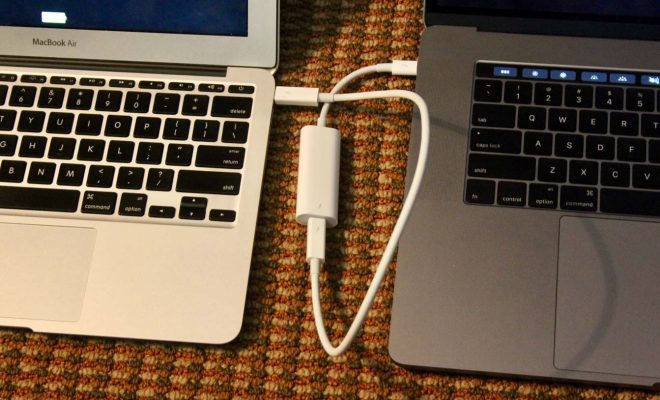
Once both Macs are up to date, the next step is to connect the two Macs. There are two ways to do this:

– Ethernet cable: This is the fastest method for transferring data. Connect the two Macs using an Ethernet cable and make sure that both of them are running and connected to the same network.

– Wi-Fi: This method is slower than using an Ethernet cable but is more convenient. Make sure that both Macs are connected to the same Wi-Fi network.

Step 3: Open Migration Assistant

On the Mac that you want to transfer data from, open Migration Assistant. You can find it in the Utilities folder within the Applications folder, or search for it using Spotlight.

Step 4: Select the transfer method

When you open Migration Assistant, you’ll be presented with two options: “From a Mac, Time Machine backup, or startup disk” or “To another Mac.” Select the option that’s appropriate for you.

Step 5: Select the files to transfer

Once you’ve selected the transfer method, Migration Assistant will ask you to select the files that you want to transfer. You can select all files or use the custom selection option to choose specific files to transfer.

Step 6: Start the transfer

After selecting the files, you’ll be asked to confirm the transfer. Click on the “Continue” button and the transfer process will begin. This may take a while depending on the size of the files being transferred and the transfer method used.

Step 7: Complete the transfer

Once the transfer is complete, you’ll receive a notification on both Macs. You can now disconnect the Macs and start using the data on your new Mac.

In conclusion, transferring data from one Mac to another is a simple and straightforward process thanks to Migration Assistant. By following the steps outlined in this article, you should be able to transfer your files, settings, and applications with ease. So the next time you upgrade your Mac, don’t fret about losing your files – use Migration Assistant and make the transfer process seamless.


Previous Article

How to Fix It When Your Xbox ...

Next Article

Rock Band 4 on Xbox One Instrument ...

Matthew Lynch

Related articles More from author

  • Digital & Mobile Technology

    Can Data Be Recovered From a Failed SSD? What You Need to Know

    June 12, 2023
    By Matthew Lynch
  • Digital & Mobile Technology

    How to Screen Share With FaceTime on a Mac

    August 5, 2023
    By Matthew Lynch
  • Digital & Mobile Technology

    What Is Microphone Gain & How Does It Affect Recording Volume?

    August 5, 2023
    By Matthew Lynch
  • Digital & Mobile Technology

    Is Straight Talk Down … Or Is It Just You?

    June 8, 2023
    By Matthew Lynch
  • Digital & Mobile Technology

    10 Ways to Open the Control Panel in Windows 11

    August 1, 2023
    By Matthew Lynch
  • Digital & Mobile Technology

    Best Harvard Courses You Can Take Online for Free

    September 7, 2023
    By Matthew Lynch

Search

Login & Registration

  • Log in
  • Entries feed
  • Comments feed
  • WordPress.org

Newsletter

Signup for The Tech Edvocate Newsletter and have the latest in EdTech news and opinion delivered to your email address!

About Us

Since technology is not going anywhere and does more good than harm, adapting is the best course of action. That is where The Tech Edvocate comes in. We plan to cover the PreK-12 and Higher Education EdTech sectors and provide our readers with the latest news and opinion on the subject. From time to time, I will invite other voices to weigh in on important issues in EdTech. We hope to provide a well-rounded, multi-faceted look at the past, present, the future of EdTech in the US and internationally.

We started this journey back in June 2016, and we plan to continue it for many more years to come. I hope that you will join us in this discussion of the past, present and future of EdTech and lend your own insight to the issues that are discussed.

Newsletter

Signup for The Tech Edvocate Newsletter and have the latest in EdTech news and opinion delivered to your email address!

Contact Us

The Tech Edvocate
910 Goddin Street
Richmond, VA 23231
(601) 630-5238
[email protected]

Copyright © 2026 Matthew Lynch. All rights reserved.