The Tech Edvocate

Top Menu

  • Advertisement
  • Apps
  • Home Page
  • Home Page Five (No Sidebar)
  • Home Page Four
  • Home Page Three
  • Home Page Two
  • Home Tech2
  • Icons [No Sidebar]
  • Left Sidbear Page
  • Lynch Educational Consulting
  • My Account
  • My Speaking Page
  • Newsletter Sign Up Confirmation
  • Newsletter Unsubscription
  • Our Brands
  • Page Example
  • Privacy Policy
  • Protected Content
  • Register
  • Request a Product Review
  • Shop
  • Shortcodes Examples
  • Signup
  • Start Here
    • Governance
    • Careers
    • Contact Us
  • Terms and Conditions
  • The Edvocate
  • The Tech Edvocate Product Guide
  • Topics
  • Write For Us
  • Advertise

Main Menu

  • Start Here
    • Our Brands
    • Governance
      • Lynch Educational Consulting, LLC.
      • Dr. Lynch’s Personal Website
      • Careers
    • Write For Us
    • The Tech Edvocate Product Guide
    • Contact Us
    • Books
    • Edupedia
    • Post a Job
    • The Edvocate Podcast
    • Terms and Conditions
    • Privacy Policy
  • Topics
    • Assistive Technology
    • Child Development Tech
    • Early Childhood & K-12 EdTech
    • EdTech Futures
    • EdTech News
    • EdTech Policy & Reform
    • EdTech Startups & Businesses
    • Higher Education EdTech
    • Online Learning & eLearning
    • Parent & Family Tech
    • Personalized Learning
    • Product Reviews
  • Advertise
  • Tech Edvocate Awards
  • The Edvocate
  • Pedagogue
  • School Ratings

logo

The Tech Edvocate

  • Start Here
    • Our Brands
    • Governance
      • Lynch Educational Consulting, LLC.
      • Dr. Lynch’s Personal Website
        • My Speaking Page
      • Careers
    • Write For Us
    • The Tech Edvocate Product Guide
    • Contact Us
    • Books
    • Edupedia
    • Post a Job
    • The Edvocate Podcast
    • Terms and Conditions
    • Privacy Policy
  • Topics
    • Assistive Technology
    • Child Development Tech
    • Early Childhood & K-12 EdTech
    • EdTech Futures
    • EdTech News
    • EdTech Policy & Reform
    • EdTech Startups & Businesses
    • Higher Education EdTech
    • Online Learning & eLearning
    • Parent & Family Tech
    • Personalized Learning
    • Product Reviews
  • Advertise
  • Tech Edvocate Awards
  • The Edvocate
  • Pedagogue
  • School Ratings
  • Cybersecurity vs. Green Energy: Which Path Will Make You Richer in 2026?

  • Why These 10 Renewable Energy Certifications Are Quietly Reshaping Careers by 2026

  • Why Millions Are Rushing to Online Renewable Energy Certifications Right Now

  • August AI vs. USMLE: The Unsettling Future of Medical Licensing

  • One AI’s Perfect USMLE Score Just Blew Up Medical Education As We Know It

  • This AI Just Aced the USMLE: Why Your Medical Career Might Never Be the Same

  • The Quiet Exodus: Why Senior FinTech Developers Are Abandoning Corporate Life

  • The Quiet Revolution: Where Elite FinTech Developers Are Fleeing in 2026

  • The Quiet Exodus: Why Senior FinTech Developers Are Ditching Corporate Life

  • AI Governance Software: Pricing and Features Comparison

Digital & Mobile Technology
Home›Digital & Mobile Technology›How to Take a Photo on a Chromebook

How to Take a Photo on a Chromebook
By Matthew Lynch
June 23, 2023
0
Spread the love

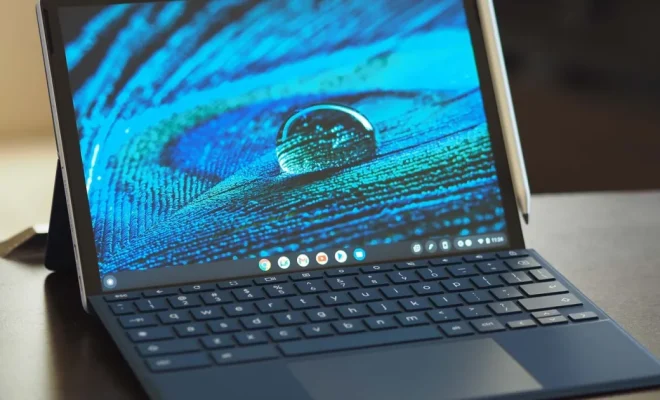
Chromebooks have become increasingly popular in recent years, especially for students and people who need a machine to do tasks on-the-go. One of the most frequently asked questions is how to take a photo on a Chromebook. In this article, we will explain the steps you need to follow to take a photo on your Chromebook.

Using your Chromebook’s built-in camera

Step 1: Open the Camera app

The first step to taking a photo on your Chromebook is to open the Camera app. You can do this by clicking on the Launcher icon at the bottom left of the screen and then finding the Camera app. Alternatively, you can simply use the search bar and search for “Camera.”

Step 2: Set up the shot

Once you have opened the Camera app, you will see a view of what the camera is seeing. If you are using a Chromebook with a rear-facing camera, you can switch to the front-facing camera by clicking on the icon in the top-right corner. Next, make sure you have the shot you want in view. You can adjust the camera angle and zoom in or out by using your fingers on the trackpad.

Step 3: Take the photo

When you have everything set up and in view, click on the shutter button located at the bottom-center of the screen. This will take the photo and save it to your Downloads folder by default.

Using a third-party camera app

If you prefer to use a third-party camera app, there are many options available in the Chrome Web Store. Some popular ones are:

1. Camera by Google – This app has all the basic features you need to take great photos. It also includes a range of filters and effects that you can apply to your photos.

2. Camerafi Live – This app is great if you want to use your Chromebook as a live streaming camera. It supports both USB and Wi-Fi connections.

3. Pixlr Editor – Although not a camera app, Pixlr Editor is a great photo editor that you can use to edit your photos after taking them on your Chromebook.

Conclusion

Taking a photo on a Chromebook is a relatively simple process. With just a few clicks, you can capture memories that will last a lifetime. Whether you prefer to use the built-in camera app or a third-party app, you have plenty of options to choose from. So, go ahead and start capturing those precious moments!

Previous Article

How to Use Facebook on Apple Watch

Next Article

How to Change the Email Sender Name ...

Matthew Lynch

Related articles More from author

  • Digital & Mobile Technology

    What Is a Mini PC and Should You Buy One?

    April 18, 2023
    By Matthew Lynch
  • Digital & Mobile Technology

    The Top Apps for Tracking Your Baby’s Development

    June 23, 2023
    By Matthew Lynch
  • Digital & Mobile Technology

    How Do I Reset My Windows Password?

    July 15, 2023
    By Matthew Lynch
  • Digital & Mobile Technology

    Best Wordle Starting Words to Help You Preserve Your Streak

    August 5, 2023
    By Matthew Lynch
  • Digital & Mobile Technology

    A Guide to Stand-Alone Software

    July 31, 2023
    By Matthew Lynch
  • Digital & Mobile Technology

    Do Blue Light Glasses Work? Everything You Need to Know

    April 12, 2023
    By Matthew Lynch

Search

Login & Registration

  • Log in
  • Entries feed
  • Comments feed
  • WordPress.org

Newsletter

Signup for The Tech Edvocate Newsletter and have the latest in EdTech news and opinion delivered to your email address!

About Us

Since technology is not going anywhere and does more good than harm, adapting is the best course of action. That is where The Tech Edvocate comes in. We plan to cover the PreK-12 and Higher Education EdTech sectors and provide our readers with the latest news and opinion on the subject. From time to time, I will invite other voices to weigh in on important issues in EdTech. We hope to provide a well-rounded, multi-faceted look at the past, present, the future of EdTech in the US and internationally.

We started this journey back in June 2016, and we plan to continue it for many more years to come. I hope that you will join us in this discussion of the past, present and future of EdTech and lend your own insight to the issues that are discussed.

Newsletter

Signup for The Tech Edvocate Newsletter and have the latest in EdTech news and opinion delivered to your email address!

Contact Us

The Tech Edvocate
910 Goddin Street
Richmond, VA 23231
(601) 630-5238
[email protected]

Copyright © 2026 Matthew Lynch. All rights reserved.