How to sync Google Play Books across devices
“`html
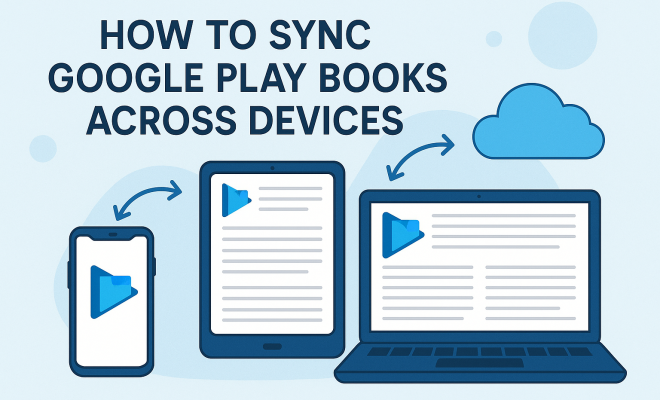
With the rise of digital reading, many people have turned to platforms like Google Play Books to access a vast library of eBooks and audiobooks. But what’s the best way to ensure a seamless reading experience across all your devices? Knowing how to sync Google Play Books can enhance your reading experience by allowing you to pick up right where you left off, whether you’re on your phone, tablet, or computer. In this comprehensive guide, we’ll explore the ins and outs of syncing Google Play Books, discussing background information, practical steps, and common troubleshooting tips.
1. Understanding Google Play Books
Google Play Books is a digital distribution platform that allows users to purchase and read eBooks and audiobooks. Launched in 2010, it has grown to become one of the largest digital libraries, featuring millions of titles across various genres. One significant advantage of Google Play Books is its ability to sync content across multiple devices, making it easier for users to enjoy their books anytime, anywhere.
Moreover, Google Play Books allows users to upload their own PDF and EPUB files, adding a layer of personalization to their library. This feature, combined with the robust syncing capabilities of the platform, positions Google Play Books as a top choice for avid readers who want to maintain access to their favorite titles across devices.
2. Setting Up Google Play Books for Syncing
To begin syncing Google Play Books, you’ll need to ensure that you have the app installed on all your devices. The platform is compatible with a variety of devices, including smartphones, tablets, and computers. Start by downloading the app from the Google Play Store (for Android devices) or the Apple App Store (for iOS devices). If you’re using a computer, you can access Google Play Books directly through a web browser.
After installing the app, sign in to your Google account. This is crucial as it allows your reading progress, bookmarks, and notes to synchronize across devices. If you already have a Google account, simply enter your credentials. If not, you’ll need to create one. Once logged in, you’re ready to start exploring the synchronization features of Google Play Books.
3. Enabling Sync on Your Devices
Now that you have Google Play Books set up, it’s essential to enable the sync feature. On Android devices, navigate to the app settings by tapping on your profile icon, then select “Settings.” Here, you’ll find an option labeled “Sync” that you need to toggle on. For iOS devices, the process is similar: go to the app settings and ensure that the “Sync” option is enabled.
If you’re using a web browser, syncing is automatic as long as you are logged into your Google account. You can check your account settings to ensure that sync is enabled. It’s important to note that any changes made on one device will reflect on all other devices once syncing is complete, so you can easily switch between your phone, tablet, and computer without losing your place.
4. How Syncing Works: Behind the Scenes
Understanding how syncing works can enhance your experience even further. When you read a book on Google Play Books, your progress is stored in Google’s cloud. This means that whenever you finish a chapter or add bookmarks, that information is updated in real-time. The next time you open the app on another device, Google Play Books retrieves your latest progress and displays it accordingly.
Additionally, any notes or highlights you make within the app are also synced, which can be particularly useful for students or professionals who use the platform for research or presentations. Leveraging this cloud functionality minimizes the risk of losing your reading data and maximizes the accessibility of your book collection.
5. Syncing Audiobooks on Google Play
In addition to eBooks, Google Play Books offers a collection of audiobooks that can also be synced across devices. The process for syncing audiobooks is similar to eBooks. When you listen to an audiobook on one device, your progress will sync to all other devices where you have Google Play Books installed. This allows for a seamless transition between reading and listening, giving you the flexibility to enjoy your content in the way that suits you best.
To ensure your audiobooks sync properly, make sure the sync feature is enabled as mentioned in the previous sections. Furthermore, Google Play Books also allows the customization of playback speed and bookmarking specific moments in the audiobook, which will also sync across devices, enhancing your listening experience.
6. Troubleshooting Sync Issues
Despite the convenience of syncing, users may encounter issues from time to time. If you find that your Google Play Books are not syncing correctly, first check your internet connection. A stable internet connection is essential for syncing; try switching between Wi-Fi and mobile data to see if that resolves the issue. (See: Google Play Books overview.)
Another common problem could stem from your device settings. Ensure that the sync option is enabled in your app settings on all devices. If syncing still doesn’t work, try logging out of your Google account and then logging back in, or uninstalling and reinstalling the app. These steps often resolve minor glitches and refresh the sync functionality.
7. Exploring Additional Features of Google Play Books
In addition to syncing capabilities, Google Play Books offers a variety of features that enhance the reading experience. For instance, the platform supports customizable reading options, allowing you to adjust font styles, text size, and background colors according to your preferences. This customization can make reading more comfortable, especially for those who may have visual impairments. top E Ink tablets offers useful background here.
Moreover, Google Play Books provides access to a selection of free books and educational resources, making it an excellent choice for students and casual readers alike. The platform also includes a “Reading List” feature, where you can save titles you wish to read later, creating a personalized library tailored to your interests.
8. Keeping Your Library Organized
As you add more titles to your Google Play Books library, organization becomes key. Google Play Books allows you to categorize your books into collections, making it easier to locate specific titles. You can create collections based on genres, reading status, or any other criteria that suits your reading habits.
To organize your library, simply go to your library in the app, select “Collections,” and then create new collections as needed. This not only helps keep your books sorted but also enhances your overall reading experience as you can quickly find what you want to read next without sifting through a long list of titles.
9. Benefits of Syncing Google Play Books
Syncing Google Play Books offers a range of benefits that improve how you interact with your digital reading materials. One of the most significant advantages is accessibility. Whether you’re on a commute, at home, or traveling, you can read or listen to your books seamlessly across devices without any interruptions.
Another major benefit is that it saves time. With syncing, you don’t have to remember where you left off or manually keep track of your reading progress. This feature is particularly useful for busy professionals or students juggling multiple responsibilities and reading materials.
Additionally, synced notes and highlights allow for better retention of information. Readers can jot down thoughts or important passages on one device and review them on another, making it easier to study or reference important content later on.
10. Syncing Settings and Preferences
Within Google Play Books, syncing settings are not only about enabling or disabling the feature; they also include various preferences that can affect how the app operates. For instance, you can choose to sync only over Wi-Fi, which is useful if you have limited mobile data. This option is particularly beneficial for users who frequently switch between Wi-Fi and cellular networks, as it helps manage data usage effectively.
In addition, some users may prefer to limit syncing to certain types of content, like eBooks or audiobooks. Familiarizing yourself with these settings can help ensure you are only syncing what you need, thus streamlining your reading experience.
11. Expert Perspectives on Digital Reading
Experts in the field of digital reading and education emphasize the importance of utilizing technology effectively to enhance learning and leisure reading. Dr. Sarah Johnson, an educational psychologist, notes that “the ability to sync reading materials across devices not only facilitates convenience but also contributes to a more integrated learning experience.”
Her perspective highlights how technologies like Google Play Books can be leveraged in both academic and personal realms to optimize information retention. Students, for example, can highlight and annotate texts on their tablets during lectures and later review those annotations on their smartphones while commuting.
Furthermore, a recent study from the Pew Research Center indicates that 72% of adult readers prefer digital formats due to their portability and ease of access. This aligns well with the capabilities of platforms like Google Play Books, which cater to the modern reader’s lifestyle.
12. Comparing Google Play Books with Other Platforms
When it comes to digital reading, Google Play Books isn’t the only option available. Platforms like Kindle, Apple Books, and Kobo also offer similar functionalities. However, there are some key differences worth noting. (See: importance of health literacy.)
For instance, while Kindle allows syncing primarily between Amazon devices and apps, Google Play Books offers a broader compatibility range across various platforms. This means you can access your Google Play Books library on any device with a web browser, regardless of operating system, whereas Kindle is more confined to Amazon’s ecosystem.
Apple Books, on the other hand, shines in its integration with other Apple services but lacks the extensive library of available titles that Google Play Books boasts. Users who prioritize access to a wide range of both popular and niche titles may find Google Play Books more appealing.
As for Kobo, it provides a unique feature in its eReader devices, which include additional functionalities like reading statistics and detailed analytics. However, Google Play Books remains a strong contender for those who appreciate an extensive library alongside seamless syncing capabilities.
13. Frequently Asked Questions (FAQ)
How do I know if my books are synced?
When you open Google Play Books on a different device, your last read position should automatically appear. If it doesn’t, check your sync settings to ensure they are enabled on all devices.
Can I use Google Play Books offline?
Yes, you can download eBooks and audiobooks for offline reading or listening. Just ensure you have synced the content you want before going offline.
What if I forget to sync?
Don’t worry! Google Play Books typically syncs automatically whenever you open the app and have an internet connection. Just make sure the sync feature is turned on in your settings.
Is there a limit to how many devices I can sync?
There is no strict limit on the number of devices you can sync with Google Play Books, as long as you are logged into the same Google account across all your devices. We covered ways for kids to read in more detail.
Can I share my Google Play Books library with others?
No, Google Play Books does not currently support sharing eBooks or audiobooks from one account to another. Each user must have their own Google account to access their library.
What formats does Google Play Books support?
Google Play Books supports various formats for eBooks, including EPUB and PDF. This means you can upload personal documents and enjoy them alongside purchased titles.
Are there any subscription options for Google Play Books?
Google Play Books primarily operates on a pay-per-book basis. However, they occasionally offer promotional deals and discounts for users, and some titles may be available for rental at a lower price.
Can I read Google Play Books on a Kindle?
Unfortunately, you cannot read Google Play Books directly on a Kindle device. However, you can read Google Play Books on any device with a web browser or download the app on Android or iOS devices. (See: New York Times on Google Play Books.)
What should I do if my app crashes while syncing?
If the app crashes during syncing, try restarting the app or your device. If the problem persists, consider uninstalling and reinstalling the app. Ensure your device’s operating system is up to date as well.
14. Final Thoughts on Syncing Google Play Books
Syncing Google Play Books across devices is a straightforward process that significantly enhances your reading experience. By understanding the setup, features, and potential troubleshooting steps, you’ll be well-equipped to enjoy your digital library from anywhere. Whether you’re commuting, traveling, or simply relaxing at home, the ability to seamlessly transition between devices makes Google Play Books a powerful tool for any reader.
So, get started today! Explore the vast world of digital reading, keep your books organized, and never lose your place again with the efficient syncing capabilities of Google Play Books. Happy reading!
15. Statistics on Digital Reading Trends
As digital reading becomes more popular, various statistics highlight its growth and impact. According to a study by the American Association of Publishers, eBook sales increased by 10% in the last year alone, showing a strong preference for digital formats among readers. Additionally, a report by Statista indicates that around 20% of U.S. adults read eBooks regularly, with the number projected to grow as smartphones and tablets become more integrated into daily life.
Furthermore, the National Literacy Trust found that access to digital reading materials can improve literacy rates, particularly among children and teenagers. This suggests that platforms like Google Play Books not only cater to existing readers but also contribute to developing new generations of readers who enjoy the convenience of digital books.
16. Potential Challenges with Digital Reading
While the benefits of digital reading are undeniable, some challenges can arise. One common issue is the eye strain associated with prolonged screen time. Many users report discomfort after reading on devices for extended periods. To combat this, it’s recommended to use features like night mode or blue light filters, which are available on many reading apps, including Google Play Books.
Another challenge is the risk of distraction. With notifications from other apps and the internet at your fingertips, staying focused on reading can be difficult. Users can mitigate this by enabling “Do Not Disturb” modes on their devices or setting specific reading times to enjoy their books without interruptions.
17. Future of Syncing in Reading Applications
The future of syncing in applications like Google Play Books looks bright as technology continues to evolve. Innovations such as artificial intelligence could enhance personalization, allowing the app to recommend titles based on reading history or even suggest notes and highlights based on user preferences. This could make the reading experience even more tailored and engaging.
Additionally, advancements in cloud technology may lead to improved syncing capabilities, minimizing delays and ensuring that readers have the latest updates regardless of the device they use. As more readers shift towards digital platforms, the demand for seamless experiences will likely drive these developments.
“`
Trending Now
Frequently Asked Questions
How do I sync Google Play Books across devices?
To sync Google Play Books across devices, ensure the app is installed on all your devices. Sign in to the same Google account on each device. Your reading progress, bookmarks, and notes will automatically sync, allowing you to continue reading seamlessly wherever you are.
Can I read Google Play Books on multiple devices?
Yes, you can read Google Play Books on multiple devices. The platform supports smartphones, tablets, and computers. Simply install the app or access it via a web browser, and sign in with your Google account to sync your library and reading progress.
What devices are compatible with Google Play Books?
Google Play Books is compatible with a variety of devices, including Android and iOS smartphones, tablets, and any computer with a web browser. This flexibility allows users to access their eBooks and audiobooks seamlessly across different platforms.
Do I need to do anything to enable syncing on Google Play Books?
To enable syncing on Google Play Books, simply ensure that you are signed in to the same Google account on all devices where you have the app installed. There are no additional settings required, as syncing is automatic once you are logged in.
What happens if I lose my reading progress on Google Play Books?
If you lose your reading progress on Google Play Books, ensure that you are signed in to your Google account on all devices. Syncing issues can occur if you are logged into different accounts. Restarting the app or device may also help restore your progress.
What did we miss? Let us know in the comments and join the conversation.