How to screen record on Mac
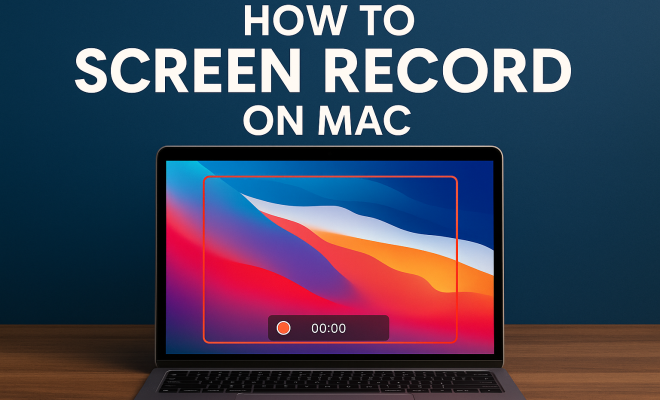
“`html
If you’ve ever wanted to screen record on Mac, you’re not alone. In an increasingly digital world, capturing what’s on your screen can be invaluable. Whether you’re creating tutorials, recording gameplay, or compiling visual presentations, knowing how to effectively screen record can enhance your productivity and communication. This guide will walk you through everything you need to know about screen recording on a Mac, from the built-in features to third-party software options.
1. The Basics of Screen Recording
Screen recording is a feature that allows you to capture video and audio from your computer screen. This can include everything from a simple presentation to full-motion video games. On a Mac, you have several options to initiate a screen recording, including built-in tools and external applications. By understanding how these tools work, you can streamline your process and ensure you capture everything you need.
Typically, screen recording is useful for educators, gamers, marketers, and anyone needing to share information visually. The ability to record and playback screen activity can greatly enhance communication and engagement, making it an essential skill in today’s digital environment.
2. Using QuickTime Player for Screen Recording
One of the easiest ways to screen record on Mac is by using QuickTime Player, which comes pre-installed on macOS. To get started, open QuickTime Player from your Applications folder. Once it’s open, navigate to the menu bar and select ‘File’ followed by ‘New Screen Recording.’
This selection will open a small recording window where you can adjust settings such as microphone input and show mouse clicks. To start recording, simply click the red record button, and you’ll have the option to either click to record the entire screen or drag to select a portion of the screen to record. Once you’re done, click the stop button in the menu bar, and your recording will be saved automatically.
3. Screen Recording with macOS Screenshot Toolbar
Starting with macOS Mojave, Apple introduced a powerful screenshot toolbar that simplifies screen recording. You can access it by pressing Command + Shift + 5. This will bring up a toolbar at the bottom of your screen, offering various options.
The options include the ability to capture the entire screen, a selected window, or a selected portion of the screen. Additionally, you can choose to record the entire screen or just a selected portion. This feature is particularly user-friendly and allows you to customize your recordings easily. Once you make your selection, click ‘Record’ to capture your screen activity.
4. Choosing the Right Settings
Before you start recording, it’s important to adjust the settings to suit your needs. For instance, selecting the right audio input is crucial, especially if you’re narrating your video. If you’re using QuickTime, you can choose to record audio from your microphone, which is helpful for tutorials.
Additionally, consider your video resolution and frame rate. Higher resolutions provide clearer visuals, but they also result in larger file sizes. Balancing quality with file size is key, especially if you plan to share your recordings online. Understanding these settings will help you create polished and professional recordings.
5. Third-Party Screen Recording Software
While the built-in options are robust, some users may prefer third-party software for enhanced features. Software like OBS Studio, Camtasia, and Snagit offer advanced editing capabilities and customizable recording options that can be beneficial for more complex projects.
OBS Studio, for instance, is free and open-source, providing powerful features for both screen recording and live streaming. With OBS, you can capture multiple sources at once, including your screen, webcam, and audio inputs. This versatility makes it a favorite among gamers and content creators alike.
6. Editing Your Screen Recordings
After you finish recording, you may want to edit your video to enhance its quality or to trim unnecessary content. QuickTime Player allows for basic editing, such as trimming clips directly within the app. For more advanced editing, programs like iMovie or Final Cut Pro can offer robust tools for adding effects, transitions, and titles. (See: Understanding screen capture technology.)
Editing can significantly improve the presentation of your screen recordings. Consider adding annotations, captions, or overlays to guide your viewers. These small touches can make your content more engaging and comprehensible.
7. Best Practices for Effective Screen Recording
To make your screen recordings as effective as possible, keep a few best practices in mind. First, always plan your recording ahead of time. Script what you want to say, and outline the key points you want to cover. This preparation will help you stay on track and convey your message clearly.
Additionally, maintain a clean desktop before recording. A cluttered screen can be distracting for viewers. Close unnecessary applications and notifications to ensure a smooth recording experience. Lastly, practice your delivery to ensure clarity and confidence in your narration.
8. Common Challenges and Troubleshooting
Even with the best tools, you might encounter challenges when attempting to screen record on Mac. For example, if your audio isn’t capturing, double-check your settings to ensure your microphone is selected. If your recording does not save, verify that you have enough disk space available and that you’re saving to the correct location.
Additionally, if you experience lag or poor performance during recording, consider closing other applications that may be using system resources. Keeping your Mac updated can also help mitigate performance issues. Don’t hesitate to seek help from forums or Apple’s support site for specific issues.
9. Sharing Your Screen Recordings
Once you’ve completed your screen recording and edited it to perfection, it’s time to share it with your audience. Depending on your goals, you can upload your video to platforms like YouTube, Vimeo, or even share it directly through social media channels.
When sharing, consider the format and resolution of your video. Different platforms may have specific requirements for optimal playback. Additionally, consider including a brief description or annotations to provide context and drive engagement with your content.
10. The Future of Screen Recording
As technology continues to evolve, screen recording tools are likely to become even more advanced. Innovations in AI, for instance, could lead to features such as automatic editing, captioning, or even interactive elements embedded within recordings. Keeping an eye on emerging trends can equip you with the knowledge to stay ahead of the curve.
For now, mastering how to screen record on Mac with the tools available will give you a competitive edge in a world that demands visual content. Whether for personal projects or professional presentations, the ability to capture and share your screen is a skill that will only grow in importance.
11. Advanced Features in Screen Recording Software
While basic screen recording tools are excellent for simple tasks, many advanced software options provide unique features that can elevate your recordings. For example, some applications offer built-in video editing tools that allow you to cut, merge, and add effects without needing to switch to another program. This can be especially beneficial for users who want to speed up their workflow.
In addition to editing capabilities, cloud-based screen recording services like Loom or Screencastify allow you to store and share recordings online easily. These platforms often include features such as viewer analytics, which can be crucial for businesses to understand how their content is performing and who is engaging with it.
Furthermore, some advanced software solutions provide tools for collaboration, enabling teams to work together on projects by leaving comments or notes directly on the recording. This can streamline communication and feedback, making it easier to share ideas efficiently.
12. Screen Recording for Different Use Cases
Understanding the context in which you’ll be using your screen recordings can help you choose the right tools and techniques. For educators, creating engaging instructional videos can help make learning more interactive. Using features like annotations and highlighting can assist in emphasizing key points, making it easier for students to follow along. (See: Tips for effective screen recording.)
Gamers often use screen recording to share gameplay with their audience. In this case, using software like OBS Studio can provide flexibility in capturing various sources, including webcam footage or additional graphics. Many gamers also integrate commentary during their recording sessions, adding personality and connection to their content.
Businesses can utilize screen recordings for training purposes or creating tutorials for staff. High-quality recordings that are well-organized can save time and help ensure that all employees are on the same page regarding processes and procedures.
13. Statistics and Trends in Screen Recording
The rise of video content is reshaping the way we communicate online. According to recent statistics, over 80% of consumers prefer watching a video to reading a blog post. This trend highlights the growing importance of visual content in effectively conveying information. Additionally, more than 50% of marketers say that video content has the best ROI among various types of media.
As we move into an increasingly digital era, screen recordings are becoming essential tools across industries. From education to marketing, the ability to share visual content is crucial for engagement and communication. In fact, a report by Wyzowl shows that 94% of marketers believe that video content has helped increase user understanding of their products or services.
14. Expert Perspectives on Screen Recording
Industry experts emphasize the importance of mastering screen recording techniques. For instance, renowned instructional designer Dr. Julie Dirksen states, “Capturing screen activity can significantly enhance the learning experience. It combines visual and auditory learning styles, making it more likely for information to be retained.” This perspective highlights the importance of creating engaging content that caters to a diverse audience.
Additionally, video marketing expert Pat Flynn notes the benefits of using screen recordings for business growth. “When you provide valuable content through video, you’re not just selling a product; you’re building a relationship with your audience.” This relationship can lead to increased trust, engagement, and ultimately, conversions.
15. Frequently Asked Questions (FAQ)
How do I choose between QuickTime and third-party software for screen recording?
If you’re looking for basic functionality, QuickTime is an excellent choice. It’s straightforward and doesn’t require additional downloads. However, for more advanced features like live streaming, multiple source recording, or extensive editing tools, consider using third-party software.
Can I record audio while screen recording on my Mac?
Yes, you can record audio while screen recording on your Mac. Both QuickTime Player and macOS Screenshot Toolbar allow you to choose audio input sources, such as the built-in microphone or external devices.
Is there a time limit for screen recording on Mac?
There is no intrinsic time limit for screen recordings on Mac, but practical limits may arise based on available storage space and the recording software’s capabilities. Always ensure you have sufficient space for extended recordings.
What is the best format for saving screen recordings?
The best format often depends on how you intend to use your recordings. For general purposes, MP4 is widely supported and offers a good balance between quality and file size. If you need higher quality for editing, consider using MOV or a similar format.
How can I improve the quality of my screen recordings?
Improving the quality of your screen recordings can involve several steps. First, ensure you’re using appropriate resolution settings for your recording. Also, minimize background noise if you’re recording audio, and optimize your lighting when using a webcam. Lastly, consider post-production edits to enhance clarity and engagement.
16. Screen Recording for Remote Learning
With the rise of remote learning, screen recording has become a vital tool for educators. Teachers are leveraging screen recordings to create instructional videos that students can access at their own pace. This method allows for greater flexibility in learning and catering to diverse learning styles. A recent survey found that over 70% of educators believe that video resources enhance student understanding and retention.
Additionally, educators can use screen recordings to provide feedback on student assignments. Instead of writing long comments, a quick video explaining the feedback can be more personal and effective. This approach not only saves time but also fosters better communication between teachers and students.
17. Utilizing Screen Recordings in Business Presentations
In the business world, screen recordings can play a significant role in presentations. Creating a video that walks through a project, product, or proposal can be much more effective than static slides. Screen recordings allow you to demonstrate software, explain complex data visually, or showcase a product’s features in action. According to research from HubSpot, visual content increases engagement significantly, making screen recordings a powerful tool in any business’s arsenal.
Moreover, incorporating screen recordings in training sessions can improve knowledge retention among employees. Video training has been shown to enhance learning outcomes, as it combines auditory and visual information, making it easier for employees to grasp new concepts.
18. How to Choose the Right Screen Recording Software
Choosing the right screen recording software can seem daunting, given the multitude of options available. Start by identifying your specific needs. Are you looking for basic recording, or do you need advanced features like editing and collaboration tools? If you plan on creating content for social media, consider software that allows for quick edits and easy sharing.
Also, take into account your budget. While some software options are free, others come with a price tag. Assess whether the features justify the cost based on your usage. Reading user reviews and watching tutorials can help you understand the software’s capabilities and limitations, ensuring you make an informed decision.
19. Future Trends in Screen Recording Technology
As technology continues to advance, the future of screen recording looks promising. Emerging trends indicate a shift toward AI-enhanced features, such as automatic transcription and real-time video editing. These innovations can drastically reduce the time and effort required in post-production.
Additionally, virtual and augmented reality are beginning to influence how screen recordings are created and consumed. Imagine being able to interact with a 3D model while recording a tutorial. This integration could open up new possibilities for education, training, and marketing, making the experience more immersive for viewers.
20. Conclusion: Embracing the Power of Screen Recording
In a world where visual communication is key, learning how to screen record on Mac is an invaluable skill. With various built-in and third-party options available, you can find the right solution tailored to your needs, whether for personal use or professional presentations. By mastering screen recording, you’re not only enhancing your productivity but also empowering your ability to share knowledge and engage with others effectively.
“`
Trending Now
Frequently Asked Questions
How do I screen record on Mac using QuickTime?
To screen record on Mac using QuickTime, open QuickTime Player from your Applications folder. Select 'File' and then 'New Screen Recording.' Adjust your settings, click the red record button, and choose to record the entire screen or a selected portion. When finished, click the stop button in the menu bar to save your recording.
What is the best screen recording software for Mac?
While QuickTime Player is a built-in option for screen recording on Mac, other popular software includes ScreenFlow, Camtasia, and OBS Studio. Each offers unique features such as advanced editing tools, live streaming capabilities, and customizable settings, making them suitable for various recording needs.
Can I record audio while screen recording on Mac?
Yes, you can record audio while screen recording on Mac. When using QuickTime Player, you can select a microphone input in the screen recording settings. This allows you to capture system audio or your voice while recording your screen.
Is there a time limit for screen recording on Mac?
There is no specific time limit for screen recording on Mac using QuickTime Player or other third-party software. However, the length of your recording may be limited by your available storage space, so ensure you have enough disk space before starting a long recording session.
How do I edit my screen recording on Mac?
After recording your screen on Mac, you can use QuickTime Player's basic editing features to trim your video. For more advanced editing, consider using software like iMovie or Final Cut Pro, which offer a wider range of editing tools and effects to enhance your recordings.
Have you experienced this yourself? We’d love to hear your story in the comments.