The Tech Edvocate

Top Menu

  • Advertisement
  • Apps
  • Home Page
  • Home Page Five (No Sidebar)
  • Home Page Four
  • Home Page Three
  • Home Page Two
  • Home Tech2
  • Icons [No Sidebar]
  • Left Sidbear Page
  • Lynch Educational Consulting
  • My Account
  • My Speaking Page
  • Newsletter Sign Up Confirmation
  • Newsletter Unsubscription
  • Our Brands
  • Page Example
  • Privacy Policy
  • Protected Content
  • Register
  • Request a Product Review
  • Shop
  • Shortcodes Examples
  • Signup
  • Start Here
    • Governance
    • Careers
    • Contact Us
  • Terms and Conditions
  • The Edvocate
  • The Tech Edvocate Product Guide
  • Topics
  • Write For Us
  • Advertise

Main Menu

  • Start Here
    • Our Brands
    • Governance
      • Lynch Educational Consulting, LLC.
      • Dr. Lynch’s Personal Website
      • Careers
    • Write For Us
    • The Tech Edvocate Product Guide
    • Contact Us
    • Books
    • Edupedia
    • Post a Job
    • The Edvocate Podcast
    • Terms and Conditions
    • Privacy Policy
  • Topics
    • Assistive Technology
    • Child Development Tech
    • Early Childhood & K-12 EdTech
    • EdTech Futures
    • EdTech News
    • EdTech Policy & Reform
    • EdTech Startups & Businesses
    • Higher Education EdTech
    • Online Learning & eLearning
    • Parent & Family Tech
    • Personalized Learning
    • Product Reviews
  • Advertise
  • Tech Edvocate Awards
  • The Edvocate
  • Pedagogue
  • School Ratings

logo

The Tech Edvocate

  • Start Here
    • Our Brands
    • Governance
      • Lynch Educational Consulting, LLC.
      • Dr. Lynch’s Personal Website
        • My Speaking Page
      • Careers
    • Write For Us
    • The Tech Edvocate Product Guide
    • Contact Us
    • Books
    • Edupedia
    • Post a Job
    • The Edvocate Podcast
    • Terms and Conditions
    • Privacy Policy
  • Topics
    • Assistive Technology
    • Child Development Tech
    • Early Childhood & K-12 EdTech
    • EdTech Futures
    • EdTech News
    • EdTech Policy & Reform
    • EdTech Startups & Businesses
    • Higher Education EdTech
    • Online Learning & eLearning
    • Parent & Family Tech
    • Personalized Learning
    • Product Reviews
  • Advertise
  • Tech Edvocate Awards
  • The Edvocate
  • Pedagogue
  • School Ratings
  • A Visitors Guide to Corpus Christi (TX), United States

  • Best GetYourGuide tours in Paris

  • Does Viator offer group discounts?

  • Hotels.com vs Airbnb features

  • What is Regus Business Lounge?

  • What is Couchsurfing verification?

  • How to use Viator gift cards?

  • Klook payment methods accepted

  • Best Notion templates for teams

  • WeWork vs traditional office cost

Assistive Technology
Home›Assistive Technology›How to Resize and Crop an Image Using Microsoft Paint

How to Resize and Crop an Image Using Microsoft Paint
By Matthew Lynch
June 23, 2023
0
Spread the love

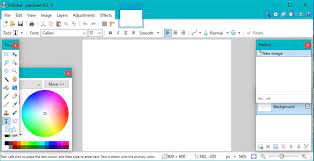
Microsoft Paint is a basic image editing tool that comes pre-installed in all Windows operating systems. It is a simple program but can be quite helpful in resizing and cropping images. This article will teach you how to resize and crop images using Microsoft Paint.

Resizing an Image

Resizing an image means changing its size without altering its width and height ratio. Follow these steps to resize an image using Microsoft Paint:

Step 1: Open the image you want to resize in Microsoft Paint.

Step 2: Click on the “Resize” option in the “Image” tab.

Step 3: In the “Resize and Skew” window, you can either manually change the percentage of the image’s height and width, or you can change its size by pixels. If you want to keep the aspect ratio of the image the same, make sure that the “Maintain aspect ratio” checkbox is checked.

Step 4: After selecting the appropriate size, click on the “OK” button.

Step 5: Save your resized image by clicking on the “Save” option under the “File” tab.

Cropping an Image

Cropping an image means removing unwanted portions of the image by selecting only the required part. Follow these steps to crop an image using Microsoft Paint:

Step 1: Open the image you want to crop in Microsoft Paint.

Step 2: Click on the “Select” tool in the “Home” tab and select the portion of the image you want to remain.

Step 3: Once you have selected the portion, click on the “Crop” option under the “Home” tab. This will remove the unwanted portion of the image, leaving you with only the selected portion.

Step 4: Save your cropped image by clicking on the “Save” option under the “File” tab.

Conclusion

These are the simple steps you can follow to resize and crop an image using Microsoft Paint. Although Microsoft Paint is a basic program, it can be quite helpful in doing simple image editing tasks. Resizing and cropping images is something you may need to do regularly, and using Microsoft Paint will allow you to do it quickly and easily without having to use more complicated software.


Previous Article

Top Android Vision Board Apps to Keep ...

Next Article

Exploring the Different Types of Arduino Microcontroller

Matthew Lynch

Related articles More from author

  • Assistive Technology

    How to Return Merchandise Without a Receipt

    June 22, 2023
    By Matthew Lynch
  • Assistive Technology

    How to Create Animated GIFs on a Samsung Galaxy Phone

    August 5, 2023
    By Matthew Lynch
  • Assistive Technology

    How to Recover Lost Safari Bookmarks

    June 22, 2023
    By Matthew Lynch
  • Assistive Technology

    How to Make a High-Low-Close Stock Market Chart in Excel

    June 10, 2023
    By Matthew Lynch
  • Assistive Technology

    How to Add a New Contact on Telegram

    July 15, 2023
    By Matthew Lynch
  • Assistive Technology

    How to Cast iPhone to Chromecast

    June 6, 2023
    By Matthew Lynch

Search

Login & Registration

  • Log in
  • Entries feed
  • Comments feed
  • WordPress.org

Newsletter

Signup for The Tech Edvocate Newsletter and have the latest in EdTech news and opinion delivered to your email address!

About Us

Since technology is not going anywhere and does more good than harm, adapting is the best course of action. That is where The Tech Edvocate comes in. We plan to cover the PreK-12 and Higher Education EdTech sectors and provide our readers with the latest news and opinion on the subject. From time to time, I will invite other voices to weigh in on important issues in EdTech. We hope to provide a well-rounded, multi-faceted look at the past, present, the future of EdTech in the US and internationally.

We started this journey back in June 2016, and we plan to continue it for many more years to come. I hope that you will join us in this discussion of the past, present and future of EdTech and lend your own insight to the issues that are discussed.

Newsletter

Signup for The Tech Edvocate Newsletter and have the latest in EdTech news and opinion delivered to your email address!

Contact Us

The Tech Edvocate
910 Goddin Street
Richmond, VA 23231
(601) 630-5238
[email protected]

Copyright © 2026 Matthew Lynch. All rights reserved.