How to replace laptop thermal paste
“`html
When was the last time you thought about your laptop’s thermal paste? If you’re like most people, it probably isn’t on your radar until your device starts overheating or running sluggishly. But replacing laptop thermal paste is a crucial maintenance task that can significantly extend the life of your machine and keep it running smoothly. In this guide, we’ll explore the importance of thermal paste, how to replace it, and why it’s essential to your laptop’s performance.
1. Understanding Thermal Paste
Before diving into the replacement process, it’s essential to understand what thermal paste is and its role in your laptop’s cooling system. Thermal paste, also known as thermal compound or thermal grease, is a substance applied between your CPU or GPU and the heat sink. Its primary function is to enhance heat transfer away from the processor to the heat sink, which dissipates the heat into the surrounding air.
Over time, thermal paste can degrade due to heat cycles, leading to poor thermal conductivity. This can cause your laptop to overheat, throttling performance and potentially damaging components. Recognizing the signs of degraded thermal paste is the first step towards effective maintenance.
2. Signs That You Need to Replace Laptop Thermal Paste
How do you know it’s time to replace your laptop’s thermal paste? There are several symptoms that can indicate it’s time for this essential maintenance task:
- Overheating: If your laptop’s temperatures are consistently high during usage, it may be a sign of failing thermal paste.
- Frequent Throttling: If your laptop’s performance dips unexpectedly, especially during intensive tasks like gaming or video editing, it could be due to overheating caused by poor thermal conductivity.
- Increased Fan Noise: A louder-than-usual fan can be a sign that your cooling system is working overtime to manage heat.
Monitoring these indicators can help you maintain your laptop’s performance and prevent more severe issues down the line.
3. Gathering the Necessary Tools
Replacing laptop thermal paste isn’t an overly complicated task, but it does require some specific tools. Here’s a list of what you’ll need:
- Screwdrivers: A precision screwdriver set will help you open the laptop casing without damaging screws.
- Thermal Paste: Choose a high-quality thermal paste. Brands like Arctic Silver, Noctua, and Thermal Grizzly are highly recommended.
- Isopropyl Alcohol: For cleaning the old thermal paste off the CPU and heat sink.
- Lint-Free Cloth or Coffee Filter: To apply the isopropyl alcohol and clean the surfaces.
- Plastic Spudger: A tool to help pry open the laptop casing without causing damage.
Having the right tools will make the process smoother and help avoid any accidental damage to your device.
4. Preparing Your Laptop for Thermal Paste Replacement
Preparation is key before you replace laptop thermal paste. Here’s how to set the stage:
- Power Down: Ensure your laptop is completely powered off and unplugged from any power source.
- Ground Yourself: Use an anti-static wrist strap or touch a grounded metal object to avoid static electricity damage to your laptop’s internal components.
- Remove the Battery: If your laptop has a removable battery, take it out to ensure complete disconnection.
- Open the Laptop: Carefully unscrew and remove the back panel of your laptop. This step can vary depending on the model, so consult your manufacturer’s manual or online guides for specific instructions.
Taking these steps will help protect your laptop and ensure a successful thermal paste replacement.
5. Removing Old Thermal Paste
Once you have access to the CPU and GPU, it’s time to tackle the old thermal paste. Carefully follow these steps: (See: Understanding thermal paste properties.)
- Locate the Heat Sink: This is typically secured with screws. Remove them carefully and gently lift the heat sink away from the CPU/GPU.
- Clean the Surfaces: Use a lint-free cloth or coffee filter soaked in isopropyl alcohol to wipe away the old thermal paste from both the CPU/GPU and the heat sink. Make sure to remove all remnants to ensure a good bond with the new thermal paste.
- Inspect for Damage: Check the CPU and heat sink for any signs of damage or wear. If everything looks good, you’re ready for the next step.
Proper cleaning is essential for ensuring that the new thermal paste adheres correctly and functions effectively.
6. Applying New Thermal Paste
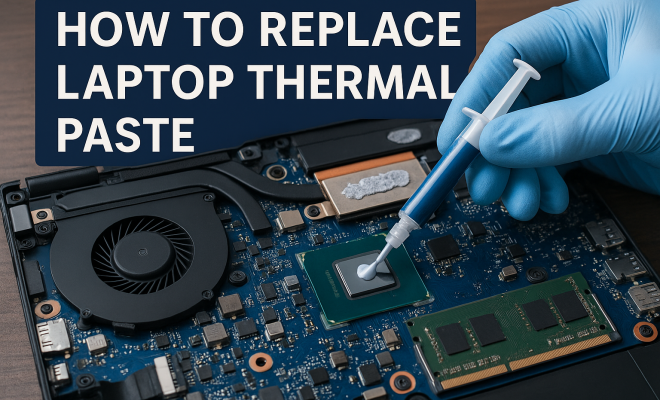
Now comes the crucial part: applying new thermal paste. Here’s how to do it right:
- Choose Your Application Method: There are several techniques for applying thermal paste, including the dot method, line method, and spread method. The dot method is most common; just place a small pea-sized amount in the center of the CPU.
- Reattach the Heat Sink: Carefully place the heat sink back on the CPU/GPU, ensuring it’s aligned correctly. Press down gently to spread the thermal paste evenly.
- Secure Everything: Reinsert the screws that hold the heat sink in place, making sure not to overtighten them, as this can damage the CPU or heat sink.
Applying thermal paste correctly is vital for optimal heat dissipation, so take your time and ensure a good application.
7. Reassembling Your Laptop
With new thermal paste applied, it’s time to put your laptop back together:
- Replace the Back Panel: Once you’ve ensured everything is secure, place the back panel back on and screw it in.
- Reconnect the Battery: If your laptop has a removable battery, reinsert it at this stage.
- Power On: Plug in your laptop and power it on. Monitor temperatures during the first few sessions to ensure everything is functioning correctly.
After reassembling, it’s important to verify that your laptop is running cooler and quieter than before. Tools like HWMonitor or Core Temp can help you monitor CPU and GPU temperatures.
8. Maintaining Your Laptop Performance
Replacing laptop thermal paste is a key part of maintaining your device, but there are additional steps you can take to ensure long-lasting performance:
- Regular Cleaning: Dust buildup can hinder airflow and cooling. Regularly clean your laptop’s vents and fans to prevent overheating.
- Monitor Temperatures: Keep an eye on component temperatures using software tools. If you notice repeated spikes, it might be time to check the thermal paste again.
- Consider Upgrade Options: If your laptop is several years old, it might also benefit from hardware upgrades, such as additional RAM or an SSD, to improve performance.
By taking these additional maintenance steps, you can maximize the lifespan and efficiency of your laptop.
9. The Benefits of Replacing Laptop Thermal Paste
So, what are the real benefits of replacing laptop thermal paste? Here are a few key advantages:
- Improved Cooling: Fresh thermal paste can significantly enhance heat transfer, keeping your CPU and GPU cooler during operation.
- Extended Lifespan: Regular maintenance, including thermal paste replacement, can prolong the life of your laptop’s components by preventing overheating.
- Better Performance: With proper cooling, your laptop can perform better, reducing lag and throttling during demanding tasks.
Ultimately, taking the time to replace laptop thermal paste can save you from costly repairs and improve your overall user experience.
10. Common Myths About Thermal Paste Replacement
Despite its importance, there are many misconceptions surrounding thermal paste and the process of replacing it. Let’s debunk some of these myths:
- Myth 1: You Should Replace Thermal Paste Every Year: While it’s good practice to monitor thermal paste condition, you don’t need to replace it annually unless you’re experiencing overheating issues. In good conditions, thermal paste can last several years.
- Myth 2: More Is Better: Many people think that applying more thermal paste will improve cooling. In reality, too much paste can lead to poor heat transfer as it may not spread evenly and can spill over the edges.
- Myth 3: All Thermal Pastes Are the Same: Different thermal pastes have different thermal conductivity ratings. High-performance pastes often use materials such as silver or ceramic and can significantly improve heat dissipation compared to cheaper options.
Knowing the truth about thermal paste can help you make informed decisions about your laptop maintenance. (See: Signs of laptop overheating issues.)
11. Alternative Solutions for Laptop Cooling
If you’re experiencing overheating issues even after replacing your thermal paste, it might be time to look into alternative cooling solutions. Here are some options:
- Laptop Cooling Pads: These are external devices that provide additional airflow to your laptop. They come in various sizes and often feature built-in fans to help keep temperatures down.
- Internal Fans and Heat Sinks: Considering upgrading or cleaning the internal fans and heat sinks can also improve thermal performance. Dust and debris can hinder airflow significantly, so regular cleaning is essential.
- Undervolting: This software-based solution involves reducing the voltage supplied to the CPU, which can lower temperatures without significantly affecting performance. It can be a more technical solution, so research and proceed with caution.
Implementing one or more of these solutions can help ensure your laptop stays cool and performs optimally.
12. Expert Perspectives on Thermal Paste
To gain further insight into the importance of thermal paste, we spoke with several tech experts and repair technicians. Here are some key takeaways from their experiences:
- Expert 1 – Tech Repair Specialist: “Many users underestimate how crucial thermal paste is to a laptop’s lifespan. I’ve seen devices that were running hot due to poor thermal paste replacement, leading to costly repairs. Regular maintenance can save your hardware.”
- Expert 2 – Hardware Engineer: “The type of thermal paste you use matters. High-performance paste can make a difference, especially in gaming or high-performance laptops where heat generation is substantial.”
- Expert 3 – IT Technician: “Replacing thermal paste is often overlooked during routine maintenance. It’s a simple task that can dramatically improve performance and longevity, and I recommend it during any hardware upgrade.”
These perspectives emphasize the significance of regular maintenance and the role thermal paste plays in your laptop’s overall health.
13. Frequently Asked Questions
Here are some common questions about replacing laptop thermal paste:
What happens if I don’t replace thermal paste?
If you don’t replace degraded thermal paste, your laptop may experience overheating, leading to throttling of performance or even hardware damage.
How often should I replace thermal paste?
Generally, it’s recommended to replace thermal paste every 2-5 years, depending on usage and operating conditions.
Can I use any thermal paste for my laptop?
While you can technically use any thermal paste, it’s best to choose one that is designed for electronics and has good thermal conductivity properties.
Is it safe to replace thermal paste myself?
Yes, if you follow proper procedures and precautions. Just ensure you’re grounded to prevent static damage to components.
Will replacing thermal paste void my warranty?
This depends on the manufacturer. Some warranties may be voided if you open the device, so always check with your manufacturer before doing any maintenance. (See: Thermal paste in engineering applications.)
14. How to Choose the Right Thermal Paste
With a wide variety of thermal pastes available, selecting the right one can be overwhelming. Here are some factors to consider:
- Thermal Conductivity: Look for thermal paste with a high thermal conductivity rating. This metric indicates how effectively the paste can transfer heat. Generally, a rating above 5 W/mK is considered good for most users.
- Viscosity: The viscosity of thermal paste affects how easily it can be spread. A paste that’s too thick can be difficult to apply, while one that’s too thin may not stay in place. Aim for a balanced viscosity for easy application that still adheres well.
- Type of Material: Thermal pastes are made from various materials, including silicone, metal, and ceramic. Metal-based pastes often provide superior performance, but they can be electrically conductive, which requires extra caution during application. Ceramic pastes, on the other hand, are safer but may not perform as well.
- Brand Reputation: Stick to reputable brands known for high-quality thermal compounds. Reviews and recommendations can guide you in the right direction.
Investing in a quality thermal paste can have a significant impact on your laptop’s thermal management capabilities.
15. Environmental Considerations
Another important aspect to consider when replacing laptop thermal paste is the environmental impact. Many thermal pastes contain materials that can be harmful to the environment if not disposed of properly. Here are some tips on managing waste:
- Dispose of Old Paste Safely: Ensure that any old thermal paste is disposed of according to local regulations. Many areas have specific guidelines for electronic waste.
- Choose Eco-Friendly Options: Some manufacturers offer eco-friendly thermal pastes that use less harmful materials. Consider these options if sustainability is a priority for you.
- Reduce Electronic Waste: Regular maintenance, including thermal paste replacement, can extend the life of your laptop and reduce the need for replacements, which ultimately helps minimize electronic waste.
Being conscious of your choices can contribute to a healthier planet while still maintaining your device’s effectiveness.
16. Advanced Techniques for Enthusiasts
If you’re comfortable with basic maintenance and want to explore more advanced techniques, consider these options for maximizing your thermal paste application:
- Multiple Application Methods: While the dot method is standard, enthusiasts sometimes use the spread method for more control. This involves using a plastic card or spatula to spread the paste evenly across the CPU surface before reattaching the heat sink.
- Testing Different Pastes: If you’re tech-savvy, try experimenting with different thermal pastes. Some users report better performance with pastes containing silver or copper, while others prefer silicone-based options for their ease of application.
- Temperature Monitoring: After applying new thermal paste, utilize software tools to benchmark your laptop’s temperature under load. This testing can provide insights into the effectiveness of your application and help you make adjustments in the future.
These advanced techniques can take your thermal management skills to the next level, ensuring optimal performance and longevity of your laptop.
In summary, replacing laptop thermal paste is an essential maintenance task that can significantly impact your device’s longevity and performance. With the right tools and a bit of patience, you can do it yourself and keep your laptop running efficiently for years to come.
“`
Trending Now
Frequently Asked Questions
How do I know if my laptop needs new thermal paste?
You can tell if your laptop needs new thermal paste by monitoring for signs such as overheating, frequent performance throttling during demanding tasks, and increased fan noise. If you notice these symptoms, it may be time to replace the thermal paste to ensure optimal cooling and performance.
What is the purpose of thermal paste in a laptop?
Thermal paste, also known as thermal compound, is applied between the CPU or GPU and the heat sink to improve heat transfer. Its main purpose is to enhance thermal conductivity, allowing heat to dissipate effectively and preventing overheating, which can damage components and reduce performance.
Can replacing thermal paste improve laptop performance?
Yes, replacing thermal paste can significantly improve laptop performance. Fresh thermal paste enhances heat transfer, which helps maintain optimal temperatures. This can prevent overheating and throttling, leading to more stable performance during intensive tasks such as gaming or video editing.
How often should I replace the thermal paste in my laptop?
It is generally recommended to replace the thermal paste in your laptop every 2 to 5 years, depending on usage and temperature. If you frequently use resource-intensive applications or notice signs of overheating, consider replacing it sooner to maintain optimal performance.
Is it difficult to replace thermal paste on a laptop?
Replacing thermal paste on a laptop can be moderately challenging, depending on your technical skills and the laptop model. It involves disassembling parts of the laptop, cleaning old paste, and applying new paste correctly. If you’re unsure, it’s advisable to consult a professional or follow a detailed guide.
Agree or disagree? Drop a comment and tell us what you think.