How to clean laptop fan
“`html
Keeping your laptop in top shape is essential for optimal performance, and one of the most crucial tasks is learning how to clean the laptop fan. Over time, dust and debris accumulate inside the laptop, leading to overheating and performance issues. In this guide, we’ll walk you through nine effective steps to clean your laptop fan, ensuring it runs smoothly and efficiently.
1. Understanding the Importance of a Clean Laptop Fan
Your laptop fan plays a vital role in regulating the device’s temperature. It cools down the hardware, preventing overheating that can lead to hardware failure. A clean laptop fan not only prolongs the laptop’s lifespan but also improves its performance. When dust builds up, the fan has to work harder, which can lead to increased power consumption and noise. Regular maintenance can keep your laptop running quietly and efficiently.
Moreover, neglecting to clean the fan can result in throttling, where the CPU reduces its speed to prevent damage from excessive heat. This not only affects gaming and video rendering performance but can also slow down everyday tasks, frustrating users. By proactively cleaning your laptop fan, you avoid these potential pitfalls.
2. Gathering the Right Tools
Before you dive into the cleaning process, it’s essential to gather the appropriate tools. This will make your job easier and more efficient. Here’s what you’ll need:
- Compressed air canister: This will help blow out dust and debris from hard-to-reach areas.
- Screwdriver set: Depending on your laptop model, you may need a specific type of screwdriver to open the casing.
- Microfiber cloth: Use it to wipe down surfaces and components.
- Anti-static wrist strap: This helps prevent electrostatic discharge, protecting your laptop’s internal components.
- Soft brush (optional): A small brush can help dislodge stubborn dust.
Having these tools on hand will make the cleaning process smoother, ensuring you don’t have to pause to find something mid-task.
3. Preparing Your Laptop for Cleaning
Before opening up your laptop, it’s important to take the necessary precautions. First, ensure your laptop is powered down and unplugged. If your laptop has a removable battery, take it out as well. This minimizes the risk of electric shock and prevents accidental damage.
Next, find a clean, well-lit workspace where you can work comfortably. Lay down a soft cloth or padded surface to protect your laptop from scratches as you work. Make sure to note where each screw goes, as they can often differ in size and length.
4. Opening the Laptop Case
With your tools ready and your laptop prepared, it’s time to open the case. Using the appropriate screwdriver, carefully remove the screws from the back panel of your laptop. Keep these screws organized, perhaps in a small container, to avoid losing them.
Once the screws are removed, gently pry open the back casing. Be cautious; most laptops have clips that may require a little finesse to disengage without breaking them. If you’re unsure how to open your specific laptop model, consult the user manual or look for instructional videos online.
5. Locating the Laptop Fan
After removing the back panel, locate the laptop fan. The fan is typically situated near the heat sink and may have a plastic cover. Identify any cables or connectors that may be attached. Make a note of how everything is connected in case you need to reattach them later. (See: Cleaning and maintenance guidelines.)
It’s also a good idea to assess the condition of other components visible now, like the heat sink or thermal paste, while you have the laptop open. Cleaning these can also help with temperature regulation in the long run.
6. Cleaning the Fan
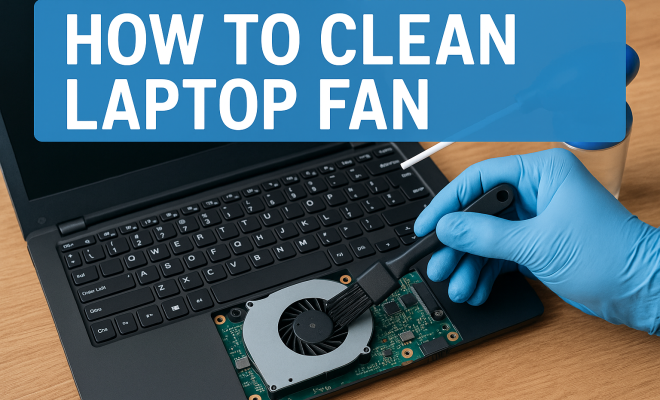
Now comes the main task: cleaning the laptop fan itself. Begin by using the compressed air canister. Hold it upright and use short bursts of air to blow out dust from the fan blades. Be careful not to let the fan spin freely, as this can damage it; use a small object like a pencil to keep it still if necessary.
If there’s still residue or debris that the air can’t dislodge, gently brush the blades with a soft brush. Ensure you don’t apply too much pressure, as the fan blades are delicate. Afterward, use the microfiber cloth to wipe down any accessible surfaces to remove any remaining dust.
7. Cleaning Other Components
While your laptop is open, take the opportunity to clean other critical components. The heat sink can often gather dust, which impacts the fan’s efficiency. Use your compressed air to blow out dust from this area as well. You may also want to consider replacing the thermal paste if it looks dry or cracked, which can further improve cooling efficiency.
Additionally, check for any dust accumulation on the motherboard or RAM. A gentle wipe with a microfiber cloth can help keep these components clean. Just remember to avoid touching any circuits directly to prevent damage.
8. Reassembling Your Laptop
Once you’ve cleaned the fan and surrounding areas, it’s time to reassemble your laptop. Carefully place the back panel back onto the laptop, ensuring it fits snugly and that no cables are pinched. Replace the screws in the order you removed them, double-checking to ensure they’re tight but not overly so, which could crack the casing.
After reassembly, reconnect any battery or power sources. Make sure everything is in place and that the laptop doesn’t have any leftover screws. It’s always good to have a quick check before powering it up to avoid any surprises.
9. Regular Maintenance Tips
Now that you know how to clean your laptop fan, it’s essential to keep up with regular maintenance. Aim to clean your laptop fan every six months, or more frequently if you notice overheating. Regular dusting of the exterior and avoiding using your laptop on soft surfaces (like beds or couches) can also minimize dust intake.
Consider investing in a laptop cooling pad, which can help maintain lower temperatures, especially during intensive tasks. Keeping the laptop in a clean, dust-free environment can significantly reduce the amount of dirt that accumulates inside. By adopting these habits, you can ensure your laptop fan remains clean, contributing to the longevity and performance of your device.
10. Common Signs Your Laptop Fan Needs Cleaning
It’s essential to recognize when your laptop fan may need cleaning. Here are some common signs:
- Increased Fan Noise: If you notice that the fan is running louder than usual, it might be struggling to cool down due to dust buildup.
- Overheating: If your laptop feels hot to the touch, especially around the fan area, it’s likely that the airflow is restricted by dust.
- Throttling Performance: If your laptop’s performance dips during demanding tasks, it may be an indication that the CPU is throttling due to high temperatures.
- Frequent Shutdowns: A laptop that shuts down unexpectedly could be overheating, which can be a result of a blocked fan.
Being aware of these signs can help you take action before serious damage occurs. (See: Tips for laptop care and maintenance.)
11. Statistical Insights on Laptop Maintenance
Statistics highlight the importance of regular maintenance for laptops. A study from the Consumer Electronics Association found that 51% of laptop users experience performance issues due to overheating. Additionally, a survey by TechRadar revealed that 68% of laptop owners don’t clean their devices regularly, significantly impacting their lifespan and efficiency.
When it comes to cooling, a report by the International Journal of Thermal Sciences emphasizes that keeping components clean can improve the cooling efficiency by up to 30%. These figures underscore the need for proactive care to enhance your laptop’s performance and extend its life.
12. Expert Perspectives on Laptop Care
Experts in the tech industry recommend a few best practices for laptop care beyond cleaning the fan. According to Jonny Evans, a tech analyst, “You should consider the environment you use your laptop in. A cleaner, cooler space can significantly reduce the amount of dust and debris that gets pulled into your device.”
Additionally, Dr. David Moore, a computer hardware specialist, emphasizes the importance of using filtered air: “When cleaning with compressed air, it’s essential to use it at a safe distance to avoid blowing dust further into the device.” Following such advice can help you maintain a clean laptop efficiently.
13. Frequently Asked Questions (FAQ)
1. How often should I clean my laptop fan?
It’s generally recommended to clean your laptop fan every six months. However, if you use your laptop in a dusty environment or notice overheating issues, you may want to clean it more frequently.
2. Can I use a vacuum cleaner to clean my laptop fan?
No, using a vacuum cleaner is not recommended. It can create static electricity, which may damage internal components. It’s better to use compressed air or a soft brush.
3. Is it safe to open my laptop?
Opening a laptop is generally safe, but it’s crucial to follow proper procedures, including grounding yourself to prevent static discharge. If you’re unsure, consult a professional.
4. What happens if I don’t clean my laptop fan?
If you neglect to clean your laptop fan, dust accumulation can lead to overheating, performance issues, and even hardware damage over time. This could result in costly repairs or the need for a replacement.
5. Can I use any type of compressed air?
It’s best to use a compressed air canister specifically designed for electronics cleaning. Avoid using canned air that contains propellants that can leave residue.
6. What should I do if my laptop fan is still noisy after cleaning?
If the fan continues to make noise after cleaning, it could be failing. Consider consulting a technician to investigate further, as it may require repair or replacement. (See: Research on laptop performance.)
7. Can overheating damage my laptop?
Yes, prolonged overheating can lead to permanent damage to internal components, including the CPU and motherboard. Keeping your laptop fan clean is crucial to prevent this.
14. Best Practices for Maintaining Laptop Performance
In addition to cleaning the fan, there are several other practices that can help maintain your laptop’s performance and ensure longevity:
- Regular Software Updates: Keeping your operating system and software up to date can improve performance and security. Updates often include optimizations that can enhance how your laptop functions.
- Disk Cleanup: Over time, your laptop accumulates unnecessary files. Running a disk cleanup utility can free up space and speed up your system.
- Monitor Temperature: Use software tools to monitor your laptop’s temperature. If it’s consistently running hot, it may be a sign of poor ventilation or other issues.
- Battery Care: Batteries can degrade over time. Manage your battery health by keeping it between 20-80% charge, and avoid leaving it plugged in all the time to prolong its lifespan.
- Use Antivirus Software: Protect your laptop from malware that can slow it down. Regular scans can help keep your system free from malicious software.
15. Advanced Cleaning Techniques
For those who are tech-savvy or comfortable with DIY repairs, there are advanced techniques you might consider when cleaning your laptop fan:
- Disassembly for Deep Cleaning: Some laptop models allow for complete disassembly. If you’re comfortable, you can take apart the entire unit to clean components more thoroughly.
- Replacing Thermal Paste: If you’re already opening up your laptop, consider replacing the thermal paste on the CPU and GPU. Old or dry thermal paste can significantly impact cooling performance.
- Using a Dust Filter: Installing dust filters over intake vents can help minimize the amount of dust that enters your laptop, making future cleanings easier.
16. Laptop Cooling Solutions
In addition to regular cleaning, you might want to invest in some cooling solutions to enhance your laptop’s performance:
- Cooling Pads: These are external devices that provide additional airflow to your laptop. They can lower temperatures significantly during demanding tasks.
- Elevated Stands: Using a stand that elevates your laptop can improve airflow. This simple change can help keep the bottom of the laptop cool.
- Fan Control Software: Some software allows you to control fan speeds manually. This can be useful during intensive tasks to ensure the system remains cool.
17. The Environmental Impact of Laptop Maintenance
A clean laptop fan doesn’t just improve performance; it can also have positive environmental impacts. Efficient electronics use less energy, which can reduce your carbon footprint. By maintaining your laptop, you extend its lifespan, decreasing the need for replacements and the electronic waste that comes with it.
Additionally, using energy-efficient practices and components can lead to less energy consumption. When your laptop runs cooler, it consumes less power, which is beneficial for both your wallet and the environment.
18. Conclusion
Knowing how to clean the laptop fan is an essential skill for any laptop owner. Not only does it help maintain performance, but it can also prolong the life of your device. By understanding the importance of regular maintenance, recognizing the signs that cleaning is necessary, and following the expert tips provided, you can keep your laptop running smoothly for years to come. So, take the time to perform this crucial maintenance task regularly, and your laptop will thank you with better performance and reliability.
“`
Trending Now
Frequently Asked Questions
How do I know if my laptop fan needs cleaning?
If your laptop is overheating, making unusual noises, or experiencing performance issues like throttling, it may be time to clean the fan. Regular maintenance can prevent these problems and ensure your laptop runs efficiently.
What tools do I need to clean my laptop fan?
To clean your laptop fan, you'll need a compressed air canister, a screwdriver set, a microfiber cloth, and optionally, an anti-static wrist strap and a soft brush to help dislodge dust.
Can I clean my laptop fan without opening it?
While you can use compressed air to blow out dust from the vents without opening the laptop, a thorough cleaning requires disassembling it to access the fan directly for a more effective clean.
How often should I clean my laptop fan?
It's recommended to clean your laptop fan every 6 to 12 months, depending on your usage and environment. Regular cleaning helps prevent dust buildup and keeps your laptop running smoothly.
What happens if I don't clean my laptop fan?
Neglecting to clean your laptop fan can lead to overheating, increased noise, and reduced performance. This can cause hardware damage over time and may result in throttling during intensive tasks.
What did we miss? Let us know in the comments and join the conversation.