Protect Google Sheets: Safeguard Your Data Effectively
“`html
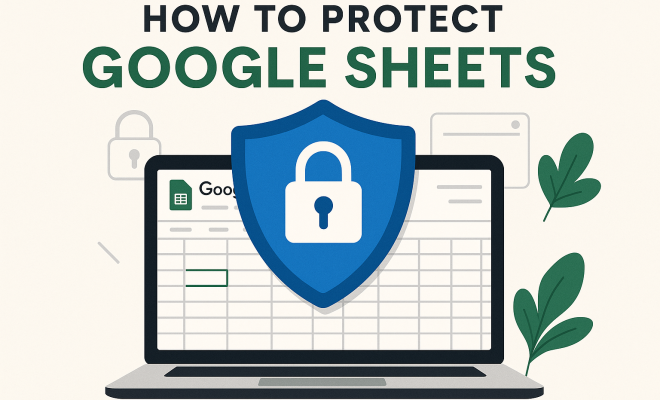
Google Sheets is a powerful tool for collaboration, data organization, and analysis. However, with its increasing use, concerns about security and unauthorized access have also risen. If you’re relying on this platform for sensitive information, it’s crucial to know how to protect Google Sheets effectively. Here’s a comprehensive guide on the best strategies to safeguard your data.
1. Understanding Google Sheets Permissions
The first step in protecting your Google Sheets is understanding how permissions work. Google Sheets allows you to share your documents with others in various ways, each with distinct levels of access. You can grant access as a viewer, commenter, or editor.
If you want to protect Google Sheets, you should be cautious about whom you share it with and what level of access you provide. For instance, if someone only needs to view the information, set their permission to viewer. This prevents any accidental modifications or deletions. Regularly review who has access to your files to ensure only the necessary people can see or edit your data.
2. Implementing Two-Factor Authentication
Two-factor authentication (2FA) is a powerful security measure that adds an extra layer of protection to your Google account. By enabling 2FA, you’ll need to provide not only your password but also a second form of verification, typically a code sent to your phone.
Enabling this feature significantly reduces the risk of unauthorized access to your Google Sheets. Even if someone manages to obtain your password, they would still require the second factor for access. To enable 2FA, go to your Google account settings and follow the prompts to set it up. Make sure to choose a method that works best for you, whether it be SMS codes, an authenticator app, or a security key.
3. Regularly Backing Up Your Data
No matter how well you protect Google Sheets, there’s always a risk of data loss due to accidental deletions or malicious actions. Regular backups of your data can be a lifesaver. Google Sheets offers the option to download your data in various formats, including Excel, CSV, and PDF.
Consider setting a routine to back up your sheets, whether it’s weekly or monthly. You can also use Google Apps Script or third-party tools to automate backups. This way, even if something goes wrong, you’ll have a recent version of your data to restore from.
4. Utilizing Version History
Google Sheets automatically saves versions of your document, allowing you to track changes over time. This is incredibly useful for restoring previous content if someone makes unwanted modifications. To access version history, go to File > Version history > See version history.
In the version history, you can view changes, who made them, and revert to older versions if necessary. Familiarizing yourself with this feature is key to protecting Google Sheets, as it ensures that you can recover your important data easily if the worst happens.
5. Setting Up Notifications for Changes
Being proactive is an essential part of protecting your Google Sheets. One effective way to stay informed of any changes is by setting up notifications. Google Sheets allows you to receive email notifications for any edits made to your document.
To set this up, go to Tools > Notification rules. You can choose to be notified when any changes are made or only when specific conditions are met. This level of awareness enables you to monitor the content of your sheets and respond quickly if unauthorized changes are made. (See: safety and security measures.)
6. Using Protected Ranges
If you’re collaborating with others on Google Sheets, you may want to prevent them from editing certain sections of the document. Google Sheets provides a feature known as protected ranges that lets you restrict access to specific cells or ranges while keeping the rest editable.
To protect ranges, highlight the cells you want to secure, then right-click and select Protect range. You can then set permissions for who can edit these cells. This is especially useful for preventing accidental changes to critical data or formulas while still allowing collaboration on other parts of the sheet.
7. Limiting Access to Your Google Account
While protecting Google Sheets is vital, it’s equally important to secure your entire Google account. Regularly review third-party applications that have access to your account through Google. You may find that some applications you no longer use still have access, which poses a potential security risk.
To manage connected apps, go to your Google account settings and review the section on security. Remove any unrecognized or unnecessary applications. Limiting access reduces the chances of unauthorized access to all your Google services, including Google Sheets, thereby enhancing your overall data security.
8. Educating Collaborators on Best Practices
No matter how many protective measures you implement, your security can be compromised if those you collaborate with aren’t aware of best practices. It’s crucial to educate your team about the importance of data security, especially when handling sensitive information.
Provide guidelines on how to manage access, recognize phishing attempts, and the importance of using strong passwords. Developing a culture of security awareness helps safeguard your data, as every team member becomes an active participant in protecting Google Sheets.
9. Advanced Security Features for Google Sheets
Google Sheets offers several advanced security features that can help you protect your documents even further. For instance, consider using the “Data Validation” feature to restrict the type of data entered into certain cells. This not only ensures data integrity but can also prevent malicious inputs that could compromise your sheet.
In addition, you can integrate Google Sheets with Google Workspace’s security features, such as endpoint management and context-aware access. These tools allow you to control how and where your sheets can be accessed, adding another layer of security.
10. Monitor Collaboration Activities
When multiple users collaborate on a Google Sheet, it’s essential to keep track of who is doing what in your document. Monitoring collaboration activities allows you to maintain oversight and ensure that no unauthorized changes are being made. Google Sheets provides an activity dashboard where you can see who has viewed or edited the document.
This feature can provide insights into collaboration patterns and highlight any unusual activities that could indicate a security issue. By regularly reviewing this dashboard, you can quickly spot any discrepancies and take action when necessary.
11. Common Threats to Google Sheets Security
Understanding the common threats to Google Sheets security is vital for implementing effective protection strategies. Phishing attacks are among the most prevalent threats. Cybercriminals often use fake emails that look legitimate to trick users into providing their login credentials. Always verify the source of communications before clicking on links or providing personal information.
Another threat is malware. Malicious software can be inadvertently introduced into your Google Sheets through uploaded files or links. To mitigate this risk, refrain from opening suspicious files or links, and use a reliable antivirus program to scan for malware.
12. Using Google Sheets Add-Ons for Enhanced Security
There are numerous Google Sheets add-ons that can enhance your document’s security. For example, consider using add-ons that provide encryption for sensitive data or tools that monitor changes in real-time and alert you to unauthorized access attempts. Research and install only the add-ons that come highly recommended and are from trustworthy developers to avoid introducing new vulnerabilities. (See: Google Sheets security concerns.)
13. Comparing Google Sheets Security with Other Spreadsheet Software
When considering how to protect Google Sheets, it can be helpful to compare its security features with those of other spreadsheet software like Microsoft Excel or Apple Numbers. Google Sheets excels in collaboration features, allowing multiple users to edit in real-time. However, Excel offers more robust offline capabilities and advanced features like Visual Basic for Applications (VBA) for automation, which may come with their own security caveats.
Apple Numbers is known for its user-friendly interface and integration with Apple’s security protocols, but it may lack some of the collaborative features seen in Google Sheets. Each platform has its strengths and weaknesses; thus, the choice ultimately depends on your specific security needs and collaboration requirements.
14. Frequently Asked Questions (FAQ) about Protecting Google Sheets
What should I do if I suspect my Google Sheets have been compromised?
If you suspect that your Google Sheets have been compromised, the first step is to change your Google account password immediately. Next, check the activity dashboard for unauthorized users or changes. You can revert any unwanted changes using the version history feature. Lastly, enable two-factor authentication if you haven’t already, and consider doing a security audit of your account.
Can I password-protect Google Sheets?
While Google Sheets does not provide a built-in password protection feature for individual sheets, you can restrict access by controlling sharing permissions. If you need to protect sensitive data, consider encrypting it or using third-party tools designed for this purpose.
How can I prevent unauthorized access when sharing Google Sheets?
To prevent unauthorized access, always share your sheets with the minimum necessary permissions. Regularly review who has access to your sheets and remove anyone who doesn’t need it. Utilizing protected ranges can also help restrict specific data from being edited by unauthorized users.
Is Google Sheets secure for sensitive information?
Google Sheets is generally secure, but it’s essential to take additional precautions when handling sensitive information. Implementing two-factor authentication, regularly updating permissions, and educating your collaborators will significantly enhance your security posture.
What is the best practice for collaboration in Google Sheets?
The best practice for collaboration involves having clear guidelines about who can edit, view, or comment on the sheets. Regularly communicate with your team about security protocols and encourage everyone to report any suspicious activity immediately. Setting up notifications for changes can also keep everyone informed about updates.
15. The Importance of Regular Security Audits
One of the most proactive measures you can take to protect Google Sheets is conducting regular security audits. This includes reviewing user permissions, examining who has access to your sheets, and identifying any potential vulnerabilities. Security audits can help you uncover gaps in your security strategy that may have developed over time.
During an audit, consider asking questions like:
- Who currently has access to my Google Sheets?
- Are any users no longer part of the team or project?
- Have there been any recent changes in the type of data I’m storing?
- Am I using the most effective security measures available?
Documenting the findings from your audits can help you track improvements over time and ensure compliance with any relevant data protection regulations.
16. Understanding Data Compliance and Regulations
For businesses that handle sensitive data, understanding compliance regulations such as GDPR or HIPAA is essential when using Google Sheets. These regulations dictate how personal information must be handled, stored, and shared. Failing to comply can result in severe penalties. (See: research on data protection strategies.)
To protect Google Sheets in this context, ensure you understand the specific requirements of the regulations that apply to your data. Implement necessary controls, such as data encryption or access restrictions, to ensure compliance. Regularly update your security practices as regulations evolve to remain compliant.
17. Real-World Examples of Security Breaches
Learning from real-world security breaches can help you understand the potential consequences of inadequate data protection. For instance, a major financial institution fell victim to a phishing attack that compromised sensitive client data stored in Google Sheets. The attackers gained access when an employee unknowingly provided their credentials in response to a fake email.
This incident not only resulted in a financial loss for the institution but also damaged its reputation and led to a loss of client trust. Such examples illustrate the importance of robust security measures and employee training in preventing data breaches.
18. Tips for Sharing Google Sheets Securely
When you need to share Google Sheets, consider these tips to ensure secure sharing:
- Use Expiry Dates: For collaborators who only need temporary access, use the “Add expiration” feature to limit their access after a certain date.
- Share Links with Caution: If you must share a link, choose the “Anyone with the link” option only when necessary, and restrict it to viewer access.
- Monitor User Activity: Keep tabs on who accesses your sheets and what changes they make, using the activity dashboard to track modifications.
- Communicate Clearly: When sharing, clarify what users can do with the document and encourage them to respect the privacy and security measures in place.
19. Utilizing Google Vault for Enhanced Data Management
For organizations using Google Workspace, Google Vault is a powerful tool for data management and compliance. It allows you to retain, hold, search, and export your organization’s data, including Google Sheets. This can be crucial for businesses that need to comply with legal or regulatory requirements.
Using Google Vault can help protect Google Sheets by giving you the ability to retain historical data and prevent unauthorized deletions. This feature is especially beneficial for organizations that need to keep a meticulous record of changes and access to sensitive information over time.
20. Final Thoughts on Protecting Google Sheets
In the digital age, where data security is paramount, protecting your Google Sheets is not just recommended — it’s essential. By understanding permissions, utilizing advanced security features, and regularly auditing your practices, you can significantly reduce the risk of data breaches. Stay informed about potential threats and educate your collaborators to foster a culture of security awareness.
Implementing these strategies will not only protect your data but also enhance your overall productivity and collaboration. Remember, a proactive approach to security is always better than a reactive one. Stay vigilant and make data security a top priority in your use of Google Sheets.
“`
Trending Now
Frequently Asked Questions
How do I protect my Google Sheets from unauthorized access?
To protect your Google Sheets from unauthorized access, manage permissions carefully by granting access only to necessary individuals and setting their permissions appropriately. Additionally, enable two-factor authentication (2FA) for your Google account to add an extra layer of security.
What are the best practices for sharing Google Sheets securely?
Best practices for sharing Google Sheets securely include limiting access to only those who need it, setting permissions to viewer for read-only access, and regularly reviewing the list of collaborators to ensure no unnecessary access remains.
How do I enable two-factor authentication for Google Sheets?
To enable two-factor authentication for Google Sheets, go to your Google account settings, navigate to the security section, and follow the prompts to set up 2FA. You can choose from various verification methods, such as SMS codes or an authenticator app.
Why is it important to back up Google Sheets?
Backing up Google Sheets is important because it protects against data loss due to accidental deletions or malicious actions. Regular backups ensure you can restore your data if something goes wrong, safeguarding your valuable information.
Can I set different permission levels for Google Sheets?
Yes, you can set different permission levels for Google Sheets. You can choose to share your document as a viewer, commenter, or editor, allowing you to control how others interact with your data based on their needs.
Agree or disagree? Drop a comment and tell us what you think.