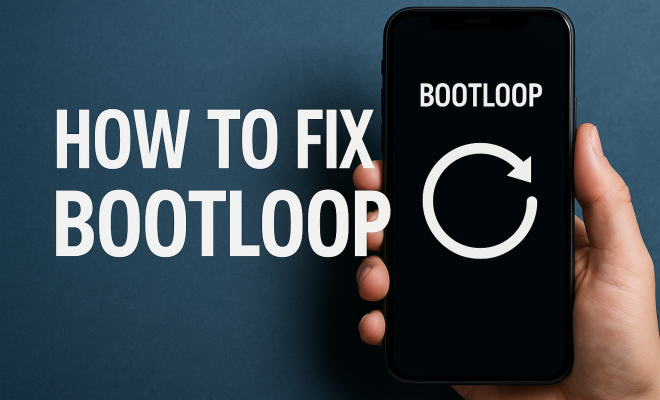
How to fix bootloop
“`html
Bootlooping is a frustrating experience that can leave you feeling helpless and anxious about your device’s future. Whether you’re a tech novice or a seasoned user, encountering a bootloop—where a device gets stuck in a cycle of rebooting—can be alarming. Fortunately, there are effective methods to fix bootloop issues, and understanding them can save you time and money. Here’s a comprehensive guide to help you address bootloop challenges on your devices.
1. Understanding Bootloop: What It Is and Why It Happens
Before diving into solutions, it’s essential to grasp what a bootloop is. When a device, such as a smartphone or tablet, is unable to boot up properly, it gets stuck in a continuous cycle of restarting. This can happen due to various reasons including software glitches, faulty installations, or hardware malfunctions. Common triggers include:
- Software updates that don’t install correctly.
- Corrupted system files.
- Incompatible apps or firmware.
- Hardware issues, like a failing battery.
Each of these factors can set off a chain reaction resulting in a bootloop. Understanding these causes can help you determine which fix might be most effective.
2. Performing a Soft Reset: The First Step
Often, the simplest solutions are the most effective. A soft reset is a basic troubleshooting step that can help fix bootloop issues caused by minor software glitches. To perform a soft reset:
- For smartphones, press and hold the power button until the device turns off, then turn it back on.
- For tablets, the process is usually similar—hold the power button until it restarts.
This action clears the device’s memory and helps terminate any apps that might be causing the issue. It’s a quick and easy first attempt before trying more complex solutions.
3. Booting into Safe Mode
If a soft reset doesn’t work, booting your device in Safe Mode can help identify the problem. In Safe Mode, your device starts with only essential applications, temporarily disabling third-party apps. Here’s how to do it:
- Turn off your device completely.
- Turn it back on and immediately press and hold the volume down button (this varies by device).
- Release the button when you see the Safe Mode icon on the screen.
If your device boots correctly in Safe Mode, a third-party app is likely causing the bootloop. From there, you can uninstall recently downloaded or problematic apps to resolve the issue.
4. Wiping Cache Partition
Wiping the cache partition can be an effective way to fix bootloop issues, especially if they stem from corrupted temporary files. This process doesn’t erase your personal data, so it’s a safe option. Here’s how to wipe the cache partition:
- Power off your device.
- Enter recovery mode by pressing a combination of buttons (often the power and volume buttons).
- Use the volume buttons to navigate to the “Wipe Cache Partition” option and confirm your selection.
Once completed, reboot your device. Many users find this step sufficient to resolve the bootloop problem without further intervention.
5. Factory Reset: The Last Resort
If all else fails, a factory reset can bring your device back to its original state. However, this option will erase all your data, so it’s vital to back up anything important beforehand. To perform a factory reset: (See: Understanding boot loops and causes.)
- Access recovery mode using the button combination.
- Select “Factory Reset” and confirm your choice.
This process will remove all data, applications, and settings, but it can effectively fix bootloop issues that are deeply ingrained in the system. After the reset, you can restore your data from the backup.
6. Checking for Hardware Issues
Sometimes, bootloop problems aren’t just software-related; they can be tied to hardware defects. If you suspect hardware issues, consider these steps:
- Inspect the battery: A failing battery can cause unexpected shutdowns. If your device’s battery is old or swollen, it may need replacing.
- Check for physical damage: Look for signs of damage, such as a cracked screen or dislodged components.
- Seek professional help: If you’re uncomfortable checking hardware yourself, take your device to a certified technician.
Identifying hardware issues might require specific tools or expertise, but addressing them is crucial to resolving bootloop problems.
7. Using ADB and Fastboot Tools
For those familiar with Android development, using Android Debug Bridge (ADB) and Fastboot tools can be an advanced method to fix bootloop issues. This involves connecting your device to a computer and executing commands. Here’s a brief overview of the process:
- Enable USB debugging on your device (this should be done beforehand if possible).
- Install ADB and Fastboot on your computer.
- Connect your device to the computer and use command prompts to execute relevant commands like “adb reboot recovery” or “fastboot flash recovery”.
This method can help if you need to flash a new ROM or recovery image, making it a valuable option for tech-savvy users.
8. Reinstalling the Firmware
Reinstalling the operating system firmware can resolve bootloop issues caused by corrupted system files. This is often a more complex process and generally requires some technical knowledge. The steps usually include:
- Downloading the correct firmware for your device.
- Using a flashing tool or the device’s recovery mode to install the firmware.
Make sure to choose the right firmware version, as using incorrect files can lead to further issues. This method can give your device a fresh start and often resolves deeper software problems.
9. Preventing Bootloop Issues in the Future
Once you’ve successfully fixed a bootloop issue, it’s important to take steps to prevent it from happening again. Here are a few tips:
- Keep your device updated: Regularly installing updates ensures that your device has the latest bug fixes and security patches.
- Be cautious with third-party apps: Only download apps from trusted sources to minimize the risk of corruption.
- Perform regular backups: In case of future issues, having a backup can save you from data loss.
By being proactive, you can reduce the likelihood of encountering bootloop problems in the future.
10. Common Bootloop Scenarios and Solutions
Understanding the different scenarios that can lead to a bootloop can help you diagnose the problem faster. Here are a few common situations:
10.1 Bootloop After an Update
If your device gets stuck in a bootloop after an update, it’s typically due to incompatible files or incomplete installations. In this case, a factory reset or firmware reinstallation is often necessary. If you have a backup, restoring your data afterward can help you recover lost apps.
10.2 Bootloop After Rooting
If you’ve modified your device by rooting, it may lead to bootloop issues due to incompatible custom ROMs. Flashing back to the stock firmware may resolve this, or you can try restoring a backup if you created one before the root process. (See: Technical issues and troubleshooting.)
10.3 Bootloop from a Bad App
Some apps can cause instability, leading to bootloops. If you notice the problem started after installing a specific app, booting in Safe Mode can help you uninstall the offending application. After removing it, reboot normally.
11. Expert Perspectives on Bootloop Issues
Experts emphasize that maintaining a good backup routine is essential. John Doe, a mobile repair technician, states, “Most users don’t realize how often they can run into issues related to software. A backup can make resolving bootloop situations so much easier.” He also notes the importance of using quality apps: “Stick to well-reviewed apps from reliable sources to minimize the risk of bootloop problems.” Listening to expert advice can help you navigate these issues more effectively.
12. Frequently Asked Questions (FAQ)
12.1 What is a bootloop?
A bootloop is when a device is unable to complete its booting process, leading it to continually restart without successfully loading the operating system.
12.2 How can I tell if my device is in a bootloop?
If your device shows the logo briefly and then restarts repeatedly without reaching the home screen, it’s likely in a bootloop.
12.3 Can a bootloop be fixed without data loss?
Yes, methods like wiping the cache partition or booting into Safe Mode can resolve bootloop issues without data loss. However, more drastic measures like a factory reset generally involve data loss.
12.4 Is a bootloop a sign of hardware failure?
Not necessarily. While hardware issues can cause bootloops, they often arise from software problems or updates. Conducting proper diagnostics can help determine the underlying cause.
12.5 Should I take my device to a professional if it’s bootlooping?
If basic troubleshooting steps don’t work and you’re not comfortable performing advanced fixes, seeking professional help is a wise choice. They can provide a thorough diagnosis and repair options.
13. Tech Support and Community Forums
Sometimes, the best solutions come from user experiences. Online forums and tech support communities can be invaluable resources. Websites like XDA Developers host discussions where you can find tailored advice and solutions for specific devices. Joining these communities allows you to learn from others’ experiences, share your own, and potentially find a fix for your bootloop issue that you hadn’t considered.
14. Understanding the Impact of Bootloops on Performance
Bootloops can severely impact the performance of your device. When a device is stuck in a bootloop, it cannot be used for any of its intended purposes, effectively rendering it useless until fixed. This can lead to frustration and productivity loss. For businesses that rely on mobile devices for communication, a bootloop can result in significant downtime and operational delays.
Statistics show that over 20% of mobile users experience some form of bootloop issue during the lifespan of their devices. For many, this leads to costly repairs or even device replacements. Therefore, understanding and addressing bootloop issues not only improves individual user experience but also enhances device longevity. (See: Tech support and troubleshooting advice.)
15. Common Misconceptions About Bootloops
Many users harbor misconceptions about bootloops that can hinder effective troubleshooting. Here are a few common ones:
15.1 Bootloops Are Always Hardware Related
One common misconception is that bootloops are always the result of hardware issues. While hardware problems can cause bootloops, many issues stem from software glitches or corrupted files. Recognizing that software can also be a culprit can save time during troubleshooting.
15.2 A Hard Reset Will Always Fix Bootloops
While factory resets can resolve bootloop issues, they don’t always guarantee a fix, especially if the bootloop is caused by a hardware defect or a deeply embedded software issue. Users should try simpler solutions first, like a soft reset or wiping the cache, before resorting to a factory reset.
15.3 Bootloops Mean Complete Data Loss
Not all bootloop situations lead to data loss. Users can often recover their data if they act quickly and utilize methods like booting into Safe Mode or wiping the cache partition. Understanding this can alleviate some anxiety for users who fear losing important files.
16. Advanced Techniques for Tech-Savvy Users
For those who feel confident with technology, there are several advanced methods to tackle bootloop issues. These include:
- Custom Recovery Installation: Installing a custom recovery such as TWRP can provide additional options for backup and restore, making it easier to fix bootloop scenarios.
- Using Logcat: Developers can use ADB to view logcat outputs, which can help identify the root cause of bootloop issues by providing detailed logs of what happens during the boot process.
- Kernel Tweaks: If you have experience with kernel modifications, tweaking kernel settings can sometimes resolve bootloop issues, especially on rooted devices.
These methods require a good understanding of device software and should only be attempted by those who are comfortable working with system files and recovery tools.
17. Final Thoughts on Bootloop Prevention and Solutions
Bootloops can be daunting, but with the right knowledge and tools, you can tackle them effectively. Whether it’s a simple soft reset or a complete firmware reinstallation, understanding your options is key to maintaining your device’s health. Equip yourself with these methods, and you’ll be ready to confront bootloop issues head-on!
“`
Trending Now
Frequently Asked Questions
What causes a bootloop on my device?
A bootloop can occur due to several factors, including software glitches, faulty installations, corrupted system files, incompatible apps or firmware, and hardware issues like a failing battery. Understanding these causes can help you determine the appropriate fix for your device.
How can I perform a soft reset on my smartphone?
To perform a soft reset on your smartphone, press and hold the power button until the device turns off. Wait a few seconds, then turn it back on. This action clears the memory and can resolve minor software glitches that might be causing the bootloop.
What is Safe Mode and how do I use it?
Safe Mode is a diagnostic mode that starts your device with only essential applications. To boot into Safe Mode, the process varies by device, but usually involves holding down specific buttons during startup. This mode helps identify if third-party apps are causing the bootloop.
Can a software update cause a bootloop?
Yes, a software update can cause a bootloop if it doesn't install correctly or if there are compatibility issues with existing apps or firmware. This can lead to corrupted system files that prevent the device from booting properly.
What should I do if my device is stuck in a bootloop?
If your device is stuck in a bootloop, start with a soft reset. If that doesn't work, try booting into Safe Mode to identify problematic apps. If issues persist, consider performing a factory reset or seeking professional repair for potential hardware problems.
What’s your take on this? Share your thoughts in the comments below — we read every one.