The Tech Edvocate

Top Menu

  • Advertisement
  • Apps
  • Home Page
  • Home Page Five (No Sidebar)
  • Home Page Four
  • Home Page Three
  • Home Page Two
  • Home Tech2
  • Icons [No Sidebar]
  • Left Sidbear Page
  • Lynch Educational Consulting
  • My Account
  • My Speaking Page
  • Newsletter Sign Up Confirmation
  • Newsletter Unsubscription
  • Our Brands
  • Page Example
  • Privacy Policy
  • Protected Content
  • Register
  • Request a Product Review
  • Shop
  • Shortcodes Examples
  • Signup
  • Start Here
    • Governance
    • Careers
    • Contact Us
  • Terms and Conditions
  • The Edvocate
  • The Tech Edvocate Product Guide
  • Topics
  • Write For Us
  • Advertise

Main Menu

  • Start Here
    • Our Brands
    • Governance
      • Lynch Educational Consulting, LLC.
      • Dr. Lynch’s Personal Website
      • Careers
    • Write For Us
    • The Tech Edvocate Product Guide
    • Contact Us
    • Books
    • Edupedia
    • Post a Job
    • The Edvocate Podcast
    • Terms and Conditions
    • Privacy Policy
  • Topics
    • Assistive Technology
    • Child Development Tech
    • Early Childhood & K-12 EdTech
    • EdTech Futures
    • EdTech News
    • EdTech Policy & Reform
    • EdTech Startups & Businesses
    • Higher Education EdTech
    • Online Learning & eLearning
    • Parent & Family Tech
    • Personalized Learning
    • Product Reviews
  • Advertise
  • Tech Edvocate Awards
  • The Edvocate
  • Pedagogue
  • School Ratings

logo

The Tech Edvocate

  • Start Here
    • Our Brands
    • Governance
      • Lynch Educational Consulting, LLC.
      • Dr. Lynch’s Personal Website
        • My Speaking Page
      • Careers
    • Write For Us
    • The Tech Edvocate Product Guide
    • Contact Us
    • Books
    • Edupedia
    • Post a Job
    • The Edvocate Podcast
    • Terms and Conditions
    • Privacy Policy
  • Topics
    • Assistive Technology
    • Child Development Tech
    • Early Childhood & K-12 EdTech
    • EdTech Futures
    • EdTech News
    • EdTech Policy & Reform
    • EdTech Startups & Businesses
    • Higher Education EdTech
    • Online Learning & eLearning
    • Parent & Family Tech
    • Personalized Learning
    • Product Reviews
  • Advertise
  • Tech Edvocate Awards
  • The Edvocate
  • Pedagogue
  • School Ratings
  • A Visitors Guide to Cincinnati (OH), United States

  • The MagicEagle Cam 5: Revolutionizing Wildlife Monitoring with Smart 4G Technology

  • A Visitors Guide to Pittsburgh (PA), United States

  • A Visitors Guide to Colorado Springs (CO), United States

  • 5 Pairs of Shoes That Will Instantly Step Your Shoe Game Up

  • Radiant Youthful Skin is the Perfect Christmas Gift

  • Give Your Loved One the Gift of Youthful, Radiant Skin this Christmas

  • Give Your Loved One the Gift of a Restful Night Sleep this Christmas

  • Nex Playground’s Holiday Sales Bring Active Play Indoors This Seaso

  • A Visitors Guide to Louisville (KY), United States

Digital & Mobile Technology
Home›Digital & Mobile Technology›How to Play Video and Music Files on Your Xbox One

How to Play Video and Music Files on Your Xbox One

By Matthew Lynch
May 1, 2023
0
Spread the love

The Xbox One is a marvel of modern technology, and it can do far more than just play video games. One of its many capabilities is playing video and music files, making it a versatile entertainment center for your living room. Here’s how to play video and music files on your Xbox One:

Playing Video Files:

1. First, make sure your video files are compatible with the Xbox One. The console supports a wide range of file types, including MP4, WMV, AVI, and MKV. If your video file isn’t compatible, you may need to convert it to a compatible format using a video converter.

2. Once you’ve confirmed that your video file is compatible, plug a USB flash drive or external hard drive containing your video file into your Xbox One.

3. Navigate to the Xbox One’s Media Player app using the console’s main menu.

4. In the app, select the drive containing the video file to access its contents. Your video file should be displayed, so select it to begin playing it.

5. If you want to pause or stop the video, you can do so using the controller or your voice. You can also fast forward or rewind using the controller’s triggers.

Playing Music Files:

1. Make sure your music files are compatible with the Xbox One. The console supports MP3, WMA, and AAC files. If your music file isn’t compatible, you’ll need to convert it to a supported file type using a file converter.

2. Plug a USB flash drive or external hard drive containing your music files into your Xbox One.

3. Navigate to the Xbox One’s Media Player app using the console’s main menu.

4. In the app, select the drive containing the music files to access its contents. Your music files should be displayed, so select the one you want to play to begin listening.

5. You can pause or stop the music using the controller or your voice. You can also skip tracks using the controller’s bumpers.

By following these simple steps, you can enjoy your favorite video and music files on your Xbox One. Whether you’re watching a movie or listening to music, the Xbox One can provide an immersive entertainment experience in your living room.  

Previous Article

How to Play Spotify with Alexa on ...

Next Article

How to Play Windows PC Games on ...

Matthew Lynch

Related articles More from author

  • Digital & Mobile Technology

    How to Remove a Virus from Your Computer without Using an Antivirus

    May 3, 2023
    By Matthew Lynch
  • Digital & Mobile Technology

    Best Free Cloud Storage Services for Backup in 2023

    June 1, 2023
    By Matthew Lynch
  • Digital & Mobile Technology

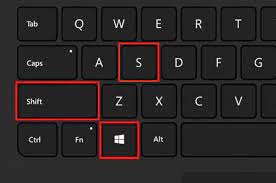
    How to Screenshot on Windows Without Print Screen

    June 23, 2023
    By Matthew Lynch
  • Digital & Mobile Technology

    Star Wars: The Force Unleashed II Xbox 360 Cheats

    June 23, 2023
    By Matthew Lynch
  • Digital & Mobile Technology

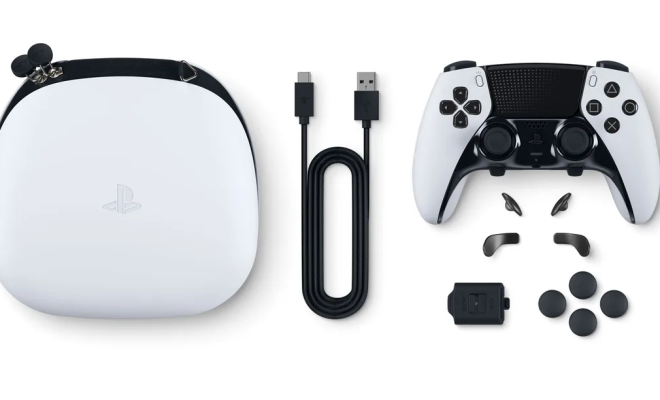
    Things You Might Not Know About Your PS5’s DualSense Controller

    June 21, 2023
    By Matthew Lynch
  • Digital & Mobile Technology

    Notion vs. Obsidian: Which Note-Taking App Should You Use?

    August 5, 2023
    By Matthew Lynch

Search

Login & Registration

  • Register
  • Log in
  • Entries feed
  • Comments feed
  • WordPress.org

Newsletter

Signup for The Tech Edvocate Newsletter and have the latest in EdTech news and opinion delivered to your email address!

About Us

Since technology is not going anywhere and does more good than harm, adapting is the best course of action. That is where The Tech Edvocate comes in. We plan to cover the PreK-12 and Higher Education EdTech sectors and provide our readers with the latest news and opinion on the subject. From time to time, I will invite other voices to weigh in on important issues in EdTech. We hope to provide a well-rounded, multi-faceted look at the past, present, the future of EdTech in the US and internationally.

We started this journey back in June 2016, and we plan to continue it for many more years to come. I hope that you will join us in this discussion of the past, present and future of EdTech and lend your own insight to the issues that are discussed.

Newsletter

Signup for The Tech Edvocate Newsletter and have the latest in EdTech news and opinion delivered to your email address!

Contact Us

The Tech Edvocate
910 Goddin Street
Richmond, VA 23231
(601) 630-5238
[email protected]

Copyright © 2025 Matthew Lynch. All rights reserved.