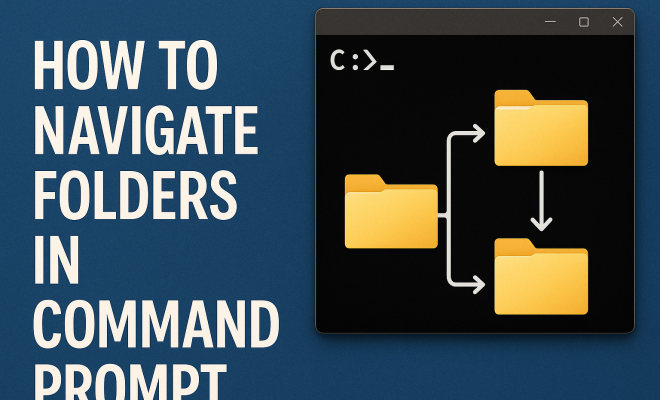
How to navigate folders in command prompt
“`html
Understanding how to navigate folders in command prompt is an essential skill for anyone who interacts with a Windows operating system. While many users opt for graphical interfaces, mastering the command prompt can significantly enhance your efficiency and provide deeper insights into file management. This guide will equip you with the knowledge to confidently maneuver through folders, execute commands, and harness the full potential of the command prompt.
1. The Command Prompt: An Overview
The Command Prompt, also known as cmd, is a command-line interpreter that allows users to execute commands to perform various functions on their computers. It’s a powerful tool that gives users the ability to run scripts, manage files, and automate tasks, all from a text-based interface. Unlike graphical user interfaces (GUIs), where you click your way around, the command prompt requires you to type commands manually.
It is available in all versions of Windows, and while it might seem intimidating at first, the command prompt offers flexibility and speed that a GUI often cannot match. Whether you’re a tech enthusiast or a casual user looking to improve your skills, knowing how to navigate folders in command prompt opens up a world of possibilities.
2. Opening the Command Prompt
Before you can learn to navigate folders, you need to know how to access the command prompt. There are several methods to open it:
- Search Method: Click on the Start menu or press the Windows key, type “cmd” or “Command Prompt,” and select it from the results.
- Run Command: Press Windows + R to open the Run dialog, type “cmd,” and hit Enter.
- Power User Menu: Right-click the Start button or press Windows + X and select “Command Prompt” or “Windows PowerShell” (in Windows 10 and later versions, PowerShell is often the default).
After opening the command prompt, you’ll see a black window with a blinking cursor, indicating that it’s ready to accept commands. From here, you can begin your journey of folder navigation.
3. Understanding the Basic Commands
To effectively navigate folders in command prompt, you need to know a few basic commands:
- cd (Change Directory): This command allows you to change your current directory. For example, typing
cd Documentswill move you into the Documents folder. - dir (Directory): This command lists all files and folders in the current directory. Typing
dirwill display the contents of the folder you are currently in. - cls (Clear Screen): If your command prompt gets cluttered, typing
clsclears the screen for better visibility.
Mastering these commands is crucial as they form the foundation of folder navigation within the command prompt. With these tools, you’ll find it easier to explore the file system of your computer.
4. Changing Directories: A Step-by-Step Guide
Once you’re familiar with the basic commands, the next step is to learn how to change directories effectively. The cd command is your best friend here. You can move between folders using relative or absolute paths.
A relative path refers to the current directory you are in. For instance, if you’re in the C:\Users directory and want to access the Documents folder, you’d type cd Documents. If you want to go back one directory, you can type cd .. which moves you up one level. If you’re unsure where you are, use dir to see the contents of your current directory.
On the other hand, absolute paths are a complete path from the root directory. For example, to go directly to the Documents folder located at C:\Users\YourName\Documents, you would type cd C:\Users\YourName\Documents. Using absolute paths can save time if you need to jump across different directories.
5. Viewing and Managing Directory Contents
After you’ve navigated to a specific folder, you’ll likely want to see what’s inside. The dir command comes into play here. When you type dir, you get a list of files and folders, along with details such as file size and date modified. This command can be enhanced with several flags to filter the output. (See: Command Line Interface overview.)
For instance, dir /p pauses the output after each screenful of information, making it easier to read long lists. Meanwhile, dir /w displays files in a wide format, which is useful for getting a quick overview of your directory’s contents.
Managing your files from the command prompt is equally straightforward. If you want to delete a file, you can use the del command followed by the filename. For example, del myfile.txt removes the specified file. Just be careful — unlike using a GUI, there’s no recycle bin in the command prompt!
6. Creating and Deleting Folders
Part of effective folder management is knowing how to create and delete folders directly from the command prompt. To create a new folder, you can use the mkdir (make directory) command. For example, typing mkdir NewFolder creates a new folder named NewFolder in the current directory.
Deleting directories can be slightly more complex. If you want to remove an empty folder, you can simply use rmdir FolderName. However, if the folder contains files or other subfolders, you’ll need to use rmdir /s FolderName, which removes the folder and all its contents. Again, exercise caution here; this command is irreversible!
7. Navigating through Drives
Sometimes you might need to navigate not just between folders but across different drives — for example, from your C: drive to your D: drive. Switching drives is simple. You just need to type the drive letter followed by a colon. For example, typing D: switches you to the D: drive. From there, you can use the cd command to change directories within that drive.
If you don’t know the directory structure of the new drive, remember that you can always use dir to list the contents after switching drives. This adaptability allows you to seamlessly move between various locations in your file system, enhancing your workflow.
8. Using Tab Completion for Faster Navigation
One of the underrated features of the command prompt is tab completion, which can save you a lot of typing time. When you start typing a folder name and press the Tab key, the command prompt automatically completes the name for you. If there are multiple folders that match what you’ve typed so far, repeatedly pressing Tab will cycle through the available options. This feature can help prevent errors in typing and speeds up the navigation process.
For instance, if you want to access a folder named “Documents” but don’t want to type the entire name, simply type cd Doc and press Tab. The command prompt will automatically fill in the rest, allowing you to continue with the command. With practice, you’ll find navigation becomes more intuitive and less tedious.
9. Advanced Navigation Techniques
Once you’re comfortable with the basics, it’s time to explore some advanced navigation techniques. One such technique includes using wildcard characters. The asterisk (*) can replace any number of characters in a file or directory name, while the question mark (?) can represent a single character. This can be particularly useful when dealing with files that have similar names.
For example, if you have multiple text files and want to delete all of them, you can simply use del *.txt. This command will delete every text file in the current directory. However, always double-check what files you’re affecting with wildcard commands, as they can lead to unintended deletions!
Additionally, batch files can help automate repetitive tasks. By creating a simple text file and saving it with a .bat extension, you can script a series of commands to run sequentially. This can be a game-changer for repetitive folder management tasks.
10. Working with Environment Variables
Environment variables are system-wide variables that can change how the operating system behaves. They store information such as the user profile path, system directory, and more. You can use environment variables to navigate folders more efficiently in command prompt.
For example, if you want to change to your user directory regardless of your current location, typing cd %USERPROFILE% will always take you there. Similarly, you can access the system directory by typing cd %SystemRoot%. This way, you don’t need to memorize specific paths, which can be particularly useful if you work on multiple systems or user accounts.
Understanding and utilizing environment variables can streamline your workflow and make navigation less cumbersome.
11. Command-Line Tools for Enhanced File Management
In addition to basic navigation, there are several command-line tools that can enhance your file management experience. Tools like robocopy and xcopy provide advanced options for copying files and directories.
robocopy (Robust File Copy) is a more powerful tool than simple copy commands. For example, if you want to copy an entire directory while preserving its structure and attributes, you can use:
robocopy C:\Source D:\Destination /E
This command will copy everything from the source directory to the destination, including empty folders. It’s particularly useful for backing up data or migrating files from one location to another.
xcopy is another command that offers more features than the standard copy command. For example, to copy a directory along with its subdirectories, you could use:
xcopy C:\Source D:\Destination /s /e
Both tools can be quite handy for managing large amounts of data efficiently, especially when used in scripts for automated processes.
12. Common Errors and How to Fix Them
Even experienced users can encounter errors while navigating the command prompt. Here are some common errors and how to resolve them:
- ‘The system cannot find the path specified’: This error indicates that the directory you’re trying to navigate to doesn’t exist. Double-check the spelling and ensure the path is correct.
- ‘Access denied’: This occurs when you don’t have permission to access a folder. You may need to run the command prompt as an administrator or change the folder permissions.
- ‘File not found’: If you try to delete or manipulate a file that doesn’t exist, you’ll see this error. Again, verify the file name and path.
By familiarizing yourself with these common pitfalls, you can troubleshoot more effectively and maintain your workflow without significant interruptions.
13. Frequently Asked Questions (FAQ)
Q1: Can I use the command prompt to navigate network drives?
A1: Yes, you can navigate to network drives using the same principles. If a network drive is mapped to a letter (like Z:), you simply type Z: to switch to it and then use cd to navigate folders within that drive.
Q2: What happens if I forget a command?
A2: You can type help in the command prompt to view a list of available commands. For a specific command, you can type command_name /? to get details about its usage.
Q3: Is there a way to view the command history?
A3: Yes, you can view your command history by pressing the Up Arrow key to cycle through previously entered commands. This can save you time if you often reuse specific commands.
Q4: Can I customize the command prompt appearance?
A4: Yes, you can change the command prompt’s color scheme and font style by right-clicking the title bar, selecting “Properties,” and navigating to the “Colors” or “Font” tabs.
Q5: Are there any risks in using the command prompt?
A5: The command prompt can execute powerful commands that can alter or delete files and folders. Always double-check your commands, especially those involving deletion or system modification, to avoid unintended consequences.
Q6: How do I clear the command prompt history?
A6: Unfortunately, there isn’t a built-in command to clear the history in Command Prompt. However, closing and reopening the Command Prompt will clear the current session’s history. For a more permanent solution, consider using a different command line tool that allows history management.
Q7: Can I run multiple commands at once?
A7: Yes! You can use the ampersand (&) to run multiple commands in a single line. For example, cd C:\Users & dir will change the directory and then list the contents of that directory in one command.
14. Additional Tips for Efficient Command Prompt Use
Now that you have a solid understanding of the command prompt, here are some additional tips to enhance your experience:
- Use Shortcuts: Familiarize yourself with keyboard shortcuts like Ctrl + C to stop a running command or Ctrl + V to paste text into the command prompt. These can save you time.
- Command Aliases: Create batch files for frequently used commands. For example, if you always try to navigate to a specific folder, you can create a batch file that automatically takes you there.
- Keep a Command Reference: Consider creating a cheat sheet with commands and their purposes for quick reference. This can be especially useful when you’re just starting out.
- Explore PowerShell: While the command prompt is powerful, Windows PowerShell offers even more functionality and scripting capabilities. If you find yourself using the command prompt often, it might be worth exploring PowerShell as well.
15. The Power of Command Line Navigation
Learning to navigate folders in command prompt brings a level of efficiency and control that most users will benefit from. Whether you’re a professional seeking to streamline your workflow or a hobbyist exploring file systems, the command prompt can open new doors for your computing experience. While it may take some practice, the ability to navigate, manage, and manipulate folders through command line commands can set you apart as a tech-savvy user.
So don’t shy away from the command prompt. Embrace it, experiment with it, and watch as your productivity soars!
“`
Trending Now
Frequently Asked Questions
How do I open the command prompt in Windows?
You can open the command prompt by clicking the Start menu and typing 'cmd' or 'Command Prompt.' Alternatively, press Windows + R to open the Run dialog, type 'cmd,' and hit Enter. In Windows 10 and later, you can also right-click the Start button and select 'Command Prompt' or 'Windows PowerShell.'
What is the command prompt used for?
The command prompt, or cmd, is a command-line interpreter that allows users to execute commands for various functions, such as managing files, running scripts, and automating tasks. It provides a powerful, text-based interface that can enhance efficiency compared to graphical user interfaces.
How can I navigate folders using the command prompt?
To navigate folders in the command prompt, use the 'cd' command followed by the folder path. For example, typing 'cd Documents' will take you to the Documents folder. Use 'cd ..' to move up one directory level and 'dir' to list the contents of the current directory.
Is the command prompt available on all Windows versions?
Yes, the command prompt is available on all versions of Windows. It is a built-in tool that allows users to perform various tasks through a command-line interface, providing flexibility and speed for managing files and executing commands.
Why should I learn to use the command prompt?
Learning to use the command prompt can significantly enhance your efficiency in file management and system navigation. It allows for faster execution of commands, automation of tasks, and provides deeper insights into system functions compared to traditional graphical interfaces.
What did we miss? Let us know in the comments and join the conversation.