The Tech Edvocate

Top Menu

  • Advertisement
  • Apps
  • Home Page
  • Home Page Five (No Sidebar)
  • Home Page Four
  • Home Page Three
  • Home Page Two
  • Home Tech2
  • Icons [No Sidebar]
  • Left Sidbear Page
  • Lynch Educational Consulting
  • My Account
  • My Speaking Page
  • Newsletter Sign Up Confirmation
  • Newsletter Unsubscription
  • Our Brands
  • Page Example
  • Privacy Policy
  • Protected Content
  • Register
  • Request a Product Review
  • Shop
  • Shortcodes Examples
  • Signup
  • Start Here
    • Governance
    • Careers
    • Contact Us
  • Terms and Conditions
  • The Edvocate
  • The Tech Edvocate Product Guide
  • Topics
  • Write For Us
  • Advertise

Main Menu

  • Start Here
    • Our Brands
    • Governance
      • Lynch Educational Consulting, LLC.
      • Dr. Lynch’s Personal Website
      • Careers
    • Write For Us
    • The Tech Edvocate Product Guide
    • Contact Us
    • Books
    • Edupedia
    • Post a Job
    • The Edvocate Podcast
    • Terms and Conditions
    • Privacy Policy
  • Topics
    • Assistive Technology
    • Child Development Tech
    • Early Childhood & K-12 EdTech
    • EdTech Futures
    • EdTech News
    • EdTech Policy & Reform
    • EdTech Startups & Businesses
    • Higher Education EdTech
    • Online Learning & eLearning
    • Parent & Family Tech
    • Personalized Learning
    • Product Reviews
  • Advertise
  • Tech Edvocate Awards
  • The Edvocate
  • Pedagogue
  • School Ratings

logo

The Tech Edvocate

  • Start Here
    • Our Brands
    • Governance
      • Lynch Educational Consulting, LLC.
      • Dr. Lynch’s Personal Website
        • My Speaking Page
      • Careers
    • Write For Us
    • The Tech Edvocate Product Guide
    • Contact Us
    • Books
    • Edupedia
    • Post a Job
    • The Edvocate Podcast
    • Terms and Conditions
    • Privacy Policy
  • Topics
    • Assistive Technology
    • Child Development Tech
    • Early Childhood & K-12 EdTech
    • EdTech Futures
    • EdTech News
    • EdTech Policy & Reform
    • EdTech Startups & Businesses
    • Higher Education EdTech
    • Online Learning & eLearning
    • Parent & Family Tech
    • Personalized Learning
    • Product Reviews
  • Advertise
  • Tech Edvocate Awards
  • The Edvocate
  • Pedagogue
  • School Ratings
  • A Visitor’s Guide to Fresno (CA), United States

  • A Visitors Guide to New Orleans (LA), United States

  • A Visitors Guide to Sacramento (CA), United States

  • A Visitors Guide to Lyon, France

  • JisuLife Ultra2 Portable Fan: A Powerful Multi-Function Cooling Solution

  • A Visitors Guide to Viña del Mar, Chile

  • A Visitors Guide to Århus, Denmark

  • A Visitors Guide to Bakersfield (CA), United States

  • A Visitors Guide to Aurora (CO), United States

  • A Visitor’s Guide to Toledo (OH), United States

Assistive Technology
Home›Assistive Technology›How to Multistream for Free Using Streamlabs and OBS Studio

How to Multistream for Free Using Streamlabs and OBS Studio
By Matthew Lynch
June 13, 2023
0
Spread the love

Multistreaming, the practice of broadcasting your live video feed to multiple platforms at the same time, has become increasingly popular in recent years. This is because it provides content creators and businesses with the opportunity to expand their reach and audience across multiple platforms simultaneously without having to spend a lot of time or money. In this article, we will discuss how to multistream for free using Streamlabs and OBS Studio.

Step 1: Download Streamlabs and OBS Studio

The first step in multistreaming is to download and set up Streamlabs and OBS Studio. These are the two primary tools that you will need for this process. Streamlabs is a software that allows you to add widgets and stream notifications to your feed, while OBS Studio is a free and open-source software that allows you to create a professional-looking video stream. Both of these tools are free to download and use.

Step 2: Add Your Streaming Accounts

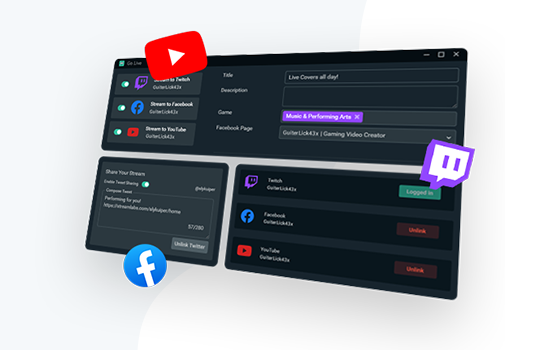
Once you have downloaded and installed Streamlabs and OBS Studio, the next step is to add your streaming accounts. To do this, open Streamlabs and click on the “Multistreaming” tab. From there, you can add the accounts that you want to stream to, including Twitch, Facebook, YouTube, and more.

Step 3: Configure OBS Studio

After adding your streaming accounts, the next step is to configure OBS Studio. To do this, you will need to set up your scene and add the necessary sources, such as your webcam, microphone, and game capture. Once that is done, you will need to configure your stream settings, including the resolution, bitrate, and framerate.

Step 4: Start Your Streams

Once you have configured your Streamlabs and OBS Studio, you can start your multistreaming. Start OBS Studio and click on “Start Streaming.” This will start your stream, and you should see a preview of your stream in the Streamlabs dashboard. From there, you can edit your stream and add any necessary widgets or notifications.

Step 5: Monitor Your Streams

While multistreaming, it is important to monitor your streams on each platform to ensure everything is working correctly. Use your phone or a separate device to monitor your streams and make sure that everything is working properly. Additionally, check the chat windows on each platform regularly to engage with your audience and answer any questions.

In conclusion, multistreaming is an excellent way to expand your reach and audience without having to spend a lot of time or money. By following these simple steps, you can easily set up Streamlabs and OBS Studio and start multistreaming for free across multiple platforms. Happy streaming!

Previous Article

What Is a Pass the Hash Attack ...

Next Article

How to Refresh Windows 11

Matthew Lynch

Related articles More from author

  • Assistive Technology

    How to Make a Video Wallpaper on Your Phone

    June 6, 2023
    By Matthew Lynch
  • Assistive Technology

    How to Pay Facebook Friends With Messenger

    June 12, 2023
    By Matthew Lynch
  • Assistive Technology

    How to Fix No Matches on Bumble

    June 10, 2023
    By Matthew Lynch
  • Assistive Technology

    How to Install VMware on Linux and Create Your First Virtual Machine

    June 5, 2023
    By Matthew Lynch
  • Assistive Technology

    How to Fix ‘The File or Directory is Corrupted and Unreadable’ Errors

    June 10, 2023
    By Matthew Lynch
  • Assistive Technology

    YouTube URL Tricks You Should Know About

    June 23, 2023
    By Matthew Lynch

Search

Login & Registration

  • Register
  • Log in
  • Entries feed
  • Comments feed
  • WordPress.org

Newsletter

Signup for The Tech Edvocate Newsletter and have the latest in EdTech news and opinion delivered to your email address!

About Us

Since technology is not going anywhere and does more good than harm, adapting is the best course of action. That is where The Tech Edvocate comes in. We plan to cover the PreK-12 and Higher Education EdTech sectors and provide our readers with the latest news and opinion on the subject. From time to time, I will invite other voices to weigh in on important issues in EdTech. We hope to provide a well-rounded, multi-faceted look at the past, present, the future of EdTech in the US and internationally.

We started this journey back in June 2016, and we plan to continue it for many more years to come. I hope that you will join us in this discussion of the past, present and future of EdTech and lend your own insight to the issues that are discussed.

Newsletter

Signup for The Tech Edvocate Newsletter and have the latest in EdTech news and opinion delivered to your email address!

Contact Us

The Tech Edvocate
910 Goddin Street
Richmond, VA 23231
(601) 630-5238
[email protected]

Copyright © 2025 Matthew Lynch. All rights reserved.