The Tech Edvocate

Top Menu

  • Advertisement
  • Apps
  • Home Page
  • Home Page Five (No Sidebar)
  • Home Page Four
  • Home Page Three
  • Home Page Two
  • Home Tech2
  • Icons [No Sidebar]
  • Left Sidbear Page
  • Lynch Educational Consulting
  • My Account
  • My Speaking Page
  • Newsletter Sign Up Confirmation
  • Newsletter Unsubscription
  • Our Brands
  • Page Example
  • Privacy Policy
  • Protected Content
  • Register
  • Request a Product Review
  • Shop
  • Shortcodes Examples
  • Signup
  • Start Here
    • Governance
    • Careers
    • Contact Us
  • Terms and Conditions
  • The Edvocate
  • The Tech Edvocate Product Guide
  • Topics
  • Write For Us
  • Advertise

Main Menu

  • Start Here
    • Our Brands
    • Governance
      • Lynch Educational Consulting, LLC.
      • Dr. Lynch’s Personal Website
      • Careers
    • Write For Us
    • The Tech Edvocate Product Guide
    • Contact Us
    • Books
    • Edupedia
    • Post a Job
    • The Edvocate Podcast
    • Terms and Conditions
    • Privacy Policy
  • Topics
    • Assistive Technology
    • Child Development Tech
    • Early Childhood & K-12 EdTech
    • EdTech Futures
    • EdTech News
    • EdTech Policy & Reform
    • EdTech Startups & Businesses
    • Higher Education EdTech
    • Online Learning & eLearning
    • Parent & Family Tech
    • Personalized Learning
    • Product Reviews
  • Advertise
  • Tech Edvocate Awards
  • The Edvocate
  • Pedagogue
  • School Ratings

logo

The Tech Edvocate

  • Start Here
    • Our Brands
    • Governance
      • Lynch Educational Consulting, LLC.
      • Dr. Lynch’s Personal Website
        • My Speaking Page
      • Careers
    • Write For Us
    • The Tech Edvocate Product Guide
    • Contact Us
    • Books
    • Edupedia
    • Post a Job
    • The Edvocate Podcast
    • Terms and Conditions
    • Privacy Policy
  • Topics
    • Assistive Technology
    • Child Development Tech
    • Early Childhood & K-12 EdTech
    • EdTech Futures
    • EdTech News
    • EdTech Policy & Reform
    • EdTech Startups & Businesses
    • Higher Education EdTech
    • Online Learning & eLearning
    • Parent & Family Tech
    • Personalized Learning
    • Product Reviews
  • Advertise
  • Tech Edvocate Awards
  • The Edvocate
  • Pedagogue
  • School Ratings
  • A Visitors Guide to Santa Maria, Brazil

  • Uncovering the Truth: This Salmonella Outbreak Sprouts Warning You Can’t Ignore

  • This One Flaw Just Melted an RTX 5090 — What Happens Next?

  • This Startup Just Raised $40 Million to Revolutionize Women’s Health

  • This AI Coding Startup Just Tripled Its Value to $5 Billion Overnight

  • The Blood Of Dawnwalker: 10 Burning Questions After Its Console Demo Scandal

  • Gamers vs. Critics: Why Wolverine Game Reviews Are Sparking a Culture War

  • AI-Generated Content Is Flooding Social Media, Research Shows

  • Florida’s Latest Education Scandal: The Climate Change Curriculum You Won’t Believe

  • Millions Face a Brutal Student Loan Payment Hike — What You MUST Do Now

Assistive Technology
Home›Assistive Technology›How to Move Installed Apps & Programs in Windows 10 and 11

How to Move Installed Apps & Programs in Windows 10 and 11
By Matthew Lynch
June 15, 2023
0
Spread the love

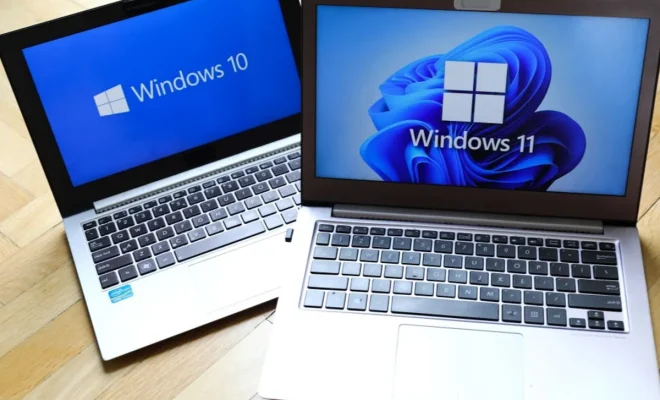
As a Windows 10 or 11 user, you may sometimes need to move installed apps or programs from one location to another. This can be due to various reasons, such as freeing up space on your primary hard drive or moving programs to a faster SSD. Fortunately, Windows 10 and 11 come with some built-in features that allow you to easily move installed apps and programs to different locations. In this article, we will discuss how to move apps and programs in Windows 10 and 11.

Before we proceed, it’s important to note that not all apps or programs can be moved. Some apps or programs are tightly integrated with the operating system and cannot be moved without causing issues. However, most third-party apps and programs can be moved without any problems.

Method 1: Move Apps and Programs Using Windows Settings

The easiest way to move apps and programs in Windows 10 and 11 is through the Windows Settings app. Here’s how to do it:

Step 1: Open the Settings app by clicking on the Windows start button and selecting Settings.

Step 2: Click on the System option.

Step 3: Under the System menu, select the Storage option.

Step 4: You will see a list of drives connected to your system. Click on the drive where the app or program you want to move is currently installed.

Step 5: You will then see a list of apps and programs installed on that drive. Select the app or program you want to move and click on it.

Step 6: Click on the Move button.

Step 7: Select the new location where you want to move the app or program to.

Step 8: Click on the Move button again to confirm the move.

Method 2: Move Apps and Programs Using the Control Panel

Another way to move apps and programs in Windows 10 and 11 is through the Control Panel. Here’s how to do it:

Step 1: Open the Control Panel from the Windows Start menu.

Step 2: Click on Programs.

Step 3: Click on Programs and Features.

Step 4: You will see a list of all the installed programs on your system. Select the program you want to move.

Step 5: Click on the Change button.

Step 6: In the new window that opens, select the option to modify the installation.

Step 7: Select the new location where you want to move the program to.

Step 8: Click on the Install button to confirm the move.

After completing these steps, the app or program will be moved to the new location, and it should work without any issues. However, it’s important to note that moving apps and programs can sometimes cause issues, especially if the program is tightly integrated with the operating system. Therefore, it’s always best to proceed with caution and only move programs that you know won’t cause any issues.


Previous Article

SparkNotes and CliffsNotes Alternatives for Book Summaries

Next Article

How to Delete Location Details From Your ...

Matthew Lynch

Related articles More from author

  • Assistive Technology

    How to Add a Profile to Hulu

    June 10, 2023
    By Matthew Lynch
  • Assistive Technology

    How to Make a DIY Smartphone Projector

    June 14, 2023
    By Matthew Lynch
  • Assistive Technology

    How to Make a Chart on Google Docs

    June 10, 2023
    By Matthew Lynch
  • Assistive Technology

    Pixel Buds Sound Won’t Work? How to Fix the Problem

    June 10, 2023
    By Matthew Lynch
  • Assistive Technology

    How to Tether Your Android Phone for Free

    June 8, 2023
    By Matthew Lynch
  • Assistive Technology

    How to Fix the Nvidia Container’s High CPU Usage on Windows

    June 12, 2023
    By Matthew Lynch

Search

Login & Registration

  • Log in
  • Entries feed
  • Comments feed
  • WordPress.org

Newsletter

Signup for The Tech Edvocate Newsletter and have the latest in EdTech news and opinion delivered to your email address!

About Us

Since technology is not going anywhere and does more good than harm, adapting is the best course of action. That is where The Tech Edvocate comes in. We plan to cover the PreK-12 and Higher Education EdTech sectors and provide our readers with the latest news and opinion on the subject. From time to time, I will invite other voices to weigh in on important issues in EdTech. We hope to provide a well-rounded, multi-faceted look at the past, present, the future of EdTech in the US and internationally.

We started this journey back in June 2016, and we plan to continue it for many more years to come. I hope that you will join us in this discussion of the past, present and future of EdTech and lend your own insight to the issues that are discussed.

Newsletter

Signup for The Tech Edvocate Newsletter and have the latest in EdTech news and opinion delivered to your email address!

Contact Us

The Tech Edvocate
910 Goddin Street
Richmond, VA 23231
(601) 630-5238
[email protected]

Copyright © 2026 Matthew Lynch. All rights reserved.