How to install npm packages
“`html
In the world of JavaScript development, managing packages efficiently is a crucial skill. This is where npm (Node Package Manager) comes into play, offering developers an extensive library of packages that can enhance functionality and streamline workflows. If you’re looking to install npm packages, whether you’re a seasoned developer or just starting out, this guide will walk you through everything you need to know.
1. What is npm?
npm, or Node Package Manager, is an open-source package manager for the JavaScript runtime environment Node.js. It allows developers to easily share, install, and manage packages that add functionality to their JavaScript applications. Since its inception in 2010, npm has grown to become one of the largest software registries available, hosting millions of packages.
The primary purpose of npm is to assist programmers in managing dependencies, which are libraries or frameworks that a project requires to function correctly. By leveraging npm, developers can save time and avoid the hassle of manual installations, allowing them to focus more on coding and less on troubleshooting dependency issues.
2. Understanding npm Packages
Packages in npm are essentially collections of code that developers have created and made available for others to use. This can include anything from tiny utilities to large frameworks. When you decide to install npm packages, you’re essentially pulling code from the npm registry and integrating it into your project.
Packages are usually defined in a package.json file, which includes metadata about the package, such as its name, version, dependencies, and scripts. This file is crucial for any project using npm, as it dictates what packages your project relies on and helps to manage their versions effectively.
3. Prerequisites for Installing npm Packages
Before you can start to install npm packages, you need to ensure a few prerequisites are met:
- Node.js Installation: npm is bundled with Node.js, so installing Node.js is the first step. Download the latest version of Node.js from the official site and install it on your system.
- Command Line Interface (CLI): Familiarity with the command line is essential, as npm commands are run through it. Make sure you know how to navigate your file system and execute commands.
- Internet Connection: Since npm pulls packages from the web, a stable internet connection is necessary for successful installations.
4. Installing npm Packages: The Basics
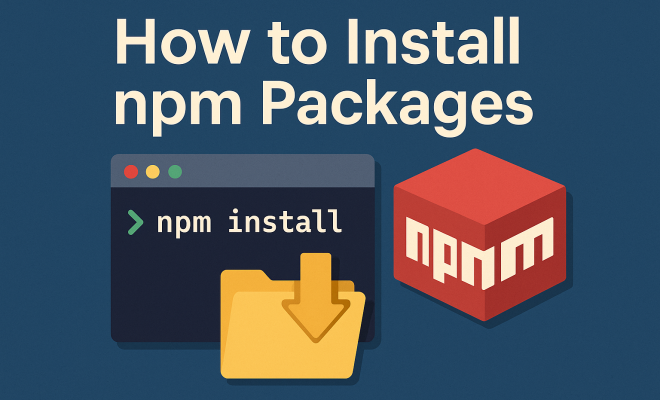
Once you have Node.js installed, you’re ready to begin. The most common way to install npm packages is by using the command line. The command to install a package is straightforward:
npm install
For example, if you want to install the popular library express, you would simply type:
npm install express
This command downloads the latest version of the package and its dependencies into a node_modules directory in your project. It also updates your package.json file to include the new dependency.
5. Installing Packages Globally vs Locally
When installing npm packages, you have two options: local installation and global installation. Understanding the differences is key to effective package management.
Local Installation: This is the default option when you run the npm install command. It installs the package only in the current project directory, under node_modules. This is ideal for project-specific libraries, allowing each project to maintain its own set of dependencies.
Global Installation: If you want to use a package from the command line across multiple projects, you can install it globally using the -g flag:
npm install -g
Global packages are stored in a system-wide location, allowing you to access them from any project. However, be cautious when using global packages, as version conflicts can arise if different projects require different versions of the same package. (See: Learn more about npm on Wikipedia.)
6. Managing Package Versions
When you install npm packages, you might encounter scenarios where specific versions of a package are required, either for compatibility reasons or to take advantage of particular features. npm allows you to specify versions when installing packages.
You can install a specific version by appending the version number to the package name:
npm install
For instance, if you want to install version 4.17.1 of express, you would type:
npm install [email protected]
Additionally, if you want to update all your packages to their latest versions, you can use:
npm update
This command updates the packages based on the versioning rules specified in your package.json file.
7. Common Issues When Installing npm Packages
Despite its robustness, you might encounter issues while trying to install npm packages. Here are some common problems and their solutions:
- Permission Errors: Sometimes, you might face permission issues when installing packages globally. This can often be resolved by using
sudobefore your npm commands on Unix-based systems. - Network Issues: If you run into network-related errors, check your internet connection first. If the problem persists, clearing the npm cache can help:
- Package Not Found: Ensure that the package name is spelled correctly. If the package doesn’t exist in the npm registry, you’ll receive an error.
npm cache clean --force
8. Using npm Scripts
One of the more powerful features of npm is the ability to create scripts in your package.json file. These scripts can automate tasks like testing, building, and running your application. By defining scripts, you can streamline your workflow significantly.
For example, if you frequently need to start your development server, you could add a script like this in your package.json:
"scripts": { "start": "node app.js" }
Now, instead of typing node app.js every time, you can simply run:
npm start
9. Staying Up to Date with npm
Finally, it’s essential to keep your npm installation and packages updated. Regular updates ensure that you have the latest features, improvements, and security patches. You can update npm itself using:
npm install -g npm
For packages, you can run:
npm outdated
This command will list all the packages that are outdated. To update them all, follow it up with:
npm update
By staying updated with your npm packages and understanding how to effectively install npm packages, you can significantly enhance your productivity as a developer. As the JavaScript ecosystem continues to evolve, mastering npm will undoubtedly be a valuable asset in your development arsenal.
10. Exploring Popular npm Packages
With millions of packages available, it can be overwhelming to choose the right ones for your project. Below are some popular npm packages that many developers find useful:
- React: A JavaScript library for building user interfaces, maintained by Facebook. It allows developers to create reusable UI components.
- Lodash: A utility library that provides helpful functions for manipulating arrays, objects, and more. It can simplify complex tasks and improve code readability.
- Axios: A promise-based HTTP client for the browser and Node.js. It’s great for making asynchronous requests to APIs.
- Moment.js: A library for parsing, validating, manipulating, and formatting dates. It’s especially useful in applications that require time manipulation.
- jQuery: A fast, small, and feature-rich JavaScript library. It’s often used for simplifying HTML document traversing, event handling, and AJAX interactions.
11. Best Practices for npm Package Management
Managing npm packages effectively is about more than just installing them. Here are some best practices to consider:
- Keep Your Dependencies Updated: Regularly check for updates to your packages. Using tools like
npm outdatedcan help you stay informed about available updates. - Use Semantic Versioning: When specifying package versions in your
package.json, follow semantic versioning (semver). This will help manage breaking changes appropriately. - Audit Your Packages: Security is crucial in development. Run
npm auditto identify and fix vulnerabilities in your dependencies. - Use a Lock File: When using npm, make sure to commit your
package-lock.jsonfile to version control. This file ensures consistent installs across different environments. - Document Your Dependencies: Maintain clear documentation about why specific packages are included and how they benefit the project. This helps future developers understand the project better.
12. Understanding the Package.json File
The package.json file is the heart of any npm project. It not only specifies the packages your project depends on but also includes metadata about the project itself. Understanding its structure can help you manage your project better.
Key Sections of package.json
- Name: The name of your project. It should be unique if you plan to publish it to the npm registry.
- Version: The current version of your project, following semantic versioning.
- Scripts: Shortcuts to run commands, like starting a server or running tests.
- Dependencies: Lists all the packages your project needs to run.
- DevDependencies: Lists packages needed only for development and testing, not for production.
13. Frequently Asked Questions (FAQs)
Q1: What is the difference between dependencies and devDependencies?
Dependencies are packages required for your application to run, while devDependencies are packages needed only during development, such as testing frameworks or build tools.
Q2: Can I uninstall an npm package?
Yes, you can uninstall a package using the command:
npm uninstall
This removes the package from your project and updates the package.json file accordingly.
Q3: How do I find all installed npm packages?
You can view all installed packages in your project by running:
npm list
This command will display a tree of all installed packages and their dependencies.
Q4: What is a package-lock.json file?
The package-lock.json file locks the versions of the packages installed in your project, ensuring that the same versions are used across different environments, which helps prevent dependency-related issues.
Q5: How can I publish my own npm package?
To publish your npm package, you need to create an account on the npm registry, write your package code, ensure it has a valid package.json file, and then run:
npm publish
This will make your package available for others to install.
14. Advanced npm Features
Once you get comfortable with the basics of npm, you might want to explore some advanced features that can further enhance your development workflow.
Dependency Tree Visualization
Understanding the dependencies of your project can be crucial, especially in large applications. Tools like npm-graph or npm-dependency-tree can help visualize the dependency tree, making it easier to spot issues like version conflicts.
Using Workspaces
If you’re working on a larger project containing multiple packages, npm workspaces allow you to manage them more efficiently. You can organize your project into sub-packages, making it easier to share dependencies and scripts.
Custom npm Registries
For teams or organizations that need to share private packages, setting up a custom npm registry can be beneficial. This allows you to control access and manage packages privately.
By understanding these advanced features, you can further enhance your skills and streamline your workflow as a developer.
15. Debugging npm Installations
Debugging npm installations can often be a frustrating experience. Here are some handy techniques to help you troubleshoot common problems:
- Verbose Output: You can get more detailed output when running commands by using the
--verboseflag, which can provide insights into what’s going wrong: - Check Node and npm Versions: Sometimes, issues arise from using outdated versions of Node.js or npm. You can check your current versions with:
- Clearing Cache: If you encounter strange behavior, your npm cache might be corrupted. Clear it with:
npm install
node -v
npm -v
npm cache clean --force
16. Performance Tips
Optimizing your npm workflows can significantly improve your development speed. Here are some performance tips:
- Use npm ci: For CI/CD environments or when you want to ensure your node_modules match your package-lock.json exactly, use:
- Use the npm prune Command: This command removes unnecessary packages from
node_modules, helping keep your project clean: - Optimize Your npm Installations: Use
--productionflag to skip installing devDependencies in production environments:
npm ci
npm prune
npm install --production
17. Comparing npm with Other Package Managers
While npm is the most popular package manager for JavaScript, there are others worth mentioning. Comparing npm with these alternatives can help you make informed decisions based on your project needs:
Yarn
Yarn is a package manager developed by Facebook that focuses on speed and reliability. Its caching mechanism allows for faster installations, and it provides a lockfile feature to ensure consistent installations across environments. If you find npm’s installation speed lacking, Yarn might be worth considering.
pnpm
pnpm is another alternative that aims to conserve disk space by storing packages in a central location and creating hard links. This reduces duplication and can lead to faster installations. If you’re working on projects with multiple dependencies, pnpm can be highly efficient.
18. Best npm Packages for Developers
Here’s a curated list of some must-have npm packages that can enhance your development experience:
- Express: A minimal and flexible Node.js web application framework that provides a robust set of features for web and mobile applications.
- Nodemon: A utility that monitors for any changes in your source code and automatically restarts your server. It’s a great tool to improve development speed.
- Typescript: A strict syntactical superset of JavaScript that adds optional static typing to the language and helps catch errors early in your development process.
- Webpack: A static module bundler for modern JavaScript applications, making it easier to manage and build your assets.
- Jest: A delightful JavaScript testing framework with a focus on simplicity. It works well with any JavaScript project and has built-in features for mocking and spying.
19. Conclusion
With all this information at your disposal, you’re now well-equipped to install npm packages effectively and understand the ecosystem surrounding it. Whether you’re managing dependencies in a small project or a large application, mastering npm will undoubtedly improve your coding experience and development efficiency.
“`
Trending Now
Frequently Asked Questions
What is npm and why is it used?
npm, or Node Package Manager, is an open-source package manager for Node.js. It allows developers to easily share, install, and manage packages, helping them handle project dependencies efficiently and focus on coding rather than troubleshooting.
How do I install npm packages?
To install npm packages, ensure Node.js is installed on your system. Then, use the command line to navigate to your project directory and run 'npm install <package-name>' to retrieve and integrate the desired package from the npm registry.
What is a package.json file?
The package.json file is a crucial component of any Node.js project using npm. It contains metadata about the project, including package names, versions, dependencies, and scripts, helping to manage the packages your project relies on.
What are npm packages?
npm packages are collections of reusable code created by developers and made available for others. They can range from small utilities to large frameworks, enhancing functionality and streamlining workflows in JavaScript applications.
Do I need to install Node.js to use npm?
Yes, you need to install Node.js to use npm, as npm is bundled with Node.js. This installation allows you to manage and install packages that enhance your JavaScript applications.
Have you experienced this yourself? We’d love to hear your story in the comments.