How to install extensions in VS Code
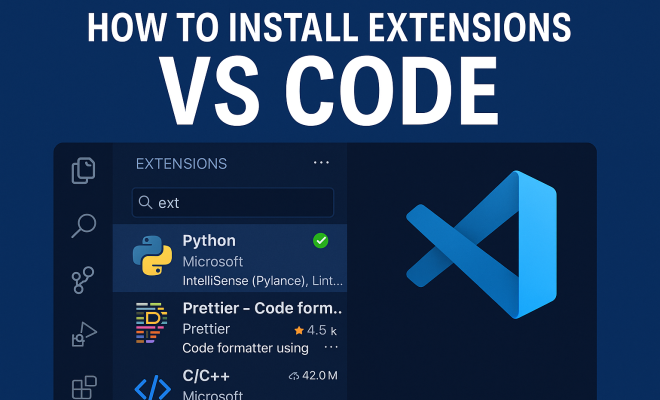
“`html
Visual Studio Code (VS Code) has rapidly become one of the most popular code editors in recent years. With its versatility and extensive customization options, it caters to developers of all skill levels. One of the key features of VS Code is its ability to install extensions, which can significantly enhance your coding experience. In this article, we’ll explore seven effective methods to install extensions in VS Code, offering practical insights and tips to help you maximize its potential.
1. Using the Extensions View
The most straightforward method to install extensions in VS Code is through the Extensions View. To access it, simply launch VS Code and click on the Extensions icon found on the Activity Bar on the side of the window. This will open the Extensions marketplace, where you can browse thousands of available extensions.
You can search for specific extensions using the search bar at the top. Once you find the one you want, click the ‘Install’ button. After installation, you may need to reload VS Code for the extension to take effect. Keep in mind that a wealth of community-driven extensions is available, ranging from themes to language support and debugging tools.
2. Command Palette Installation
An alternative method for installing extensions in VS Code is via the Command Palette. This feature allows you to execute commands quickly without needing to navigate through menus. To open the Command Palette, use the shortcut Ctrl + Shift + P (or Cmd + Shift + P on macOS).
Once the Command Palette is open, type “Extensions: Install Extensions” and select it from the dropdown list. You can then search for your desired extension similarly to how you would in the Extensions View. This method is efficient, especially if you’re already familiar with the extension you want to install and don’t want to browse through the marketplace.
3. Installing from the Marketplace Website
Sometimes, you might find it more convenient to browse the VS Code Marketplace directly through your web browser. By visiting the official Visual Studio Code Marketplace, you can discover extensions, read reviews, and view ratings.
Once you find an extension you want, you can click on the ‘Install’ button, which will prompt you to open the VS Code application if it’s installed on your machine. This method is particularly useful when you’re looking for something specific, as the website often provides additional context, such as documentation and support resources.
4. Manual Installation of Extensions
For developers who prefer a more hands-on approach, manually installing extensions is also an option. This method is particularly valuable for extensions that are not published in the marketplace or when you have a specific version in mind. To do this, you first need to download the extension as a .vsix file.
Once you have the .vsix file, you can install it by opening the Command Palette (using the same shortcut as before), typing “Extensions: Install from VSIX”, and selecting the file you downloaded. This method requires a bit more effort but can provide greater flexibility and control over the extensions you use.
5. Managing Extensions
After installing extensions in VS Code, managing them is crucial to keep your workspace efficient and optimized. Return to the Extensions View, where you can see a list of all installed extensions. Here, you can enable or disable extensions, update them, or uninstall those you no longer need.
Regularly checking for updates is essential, as developers frequently release improvements and bug fixes. You can update extensions individually or choose to update all at once. Proper management prevents performance issues and ensures that your coding environment remains streamlined and functional. (See: Visual Studio Code overview on Wikipedia.)
6. Exploring Recommended Extensions
VS Code often provides recommendations based on your current workspace, language, or file type. These recommendations can be found in a dedicated section of the Extensions View. Exploring recommended extensions is a great way to discover tools that can enhance your productivity and coding efficiency.
Some widely recommended extensions include Prettier for code formatting, ESLint for JavaScript linting, and Live Server for real-time web preview of your projects. Engaging with recommended tools can simplify your workflow and introduce you to new functionalities that you may not have previously considered.
7. Keeping Extensions Up-to-Date
As mentioned earlier, keeping your installed extensions up-to-date is crucial for maintaining a robust coding environment. Updates may include new features, compatibility improvements, and important security patches. You can easily manage updates through the Extensions View, where you’ll see notifications for extensions that require updates.
Additionally, consider enabling auto-update for your extensions in the settings. This ensures that you always have the latest versions without having to manually check for updates. By staying current, you’ll benefit from the latest features and enhancements provided by extension developers.
8. Understanding Extension Compatibility
When you install extensions in VS Code, it’s essential to consider their compatibility with your project and the specific programming languages you are using. Some extensions are designed to work seamlessly with certain language servers or frameworks, while others might not support the particular version of a language you are coding in. Always check the extension details for compatibility notes, especially in larger projects where multiple frameworks are involved.
For example, if you’re working on a React project, extensions like ESLint will often recommend specific settings or configurations that can help catch errors in your code before runtime. Similarly, if you’re using Python, you might find that the Python extension for VS Code offers features like IntelliSense and debugging that are tailored to the version of Python you are using. Taking these factors into account can help you avoid conflicts and ensure a smoother development experience.
9. Popular Extensions Worth Considering
There are thousands of extensions available, but some stand out due to their popularity and utility. Here’s a brief overview of some must-have extensions that can enhance your coding experience:
- Prettier: An opinionated code formatter that supports many languages. It helps maintain consistent code style.
- Live Server: Launches a local development server with live reload capability for static and dynamic pages.
- GitLens: This extension supercharges the built-in Git capabilities of VS Code, providing insights into code authorship, history, and changes.
- Debugger for Chrome: This allows you to debug your JavaScript code in the Chrome browser directly from VS Code.
- Python: Essential for Python developers, it provides features such as IntelliSense, linting, and Jupyter notebook support.
These extensions can serve as a solid foundation for your VS Code setup, enhancing functionality and streamlining your workflow.
10. Creating Custom Extensions
If you have specific needs that existing extensions don’t meet, you might consider creating your own. VS Code allows you to build custom extensions using JavaScript or TypeScript. This process can seem daunting, but Microsoft provides comprehensive documentation and tutorials on how to get started.
Creating your own extension can be an incredibly rewarding experience, allowing you to tailor the functionality to your exact requirements. You might create a simple extension that adds specific shortcuts or a more complex one that integrates third-party services. There’s a vibrant community of developers who share their custom extensions, so you can often find inspiration or even code to build upon.
11. Using Extensions for Collaboration
Collaborative coding has become increasingly popular, especially with remote work on the rise. Extensions like Live Share allow developers to collaboratively edit and debug code in real-time, regardless of where they are located. This extension facilitates pair programming and code reviews, making it easier to work together effectively.
With Live Share, you can share your project and even debug sessions, allowing teammates to join in and see your work in real time. It’s an excellent tool for mentoring, allowing you to guide less experienced developers through complex codebases or processes. Collaboration tools are essential in today’s development landscape, making extensions that support team efforts invaluable.
12. Frequently Asked Questions (FAQ)
What are VS Code extensions?
VS Code extensions are packages that add functionality or features to the Visual Studio Code editor, ranging from language support and themes to debugging tools and productivity enhancements. (See: Research articles on Visual Studio Code.)
How do I find extensions specific to my programming language?
You can search for extensions in the Extensions View by entering the name of your programming language or browsing through categories related to specific languages. The VS Code Marketplace also categorizes extensions by language for easy access.
Can I disable extensions if they are causing problems?
Yes, you can disable any installed extension from the Extensions View. This can help troubleshoot issues or improve performance if an extension is slowing down your coding environment.
Are all extensions free to use?
Most extensions in the VS Code Marketplace are free, but some developers may offer premium features or support through paid extensions. Always check the pricing details before installing.
What should I do if an extension doesn’t work as expected?
If you encounter issues with an extension, check the extension’s documentation or the issue tracker on its Marketplace page. You can often find solutions or report bugs directly to the developer.
How can I uninstall an extension?
To uninstall an extension, go to the Extensions View, find the extension in your list of installed extensions, and click on the ‘Uninstall’ button next to it. You may need to reload VS Code for the changes to take effect.
13. Best Practices for Using Extensions
When it comes to maximizing your experience with extensions in VS Code, there are a few best practices worth considering. First, be mindful of the number of extensions you install. While it might be tempting to add numerous tools, having too many extensions running can slow down your environment and lead to conflicts. Try to focus on a set of extensions that genuinely enhance your workflow.
Second, regularly review and curate your installed extensions. Just as you might clean up your workspace, take some time to go through your extensions. Disable or uninstall those that you haven’t used in a while. This helps maintain a tidy and efficient development environment.
Another best practice is to stay engaged with the extension community. Many popular extensions have active user communities and forums where you can share tips, get help, or find out about new features. Following the discussions can also provide insights into best practices around specific tools and extensions.
14. Advanced Features of Extensions
Extensions in VS Code are not just about adding features; they can also significantly enhance productivity through their advanced functionalities. Many extensions come equipped with features like IntelliSense, which provides smart code completions based on variable types, function definitions, and imported modules. For example, using the TypeScript extension can greatly improve your coding efficiency as it helps with type checking and code suggestions.
Another advanced feature is integration with version control systems. Extensions like GitLens not only provide enhanced Git functionalities but also visualize code authorship at a glance, making it easier to understand the history of the project. This can be crucial for teams working on collaborative coding projects where tracking changes is essential.
Utilizing debugging extensions also falls under advanced usage. Extensions such as Debugger for Chrome enable a seamless debugging experience directly from the editor, allowing you to set breakpoints, inspect variables, and navigate through your code effectively. Understanding these features can help you leverage VS Code to its fullest potential.
15. Extensions for Specific Use Cases
Not all extensions are created equal, and many are tailored to specific use cases or frameworks. For instance, if you’re working with React, the React Extension Pack provides a set of tools that can help streamline your development process, including support for JSX, linting specifically for React, and even snippets optimized for the framework.
For those engaging in data science or machine learning, the Jupyter extension for VS Code can be a game-changer. It allows you to run Jupyter notebooks directly within the editor, making it easier to visualize data and interactively develop code. This is a great example of how extensions can cater to specialized needs in the development ecosystem.
Web development also benefits from a plethora of extensions, such as the CSS Peek extension that allows developers to view CSS styles in HTML files, or the REST Client extension for testing HTTP requests directly from VS Code. Depending on your specific needs, be sure to explore extensions that are tailored to enhance your workflow in various domains.
16. How Extensions Impact Performance
The performance of your VS Code setup can be heavily influenced by the extensions you install. While they add valuable features, some extensions may consume significant resources and slow down your editor. It’s important to monitor how your development environment reacts after installing new extensions.
To analyze performance, you might want to use the built-in command to open the Developer Tools in VS Code. This can help you identify which extensions are impacting performance by showing how much CPU or memory they’re using. If you notice significant slowdowns, it might be worth evaluating which extensions could be causing issues and deciding if they’re necessary.
Also, consider utilizing the “Disable All Installed Extensions” command to see how VS Code performs without any added functionalities. This can provide a baseline performance measurement and help determine if certain extensions are necessary for your workflow.
17. Conclusion: Optimize Your VS Code Setup
Installing extensions in VS Code can greatly amplify your coding capabilities. Whether you’re a newcomer or a seasoned developer, understanding how to effectively install and manage extensions is key to optimizing your workflow. With the methods outlined above, you can enhance your development experience, tailor your coding environment to your needs, and ultimately become more productive. So why not dive into the VS Code extensions marketplace today and start installing the tools that will elevate your coding journey?
“`
Trending Now
Frequently Asked Questions
How do I install extensions in Visual Studio Code?
You can install extensions in Visual Studio Code by using the Extensions View, accessing it via the Extensions icon on the Activity Bar. From there, you can browse or search for extensions and click 'Install' to add them. Alternatively, you can use the Command Palette shortcut Ctrl + Shift + P to quickly install extensions.
What are the different ways to install extensions in VS Code?
There are several methods to install extensions in VS Code: using the Extensions View, utilizing the Command Palette, and installing directly from the Marketplace website. Each method offers a unique way to find and add extensions based on your preferences.
Can I install VS Code extensions from a website?
Yes, you can install extensions from the Marketplace website. If you find an extension you want to install online, you can click the installation link, which will guide you through adding it to your VS Code environment.
Do I need to restart VS Code after installing an extension?
In most cases, yes, you may need to reload or restart VS Code after installing an extension for the changes to take effect. A prompt will typically appear after installation to guide you through this process.
What types of extensions can I install in VS Code?
VS Code supports a wide variety of extensions, including themes, language support, debugging tools, and productivity enhancements. You can explore thousands of community-driven extensions in the Extensions marketplace to customize your coding experience.
What’s your take on this? Share your thoughts in the comments below — we read every one.