The Tech Edvocate

Top Menu

  • Advertisement
  • Apps
  • Home Page
  • Home Page Five (No Sidebar)
  • Home Page Four
  • Home Page Three
  • Home Page Two
  • Home Tech2
  • Icons [No Sidebar]
  • Left Sidbear Page
  • Lynch Educational Consulting
  • My Account
  • My Speaking Page
  • Newsletter Sign Up Confirmation
  • Newsletter Unsubscription
  • Our Brands
  • Page Example
  • Privacy Policy
  • Protected Content
  • Register
  • Request a Product Review
  • Shop
  • Shortcodes Examples
  • Signup
  • Start Here
    • Governance
    • Careers
    • Contact Us
  • Terms and Conditions
  • The Edvocate
  • The Tech Edvocate Product Guide
  • Topics
  • Write For Us
  • Advertise

Main Menu

  • Start Here
    • Our Brands
    • Governance
      • Lynch Educational Consulting, LLC.
      • Dr. Lynch’s Personal Website
      • Careers
    • Write For Us
    • The Tech Edvocate Product Guide
    • Contact Us
    • Books
    • Edupedia
    • Post a Job
    • The Edvocate Podcast
    • Terms and Conditions
    • Privacy Policy
  • Topics
    • Assistive Technology
    • Child Development Tech
    • Early Childhood & K-12 EdTech
    • EdTech Futures
    • EdTech News
    • EdTech Policy & Reform
    • EdTech Startups & Businesses
    • Higher Education EdTech
    • Online Learning & eLearning
    • Parent & Family Tech
    • Personalized Learning
    • Product Reviews
  • Advertise
  • Tech Edvocate Awards
  • The Edvocate
  • Pedagogue
  • School Ratings

logo

The Tech Edvocate

  • Start Here
    • Our Brands
    • Governance
      • Lynch Educational Consulting, LLC.
      • Dr. Lynch’s Personal Website
        • My Speaking Page
      • Careers
    • Write For Us
    • The Tech Edvocate Product Guide
    • Contact Us
    • Books
    • Edupedia
    • Post a Job
    • The Edvocate Podcast
    • Terms and Conditions
    • Privacy Policy
  • Topics
    • Assistive Technology
    • Child Development Tech
    • Early Childhood & K-12 EdTech
    • EdTech Futures
    • EdTech News
    • EdTech Policy & Reform
    • EdTech Startups & Businesses
    • Higher Education EdTech
    • Online Learning & eLearning
    • Parent & Family Tech
    • Personalized Learning
    • Product Reviews
  • Advertise
  • Tech Edvocate Awards
  • The Edvocate
  • Pedagogue
  • School Ratings
  • 100 Best VSCode Extensions

  • 100 Best Adobe Plugins

  • 100 Best Sketch Plugins

  • 100 Best Figma Plugins

  • 100 Best Airtable Extensions

  • This New Weight Loss Drug Delivers Astonishing Results — But There’s a Catch

  • This Crucial Cybersecurity Blind Spot Is Leaving You Exposed

  • This Japanese AI Startup Just Blew Open Medical Records – Here’s Why It Matters

  • This One Toxic Trend Is Killing Gaming: Aion 2’s Monetization Mess Is Just The Latest Victim

  • Does AI have a soul? Pope Leo and Anthropic clash.

Digital & Mobile Technology
Home›Digital & Mobile Technology›How to Get Started With Meta’s Quest Browser

How to Get Started With Meta’s Quest Browser
By Matthew Lynch
June 30, 2023
0
Spread the love

eta’s Quest Browser is a unique web browser that allows users to browse the internet in an immersive way. It is designed for virtual reality (VR) headsets and brings a new level of interactivity to browsing the web. In this article, we will guide you through the steps to get started with Meta’s Quest Browser.

Step 1: Choose a VR Headset

Meta’s Quest Browser is designed to work with VR headsets. There are many VR headsets available on the market, such as Oculus Quest, Oculus Rift, HTC Vive, and PlayStation VR. You can use any of these headsets to enjoy Meta’s Quest Browser.

Step 2: Download the Browser

Once you have chosen your VR headset, you can download Meta’s Quest Browser. It is available in the Oculus Store, Steam, and on the Meta website. Simply search for the browser, and download it.

Step 3: Set Up the Browser

After downloading the browser, you need to set it up. Follow the installation process, and once the browser is installed, you will be asked to pair your VR headset with your computer. You can do this by connecting your headset to your computer or by using a wireless connection.

Step 4: Start Browsing

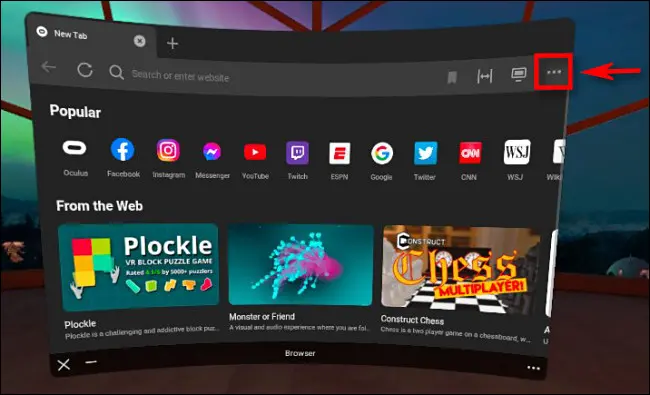
Once you have paired your VR headset with your computer and Meta’s Quest Browser is installed, you can start browsing the internet in VR. The browser has an intuitive interface, and you can use the VR controllers to navigate through websites.

Step 5: Customize Your Experience

Meta’s Quest Browser offers a range of customization options that allow you to personalize your browsing experience. From changing the color scheme to adjusting the font size, you can tailor the browser to your preferences.

Step 6: Use Lighthouse

Lighthouse is a unique feature of Meta’s Quest Browser that lets you create virtual bookmarks of your favorite websites. You can place these bookmarks in a virtual room, and access them easily whenever you want.

In conclusion, Meta’s Quest Browser is a fascinating tool that allows you to browse the internet in VR. By following the six steps outlined above, you can set up the browser and start exploring the web in a new and immersive way. So, go ahead and give it a try!

Previous Article

4 Reasons You Should Play PS5 Games ...

Next Article

The 7 Best Kodi Add-Ons for Gaming ...

Matthew Lynch

Related articles More from author

  • Digital & Mobile Technology

    Getting the “Remote Desktop Can’t Find the Computer” Error? Here’s How to Fix It

    June 12, 2023
    By Matthew Lynch
  • Digital & Mobile Technology

    VR/AR Headsets vs. Smart Glasses: What’s the Difference?

    June 1, 2023
    By Matthew Lynch
  • Digital & Mobile Technology

    What Are Columns and Rows?

    June 1, 2023
    By Matthew Lynch
  • Digital & Mobile Technology

    What Is the Wacatac.B!ml Trojan? How to Remove It From Windows

    June 23, 2023
    By Matthew Lynch
  • Digital & Mobile Technology

    Best Translation Sites of 2023

    June 1, 2023
    By Matthew Lynch
  • Digital & Mobile Technology

    How to Enable or Disable Audio Descriptions on Peacock

    September 7, 2023
    By Matthew Lynch

Search

Login & Registration

  • Log in
  • Entries feed
  • Comments feed
  • WordPress.org

Newsletter

Signup for The Tech Edvocate Newsletter and have the latest in EdTech news and opinion delivered to your email address!

About Us

Since technology is not going anywhere and does more good than harm, adapting is the best course of action. That is where The Tech Edvocate comes in. We plan to cover the PreK-12 and Higher Education EdTech sectors and provide our readers with the latest news and opinion on the subject. From time to time, I will invite other voices to weigh in on important issues in EdTech. We hope to provide a well-rounded, multi-faceted look at the past, present, the future of EdTech in the US and internationally.

We started this journey back in June 2016, and we plan to continue it for many more years to come. I hope that you will join us in this discussion of the past, present and future of EdTech and lend your own insight to the issues that are discussed.

Newsletter

Signup for The Tech Edvocate Newsletter and have the latest in EdTech news and opinion delivered to your email address!

Contact Us

The Tech Edvocate
910 Goddin Street
Richmond, VA 23231
(601) 630-5238
[email protected]

Copyright © 2026 Matthew Lynch. All rights reserved.