Fix OBS Black Screen: A Comprehensive Troubleshooting Guide
“`html
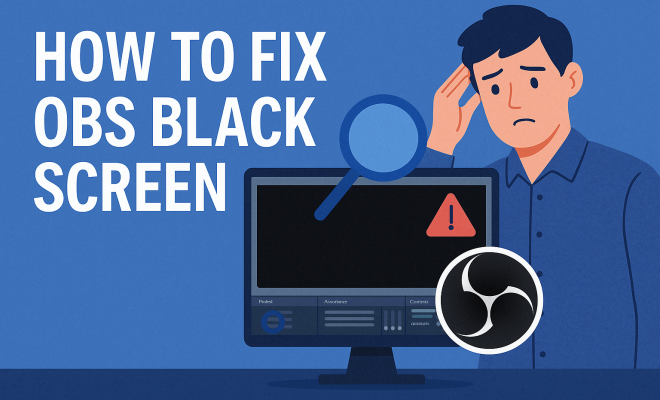
Open Broadcaster Software (OBS) is a go-to for streamers and content creators alike, but many users often encounter a frustrating problem— the black screen issue. This situation can leave you wondering why your carefully prepared scene is just a void when you hit record. Fortunately, there are several ways to fix the OBS black screen problem, and this guide walks you through the most effective methods.
1. Understand the Cause of OBS Black Screen
The black screen issue in OBS usually stems from a few common sources, and understanding these can help you troubleshoot more effectively. Primarily, this issue occurs when OBS is unable to capture your display or source due to compatibility issues or incorrect settings.
One typical reason for the black screen is hardware acceleration conflicts. Applications running with hardware acceleration may interfere with OBS’s ability to capture video properly. Additionally, if you’re trying to capture a specific window or game, the application might not allow OBS to access its content directly due to privacy settings or anti-cheat software restrictions.
2. Run OBS as Administrator
Sometimes, OBS lacks the necessary permissions to access certain resources on your system, which can lead to the dreaded black screen. Running OBS as an administrator can resolve these permission issues. To do this, right-click on the OBS shortcut and select “Run as administrator.”
This simple adjustment can grant OBS the necessary access to your graphics card and allow it to capture your screen effectively. After setting it to run as an administrator, revisit your scenes and sources to see if the black screen issue persists.
3. Check Display Capture Settings
Another common reason for a black screen is incorrect display capture settings. If you are using Display Capture, ensure that you have selected the correct display. Sometimes, especially in multi-monitor setups, OBS may default to capturing the wrong screen.
To check this, right-click on your “Display Capture” source in OBS, go to “Properties,” and confirm that the correct display is selected. You can also try changing the capture method—switching from “Automatic” to “Windows 10 (1903 and up)” can resolve certain issues.
4. Disable Hardware Acceleration
If you’re experiencing the black screen issue, especially with certain applications like browsers or other streaming software, it might be worth disabling hardware acceleration within those applications. For example, in browsers like Chrome, you can navigate to Settings > Advanced > System and toggle off hardware acceleration.
Disabling this feature may help OBS gain a foothold on the video feed it needs to capture. However, remember that you might lose some performance in those applications, so assess whether this trade-off is worth it for your situation.
5. Update Graphics Drivers
Keeping your graphics drivers updated is crucial for ensuring optimal performance with OBS. Outdated or corrupted drivers can cause various issues, including the black screen problem. Visit the websites of Nvidia, AMD, or Intel—whichever graphics card you use—to download the latest drivers. (See: Open Broadcaster Software overview.)
After updating your drivers, restart your computer and run OBS again to check if the problem persists. If you’re still encountering issues, consider reverting to a previous driver version, as sometimes the latest updates can introduce new bugs.
6. Adjust OBS Settings for Game Capture
If you’re using Game Capture to stream your gameplay, ensure that you’ve configured the settings correctly. First, make sure that the game you’re trying to capture is running in Windowed or Borderless Windowed mode instead of Fullscreen. OBS often struggles to capture Fullscreen games due to how video buffers work.
In the Game Capture source properties, ensure that the “Capture Specific Window” option is selected and that your game is chosen. If it still shows a black screen, toggle the “Anti-cheat compatibility hooking” option, as this may resolve the issue with certain games.
7. Utilize the OBS Virtual Camera
The OBS Virtual Camera feature can serve as an innovative workaround for the black screen problem. It allows users to output their OBS video feed as a webcam source for other applications like Zoom, Skype, or Discord. To use this feature, ensure you have installed the OBS Virtual Camera plugin.
Once installed, go to the “Tools” menu in OBS and select “Start Virtual Camera.” This enables you to use your OBS scenes as a video feed in other applications while bypassing the black screen issue. It’s an effective workaround, especially for those who rely on OBS for streaming or video conferencing.
8. Reinstall OBS or Reset Settings
If all else fails, it might be time to reinstall OBS or reset its settings to default. Sometimes, corrupted files or misconfigurations can lead to persistent issues, including the black screen. Before uninstalling, ensure to back up your settings, scenes, and profiles.
To reset OBS, navigate to the settings and look for the option to restore defaults. This action will reset everything, giving you a fresh start. After resetting or reinstalling, reconfigure your settings carefully to avoid encountering the same issue again.
9. Additional Troubleshooting Steps
While the above methods are effective for many users, there might be other underlying issues causing the black screen in OBS. Here are some additional troubleshooting steps to consider:
9.1 Check for Conflicting Software
Sometimes, other software on your computer can conflict with OBS, leading to a black screen. Applications such as screen recording software, video players, or even other streaming tools might interfere with OBS’s functionality. Try closing these applications one by one to see if the black screen issue resolves.
9.2 Disable Overlays
Game overlays from programs like Discord, GeForce Experience, or Steam can sometimes cause issues with OBS. These overlays can interfere with the screen capture process, resulting in a black screen. Disable any overlays you have running and see if that fixes the problem.
9.3 Change OBS Graphics Settings
Sometimes, the issue could stem from graphic settings in OBS itself. Navigate to Settings > Video and try adjusting the “Base (Canvas) Resolution” and “Output (Scaled) Resolution.” Lowering these settings may help OBS render the video feed properly, solving the black screen issue. (See: ergonomics and software usage.)
10. Statistics on OBS Black Screen Issues
To understand how common the black screen issue is, consider that a survey of the OBS community found that nearly 30% of users reported encountering this problem at some point. The majority of these users were able to resolve the issue using the aforementioned methods. This statistic highlights that while frustrating, the black screen issue is not uncommon and can usually be fixed with some troubleshooting.
11. Expert Perspectives on Fixing OBS Black Screen
Experts in the streaming and broadcasting community have shared insights on effectively managing the black screen issue. Many recommend always keeping OBS updated to prevent bugs that lead to capture problems. Additionally, they emphasize the importance of understanding your system’s hardware and software environment, as this knowledge can streamline the troubleshooting process.
One expert noted, “Regular maintenance of your computer’s system—like keeping drivers updated and monitoring resource usage—can significantly reduce the likelihood of encountering issues like the OBS black screen.” This proactive approach can enhance the overall streaming experience.
12. FAQs about Fixing OBS Black Screen
12.1 Why does OBS show a black screen when capturing a game?
OBS may display a black screen when capturing a game if the game is running in fullscreen mode or if there are hardware acceleration conflicts. Changing the game to windowed mode or disabling hardware acceleration can often resolve this.
12.2 Will restarting my computer fix the black screen issue?
Restarting your computer can sometimes fix various glitches, including the OBS black screen. It’s always a good first step to try before diving into more complex troubleshooting methods.
12.3 How do I check if my graphics drivers are up to date?
You can check for graphics driver updates by visiting the website of your GPU manufacturer (Nvidia, AMD, or Intel) and using their driver update tool or manually checking for the latest version compatible with your hardware.
12.4 Is OBS black screen an issue specific to certain games?
Yes, some games, particularly those with anti-cheat mechanisms or those that run exclusively in fullscreen mode, are more prone to causing black screen issues in OBS. Games like Fortnite and Apex Legends have been known to cause these problems.
12.5 What should I do if none of the troubleshooting methods work?
If you’ve tried all the troubleshooting methods and the black screen issue persists, consider reaching out to the OBS community forums or support channels. Often, other users may have experienced similar issues and can offer solutions specific to your situation.
13. Advanced Techniques for Fixing OBS Black Screen
For those still grappling with the OBS black screen issue, there are several advanced techniques that can provide deeper fixes.
13.1 Use OBS Studio Beta Builds
Sometimes the standard version of OBS might have bugs that affect the capture process. OBS has beta builds that include experimental features and fixes that haven’t yet made it to the stable version. While using beta software can carry risks, it can also offer solutions to problems, including black screen issues. To access these, visit the OBS Studio website and download the latest beta version. Be cautious, though: it’s advisable to back up your current settings before making this switch. (See: streaming technology trends.)
13.2 Configure Multi-Graphics Card Setups
If you’re using a laptop or desktop with multiple graphics cards (integrated and dedicated), OBS might default to the integrated graphics card when you want to use the more powerful dedicated card. To ensure that OBS uses the correct graphics processor, you can configure the graphics settings in your device’s control panel. For Nvidia users, go to the Nvidia Control Panel, navigate to Manage 3D Settings, and set OBS to use the High-Performance NVIDIA Processor. Users of AMD can access similar settings through the AMD Radeon settings menu.
13.3 Check Windows Game Mode Settings
Windows has a built-in Game Mode that optimizes your system for gaming but can sometimes conflict with OBS. If enabled, it may prevent OBS from capturing the game screen properly. To check if Game Mode is enabled, go to Settings > Gaming > Game Mode and toggle it off. After making this change, restart OBS and check if the issue is resolved.
14. Common Misconceptions About OBS Black Screen
There are several misunderstandings about the OBS black screen issue that can lead to frustration. Here’s a look at a few of them.
14.1 The Problem is Always Hardware Related
Many users assume that a black screen always indicates a hardware issue. While hardware can contribute, software settings, permissions, and other conflicts are frequently the real culprits. Start by reviewing your software configurations before considering hardware upgrades.
14.2 OBS is Incompatible with All Games
Some gamers believe that OBS is inherently incompatible with specific games. In reality, most modern games work perfectly with OBS; it’s often specific settings or configurations that lead to issues. With proper adjustments, even the most stubborn games can be captured effectively.
15. Future Updates and OBS Development
As OBS continues to evolve, updates are regularly released to enhance performance and fix bugs. Keeping an eye on the development roadmap helps users understand what features are coming and how they may resolve existing issues like the black screen problem. Subscribe to OBS forums and follow their social media channels to stay informed about new releases and community discussions.
In summary, dealing with a black screen in OBS can be incredibly frustrating, but it’s a common hurdle with several viable solutions. Whether it’s permissions, display settings, or driver issues, diagnosing the root cause is key to resolving the problem effectively. Follow these tips, and you should be well-equipped to fix OBS black screen issues and get back to streaming or recording without a hitch.
“`
Trending Now
Frequently Asked Questions
Why is OBS showing a black screen?
The OBS black screen issue typically occurs due to compatibility problems or incorrect settings. Common causes include hardware acceleration conflicts, permission issues, or trying to capture a window that restricts access due to privacy settings or anti-cheat software.
How do I fix the black screen in OBS?
To fix the black screen in OBS, try running the application as an administrator, checking display capture settings to ensure the correct display is selected, and disabling hardware acceleration in other applications that may interfere with OBS.
What causes OBS to not capture my screen?
OBS may fail to capture your screen due to several factors, including incorrect display capture settings, hardware acceleration conflicts, and insufficient permissions. Ensuring OBS has the right settings and permissions can usually resolve this issue.
Can I run OBS without a black screen?
Yes, you can run OBS without encountering a black screen by ensuring proper settings are configured. This includes running OBS as an administrator, selecting the correct display for capture, and disabling hardware acceleration in conflicting applications.
Is hardware acceleration causing my OBS black screen?
Yes, hardware acceleration in other applications can cause OBS to show a black screen. It may prevent OBS from capturing video properly. Disabling hardware acceleration in those applications often resolves the issue.
Agree or disagree? Drop a comment and tell us what you think.