The Tech Edvocate

Top Menu

  • Advertisement
  • Apps
  • Home Page
  • Home Page Five (No Sidebar)
  • Home Page Four
  • Home Page Three
  • Home Page Two
  • Home Tech2
  • Icons [No Sidebar]
  • Left Sidbear Page
  • Lynch Educational Consulting
  • My Account
  • My Speaking Page
  • Newsletter Sign Up Confirmation
  • Newsletter Unsubscription
  • Our Brands
  • Page Example
  • Privacy Policy
  • Protected Content
  • Register
  • Request a Product Review
  • Shop
  • Shortcodes Examples
  • Signup
  • Start Here
    • Governance
    • Careers
    • Contact Us
  • Terms and Conditions
  • The Edvocate
  • The Tech Edvocate Product Guide
  • Topics
  • Write For Us
  • Advertise

Main Menu

  • Start Here
    • Our Brands
    • Governance
      • Lynch Educational Consulting, LLC.
      • Dr. Lynch’s Personal Website
      • Careers
    • Write For Us
    • The Tech Edvocate Product Guide
    • Contact Us
    • Books
    • Edupedia
    • Post a Job
    • The Edvocate Podcast
    • Terms and Conditions
    • Privacy Policy
  • Topics
    • Assistive Technology
    • Child Development Tech
    • Early Childhood & K-12 EdTech
    • EdTech Futures
    • EdTech News
    • EdTech Policy & Reform
    • EdTech Startups & Businesses
    • Higher Education EdTech
    • Online Learning & eLearning
    • Parent & Family Tech
    • Personalized Learning
    • Product Reviews
  • Advertise
  • Tech Edvocate Awards
  • The Edvocate
  • Pedagogue
  • School Ratings

logo

The Tech Edvocate

  • Start Here
    • Our Brands
    • Governance
      • Lynch Educational Consulting, LLC.
      • Dr. Lynch’s Personal Website
        • My Speaking Page
      • Careers
    • Write For Us
    • The Tech Edvocate Product Guide
    • Contact Us
    • Books
    • Edupedia
    • Post a Job
    • The Edvocate Podcast
    • Terms and Conditions
    • Privacy Policy
  • Topics
    • Assistive Technology
    • Child Development Tech
    • Early Childhood & K-12 EdTech
    • EdTech Futures
    • EdTech News
    • EdTech Policy & Reform
    • EdTech Startups & Businesses
    • Higher Education EdTech
    • Online Learning & eLearning
    • Parent & Family Tech
    • Personalized Learning
    • Product Reviews
  • Advertise
  • Tech Edvocate Awards
  • The Edvocate
  • Pedagogue
  • School Ratings
  • A Visitors Guide to Long Beach (CA), United States

  • A Visitor’s Guide to Fresno (CA), United States

  • A Visitors Guide to New Orleans (LA), United States

  • A Visitors Guide to Sacramento (CA), United States

  • A Visitors Guide to Lyon, France

  • JisuLife Ultra2 Portable Fan: A Powerful Multi-Function Cooling Solution

  • A Visitors Guide to Viña del Mar, Chile

  • A Visitors Guide to Århus, Denmark

  • A Visitors Guide to Bakersfield (CA), United States

  • A Visitors Guide to Aurora (CO), United States

Digital & Mobile Technology
Home›Digital & Mobile Technology›How to Fix It When Windows 11 Is Slow

How to Fix It When Windows 11 Is Slow
By Matthew Lynch
July 6, 2023
0
Spread the love

As a user, you would want your operating system to run as smoothly and efficiently as possible. However, sometimes things may go wrong, and you may notice that your Windows 11 system has slowed down. This can be frustrating, especially if you need to get work done quickly. Fortunately, there are several things you can do to fix a slow Windows 11 operating system.

Here are some ways to fix it when your Windows 11 is slow:

1. Run Disk Cleanup

Running a disk cleanup is the first step towards fixing a slow Windows 11 operating system. Disk Cleanup helps free up space on your hard drive by deleting temporary and unnecessary files. To run Disk Cleanup, simply search for it in the Windows search bar and open it. Once it opens, select the drive you want to clean up, and let the process run. This may take some time, but it’s worth it as it can help speed your system up.

2. Disable Startup Programs

Another way to fix a slow Windows 11 system is to disable startup programs. These programs may slow down your system when it starts up, leading to a slow user experience. To disable these programs, open task manager by pressing Ctrl+Shift+Esc keys. Then click on the Startup tab and disable the programs that you don’t need to start up when the system starts.

3. Uninstall unwanted applications

You may have installed many applications on your system that you don’t use often. These programs can take up valuable system resources, leading to a slow operating system. To fix this issue, go to the Settings app and select Apps & features. From there, locate the programs that you don’t use, and uninstall them.

4. Run a full system scan

A virus or malware infection on your Windows 11 system can cause it to slow down. To fix this issue, you must run a full system scan using an antivirus program. Many antivirus programs are available as free downloads online, and they can help identify and remove any malware on your system.

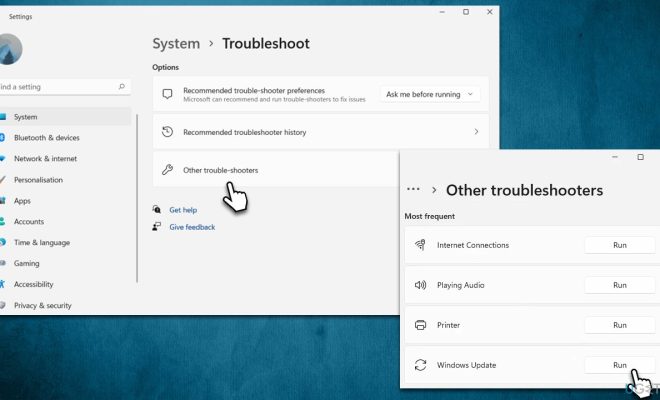
5. Update your system

Microsoft regularly releases updates to the Windows operating system. These updates fix known bugs and glitches while adding new features that can help speed up your system. To update your system, go to the Settings app, then to Update & Security and click on Windows Update. If there are any available updates, click on the Install update button.

In conclusion, a slow Windows 11 system can be frustrating, but you can quickly fix it by following the tips outlined above. Running a disk cleanup, disabling startup programs, uninstalling unwanted apps, running a full system scan, and updating your system will help you get your operating system running smoothly and efficiently. By doing this, you can get back to work or play without interruption.


Previous Article

How to Reset a Lost Windows Live ...

Next Article

What Is a WEBM File?

Matthew Lynch

Related articles More from author

  • Digital & Mobile Technology

    How to Add Music to an iPhone Without Using iTunes

    June 3, 2023
    By Matthew Lynch
  • Digital & Mobile Technology

    How to Restore or Reset an iPhone Without iTunes

    September 8, 2023
    By Matthew Lynch
  • Digital & Mobile Technology

    How to Automatically Clear the Pagefile.sys File When Shutting Down Windows

    August 2, 2023
    By Matthew Lynch
  • Digital & Mobile Technology

    VR/AR Headsets vs. Smart Glasses: What’s the Difference?

    June 1, 2023
    By Matthew Lynch
  • Digital & Mobile Technology

    Which Mac Mini Models Allow for RAM and HDD Upgrades?

    May 16, 2023
    By Matthew Lynch
  • Digital & Mobile Technology

    How to Search within Text Messages on iPhone or iPad

    May 7, 2023
    By Matthew Lynch

Search

Login & Registration

  • Register
  • Log in
  • Entries feed
  • Comments feed
  • WordPress.org

Newsletter

Signup for The Tech Edvocate Newsletter and have the latest in EdTech news and opinion delivered to your email address!

About Us

Since technology is not going anywhere and does more good than harm, adapting is the best course of action. That is where The Tech Edvocate comes in. We plan to cover the PreK-12 and Higher Education EdTech sectors and provide our readers with the latest news and opinion on the subject. From time to time, I will invite other voices to weigh in on important issues in EdTech. We hope to provide a well-rounded, multi-faceted look at the past, present, the future of EdTech in the US and internationally.

We started this journey back in June 2016, and we plan to continue it for many more years to come. I hope that you will join us in this discussion of the past, present and future of EdTech and lend your own insight to the issues that are discussed.

Newsletter

Signup for The Tech Edvocate Newsletter and have the latest in EdTech news and opinion delivered to your email address!

Contact Us

The Tech Edvocate
910 Goddin Street
Richmond, VA 23231
(601) 630-5238
[email protected]

Copyright © 2025 Matthew Lynch. All rights reserved.