How to fix Epic Games launcher not opening
“`html
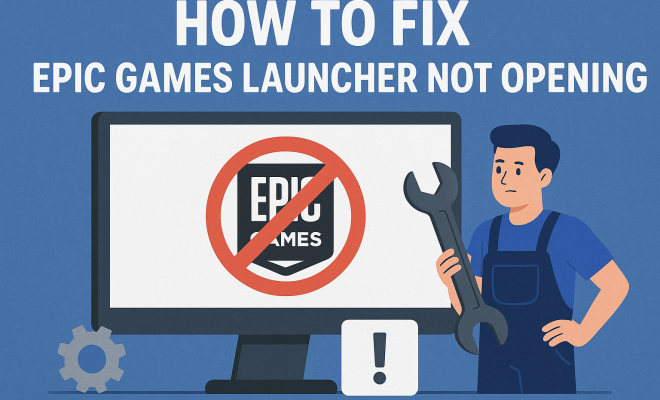
The Epic Games Launcher is a popular platform for gamers, offering access to a wide range of titles, including the blockbuster Fortnite. However, many users encounter the frustrating issue of the Epic Games launcher not opening. If you’ve found yourself staring at an unresponsive launcher, fear not! In this article, we’ll explore nine effective solutions to get you back in the game.
1. Restart Your Computer: A Simple Yet Effective Solution
One of the first steps you should take when facing the problem of the Epic Games launcher not opening is to restart your computer. It sounds basic, but rebooting can clear up temporary system glitches that may be causing the software to falter. Sometimes, background processes or system updates can interfere with the launch of applications, and a fresh start might just do the trick.
After your computer restarts, try launching the Epic Games launcher again. If it opens successfully, you can breathe a sigh of relief. However, if the problem persists, it might be time to delve deeper into potential issues.
2. Check Your Internet Connection: Connectivity Matters
Your internet connection plays a crucial role in the functionality of the Epic Games launcher. If your connection is slow or unstable, it could prevent the launcher from opening properly. Check to see if other devices on your network are experiencing similar issues. You might even want to perform a speed test to assess your connection quality.
If you suspect your connection is the problem, try resetting your router by unplugging it for about 30 seconds and then plugging it back in. Alternatively, you can connect your device directly to the modem using an Ethernet cable for a more stable connection. Once you confirm your internet is working as it should, attempt to open the Epic Games launcher again.
3. Update Your Graphics Drivers: Keeping Your Drivers Current
Outdated or corrupted graphics drivers can cause the Epic Games launcher not to open. Regularly updating your graphics drivers ensures that your system is optimized for the latest games and applications. To check for updates, go to the website of your graphics card manufacturer—like NVIDIA or AMD—and download the latest driver version.
Once you’ve updated your drivers, restart your computer. This can often resolve a myriad of issues, including the Epic Games launcher not opening. After rebooting, launch the Epic Games launcher again to see if the issue is resolved.
4. Run the Launcher as Administrator: Elevate Permissions
Sometimes, the Epic Games launcher may need elevated permissions to run properly. Running the application as an administrator can often solve the problem of it not opening. To do this, locate the Epic Games launcher shortcut on your desktop or in your Start menu, right-click it, and select “Run as administrator.”
This gives the launcher the necessary permissions it might require to function correctly. If this solves the issue, you can set the launcher to always run as administrator by right-clicking the shortcut, selecting “Properties,” navigating to the “Compatibility” tab, and checking the box that says “Run this program as an administrator.”
5. Verify Game Files: Ensure Integrity
If the Epic Games launcher opens but fails to load your games, you may need to verify the game files. Corrupted game files can hinder the operation of the launcher. To verify files, open the Epic Games launcher, go to your library, click on the three dots next to the game in question, and select “Verify.” This process checks for missing or corrupted files and replaces them as necessary.
After the verification process is complete, try launching your game again. If the Epic Games launcher is still not working as it should, consider the next steps to further troubleshoot the issue. (See: importance of rebooting computers.)
6. Clear the Epic Games Launcher Cache: A Fresh Start
The cache can sometimes become corrupted, leading to issues with launching the Epic Games launcher. Clearing the cache can help restore functionality. To do this, close the Epic Games launcher completely and navigate to the folder where the launcher stores its cache. This is typically located at C:\Users\[YourUsername]\AppData\Local\EpicGamesLauncher\Saved\.
Once you’re in the directory, delete everything inside the “Saved” folder. After doing so, restart your computer and try launching the Epic Games launcher again. A fresh cache can provide the necessary boost to resolve any lingering issues.
7. Disable Background Applications: Minimize Interference
Sometimes, other applications or background processes can interfere with the Epic Games launcher, preventing it from opening. To identify if this is the case, try disabling any unnecessary applications running in the background. You can do this by opening the Task Manager (Ctrl + Shift + Esc) and closing any non-essential programs.
If you find that the Epic Games launcher opens after disabling certain applications, it might be worth investigating those programs further. They could be conflicting with the launcher, and you may need to adjust their settings or uninstall them altogether for a smoother experience.
8. Reinstall the Epic Games Launcher: A Last Resort
If all else fails, reinstalling the Epic Games launcher might be your best option. Uninstall the current version through your Control Panel, making sure to delete any residual files in the installation directory. Then, download the latest version from the official Epic Games website and reinstall it.
This approach ensures that you’re working with the latest software version, which may include bug fixes and enhancements that could resolve your issue. Once reinstalled, launch the Epic Games launcher and check if it functions correctly.
9. Contact Epic Games Support: When All Else Fails
If you’ve tried all these solutions and the Epic Games launcher is still not opening, it may be time to reach out to Epic Games Support. They have a dedicated team available to help users troubleshoot and resolve specific issues that may not be covered in standard troubleshooting guides.
Before contacting support, it’s a good idea to gather information about your system, including your operating system version, any error messages you’ve encountered, and the steps you’ve already attempted. This will help expedite the support process and ensure you receive the most relevant assistance.
10. Investigate Firewall and Antivirus Settings: Necessary Protection, Possible Interference
Sometimes, the firewall or antivirus software on your computer may block the Epic Games launcher from opening. This typically happens if the software mistakenly identifies the launcher as a threat. Check your firewall settings and ensure that the Epic Games Launcher is listed as an exception. On Windows, you can do this by following these steps:
- Open the Control Panel.
- Navigate to “System and Security” and then click on “Windows Defender Firewall.”
- On the left, click “Allow an app or feature through Windows Defender Firewall.”
- Find the Epic Games Launcher in the list and ensure that both the Private and Public checkboxes are checked.
If you use third-party antivirus software, you’ll need to check its settings as well. Add the Epic Games Launcher as an exception or temporarily disable the antivirus to see if it resolves the issue. Just remember to turn it back on afterward!
11. Check for Windows Updates: Stay Current with the Latest Fixes
Sometimes, the Epic Games launcher not opening can be linked to outdated Windows software. Microsoft regularly releases updates that include fixes and improvements. To check for updates:
- Open the Settings app by pressing Windows + I.
- Go to “Update & Security.”
- Click “Check for updates.”
If there are updates available, install them and then reboot your computer. Once your system is up to date, try launching the Epic Games launcher again. Keeping your operating system updated can resolve compatibility issues that may prevent applications from running smoothly. (See: importance of internet connectivity.)
12. Utilize the Epic Games Launcher’s Repair Tool: Built-In Fixes
The Epic Games launcher has a built-in repair tool that can help fix issues without needing extensive troubleshooting. If you find that the launcher opens but crashes or freezes, running a repair can help. To access this feature, open the launcher, go to the settings menu, and look for a “Repair” option. Follow the prompts to complete the repair process.
This tool can automatically detect and fix common problems, potentially saving you time and effort in manual troubleshooting. Once completed, attempt to launch the Epic Games launcher again to see if the issue is resolved.
13. Adjust Compatibility Settings: Tailor the Experience
If you’re still having trouble, adjusting the compatibility settings of the Epic Games launcher might help. Right-click on the launcher’s shortcut, select “Properties,” and navigate to the “Compatibility” tab. Here, you can run the launcher in compatibility mode for an earlier version of Windows, which might help if you’re facing issues on a newer version.
Also, you can try disabling fullscreen optimization and running the launcher in lower resolution. Apply the changes and try to open the launcher again to see if it operates smoothly.
14. Check for Disk Errors: A Healthy Drive
Disk errors can also contribute to the Epic Games launcher not opening. Running a disk check can help identify and resolve issues with your hard drive. To do this, follow these steps:
- Open the Command Prompt as an administrator.
- Type chkdsk /f and hit Enter. You may need to restart your computer to allow the check to complete.
Once the disk check is complete, try launching the Epic Games launcher again. If disk errors were found and fixed, it might help resolve the issue.
15. FAQ: Common Questions about the Epic Games Launcher Not Opening
What should I do if the Epic Games launcher opens but is unresponsive?
If the launcher opens but doesn’t respond, try closing the application using Task Manager and then relaunching it. If this doesn’t work, consider the solutions mentioned earlier, such as clearing the cache or checking your internet connection.
Can I use the Epic Games launcher offline?
Some features and games on the Epic Games launcher require an internet connection, especially for verifying ownership and accessing online services. However, once you’ve downloaded games, you can play them offline, provided an initial connection was established.
Will reinstalling the Epic Games launcher delete my games?
No, reinstalling the Epic Games launcher should not delete your games, as they are stored in a separate directory. However, it’s always wise to back up your save files just in case.
What if my Epic Games launcher still won’t open after all these troubleshooting steps?
If none of the troubleshooting steps work, contacting Epic Games Support is your best option. Be sure to provide them with detailed information about your system and the steps you’ve taken. (See: impact of internet speed on applications.)
16. Common Causes of the Epic Games Launcher Not Opening
Understanding the potential causes of the Epic Games launcher not opening can help you apply the right solutions more effectively. Some common reasons include:
- Corrupted installation: Sometimes the installation files may become corrupted due to interruptions during updates or installations.
- Incompatible software: Other software on your computer, such as certain overlays or game boosters, can conflict with the launcher.
- Insufficient system resources: If your PC is low on RAM or CPU power due to heavy multitasking, the launcher may struggle to open.
- Account Issues: If there are any issues with your Epic Games account, such as a ban or suspension, it may prevent the launcher from functioning properly.
Being aware of these factors can help you not only troubleshoot the issue but also prevent it in the future.
17. Performance Tips for the Epic Games Launcher
To enhance your overall experience with the Epic Games launcher, consider these performance tips:
- Limit background applications: Reducing the number of applications running at startup can free up resources and enhance performance.
- Optimize game settings: Adjusting in-game settings can help games run more smoothly, making the launcher feel more responsive.
- Use SSD storage: Storing the Epic Games launcher and your games on an SSD can greatly improve loading times and overall performance.
- Regular maintenance: Clear your cache and perform regular disk cleanups to ensure your system runs efficiently.
By following these tips, you can not only reduce the likelihood of issues but also enhance your gaming experience.
18. Pros and Cons of Using the Epic Games Launcher
Like any software, the Epic Games launcher has its advantages and disadvantages. Understanding these can provide clarity on whether to continue using it or explore alternatives.
Pros:
- Exclusive titles: The launcher often features exclusive games that aren’t available on other platforms.
- Regular sales and promotions: Epic Games frequently offers discounts, making it an attractive option for budget-conscious gamers.
- User-friendly interface: Many users find the layout of the launcher simple and intuitive, which enhances the overall experience.
Cons:
- Limited features: Some users feel that the Epic Games launcher lacks features compared to competitors like Steam, such as community forums or user reviews.
- Launcher issues: As discussed, many users encounter problems with the launcher not opening, which can be frustrating.
- Account management challenges: Users have reported difficulties with account recovery and management, particularly regarding two-factor authentication.
By weighing these pros and cons, you can make an informed decision about your gaming platform preference.
19. Final Thoughts
Dealing with the Epic Games launcher not opening can be frustrating, but with these thorough strategies, you’re equipped to tackle the issue head-on. Whether it’s as simple as restarting your computer or as involved as contacting support, you have multiple avenues to explore. Don’t let a stubborn launcher keep you from enjoying your favorite games—get started on these fixes today!
“`
Trending Now
Frequently Asked Questions
Why is my Epic Games launcher not opening?
The Epic Games launcher may not open due to various reasons such as temporary system glitches, an unstable internet connection, or outdated graphics drivers. Restarting your computer, checking your internet connection, and ensuring your drivers are up to date can help resolve the issue.
How do I fix the Epic Games launcher not responding?
To fix the Epic Games launcher not responding, try restarting your computer to clear temporary glitches. Additionally, check your internet connection for stability and ensure that your graphics drivers are updated to the latest version.
What should I do if Epic Games launcher won't start?
If the Epic Games launcher won't start, begin by rebooting your computer. If that doesn’t work, check your internet connection and update your graphics drivers. You can also try resetting your router or connecting directly to your modem for better connectivity.
Can a slow internet connection affect the Epic Games launcher?
Yes, a slow or unstable internet connection can prevent the Epic Games launcher from opening properly. It’s advisable to check your connection speed and stability, and if issues persist, consider resetting your router or using a wired connection.
How often should I update my graphics drivers for the Epic Games launcher?
You should regularly update your graphics drivers to ensure optimal performance with the Epic Games launcher. Keeping drivers current helps avoid compatibility issues that can cause the launcher to fail to open.
Have you experienced this yourself? We’d love to hear your story in the comments.