How to fix Epic Games installation error
“`html
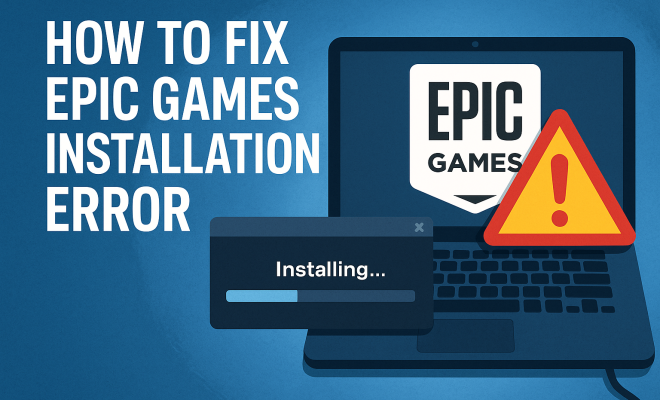
When you’re ready to dive into the virtual worlds of Fortnite, Rocket League, or any of the other fantastic titles from Epic Games, the last thing you want is an installation error interrupting your gaming experience. An Epic Games installation error fix can be crucial, especially if you’re eager to jump into a game with friends or tackle a new challenge. Fortunately, there are several methods you can try to resolve these installation issues, and this guide will help you navigate them effectively.
1. Check System Requirements
Before anything else, it’s essential to ensure that your system meets the minimum requirements for the game you’re trying to install. Games from Epic Games vary in specifications, so you should double-check the following:
- Operating System: Confirm you are running a compatible version of Windows or macOS.
- Processor: Ensure your CPU meets or exceeds the game’s requirements.
- RAM: Check if your system has enough memory to run the game smoothly.
- Graphics Card: Verify that your GPU is capable of handling the game’s graphics settings.
- Disk Space: Ensure you have enough free space on your hard drive or SSD for the installation.
By confirming that your system is up to par, you can eliminate the possibility of hardware-related installation issues, simplifying your path to a successful installation.
2. Update the Epic Games Launcher
Sometimes, the root cause of installation errors is an outdated version of the Epic Games Launcher. An updated launcher not only improves performance but also includes necessary fixes and new features. To update the launcher, follow these steps:
- Open the Epic Games Launcher.
- If an update is available, you’ll see a prompt. Click on Update.
- Once the update is complete, restart the launcher.
- Try reinstalling the game.
By keeping the launcher updated, you can enjoy a smoother gaming experience and reduce the chances of encountering installation errors.
3. Run as Administrator
Another common fix for installation issues is running the Epic Games Launcher with administrator privileges. This grants the application access to system resources that might otherwise be restricted. Here’s how to do it:
- Right-click on the Epic Games Launcher icon.
- Select Run as administrator from the context menu.
- Attempt the installation again.
This method is particularly useful if you’re encountering permission errors that prevent the installation from completing. It’s a simple yet effective Epic Games installation error fix.
4. Check Your Internet Connection
A stable and reliable internet connection is critical for downloading and installing games from the Epic Games Store. If your connection is unstable or slow, you may encounter errors during installation. To troubleshoot:
- Run a speed test to check your internet speed.
- Restart your router to refresh the connection.
- Consider using a wired connection instead of Wi-Fi for more stability.
- Temporarily disable your firewall or antivirus software to see if it’s interfering with the download.
If the issue persists despite a stable internet connection, it could be worth checking the Epic Games’ server status at their official website, as outages can also cause installation errors.
5. Clear the Epic Games Cache
Cached files can sometimes become corrupted, leading to various errors, including installation problems. Clearing the cache for the Epic Games Launcher can help resolve these issues: (See: Understanding system requirements for games.)
- Close the Epic Games Launcher completely.
- Navigate to the following folder:
C:\Users\YourUsername\AppData\Local\EpicGamesLauncher\Saved\. - Delete the webcache folder.
- Restart the Epic Games Launcher and attempt the installation again.
By clearing the cache, you may eliminate corrupted files that are causing the installation error, allowing for a fresh start.
6. Disable Background Applications
Background applications can consume system resources or conflict with the installation process. Programs like VPNs, download managers, and even certain browser extensions can cause issues. To minimize potential conflicts:
- Close any unnecessary applications running in the background.
- Open the Task Manager by pressing
Ctrl + Shift + Esc. - End tasks for software that you believe might interfere with the installation.
- Try the installation again after closing these programs.
By simplifying your system’s operational load, you might just find the installation process goes off without a hitch.
7. Check for Windows Updates
Keeping your operating system up to date is crucial for smooth gaming. Windows updates often include fixes for bugs and compatibility improvements that may affect game installations. To check for updates:
- Open Settings on your computer.
- Select Update & Security.
- Click on Check for updates.
- Install any available updates and restart your computer.
After your system is updated, try installing the game again. This step can often resolve any underlying issues that might be causing installation errors.
8. Reinstall the Epic Games Launcher
If all else fails, a fresh installation of the Epic Games Launcher may be necessary. This process ensures you’re working with the latest version and eliminates any corrupted files that could be causing issues. Here’s how to do it:
- Uninstall the Epic Games Launcher through the Control Panel or Settings.
- Go to the Epic Games website and download the latest version of the launcher.
- Install it and log in to your account.
- Try the installation of your game again.
Reinstalling the launcher can be a time-consuming fix, but it’s often effective when persistent issues arise.
9. Contact Epic Games Support
If you’ve tried all of the above methods and are still experiencing installation errors, it may be time to reach out to Epic Games Support. They have a wealth of resources and can assist you in troubleshooting your specific issue. Here’s how to contact them:
- Visit the Epic Games Help Center.
- Use their support ticket system to describe your issue in detail.
- Check their community forums for additional advice from other users who may have faced similar problems.
Getting help from the professionals can often lead to a resolution that you may not have considered on your own.
10. Common Installation Errors and Their Fixes
While following the steps above can resolve most issues, you might still run into specific error messages when trying to install games. Here are some common installation errors you may encounter along with their fixes:
- Error Code 20: This is usually a network-related issue. Check your internet connection, restart your router, and ensure no firewall settings are blocking the Epic Games Launcher.
- Error Code 13: This error often indicates problems with the installation folder. Make sure your installation path does not contain any special characters or spaces, and try moving the installation directory to a simpler location.
- Error Code 201: Update your operating system to the latest version, as this error can be related to outdated software.
- Corrupted File Errors: If you suspect any files are corrupted, consider verifying the game’s installation through the Epic Games Launcher. Navigate to your library, click on the three dots next to the game, and select Verify.
11. Alternative Solutions for Persistent Issues
If the standard troubleshooting steps don’t work, there are some alternative solutions you can try:
- Change DNS Settings: Sometimes changing your DNS can help with installation errors. Consider using public DNS servers such as Google DNS (8.8.8.8 and 8.8.4.4) or Cloudflare DNS (1.1.1.1).
- Adjust Windows Security Settings: On occasion, Windows Defender or other security programs might flag the Epic Games Launcher as a potential threat. Ensure that Epic Games Launcher is whitelisted in your security settings.
- Use Compatibility Mode: If you’re on Windows, try running the Epic Games Launcher in compatibility mode for older versions of Windows. Right-click the launcher icon, select Properties, go to the Compatibility tab, and choose an earlier version of Windows to run it with.
12. The Importance of Backing Up Game Files
Before making significant changes like reinstalling the Epic Games Launcher, it’s a good practice to back up your game files. Here’s how to do it: (See: Health effects of prolonged computer use.)
- Navigate to your Epic Games installation directory.
- Copy the entire folder of the game you wish to back up.
- Paste it into an external drive or a different location on your computer.
- After reinstalling the launcher, you can copy the files back to the original location to save time on downloads.
This simple step can save you significant time and bandwidth, especially if you have a slow internet connection.
13. Community Tips and Tricks
The gaming community is often a great source of information and solutions. Here are some tips shared by fellow gamers that have proven helpful:
- Community Forums: Engage in Epic Games community forums where users share solutions for specific errors. You might find someone who has faced and solved your exact problem.
- Reddit Discussions: Subreddits like r/Fortnite or r/RocketLeague often have threads dedicated to installation issues where users post potential fixes and experiences.
- YouTube Tutorials: Many gamers share video walkthroughs for troubleshooting installation errors. A visual guide can help you follow along more easily.
14. Frequently Asked Questions (FAQ)
What should I do if I keep getting an installation error?
If you keep encountering installation errors, try the troubleshooting steps mentioned above. If nothing works, contacting Epic Games Support may be your best option.
Can I install Epic Games games on multiple devices?
Yes, you can install games on multiple devices, but you need to log in with the same Epic Games account. Just ensure you’re not trying to run the game on multiple devices simultaneously.
Is there a way to speed up the installation process?
To speed up the installation, try using a wired internet connection instead of Wi-Fi, close any unnecessary background applications, and ensure your hard drive has ample space available.
Do I need to uninstall my old games before reinstalling the Epic Games Launcher?
No, when you reinstall the Epic Games Launcher, your games will remain installed. However, backing up your game files is recommended in case of unexpected issues.
Are installation errors common with Epic Games?
While installation errors can happen, especially during high traffic periods or major updates, following the steps in this guide can help mitigate most problems.
How can I report a persistent installation error to Epic Games?
You can report installation errors directly via the Epic Games Help Center. Fill out a support ticket with details about the error code and the steps you’ve already tried.
15. Statistics on Installation Errors
Understanding the scope of installation errors can help in diagnosing and rectifying them. Recent surveys indicate that approximately 20% of players experience some form of installation error when attempting to download new games from platforms like Epic Games.
The most common issues reported include network instability (40%), corrupted files (30%), and permission-related problems (20%). These statistics highlight the importance of troubleshooting common errors and implementing the fixes outlined in this guide. (See: Epic Games and technology industry insights.)
16. Expert Perspectives on Installation Issues
Industry experts emphasize that installation errors are often a symptom of broader issues related to system configuration and network setups. According to game developers, keeping your system optimized and updated can prevent many of these problems before they arise.
“It’s important for gamers to ensure their systems are regularly maintained. This includes not just software updates but also managing storage space,” says a well-known game developer. “A well-maintained system is less likely to encounter errors during installations.”
17. Comparing Epic Games with Other Platforms
When looking at installation errors across various gaming platforms, Epic Games is often on par with other major distributors like Steam and Origin. However, user experiences can vary significantly based on system configurations and network conditions.
For instance, while Steam may have a more robust error reporting mechanism, users have reported that Epic Games’ support team is often more responsive. Understanding these nuances can help you choose the right platform for your gaming needs.
18. Common Myths About Installation Errors
There are several myths surrounding installation errors that can lead to confusion. Here are a few common ones debunked:
- Myth: All installation errors are due to the Epic Games Launcher. Many installation issues can stem from user-side problems such as permissions, outdated drivers, or poor internet connections.
- Myth: Once an error occurs, the game must be uninstalled completely. In many cases, simply verifying files or clearing the cache can resolve the issue without needing a full uninstall.
- Myth: Installation errors only happen on PCs. Console users can also experience installation issues, particularly when their systems are low on storage or require updates.
19. Final Words on Managing Installation Errors
By following these troubleshooting steps and understanding the underlying causes of installation errors, you can effectively manage and resolve these issues. Installation errors might be a common nuisance, but they’re usually fixable with some persistence and the right strategies.
Remember, whether it’s a simple cache clear or a more complex network issue, staying patient and methodical in your approach is key to overcoming installation hurdles. With this guide in hand, you’re more than equipped to tackle any Epic Games installation error fix that comes your way.
“`
Trending Now
Frequently Asked Questions
How do I fix Epic Games installation errors?
To fix Epic Games installation errors, start by checking if your system meets the game's minimum requirements. Next, ensure the Epic Games Launcher is updated to the latest version. You can also try restarting your computer and reinstalling the launcher if issues persist.
What are the system requirements for Epic Games?
System requirements for Epic Games titles vary by game but generally include a compatible operating system, sufficient RAM, a capable graphics card, and enough disk space. Always check the specific requirements on the game’s page before installation.
Why is my Epic Games Launcher not updating?
If your Epic Games Launcher is not updating, it might be due to a poor internet connection or insufficient permissions. Try running the launcher as an administrator or restarting your router. If the issue continues, reinstalling the launcher may help.
Can I fix installation errors by reinstalling the Epic Games Launcher?
Yes, reinstalling the Epic Games Launcher can resolve installation errors. Uninstall the current version, download the latest version from the Epic Games website, and install it again. This can fix corrupted files and ensure you have the latest updates.
How much disk space do I need for Epic Games?
The disk space required for Epic Games varies by title. Generally, you should have at least 20-50 GB of free space for most games. Always check the specific game’s installation requirements for accurate disk space needs.
Have you experienced this yourself? We’d love to hear your story in the comments.