How to move Epic Games to another drive
“`html
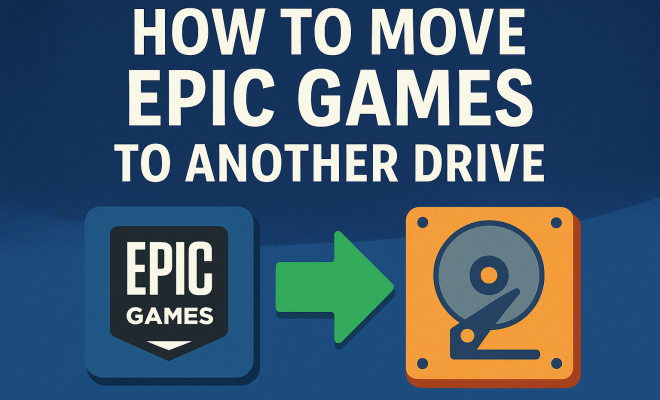
As gaming continues to evolve, the demand for storage space has never been greater. If you find yourself running out of room for your favorite titles on your main drive, you might be wondering how to move Epic Games to another drive. Fortunately, it’s a manageable process that allows you to free up space and keep your gaming experience smooth. In this article, we’ll delve into the ins and outs of relocating your Epic Games installation, providing you with a step-by-step guide, insights on potential issues, and practical tips to ensure a seamless transition.
1. Understanding Epic Games Launcher Storage
The Epic Games Launcher is a gateway to a plethora of games, but it can also take up a significant chunk of your hard drive. Understanding how the launcher stores data is crucial before you decide to move Epic Games to another drive. By default, the launcher installs games on your C: drive, which is often the system drive. This can lead to storage limitations, especially if you frequently download large games.
When you install a game through the Epic Games Launcher, the files are stored in a specific directory, usually found at C:\\Program Files\Epic Games. Each game is installed in a separate folder, showcasing how the platform keeps your library organized. Knowing this structure will help you during the transfer process, as you’ll need to locate these files to move them effectively.
2. Preparing for the Move
Before diving into the transfer, it’s essential to prepare your new drive. Ensure that the drive you’re planning to move Epic Games to has enough available space to accommodate your games. Whether it’s an external hard drive or an internal SSD, check its storage capacity and performance specifications. Ideally, you want a drive that supports fast read and write speeds to keep your gaming performance optimal.
Next, you should consider the file system format of the new drive. If you’re using a Windows PC, NTFS is the recommended file system for handling large game files efficiently. If your new drive is formatted as FAT32, you might encounter limitations with file sizes exceeding 4GB, which can hinder your ability to move larger game files. Reformatting the drive may be necessary, but remember to back up any important data before doing so.
3. Moving Epic Games to Another Drive: The Step-by-Step Process
Now that you’re prepared, it’s time to get into the nitty-gritty of how to move Epic Games to another drive. Follow these steps carefully to ensure a smooth transition:
- Step 1: Close the Epic Games Launcher completely to avoid any file conflicts.
- Step 2: Navigate to the installation directory at
C:\\Program Files\Epic Gamesand copy the entire folder of the game you wish to move. - Step 3: Paste the copied game folder into your new drive’s desired location, such as
D:\\Epic Games. - Step 4: After the files are copied successfully, you need to open the Epic Games Launcher.
- Step 5: Go to your library and locate the game you just transferred. Click on it, and then select the “Install” option. The launcher will prompt you to choose the installation location.
- Step 6: Select the new drive location where you pasted the game files. The launcher will recognize the existing files and skip the download process, finalizing the installation.
This method allows you to preserve the game data and settings, making it a straightforward way to move Epic Games to another drive.
4. Using the Epic Games Launcher to Relocate Games
In addition to the manual method described, the Epic Games Launcher also offers a built-in option to change the installation location for future games. This feature can help streamline the process of moving Epic Games to another drive when you’re installing new titles. To set a new default installation directory, follow these steps:
- Step 1: Open the Epic Games Launcher and click on your profile icon in the top right corner.
- Step 2: Go to Settings and scroll down to the Manage Games section.
- Step 3: You’ll see an option to set the default installation location. Click on Browse and choose your new drive.
By adjusting the default location, any new game installations will automatically go to your selected drive, which can save a considerable amount of time in the long run. (See: Understanding computer storage systems.)
5. Common Issues and Troubleshooting
While moving Epic Games to another drive can be straightforward, you may encounter some hiccups along the way. Knowing how to troubleshoot these can save you a lot of frustration. One common issue is the “installation incomplete” error. This can happen if the game files are not correctly recognized by the launcher.
To resolve this, ensure the game folder structure is maintained exactly as it was in the original location. If files are missing or the folder has been altered, the launcher might not detect it properly. In some cases, you may need to verify the integrity of the game files through the launcher, which can automatically detect and fix issues in the installation.
6. Benefits of Moving Your Games
You might wonder why you should move Epic Games to another drive in the first place. The primary advantage is storage management. As games grow in size, often exceeding 100 GB, freeing up space on your main drive can help maintain your system’s performance. A cluttered drive can lead to slower load times and other performance issues.
Additionally, moving games to an external SSD can enhance performance, particularly if the new drive has better read/write speeds. This can lead to faster game loading and reduced lag during gameplay, offering a smoother experience overall.
7. Backing Up Your Game Saves
Before moving your games, ensuring that your game saves are backed up is crucial. While Epic Games typically stores save data in the cloud or within the game itself, there can be instances where saves are stored locally on your system. To avoid losing any progress, it’s wise to back up these files manually.
Locate your save files, usually found in C:\\Users\\[Your Username] \\Documents\\Epic Games\\[Game Title] or within the installation folder of the game. Copy and paste these save files to a safe location, such as an external drive or a cloud storage service. This way, you can easily restore your progress if anything goes awry during the move.
8. External Drives vs. Internal Drives
When deciding where to move Epic Games to another drive, you might be torn between using an external or internal drive. Internal SSDs typically offer faster load times and better performance, making them ideal for gaming. However, they may require more technical knowledge to install and might be limited by your system’s capacity.
On the other hand, external drives are easier to set up and can be a convenient option, especially if you’re using a laptop or a system with limited internal space. Just ensure the external drive is USB 3.0 compatible or better to maximize performance. Keep in mind that while external drives provide flexibility, they might not match the speed of internal SSDs, especially for large game files.
9. Future-Proofing Your Storage Solutions
As gaming trends evolve and titles become larger, future-proofing your storage needs is essential. Consider investing in larger capacity drives, such as 2TB or more, to accommodate the growing size of game files. Additionally, SSDs are becoming more affordable and accessible, making them a worthwhile investment for a smoother gaming experience. (See: Assessing storage needs effectively.)
It’s also a good idea to regularly review your game library. Uninstall titles you no longer play, and keep your storage tidy. This proactive approach will not only help you manage your current games but will also make relocating files easier in the future.
10. Frequently Asked Questions (FAQs)
What do I need to consider when moving Epic Games to another drive?
Consider the available space on the new drive, the file system format (NTFS is recommended), and the speed of the drive. It’s essential to ensure the new location can handle the size of the game files you’re moving.
Can I move my games to an external drive?
Yes, you can move your games to an external drive. Just ensure that the drive is fast enough, ideally an external SSD, and compatible with your system.
Will I lose my game progress when moving games?
No, you typically won’t lose your game progress if you back up your save files before moving. Most games store save data in the cloud, but it’s always best to back up manually, just in case.
How do I fix issues if the launcher doesn’t recognize my moved games?
If the Epic Games Launcher doesn’t recognize your moved games, ensure the folder structure is correct. If issues persist, try verifying the integrity of the game files through the launcher for automatic fixes.
Can I change the default installation location for all future games?
Absolutely! You can set a new default installation location in the Epic Games Launcher settings. This will ensure all future games install to your selected drive automatically.
11. Performance Considerations When Moving Games
When you decide to move Epic Games to another drive, it’s crucial to think about performance. For instance, moving games from a traditional HDD to an SSD can result in significantly faster loading times and a more responsive experience overall. Benchmark studies have shown that SSDs can cut loading times by more than 50% compared to HDDs.
Furthermore, if you opt for an NVMe SSD, the speed can be even more pronounced, especially for modern games that require rapid data access. If your new drive supports PCIe 4.0, you could see even more performance benefits, which might be a consideration if you plan on playing graphically demanding titles. (See: PC gaming storage solutions.)
12. How to Organize Your Game Library After Moving
Once you’ve moved your games, it’s a good idea to take some time to organize your library. You can categorize your games based on genres, play frequency, or even the level of completion. This organization can save you time when you’re looking for a specific title to play.
Additionally, consider using tagging features within the Epic Games Launcher or even third-party libraries to keep your games sorted. For example, you can create tags for “multiplayer,” “single-player,” or “installed” to help you quickly find what you’re in the mood for. Maintaining this organization will help streamline your gaming experience, allowing you to jump into your favorite titles more quickly.
13. Storage Capacity Planning for Gamers
As new games are released, many are pushing the limits of storage with file sizes growing each year. For instance, games like “Call of Duty: Modern Warfare” and “Red Dead Redemption 2” have file sizes exceeding 200 GB. To prepare for future gaming needs, you should plan your storage capacity wisely.
Consider creating a tiered storage system where you keep your most-played games on the fastest drives, while older or less frequently played titles can be moved to slower but larger storage options. This strategy will help ensure that your gaming experience remains smooth and enjoyable regardless of how many titles you have installed.
14. Advanced Tips for Moving Epic Games
If you’re looking to enhance your experience even further when moving Epic Games, consider these advanced tips:
- Optimize Your Drives: Use disk management tools to ensure that your drives are optimized for performance. Regularly defragmenting HDDs (not necessary for SSDs) can help maintain speed.
- Monitor Disk Usage: Tools like Windows’ built-in Resource Monitor or third-party applications can help you understand which games or applications are taking up the most space. This can inform your decisions on what to move.
- Regular Maintenance: Schedule regular check-ups on your drives to ensure they’re functioning correctly. Monitor for any signs of wear and tear, especially for external drives that might be subject to physical movement.
- Use Cloud Storage: For less-critical games or applications, consider utilizing cloud storage solutions to offload data that you don’t need immediate access to. This can help you keep your primary gaming drive clean and efficient.
15. Conclusion: Keep Gaming Without Limits
Moving your Epic Games to another drive doesn’t have to be a daunting task. With the right preparation and knowledge, you can easily relocate your games, free up space, and enhance your gaming performance. Whether you opt for an internal SSD or a reliable external drive, the benefits of managing your storage wisely are clear. So go ahead, make that move, and enjoy uninterrupted gaming sessions without the nagging worry of running out of space!
“`
Trending Now
Frequently Asked Questions
How do I move Epic Games to another drive?
To move Epic Games to another drive, first ensure your new drive has enough space. Then, locate the game files in the Epic Games directory (usually C:\Program Files\Epic Games). Copy these files to the new drive and then update the Epic Games Launcher to recognize the new location.
Can I install Epic Games on a different drive?
Yes, you can install Epic Games on a different drive. During the installation process, simply choose the desired drive and folder for the installation. This helps optimize storage space and manage your game library more effectively.
What should I do before moving Epic Games?
Before moving Epic Games, ensure the new drive has sufficient space and is formatted correctly. It's also advisable to back up your game files and check the drive's read and write speeds for optimal gaming performance.
Will moving Epic Games affect my game data?
Moving Epic Games should not affect your game data if done correctly. Ensure you copy all game files from the original location to the new drive. After the transfer, verify the game files in the Epic Games Launcher to ensure everything is intact.
How can I free up space on my main drive for Epic Games?
To free up space on your main drive for Epic Games, you can move existing games to another drive, uninstall unused applications, or transfer large files like videos and photos to an external storage device. Regularly cleaning up temporary files can also help.
What’s your take on this? Share your thoughts in the comments below — we read every one.