How to fix Discord audio cutting out
“`html
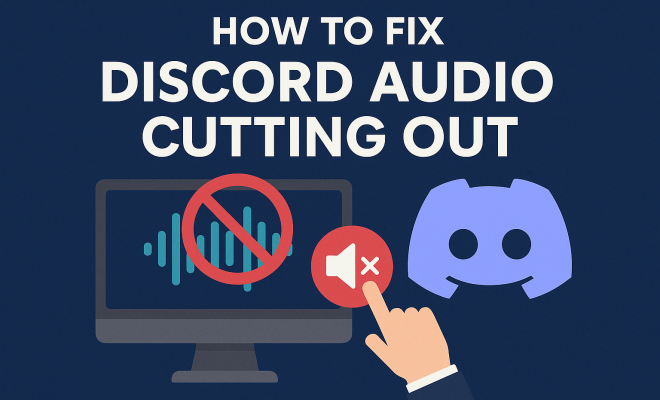
Discord has quickly risen to become one of the most popular platforms for gamers and communities alike. With its user-friendly interface and diverse features, it allows for seamless communication through voice, video, and text. However, a common issue many users face is audio cutting out during conversations. If you’re frustrated with this problem, you’re not alone. In this article, we’ll explore the top ways to fix Discord audio cutting out, ensuring a smoother communication experience.
1. Check Your Internet Connection
The most fundamental step in addressing any audio issues on Discord is to ensure that your internet connection is stable. A weak or fluctuating connection can cause audio lag, dropouts, or even complete loss of sound. Start by running a speed test to measure your upload and download speeds. Ideally, you should aim for at least 1 Mbps upload speed for voice communication.
If your connection is lagging, consider switching to a wired connection instead of Wi-Fi. A direct Ethernet connection can significantly reduce latency and improve audio quality. Additionally, ensure that no bandwidth-heavy applications are running in the background, as they could be consuming resources needed for smooth Discord operation.
2. Adjust Discord Voice Settings
Discord has a variety of voice settings that can affect how audio is transmitted and received. Start by navigating to the User Settings gear icon, and then click on ‘Voice & Video’. Check the following settings:
- Input Device: Make sure the correct microphone is selected, particularly if you have multiple audio devices connected.
- Output Device: Similarly, select the proper headphones or speakers to ensure sound is routed correctly.
- Input Sensitivity: Toggle the ‘Automatically determine input sensitivity’ feature. Sometimes, manually adjusting the sensitivity slider can prevent Discord from cutting off your audio.
Experimenting with these settings can lead to noticeable improvements in audio clarity and reliability.
3. Update Audio Drivers
Your computer’s audio drivers play an essential role in how audio is transmitted. Outdated or corrupted drivers can lead to issues like audio cutting out. Head to the device manager on your computer and ensure that your audio drivers are up-to-date. If you find outdated drivers, update them to the latest version. This can often resolve many performance issues across different applications, including Discord.
To update your drivers, follow these steps:
- Search for ‘Device Manager’ in your Windows search bar.
- Expand the ‘Sound, video and game controllers’ section.
- Right-click on your audio device and select ‘Update driver’.
- Choose ‘Search automatically for updated driver software’.
After updating, restart your computer and see if the audio issue persists. If so, you might consider reinstalling the audio drivers altogether.
4. Disable Hardware Acceleration
Hardware acceleration can sometimes cause issues with audio on Discord, particularly on older systems or those with compatibility issues. To disable it, head back to the ‘Voice & Video’ settings within Discord. Scroll down until you find the ‘Hardware Acceleration’ option and toggle it off.
Disabling hardware acceleration allows Discord to run on software rendering rather than relying on your hardware, which might resolve the audio cutting out problem. After making this change, it’s a good idea to restart Discord and test your audio again.
5. Check for Discord Updates
Keeping your Discord application up to date can prevent many issues, including audio problems. Developers often release updates to fix bugs and improve performance, so it’s crucial to be running the latest version. To check for updates, close Discord completely and relaunch it. The application will automatically check for updates upon startup.
If you’re using Discord through a web browser, ensure your browser is also up-to-date. An outdated browser could hinder Discord’s performance and functionality, leading to audio issues. Regularly updating both Discord and your browser can help maintain a smooth experience. (See: Health communication strategies.)
6. Tweak Quality of Service Settings
Quality of Service (QoS) is a feature in Discord that prioritizes voice data over other types of data. Enabling QoS may help with audio cutting out, especially if your connection experiences fluctuations. To adjust these settings, go to the ‘Voice & Video’ settings and scroll down to the ‘Quality of Service’ section.
Toggle the ‘Enable Quality of Service High Packet Priority’ option. While this can enhance voice quality, it may not be effective for everyone. If enabling QoS doesn’t help, you can try disabling it and testing your audio again. Different networks handle QoS differently, so the results can vary.
7. Reinstall Discord
If all else fails and you’re still struggling to fix Discord audio cutting out, consider reinstalling the application. A clean reinstall can resolve deep-rooted issues that might not be addressable through regular troubleshooting. Before you uninstall, make sure to back up any important settings or data, such as your server preferences and user profiles.
To uninstall Discord:
- Open ‘Control Panel’ on your computer.
- Select ‘Programs and Features’.
- Find Discord in the list and click ‘Uninstall’.
- After uninstalling, head to the Discord website to download the latest version and install it.
Once installed, log back into your account and check if the audio issues have been resolved.
8. Check Your Audio Devices
Sometimes, the issue may stem from the audio devices themselves. Ensure that your headset or speakers are functioning properly by testing them with another application or device. If you notice issues outside of Discord, it might be time to replace or repair your audio equipment. Also, verify that your audio devices are set as the default device in your operating system’s sound settings.
For Windows users, you can do this by right-clicking the speaker icon in the taskbar, selecting ‘Sounds’, navigating to the ‘Playback’ tab, and ensuring the correct device is set as default. For Mac users, go to System Preferences, click on ‘Sound’, and check the ‘Output’ tab to make your selection.
9. Use Discord’s Web Version
If you are consistently experiencing audio issues on the Discord desktop application, try using the web version as a temporary solution. Navigate to Discord’s website and log in through your browser. This can help determine if the issue is with the application itself or your system settings. While the web version may not have all the features of the desktop app, it can be a useful workaround until the issue is resolved.
10. Examine Firewall and Antivirus Settings
Your firewall or antivirus software may interfere with Discord’s ability to transmit audio. Check to ensure that Discord is allowed through your firewall and that your antivirus is not blocking it. You can usually find these settings in the security software interface. If necessary, add Discord to the list of allowed programs.
For Windows Firewall, you can go to Control Panel, choose ‘System and Security’, and click on ‘Windows Defender Firewall’. Then, select ‘Allow an app or feature through Windows Defender Firewall’ and make sure Discord is checked for both private and public networks.
11. Investigate Background Applications
Sometimes, other applications running in the background can interfere with Discord’s performance. Applications that consume significant CPU or network resources may cause audio issues. Check your task manager (Ctrl + Shift + Esc) to see what’s running and close any unnecessary applications. This can help free up resources and improve your overall experience on Discord.
12. Disable VPN or Proxy Services
If you’re using a VPN or proxy service, it could be causing latency or interruptions in your audio feeds. Temporarily disabling these services can help determine if they are the root of your audio issues. If you find that your audio improves when they’re turned off, consider either using a different VPN or adjusting the settings on your current one to minimize disruption.
13. Check for External Noise Interference
External noises can also lead to audio issues on Discord. If you’re in a noisy environment, your microphone may pick up background sounds, causing interruptions. Use a noise-canceling microphone or adjust your microphone sensitivity settings to reduce background noise. Additionally, ensure you’re in a quiet area to facilitate clearer communication.
14. Use Quality Headphones
Quality headphones can make a significant difference in your audio experience on Discord. If you’re using basic earbuds, consider upgrading to a higher-quality headset. Look for features like noise cancellation or better sound isolation to enhance audio clarity. Investing in good audio equipment can vastly improve your communication experience, particularly if you’re a frequent user. (See: CDC health communication resources.)
15. Check for Discord Server Issues
Sometimes, the problem might not be on your end. Discord servers can experience outages or issues that affect all users. Visit Discord’s official status page or their social media channels to see if there are any reported problems with their servers. If there are widespread issues, it might just be a matter of waiting for Discord’s team to resolve them.
16. Assess Your Network Setup
Your overall network setup can play a crucial role in your Discord experience. If you’re using multiple devices connected to the same router, they can compete for bandwidth. To improve your experience, try prioritizing your device in your router’s QoS settings, ensuring it gets the necessary bandwidth for voice communication.
Additionally, consider using a dual-band router to connect to the less crowded 5 GHz band, which can offer better performance and less interference than the 2.4 GHz band.
17. Consult Community Forums
Online communities and forums can be a goldmine for troubleshooting advice. Places like Reddit, Discord support channels, and gaming forums often have users sharing their own experiences and solutions. By engaging with these communities, you might find tips specific to your issue that aren’t covered elsewhere.
Final Thoughts
Audio cutting out on Discord can be incredibly frustrating, especially during crucial gaming sessions or important discussions. By following the steps outlined above, you should be well-equipped to tackle this issue head-on. Remember that everyone’s setup is different, so it might take a bit of trial and error to find the right solution for you. Whether it’s adjusting settings, updating drivers, or even reinstalling the app, you’ll be back to enjoying clear audio in no time.
FAQs About Fixing Discord Audio Cutting Out
1. What should I do if my audio cutting out issue persists after trying all the solutions?
If the problem persists, check whether the issue occurs on other platforms or applications. If it does, the problem might be with your hardware or internet connection. Consider contacting Discord support for further assistance.
2. Can my internet speed affect Discord audio quality?
Absolutely! A slow or unstable internet connection can lead to audio cutting out or lagging. It’s important to have a stable connection, ideally wired, for the best experience.
3. Are there specific microphone settings that can help prevent audio cutting out?
Yes, adjusting input sensitivity and ensuring your microphone is set to the correct input device can help prevent audio dropouts. Experimenting with these settings can lead to better audio performance.
4. Is it normal for Discord to have occasional audio issues?
While Discord is generally reliable, occasional audio issues can happen due to various factors like network instability or hardware problems. Regular maintenance of your equipment and connection can minimize these occurrences.
5. What types of headsets work best with Discord?
While many headsets will work with Discord, those with noise-canceling features or good sound isolation tend to provide a better experience. Brands like HyperX, SteelSeries, and Logitech offer great options for gamers.
6. How can I tell if my microphone is the problem?
Test your microphone in other applications, such as voice recording software or other voice chat platforms. If the issue persists across multiple applications, your microphone may need servicing or replacement. (See: Impact of internet stability on communication.)
7. Can I use Discord on my smartphone, and will audio cutting out still be an issue?
Yes, Discord is available on smartphones, and while the app is optimized for mobile use, audio cutting out can still occur if there are network issues or problems with your phone’s audio settings.
8. Why does audio cutting out happen more during peak hours?
During peak hours, more users are online, which can lead to increased traffic on your internet service provider’s network. This congestion can affect your internet speed, causing audio dropouts on platforms like Discord.
9. Should I consider upgrading my internet package to fix audio issues?
If you consistently experience audio issues on Discord and other applications, upgrading your internet package for better speeds and reliability may be a beneficial option.
10. Are there alternative applications to Discord for voice communication that might have fewer audio issues?
While Discord is highly regarded, alternatives like TeamSpeak, Mumble, or Google Meet can also be effective for voice communication. Testing different platforms might help determine if the issue is specific to Discord or related to your hardware and network.
11. Can environmental factors affect my Discord audio quality?
Yes, environmental factors like background noise, interference from electronic devices, and even the acoustics of your room can impact audio quality. Consider using soundproofing techniques or relocating to a quieter area to enhance your audio clarity.
12. What should I do if I experience audio issues on Discord only while gaming?
If audio issues occur only during gaming, it might be related to the game’s settings or performance. Check in-game audio options, ensure the game isn’t consuming excessive resources, and consider closing other applications to free up system resources.
13. Does using Discord with Bluetooth devices affect audio quality?
Bluetooth devices can introduce latency or audio quality issues, especially if the connection is weak or the device isn’t optimized for gaming. If possible, test with a wired headset to see if the audio issues persist.
14. Is there any way to directly contact Discord customer support for ongoing issues?
Yes, you can reach out to Discord’s customer support through their help center on their website. They offer a ticket system where you can report issues and receive assistance from their support team.
15. How can I optimize my audio settings for streaming on Discord?
For streaming, ensure you’re using a high-quality microphone and set the input sensitivity properly. Additionally, using software like OBS to manage audio levels can help maintain clarity. Test your settings with friends before going live to ensure everything sounds great.
“`
Trending Now
Frequently Asked Questions
Why does my audio keep cutting out on Discord?
Audio cutting out on Discord is often caused by a weak or unstable internet connection. Additionally, incorrect voice settings or background applications consuming bandwidth can contribute to this issue. Ensuring a stable connection and adjusting your voice settings can help resolve the problem.
How can I improve my Discord audio quality?
To improve audio quality on Discord, start by checking your internet connection for stability. Consider using a wired Ethernet connection instead of Wi-Fi. Also, adjust your Discord voice settings, including selecting the right input and output devices, and manually tweaking input sensitivity.
What settings should I check for Discord voice issues?
For Discord voice issues, check the 'Voice & Video' settings in User Settings. Ensure the correct input and output devices are selected, and consider toggling the 'Automatically determine input sensitivity' option. Adjusting the input sensitivity slider manually can also help prevent audio cutouts.
Can background applications affect Discord audio?
Yes, background applications can significantly impact Discord audio quality. If these applications are consuming bandwidth or system resources, they may cause audio lag or dropouts. Close any unnecessary programs while using Discord to ensure smoother audio communication.
Is a wired connection better for Discord voice calls?
Yes, a wired Ethernet connection is generally better for Discord voice calls compared to Wi-Fi. A wired connection reduces latency and provides a more stable internet connection, which can help prevent audio cutting out during conversations.
Have you experienced this yourself? We’d love to hear your story in the comments.