How to fix computer not booting
“`html
Having a computer that won’t boot up can be frustrating, to say the least. Whether you rely on it for work, school, or leisure, seeing your machine refuse to start can throw your plans into disarray. The good news is that there are several effective computer not booting fixes that may help you get your device running again. In this article, we’ll explore eight essential troubleshooting steps, along with practical insights and key details to guide you through the process.
1. Check the Power Supply: A Simple Yet Crucial Step
The first step in any computer not booting fix is to ensure that your computer is receiving power. It may sound elementary, but loose cables or a faulty power outlet can often be the culprits behind a non-responsive machine. Start by checking the following:
- Ensure that the power cable is securely connected to both the computer and the wall outlet.
- If you’re using a power strip or surge protector, try connecting your computer directly to the wall to eliminate those as potential issues.
- Check if the power indicator light on your computer is lit. If it’s off, the power supply might be faulty.
If you’ve confirmed that the power supply is operational but your computer still won’t boot, it’s time to move to the next step.
2. Inspect Peripheral Devices: Disconnect and Test
Sometimes, external devices can create conflicts that prevent your computer from booting. This includes anything connected via USB, like printers, external drives, or even keyboards and mice. To rule out these devices as sources of trouble, disconnect all peripherals and try booting up your computer again. If it starts, reconnect devices one at a time to identify the faulty component.
This process can be time-consuming, but it’s a critical part of diagnosing the problem. Remember, even a malfunctioning mouse or keyboard can cause startup issues, so don’t overlook the smaller peripherals!
3. Boot into Safe Mode: Isolating Software Issues
If your computer powers on but doesn’t fully boot into the operating system, accessing Safe Mode might be your best computer not booting fix. Safe Mode starts your computer with only the essential drivers and services, which can help identify whether a software issue is to blame.
To enter Safe Mode, restart your PC and keep pressing the F8 key (for older Windows versions) before the Windows logo appears. For Windows 10, you need to interrupt the boot sequence three times to trigger the recovery menu, where you can select Safe Mode. Once in Safe Mode, you can perform various troubleshooting steps, such as updating drivers, uninstalling recently added software, or running a virus scan.
4. Run a Startup Repair: Utilizing Built-in Tools
Windows operating systems include a built-in tool known as Startup Repair, designed to fix problems that prevent Windows from booting correctly. This tool can resolve issues resulting from corrupted files or misconfigured settings.
To access Startup Repair, you’ll need a Windows installation media, such as a USB drive or disc. Boot your computer from the installation media and navigate to the repair option. Follow the prompts to run Startup Repair, which will attempt to fix any detected issues automatically.
While this tool is effective in many cases, it may not resolve every boot problem, especially if the underlying cause is hardware-related. (See: Computer safety and troubleshooting resources.)
5. Check for Hardware Failures: The Physical Side of Troubleshooting
If software solutions haven’t resolved your computer not booting fix, you may need to inspect the hardware components. Common hardware issues include a malfunctioning hard drive, RAM problems, or even overheating. Here’s how to check for these failures:
- Hard Drive: Listen for unusual sounds like clicking or grinding when you power on your computer. If you encounter such noises, there’s a chance that your hard drive is failing. You can also check the hard drive connection by removing and reseating it.
- RAM: Defective RAM can prevent booting. If you have multiple RAM sticks, try removing them and booting with just one installed. Swap them out to see if one of them is faulty.
- Overheating: Ensure that your computer isn’t overheating, as this can shut down your system to prevent damage. Check your fans, clean out dust, and ensure there’s adequate airflow.
Identifying hardware failures may require technical expertise, so feel free to consult a professional if you’re not comfortable handling it yourself.
6. Reset BIOS/UEFI Settings: A Configuration Reset
Sometimes, boot issues can arise from incorrect BIOS or UEFI settings. Resetting these settings to their defaults can help resolve conflicts that cause boot problems. To reset your BIOS/UEFI:
- Turn off your computer and restart it. As soon as it powers on, press the necessary key (usually Delete, F2, or F10) to enter the BIOS/UEFI setup.
- Look for an option to reset to default settings. This is often called “Load Setup Defaults” or something similar.
- Save your changes and exit. Your computer will restart with the original settings.
Resetting the BIOS/UEFI settings is particularly useful if you’ve recently updated your hardware or made changes to your system configuration.
7. Reinstall the Operating System: A Last Resort
If all else fails and your computer still won’t boot, you may need to consider reinstalling the operating system. This step should be a last resort, as it will erase your files and applications. Before proceeding, back up your important data if possible.
To reinstall Windows, you’ll need installation media and a valid license key. Boot from the installation media and follow the prompts to install Windows. Ensure you select the appropriate options to format the drive if you want a fresh start.
This method can resolve stubborn issues that other fixes couldn’t, but prepare to spend some time setting up your applications and restoring your files afterward.
8. Seek Professional Help: When to Call It Quits
Not every boot issue can be solved at home. If you’ve tried all the aforementioned computer not booting fixes without success, it might be time to call in the professionals. A skilled technician can diagnose hardware failures, perform intricate repairs, and recover data from unresponsive systems.
When choosing a repair service, look for reputable providers with good customer reviews. Avoid local shops that may not have the necessary expertise or equipment to handle complex issues. It’s worth investing in quality service, especially if you’re dealing with critical data.
9. Understanding Boot Sequence: A Deeper Look
When your computer starts, it goes through a process called the boot sequence. This sequence is a set of instructions that the computer follows to load the operating system and necessary drivers. If there’s an issue in any of these steps, it can lead to a situation where the computer fails to boot. Understanding the boot sequence can help you troubleshoot more effectively.
The typical boot sequence involves: (See: Computer repair and troubleshooting insights.)
- Power-On Self-Test (POST): At startup, your computer performs a POST to check the hardware components. If any critical component fails, you may receive a series of beeps or error messages.
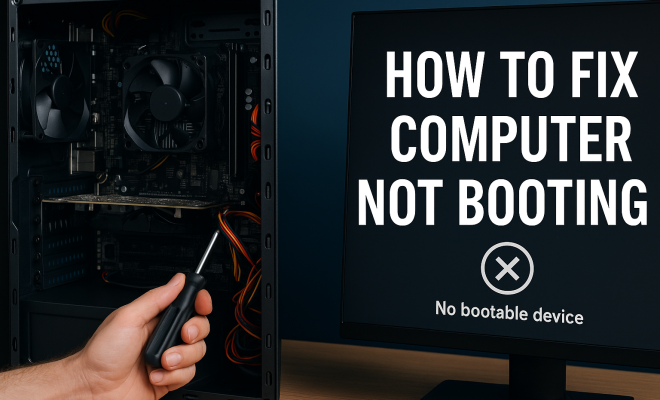
- Loading the Bootloader: After a successful POST, the BIOS/UEFI looks for a bootable device, such as your hard drive or SSD. If it cannot find one, it may return an error indicating that no bootable device is found.
- Loading the Operating System: Once the bootloader is found, it loads the operating system into memory, which ultimately leads to the Windows logo or desktop appearing.
Any failure at these stages can prevent your computer from booting. If you’re experiencing issues, understanding where the failure occurs can help inform which troubleshooting steps to take.
10. Common Error Messages and Their Meanings
When a computer fails to boot, it may display various error messages that can help pinpoint the problem. Here are some common messages and what they typically mean:
- “No Boot Device Found”: This usually indicates that the BIOS cannot find a hard drive or bootable USB. Check your drive connections and BIOS settings.
- “Disk Boot Failure”: This message points to issues with the hard drive or corruption within the boot sector. Running a startup repair might help here.
- “Windows Failed to Start”: This error suggests that critical files are missing or corrupted. Booting into Safe Mode or using recovery tools can be beneficial.
- “Blue Screen of Death (BSOD)”: If you encounter a BSOD during startup, it may result from hardware failure, incompatible drivers, or corrupted system files. Accessing Safe Mode can help troubleshoot these issues.
Take note of any error messages you encounter; they can be incredibly helpful for diagnosing the issue.
11. Regular Maintenance Tips: Preventive Measures
To avoid future boot issues, maintaining your computer regularly is crucial. Here are some useful maintenance tips:
- Keep Software Updated: Regularly update your operating system and drivers, as updates often fix bugs and improve compatibility.
- Run Antivirus Scans: Keep your antivirus software up to date and perform routine scans to detect and remove malware that could interfere with boot processes.
- Clean Your Computer: Physically clean your computer’s exterior and interior vents. Dust can accumulate and lead to overheating and hardware failure.
- Back Up Data: Regularly back up your data to avoid losing important files in case of a critical failure.
By taking these preventive measures, you can significantly reduce the likelihood of encountering boot issues in the future.
12. Frequently Asked Questions (FAQ)
Q: What should I do if I hear beeping sounds when I try to boot my computer?
A: Beeping sounds usually indicate hardware issues. The pattern of beeps can give clues about the specific problem, which you can look up based on your motherboard’s manual.
Q: Can a power surge damage my computer and prevent it from booting?
A: Yes, a power surge can damage components like the power supply unit or motherboard, leading to boot failures. Consider using a surge protector to prevent this in the future.
Q: How can I back up my data if my computer won’t boot?
A: If your hard drive is intact, you can connect it to another computer using a USB adapter or enclosure. This allows you to access your files and back them up.
Q: Is it possible to fix a computer that won’t boot without professional help?
A: Yes, many boot issues can be resolved using the troubleshooting steps outlined above. However, if you’re uncomfortable with hardware or technical processes, seeking professional help is wise.
Q: How often should I run maintenance on my computer?
A: Aim for monthly maintenance checks. This includes software updates, malware scans, and physical cleaning to ensure optimal performance and longevity.
13. Advanced Troubleshooting: Additional Steps
If you’ve tried the basic troubleshooting steps and your computer still won’t boot, you might need to go deeper. Here are some advanced steps to consider:
- Check for Loose Components: Sometimes, a simple reseating of components can solve issues. Open your computer case and ensure that all components, especially RAM, GPU, and hard drives, are firmly seated in their slots.
- Test with Different Hardware: If you have access to spare hardware, try swapping out components like RAM or the power supply unit. This can help pinpoint a defective part.
- Use Recovery Tools: If your operating system is Windows, utilize recovery tools such as System Restore, which can revert your system settings to an earlier date when it was working fine. You can access this option through Windows Recovery Environment.
- Check Compatibility: If you’ve recently upgraded hardware, ensure that all components are compatible with each other. Incompatible hardware can lead to boot issues.
14. Data Recovery Options
In cases where all else fails, and you cannot boot your computer, retrieving your data becomes a priority. Here are some methods to consider:
- External Enclosure: If you suspect your hard drive is intact but your operating system is not booting, consider removing the hard drive and placing it in an external enclosure. Connect it to another computer to access your files.
- Professional Data Recovery Services: If your hard drive has failed, you may need to enlist the help of a professional data recovery service. These services can be expensive but are often the best solution for recovering critical data.
- Backup Solutions: To avoid data loss in future boot issues, consider implementing a backup solution. Options include cloud storage or external hard drives.
15. Understanding Firmware vs. Software Issues
When dealing with boot issues, it’s essential to differentiate between firmware and software problems. Firmware refers to the low-level software embedded in hardware devices, while software issues are typically related to the operating system and applications.
For example, a corrupt BIOS/UEFI can prevent your computer from passing the POST, leading to boot failures. In contrast, a software issue might occur due to a recent update gone wrong. Understanding this distinction can aid in choosing the right troubleshooting steps.
16. When Is It Time for a New Computer?
Sometimes, persistent boot issues may indicate that your computer has reached the end of its life. Here are some signs that it might be time to consider a new device:
- Frequent Boot Issues: If you’re regularly experiencing boot problems that require extensive troubleshooting, it might be time to move on.
- Outdated Hardware: If your computer can’t support new software or operating systems efficiently, upgrading may be necessary.
- High Repair Costs: If repair costs are approaching or exceeding the price of a new computer, it’s worth considering a replacement.
Investing in a new computer can be daunting, but it can also bring about significant improvements in speed and functionality. Make sure to evaluate your options carefully and choose a machine that fits your needs.
In conclusion, a computer that won’t boot can be a major inconvenience, but with the right troubleshooting approach, you can often resolve the issue quickly. From checking power connections to reinstalling the operating system, the steps outlined above provide a comprehensive guide to diagnosing and fixing boot problems. Remember to take your time and proceed with caution, and don’t hesitate to seek professional help when needed. Your computer will be back up and running in no time!
“`
Trending Now
Frequently Asked Questions
What should I do if my computer won't boot?
If your computer won't boot, start by checking the power supply to ensure all cables are securely connected. Next, disconnect all peripheral devices to rule out conflicts. If the issue persists, try booting into Safe Mode to diagnose potential software problems.
How can I troubleshoot a computer that won't turn on?
To troubleshoot a computer that won't turn on, check the power cable and outlet, and ensure the power indicator light is on. If these are fine, disconnect all external devices and attempt to boot again. This can help identify if a peripheral is causing the issue.
What causes a computer not to boot up?
A computer may not boot up due to several reasons, including a faulty power supply, loose cables, or conflicts caused by peripheral devices. Additionally, software issues or corrupted files can also prevent successful startup.
How do I boot my computer in Safe Mode?
To boot your computer in Safe Mode, restart your computer and repeatedly press the F8 key (or Shift + F8) before the Windows logo appears. From the boot menu, select 'Safe Mode' to start your computer with minimal drivers and services, allowing you to troubleshoot issues.
Can a faulty power supply prevent my computer from booting?
Yes, a faulty power supply can prevent your computer from booting. If the power indicator light is off or flickering, it may indicate a problem with the power supply. Check all connections and consider testing with a different power outlet or power supply unit.
Agree or disagree? Drop a comment and tell us what you think.