The Tech Edvocate

Top Menu

  • Advertisement
  • Apps
  • Home Page
  • Home Page Five (No Sidebar)
  • Home Page Four
  • Home Page Three
  • Home Page Two
  • Home Tech2
  • Icons [No Sidebar]
  • Left Sidbear Page
  • Lynch Educational Consulting
  • My Account
  • My Speaking Page
  • Newsletter Sign Up Confirmation
  • Newsletter Unsubscription
  • Our Brands
  • Page Example
  • Privacy Policy
  • Protected Content
  • Register
  • Request a Product Review
  • Shop
  • Shortcodes Examples
  • Signup
  • Start Here
    • Governance
    • Careers
    • Contact Us
  • Terms and Conditions
  • The Edvocate
  • The Tech Edvocate Product Guide
  • Topics
  • Write For Us
  • Advertise

Main Menu

  • Start Here
    • Our Brands
    • Governance
      • Lynch Educational Consulting, LLC.
      • Dr. Lynch’s Personal Website
      • Careers
    • Write For Us
    • The Tech Edvocate Product Guide
    • Contact Us
    • Books
    • Edupedia
    • Post a Job
    • The Edvocate Podcast
    • Terms and Conditions
    • Privacy Policy
  • Topics
    • Assistive Technology
    • Child Development Tech
    • Early Childhood & K-12 EdTech
    • EdTech Futures
    • EdTech News
    • EdTech Policy & Reform
    • EdTech Startups & Businesses
    • Higher Education EdTech
    • Online Learning & eLearning
    • Parent & Family Tech
    • Personalized Learning
    • Product Reviews
  • Advertise
  • Tech Edvocate Awards
  • The Edvocate
  • Pedagogue
  • School Ratings

logo

The Tech Edvocate

  • Start Here
    • Our Brands
    • Governance
      • Lynch Educational Consulting, LLC.
      • Dr. Lynch’s Personal Website
        • My Speaking Page
      • Careers
    • Write For Us
    • The Tech Edvocate Product Guide
    • Contact Us
    • Books
    • Edupedia
    • Post a Job
    • The Edvocate Podcast
    • Terms and Conditions
    • Privacy Policy
  • Topics
    • Assistive Technology
    • Child Development Tech
    • Early Childhood & K-12 EdTech
    • EdTech Futures
    • EdTech News
    • EdTech Policy & Reform
    • EdTech Startups & Businesses
    • Higher Education EdTech
    • Online Learning & eLearning
    • Parent & Family Tech
    • Personalized Learning
    • Product Reviews
  • Advertise
  • Tech Edvocate Awards
  • The Edvocate
  • Pedagogue
  • School Ratings
  • 100 Best Finance Apps

  • 100 Best Operations Apps

  • 100 Best Customer Service Apps

  • 100 Best Sales Apps

  • 100 Best Video Marketing Apps

  • 100 Best Affiliate Marketing Apps

  • 100 Best Influencer Marketing Apps

  • 100 Best Content Marketing Apps

  • 100 Best SEO Apps

  • 100 Best Social Media Apps

Digital & Mobile Technology
Home›Digital & Mobile Technology›How to Find Out Which Kindle You Have

How to Find Out Which Kindle You Have
By Matthew Lynch
July 5, 2023
0
Spread the love

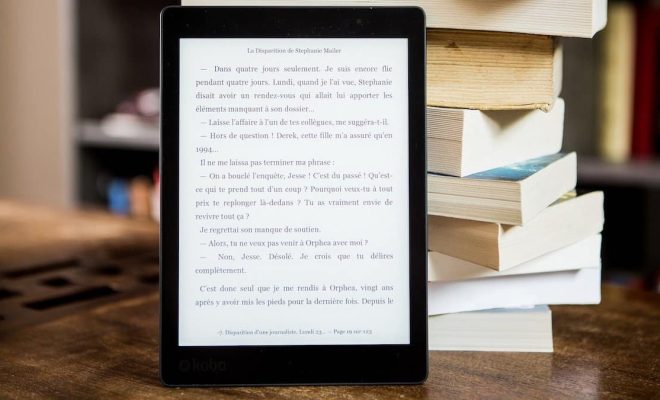
The Kindle is a wildly popular e-reader that has been around for over a decade now. Over the years, Amazon has released multiple versions of the Kindle, each with different features and specifications. If you’re an avid Kindle user, it’s important to know which version of the device you have, as this can affect things like which accessories you can use or what software updates you’re eligible for.

So, how do you figure out which Kindle you have? Thankfully, there are a few different ways to go about it:

1. Check the device itself

The easiest way to identify your Kindle model is to look at the device itself. Each version of the Kindle has a unique design, which can help you determine what model you have. For example, the early iterations of the Kindle have a full keyboard at the bottom of the device, while more recent models have touchscreens.

If you’re not sure what model you have, try looking up pictures of different Kindle models online and comparing them to your own device. You may be able to spot some distinct features that can help you narrow down your search.

2. Check the settings menu

If you’re already using your Kindle, you can also find out which version you have by checking the settings menu. Here’s how to do it:

– Open your Kindle’s home screen
– Tap on the gear icon in the top-right corner
– Scroll down to the “Device Options” section
– Look for the “Device Info” option and tap on it
– Here, you should see a list of information about your device, including the model name and number

This method is particularly useful if you’ve bought a used Kindle, as it can be tough to tell which model you have just by looking at it.

3. Check your Amazon account

If you’re still unsure about which Kindle model you have, you can check your Amazon account. Here’s how:

– Log in to your Amazon account on your computer or mobile device
– Go to the “Manage Your Content and Devices” page
– Find your Kindle device in the list and click on it
– Here, you should see information about your device, including the model name and number

This method can be useful if you’ve forgotten your Kindle at home and need to know which model you have while you’re out and about.

In conclusion, identifying your Kindle model is an important step in ensuring that you’re getting the most out of your device. Whether you’re checking the physical design, the settings menu, or your Amazon account, there are several ways to determine which Kindle you have. Once you know your model, you can make informed decisions about which accessories to buy or when to upgrade your device.

Previous Article

Uses for a First-Generation (Original) iPad

Next Article

How to Stop the iPhone from Dimming ...

Matthew Lynch

Related articles More from author

  • Digital & Mobile Technology

    What is Ubuntu Cloud?

    May 13, 2023
    By Matthew Lynch
  • Digital & Mobile Technology

    Lithium-Ion Batteries vs. Lithium-Polymer: Which One’s Better?

    June 23, 2023
    By Matthew Lynch
  • Digital & Mobile Technology

    How to Fix External Hard Drive Access Denied Error in Windows

    May 28, 2023
    By Matthew Lynch
  • Digital & Mobile Technology

    What Is an OVA File?

    June 6, 2023
    By Matthew Lynch
  • Digital & Mobile Technology

    How to Pin a Comment on Your TikTok Posts (and Why You Should)

    August 5, 2023
    By Matthew Lynch
  • Digital & Mobile Technology

    How to Connect Your iPhone to a TV (Wirelessly)

    June 12, 2023
    By Matthew Lynch

Search

Login & Registration

  • Log in
  • Entries feed
  • Comments feed
  • WordPress.org

Newsletter

Signup for The Tech Edvocate Newsletter and have the latest in EdTech news and opinion delivered to your email address!

About Us

Since technology is not going anywhere and does more good than harm, adapting is the best course of action. That is where The Tech Edvocate comes in. We plan to cover the PreK-12 and Higher Education EdTech sectors and provide our readers with the latest news and opinion on the subject. From time to time, I will invite other voices to weigh in on important issues in EdTech. We hope to provide a well-rounded, multi-faceted look at the past, present, the future of EdTech in the US and internationally.

We started this journey back in June 2016, and we plan to continue it for many more years to come. I hope that you will join us in this discussion of the past, present and future of EdTech and lend your own insight to the issues that are discussed.

Newsletter

Signup for The Tech Edvocate Newsletter and have the latest in EdTech news and opinion delivered to your email address!

Contact Us

The Tech Edvocate
910 Goddin Street
Richmond, VA 23231
(601) 630-5238
[email protected]

Copyright © 2026 Matthew Lynch. All rights reserved.