The Tech Edvocate

Top Menu

  • Advertisement
  • Apps
  • Home Page
  • Home Page Five (No Sidebar)
  • Home Page Four
  • Home Page Three
  • Home Page Two
  • Home Tech2
  • Icons [No Sidebar]
  • Left Sidbear Page
  • Lynch Educational Consulting
  • My Account
  • My Speaking Page
  • Newsletter Sign Up Confirmation
  • Newsletter Unsubscription
  • Our Brands
  • Page Example
  • Privacy Policy
  • Protected Content
  • Register
  • Request a Product Review
  • Shop
  • Shortcodes Examples
  • Signup
  • Start Here
    • Governance
    • Careers
    • Contact Us
  • Terms and Conditions
  • The Edvocate
  • The Tech Edvocate Product Guide
  • Topics
  • Write For Us
  • Advertise

Main Menu

  • Start Here
    • Our Brands
    • Governance
      • Lynch Educational Consulting, LLC.
      • Dr. Lynch’s Personal Website
      • Careers
    • Write For Us
    • The Tech Edvocate Product Guide
    • Contact Us
    • Books
    • Edupedia
    • Post a Job
    • The Edvocate Podcast
    • Terms and Conditions
    • Privacy Policy
  • Topics
    • Assistive Technology
    • Child Development Tech
    • Early Childhood & K-12 EdTech
    • EdTech Futures
    • EdTech News
    • EdTech Policy & Reform
    • EdTech Startups & Businesses
    • Higher Education EdTech
    • Online Learning & eLearning
    • Parent & Family Tech
    • Personalized Learning
    • Product Reviews
  • Advertise
  • Tech Edvocate Awards
  • The Edvocate
  • Pedagogue
  • School Ratings

logo

The Tech Edvocate

  • Start Here
    • Our Brands
    • Governance
      • Lynch Educational Consulting, LLC.
      • Dr. Lynch’s Personal Website
        • My Speaking Page
      • Careers
    • Write For Us
    • The Tech Edvocate Product Guide
    • Contact Us
    • Books
    • Edupedia
    • Post a Job
    • The Edvocate Podcast
    • Terms and Conditions
    • Privacy Policy
  • Topics
    • Assistive Technology
    • Child Development Tech
    • Early Childhood & K-12 EdTech
    • EdTech Futures
    • EdTech News
    • EdTech Policy & Reform
    • EdTech Startups & Businesses
    • Higher Education EdTech
    • Online Learning & eLearning
    • Parent & Family Tech
    • Personalized Learning
    • Product Reviews
  • Advertise
  • Tech Edvocate Awards
  • The Edvocate
  • Pedagogue
  • School Ratings
  • Autonomous Ransomware AI Agents Are Here — And They’re Targeting Your Power Grid

  • Unprecedented: This One Thing Is Crushing Major AI Investments

  • Rotirile gratuite fără depunere: activarea rundelor și creditarea câștigurilor

  • The Astonishing Reason Millions Are Ditching Old Finance Education for This New Method

  • Why Your Bank Account Needs These 7 Gamified Money Apps Right Now

  • Why Millions Are Finally Beating Debt Thanks to Gamification in Personal Finance Apps

  • 5.7 Million Students Exposed: Why This Breach Demands Immediate Legal Action

  • The Brutal Truth About EdTech Breaches: 8 Defenses Schools Need NOW

  • Millions of Student Records Exposed: The Scandalous ETS Data Breach

  • Amazon’s Secret Weapon: Why Its Workforce Strategy Crushes eBay’s Layoff Cycle

Digital & Mobile Technology
Home›Digital & Mobile Technology›How to Rotate Videos in Windows Media Player

How to Rotate Videos in Windows Media Player

By Matthew Lynch
June 4, 2023
0
Spread the love

Windows Media Player is a popular media player that comes with every version of Windows operating system. It is designed to play video and audio files and supports a wide range of file formats. However, one thing that Windows Media Player is not good at is rotating videos. The software does not have a built-in feature that allows users to rotate videos. As a result, users often find themselves stuck with videos that are wrongly oriented. But there are ways to rotate videos in Windows Media Player. In this article, we will show you how.

Use Windows Movie Maker

If you have Windows 7 or earlier versions of Windows, you can use Windows Movie Maker to rotate videos. Windows Movie Maker is a free video editor that comes with every version of Windows 7 and earlier.

To rotate a video in Windows Movie Maker, follow these steps:

1. Open Windows Movie Maker:

Click the Start button and type “Windows Movie Maker” in the search bar. Click on the app when it appears in the search results to open it.

2. Import video:

Click on the “Add videos and photos” button and select the video you want to rotate from your computer. Alternatively, you can drag and drop the video onto the app’s interface.

3. Add video to timeline:

Drag the video from the Video section and drop it onto the timeline at the bottom of the screen.

4. Rotate video:

Click on the video on the timeline to select it. Then, click on the “Rotate left” or “Rotate right” button under the Visual Effects tab to rotate the video.

5. Save video:

Once you have rotated the video, click on the “Save movie” button to save the new video to your computer.

Use VLC Media Player

If you do not have Windows Movie Maker or have Windows 10, you can use VLC Media Player to rotate videos. VLC Media Player is a free media player that supports a wide range of file formats and has a lot of useful features, including the ability to rotate videos.

To rotate a video in VLC Media Player, follow these steps:

1. Open VLC Media Player:

Click on the Start button and type “VLC Media Player” in the search bar. Click on the app when it appears in the search results to open it.

2. Open video:

Click on the “Media” tab and select “Open File” to open the video you want to rotate.

3. Rotate video:

Once the video is playing, click on the “Tools” tab and select “Effects and Filters.” Then, click on the “Video Effects” tab and select the “Geometry” tab. Check the box next to “Transform” and select “Rotate” from the drop-down menu. Use the angle slider to rotate the video to the desired orientation.

4. Save video:

Once you have rotated the video, click on “Tools” and select “Preferences.” Under the “Video” tab, click on the “Output” drop-down menu and select “Save.” Then, click on the “Save” button to save the new video to your computer.

Conclusion

Rotating videos in Windows Media Player can be a frustrating task, especially if you don’t have the right tools. But with the help of Windows Movie Maker or VLC Media Player, you can easily rotate videos in just a few clicks. Whether you are editing a video for work or just want to fix a video that is wrongly oriented, these steps will help you get the job done.


Previous Article

How to Turn On Dark Mode on ...

Next Article

How to Fix It When Windows 10 ...

Matthew Lynch

Related articles More from author

  • Digital & Mobile Technology

    What is a Microsoft Certified Desktop Support Technician (MCDST)?

    April 18, 2023
    By Matthew Lynch
  • Digital & Mobile Technology

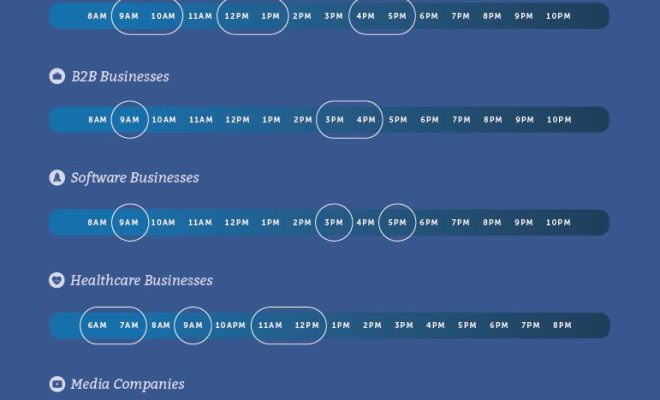
    What’s the Best Time of Day to Post on Facebook?

    July 14, 2023
    By Matthew Lynch
  • Digital & Mobile Technology

    What Are the Advantages of Using an eSIM Smartphone?

    June 14, 2023
    By Matthew Lynch
  • Digital & Mobile Technology

    How to Upload an MP3 for Voicemail

    May 30, 2023
    By Matthew Lynch
  • Digital & Mobile Technology

    Philo vs. YouTube TV: What’s the Difference?

    June 9, 2023
    By Matthew Lynch
  • Digital & Mobile Technology

    How to Make a Direct Download Link for Google Drive Files

    April 28, 2023
    By Matthew Lynch

Search

Login & Registration

  • Log in
  • Entries feed
  • Comments feed
  • WordPress.org

Newsletter

Signup for The Tech Edvocate Newsletter and have the latest in EdTech news and opinion delivered to your email address!

About Us

Since technology is not going anywhere and does more good than harm, adapting is the best course of action. That is where The Tech Edvocate comes in. We plan to cover the PreK-12 and Higher Education EdTech sectors and provide our readers with the latest news and opinion on the subject. From time to time, I will invite other voices to weigh in on important issues in EdTech. We hope to provide a well-rounded, multi-faceted look at the past, present, the future of EdTech in the US and internationally.

We started this journey back in June 2016, and we plan to continue it for many more years to come. I hope that you will join us in this discussion of the past, present and future of EdTech and lend your own insight to the issues that are discussed.

Newsletter

Signup for The Tech Edvocate Newsletter and have the latest in EdTech news and opinion delivered to your email address!

Contact Us

The Tech Edvocate
910 Goddin Street
Richmond, VA 23231
(601) 630-5238
[email protected]

Copyright © 2026 Matthew Lynch. All rights reserved.