How to disable audio enhancements
“`html
In the realm of audio technology, sound quality can often be compromised by various enhancements designed to improve the listening experience. However, these so-called enhancements can sometimes lead to distortion or an unnatural listening experience. Whether you’re trying to enjoy music, watch movies, or play video games, knowing how to disable audio enhancements can make a noticeable difference. In this comprehensive guide, we’ll walk you through the reason why you might want to disable these enhancements, how to do it on different platforms, and what to consider once you’re free from these modifications.
1. Understanding Audio Enhancements
Audio enhancements are built-in features designed to improve sound quality in various environments and applications. They can adjust treble, bass, apply surround sound effects, and enhance voice clarity. While these features can augment audio in certain contexts, they often do more harm than good. For audiophiles, sound engineers, or anyone serious about sound quality, these enhancements can muddy the audio signal and alter the original mix.
The main intent behind these enhancements is to cater to the average user’s preferences in casual listening scenarios. Manufacturers often integrate software that boosts bass or adjusts volume levels automatically, which might appeal to some users but can detract from the true essence of music, dialogues, or sound effects. For people who value authenticity in sound, disabling audio enhancements is a crucial step.
2. Why You Should Disable Audio Enhancements
There are several compelling reasons to consider when deciding to disable audio enhancements. First and foremost, many enhancements can introduce latency, which is a significant concern for gamers and content creators who need real-time sound feedback. Delay in audio can lead to misalignment with visuals, creating a frustrating experience.
Moreover, depending on the type of audio enhancement, you may experience sound distortion. For instance, a bass boost might make the lower frequencies overpower everything else, leading to a muddy audio mix. By turning off these features, you return to a more neutral sound profile that allows you to hear music, movies, or games as the creators intended.
Another reason to disable audio enhancements is to get a more authentic experience. Many artists and sound engineers spend countless hours mixing audio tracks to perfection. When enhancements alter these tracks, it can distort the artist’s vision and the intended emotional impact. This is particularly true for classical music or acoustic performances where subtle nuances are crucial.
Consider this: studies have shown that a significant percentage of listeners prefer unaltered sound. According to a survey conducted by Sound & Music Journal, about 64% of audiophiles indicated that they often disable enhancements to enjoy a clearer sound. If you’re keen on experiencing music the way it was meant to be heard, disabling these enhancements is definitely the way to go.
3. Disabling Audio Enhancements on Windows
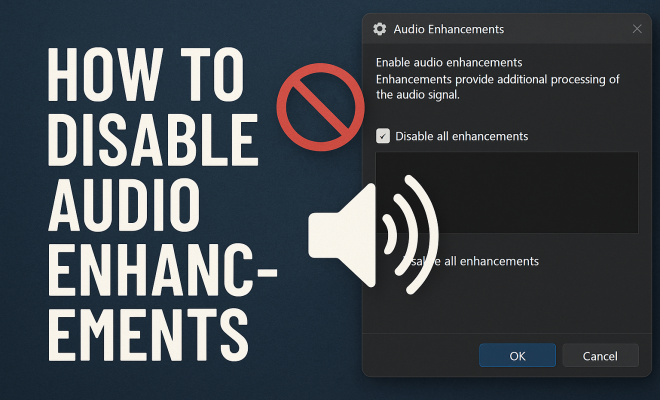
For Windows users, disabling audio enhancements is a straightforward process. Start by right-clicking the sound icon in your taskbar, then select ‘Sounds’. Navigate to the ‘Playback’ tab, where you will see a list of audio devices. Right-click on the device you’re using and select ‘Properties’.
In the properties window, go to the ‘Enhancements’ tab. Here, you will find a checkbox that says ‘Enable audio enhancements’. Simply uncheck this option and click ‘Apply’, then ‘OK’. This action will disable all audio enhancements for that device, reverting your audio settings to a more natural state.
Keep in mind that in some systems, the audio driver software might have its own set of enhancements. In such cases, you may need to access the audio control panel provided by your audio driver (such as Realtek or Creative) and disable any additional enhancements from there, ensuring a complete adjustment to the sound settings.
4. Disabling Audio Enhancements on macOS
For those on macOS, the process is slightly different but equally simple. Start by clicking on the Apple menu and going to ‘System Preferences’. From there, select ‘Sound’. In the sound settings, under the ‘Output’ tab, choose your current audio output device.
While macOS does not have a dedicated audio enhancements section like Windows, you can influence the quality of audio output using the ‘Audio MIDI Setup’ utility. Here, you can adjust sample rates and bit depth, which effectively disables any enhancements that might alter sound clarity. It’s not as straightforward as other systems, but adjusting these settings can lead to a more authentic audio experience. (See: Understanding audio processing techniques.)
Additionally, consider third-party audio software available for macOS that can also introduce enhancements. Make sure to assess any installed apps that might be affecting your audio output and disable or uninstall them for a cleaner sound.
5. Disabling Audio Enhancements on Android Devices
If you’re using Android, you might find that audio enhancements can impact your listening experience on mobile devices as well. Different manufacturers have various methods to disable audio enhancements. For instance, you can usually find audio settings in the ‘Settings’ app by navigating to ‘Sound’ or ‘Audio’. Some devices offer an ‘Audio Effects’ option, which you can toggle off.
Alternatively, third-party apps that enhance audio might also be set to default. Check your installed applications for any sound enhancement apps and uninstall or disable them to ensure your audio settings reflect the original sound quality.
It’s worth noting that some Android devices come with built-in equalizers. Make sure to set these to default or turn them off completely to revert to the original audio quality. Additionally, many audio apps, such as music streaming platforms, have their own audio enhancement settings. Be sure to check these apps for any sound modifications that might be affecting your listening experience.
6. Disabling Audio Enhancements on iOS Devices
For iPhone or iPad users, audio enhancements can also be found within the settings. To disable audio enhancements, go to ‘Settings’, then tap on ‘Music’. From here, scroll down to ‘EQ’ (equalization), where you can set it to ‘Off’. Additionally, visit ‘Settings’ > ‘Accessibility’ > ‘Audio/Visual’, and disable features like ‘Mono Audio’ or ‘Phone Noise Cancellation’ for a more natural audio experience.
While iOS doesn’t usually apply heavy audio enhancements, ensuring that EQ settings are turned off will help maintain the original audio quality of your tracks. Additionally, some apps may also have their own EQ settings that could be affecting playback, so be sure to check those as well.
7. Disabling Audio Enhancements in Specific Applications
Many applications come equipped with their own audio enhancement features. For example, streaming services like Spotify or YouTube offer equalizers and other sound effects. To disable audio enhancements in these applications, navigate to their respective settings. In Spotify, go to ‘Settings’ > ‘Playback’ > ‘Equalizer’ and turn it off. For YouTube, check the ‘Settings’ gear on the video page to adjust audio settings.
By disabling enhancements within these applications, you can further ensure that the audio experience is true to the original mix. This is particularly important for audiophiles and content creators who rely on accurate audio reproduction.
Furthermore, applications used for audio editing, like Adobe Audition or Audacity, often include various enhancements and effects. Make sure to check these settings, as they can also affect how you hear audio. For instance, if you’re recording or mixing, ensuring that any automatic adjustments are turned off can help you maintain clarity and fidelity in your projects.
8. Assessing the Impact of Disabling Audio Enhancements
Once you’ve successfully disabled audio enhancements, you might notice a significant change in sound quality. For some, the experience might initially feel flat or unexciting, but this is a common reaction. It’s essential to understand that what you’re hearing is likely a more accurate representation of the audio content. This is particularly evident when listening to well-produced music or watching high-quality movies.
Take the time to reassess your audio environment. You might find that your headphones or speakers perform significantly better without enhancements muddying the sound. Many users have reported that they appreciate the clarity and detail once they get used to the more neutral sound profile.
A great way to test the impact of disabling enhancements is to listen to the same track both with and without enhancements activated. This can help you identify the specific ways enhancements may have altered your listening experience. In many cases, tracks that rely heavily on dynamic range, such as orchestral pieces, will shine through without enhancements, allowing you to fully appreciate the artist’s intent.
9. Common Misconceptions about Audio Enhancements
Many people believe that audio enhancements are always beneficial or necessary for a better listening experience. This is a misconception that often leads to disappointment. One of the most common myths is that everyone prefers boosted bass, but studies indicate that while some listeners enjoy bass-heavy mixes, others prefer a more balanced approach.
Another common myth is that high-end audio equipment automatically produces the best sound. The truth is, even the most expensive equipment can sound distorted or unwanted if paired with the wrong enhancements. It’s essential to evaluate your entire audio setup and tweak settings accordingly to achieve the best results. This includes disabling enhancements that may not be necessary for your listening preferences. (See: Impact of audio quality on listening.)
10. Final Thoughts on Audio Enhancements
Disabling audio enhancements can seem trivial, but for those who prioritize sound quality, it’s a vital step. By understanding how to disable audio enhancements, you can reclaim the integrity of your audio experience across various devices and platforms. Whether you’re an audiophile, a gamer, or just someone who enjoys their music without distortion, taking control of your sound settings pays off.
So why not take a moment to explore your device’s settings? You may find that the true sound is far more satisfying once you strip away the enhancements designed to optimize it. It’s all about listening the way the artist intended, and sometimes that means going back to basics.
11. FAQ: Disabling Audio Enhancements
Q1: What devices typically have audio enhancements?
A1: Most modern devices, including Windows PCs, Macs, Android phones, and iOS devices, come with some form of audio enhancement built-in. This includes features like equalizers and sound effects that aim to improve audio quality.
Q2: Are audio enhancements beneficial?
A2: While audio enhancements can be beneficial in certain contexts, such as creating a lively atmosphere in a party setting, they can distort sound quality for critical listening. It ultimately depends on your listening preferences and the type of audio being played.
Q3: How do I know if audio enhancements are turned on?
A3: You can check the sound settings on your device. On Windows, look under the ‘Enhancements’ tab in the sound properties. On macOS, check the ‘Audio MIDI Setup’ utility. For mobile devices, explore the sound settings within the Settings app.
Q4: Can disabling audio enhancements improve gaming performance?
A4: Yes, disabling audio enhancements can reduce latency, providing a more synchronised audio experience that is crucial for gaming. This can help ensure that sound effects line up correctly with on-screen actions.
Q5: What if I don’t like the sound after disabling enhancements?
A5: It’s normal to feel that the sound is less exciting initially. Give it some time to adjust, and consider experimenting with different audio settings, including the volume levels and speaker placement, to find a balance that works for you.
Q6: Can disabling audio enhancements affect music production?
A6: Absolutely. For music producers, turning off audio enhancements is essential for achieving a true representation of sound. This allows for more accurate mixing and mastering, leading to better final products.
Q7: Is it possible to permanently disable audio enhancements?
A7: On many devices, you can set audio enhancements to be off by default in the sound settings. However, some applications might revert to their default settings, so it’s good to check regularly, especially after updates.
12. Additional Considerations: Enhancements vs. Customization
When discussing audio enhancements, it’s essential to differentiate between enhancements that modify sound quality and tools that allow users to customize their audio experience according to personal preferences. While enhancements may impose a standard “improved” sound that doesn’t suit everyone, customization tools—like equalizers—can enable users to adjust sound to their liking without distorting the original audio quality.
For example, many audio software applications feature graphical equalizers that allow precise adjustments across various frequency ranges. Unlike automatic enhancements, these tools empower listeners to shape their audio experience actively, which can be especially beneficial in professional environments like recording studios or during live performances.
Furthermore, understanding your personal listening environment can also play a critical role. The acoustics of a room can significantly impact sound quality. Factors such as wall materials, furniture, and speaker placement can all influence how sound waves travel and interact with each other. Sometimes, adjusting your physical setup might yield better results than solely relying on software enhancements. (See: Research on audio enhancement effects.)
13. Exploring Audio Hardware Upgrades
If you find that disabling audio enhancements doesn’t meet your sound quality expectations, it may be worth considering hardware upgrades. Investing in high-quality speakers or headphones can dramatically improve your audio experience. For instance, audiophile-grade headphones often provide a more precise and detailed sound than standard models, allowing listeners to appreciate the intricacies of their favorite tracks without the need for enhancements.
Additionally, external digital-to-analog converters (DACs) can also enhance sound clarity by bypassing the built-in audio processing of your devices. Many audio enthusiasts believe that a dedicated DAC can provide a cleaner and more detailed audio output compared to integrated solutions, enhancing the overall listening experience without the interference of unwanted enhancements.
When considering upgrades, it’s essential to balance quality with your budget. Research and read reviews to find equipment that suits your needs, and remember that sometimes, small changes can lead to significant improvements in sound quality.
14. Future Trends in Audio Technology
As technology continues to evolve, so does the landscape of audio enhancements and customization. Advances in artificial intelligence and machine learning are paving the way for smarter audio processing technologies that adapt to user preferences in real-time. Imagine a system that learns which types of sound modifications you prefer and automatically adjusts levels accordingly—without muddying the original audio.
Some companies are already experimenting with spatial sound technologies, which create a three-dimensional audio experience. This innovative approach can enhance immersion, especially in gaming and virtual reality applications. However, as these technologies develop, it remains crucial for users to maintain control over their audio settings, ensuring they can revert to unaltered sound whenever they desire.
In the future, we may see even more sophisticated tools that blend the best aspects of enhancements and customization, allowing listeners to enjoy a tailored audio experience that remains true to the artist’s intent. Staying informed about these trends can help you adapt your audio setup and maintain the best listening experience possible.
15. A Personal Journey: My Experience with Audio Enhancements
Reflecting on my audio journey, I remember the initial thrill of discovering enhancements on my first smartphone. The bass boost made my playlists come alive, and I felt that I was listening to music in a whole new way. However, as I delved deeper into music production and audio quality, I started to notice the drawbacks. The more I learned about sound engineering, the more I understood the importance of clarity and authenticity in audio.
For instance, listening to a complex piece of classical music with enhancements was often disappointing. The subtle nuances and delicate harmonies became lost, drowned out by an overpowering bass response. After disabling enhancements, I began to appreciate the artistry behind every note and the skill involved in the mixing process. This experience not only elevated my listening habits but also enhanced my ability to create and produce music without the influence of unwanted alterations.
It’s a journey many listeners may experience as they grow more attuned to the intricacies of sound. By taking the leap to disable enhancements, you may find yourself on a path toward a richer, more rewarding audio experience—one that truly reflects the intent of the artists you admire.
“`
Trending Now
Frequently Asked Questions
How do I turn off audio enhancements on my computer?
To disable audio enhancements on your computer, right-click the speaker icon in the system tray and select 'Sounds.' Navigate to the 'Playback' tab, select your audio device, click 'Properties,' and then go to the 'Enhancements' tab. Check the box that says 'Disable all enhancements' and click 'OK' to apply the changes.
Why should I disable audio enhancements?
Disabling audio enhancements can improve sound quality by eliminating distortions and latency issues. Enhancements often alter the original audio signal, which can negatively affect the listening experience, especially for audiophiles and professionals who prioritize accurate sound reproduction.
What are audio enhancements?
Audio enhancements are built-in features in audio devices and software that aim to improve sound quality by adjusting treble, bass, and applying effects like surround sound. While they can enhance casual listening, they may also distort audio for serious listeners or content creators.
Do audio enhancements affect gaming performance?
Yes, audio enhancements can affect gaming performance by introducing latency, which may cause audio to be out of sync with visuals. For gamers, this delay can lead to a frustrating experience, making it advisable to disable enhancements for a more accurate sound response.
Can I disable audio enhancements on my smartphone?
Yes, you can disable audio enhancements on your smartphone by going to the sound settings. Look for options like 'Sound Effects' or 'Audio Enhancements' and toggle them off. The specific path may vary depending on your device and operating system.
Have you experienced this yourself? We’d love to hear your story in the comments.