The Tech Edvocate

Top Menu

  • Advertisement
  • Apps
  • Home Page
  • Home Page Five (No Sidebar)
  • Home Page Four
  • Home Page Three
  • Home Page Two
  • Home Tech2
  • Icons [No Sidebar]
  • Left Sidbear Page
  • Lynch Educational Consulting
  • My Account
  • My Speaking Page
  • Newsletter Sign Up Confirmation
  • Newsletter Unsubscription
  • Our Brands
  • Page Example
  • Privacy Policy
  • Protected Content
  • Register
  • Request a Product Review
  • Shop
  • Shortcodes Examples
  • Signup
  • Start Here
    • Governance
    • Careers
    • Contact Us
  • Terms and Conditions
  • The Edvocate
  • The Tech Edvocate Product Guide
  • Topics
  • Write For Us
  • Advertise

Main Menu

  • Start Here
    • Our Brands
    • Governance
      • Lynch Educational Consulting, LLC.
      • Dr. Lynch’s Personal Website
      • Careers
    • Write For Us
    • The Tech Edvocate Product Guide
    • Contact Us
    • Books
    • Edupedia
    • Post a Job
    • The Edvocate Podcast
    • Terms and Conditions
    • Privacy Policy
  • Topics
    • Assistive Technology
    • Child Development Tech
    • Early Childhood & K-12 EdTech
    • EdTech Futures
    • EdTech News
    • EdTech Policy & Reform
    • EdTech Startups & Businesses
    • Higher Education EdTech
    • Online Learning & eLearning
    • Parent & Family Tech
    • Personalized Learning
    • Product Reviews
  • Advertise
  • Tech Edvocate Awards
  • The Edvocate
  • Pedagogue
  • School Ratings

logo

The Tech Edvocate

  • Start Here
    • Our Brands
    • Governance
      • Lynch Educational Consulting, LLC.
      • Dr. Lynch’s Personal Website
        • My Speaking Page
      • Careers
    • Write For Us
    • The Tech Edvocate Product Guide
    • Contact Us
    • Books
    • Edupedia
    • Post a Job
    • The Edvocate Podcast
    • Terms and Conditions
    • Privacy Policy
  • Topics
    • Assistive Technology
    • Child Development Tech
    • Early Childhood & K-12 EdTech
    • EdTech Futures
    • EdTech News
    • EdTech Policy & Reform
    • EdTech Startups & Businesses
    • Higher Education EdTech
    • Online Learning & eLearning
    • Parent & Family Tech
    • Personalized Learning
    • Product Reviews
  • Advertise
  • Tech Edvocate Awards
  • The Edvocate
  • Pedagogue
  • School Ratings
  • Shocking: Your Smart Ring Knows When You’re Having Sex

  • The SwiftRefi Scandal: 7 Astonishing Truths About Their ‘Zero-Fee’ Refinance

  • The AION 2 Scandal: Why This Korean MMO Controversy Is Boiling Over

  • The Bombshell Truth About Gaming’s Legal Reckoning

  • Staggering: AI’s ALS Breakthrough Comes With a $5 Million Price Tag

  • The Astonishing AI Predicting Housing Trends With 98% Accuracy — Regulators Are Freaking Out

  • Your Kids’ Classrooms Are Changing: Here’s What’s Coming by 2026

  • Jaw-Dropping: Millions Face Triple Tax Bills on Forgiven Student Loans

  • Mind-Blowing: Critical Infrastructure Faces Collapse From This Overlooked Threat

  • Unsettling: AI Agents Just Hacked 7 Major Banks — Here’s What It Means For Your Money

Digital & Mobile Technology
Home›Digital & Mobile Technology›How to Delete a Windows Recovery Partition

How to Delete a Windows Recovery Partition

By Matthew Lynch
June 1, 2023
0
Spread the love

Windows operating systems typically come with a recovery partition that is designed to help users restore their computer to the factory settings or fix certain issues in case of a system failure. While this can be a useful feature, some users may choose to remove the recovery partition to free up disk space or streamline their system. In this article, we will discuss How to Delete a Windows Recovery Partition.

1. Back up your data

Before you remove a recovery partition, it is crucial to back up all your critical data to an external storage device. This backup will ensure that your files and essential software applications are safe and accessible when needed.

2. Identify the Recovery Partition

To delete a recovery partition, you must first identify its location on your hard disk. You can do this by launching Disk Management from the Control Panel, which will display all the partitions available on your system. The recovery partition is usually labeled “RECOVERY” and identified as a Healthy (Recovery Partition) in the Disk Management utility.

3. Disable System Protection

In some cases, the recovery partition may be protected by the Windows System Protection feature, which prevents it from being deleted. You will need to disable this protection before deleting the partition. To do this, go to the System Properties window in the Control Panel, click on the System Protection tab, and disable the protection settings for the recovery partition.

4. Use a third-party tool

If the recovery partition is not protected, you can delete it using Disk Management. However, if the partition is protected, you may need to use a third-party tool like the EaseUS Partition Master, MiniTool Partition Wizard, or GParted to delete the partition accurately.

5. Delete the Recovery Partition

To delete the recovery partition, right-click it in Disk Management and select the Delete Volume option. A warning message will appear to confirm that you want to delete the partition. Click Yes to proceed, and Windows will delete the partition.

6. Extend your primary partition

After deleting the recovery partition, you can extend your primary partition and merge the unallocated space to it. Right-click your primary partition, select the Extend Volume option, and follow the prompts to extend the partition.

7. Enable System Protection

If you disabled system protection earlier, you should re-enable it after deleting the recovery partition. This will help protect your system from future issues and ensure you have a reliable backup system.

In conclusion, removing a recovery partition can free up valuable disk space on your system, but it can also expose you to risks if you do not back up your data beforehand. Therefore, follow the steps mentioned in this article carefully, and if you’re not sure, seek the help of a professional.


Previous Article

How to Clean a PS4

Next Article

Best Video Cameras of 2023

Matthew Lynch

Related articles More from author

  • Digital & Mobile Technology

    The Best PC Cases With RGB Lighting

    June 13, 2023
    By Matthew Lynch
  • Digital & Mobile Technology

    How to Disable the HomeGroup Feature in Windows (and Remove It from File Explorer)

    May 28, 2023
    By Matthew Lynch
  • Digital & Mobile Technology

    What Is Linux? What Can You Use Linux For?

    June 10, 2023
    By Matthew Lynch
  • Digital & Mobile Technology

    How to See Your YouTube Comment History

    June 6, 2023
    By Matthew Lynch
  • Digital & Mobile Technology

    What is the IEEE?

    May 13, 2023
    By Matthew Lynch
  • Digital & Mobile Technology

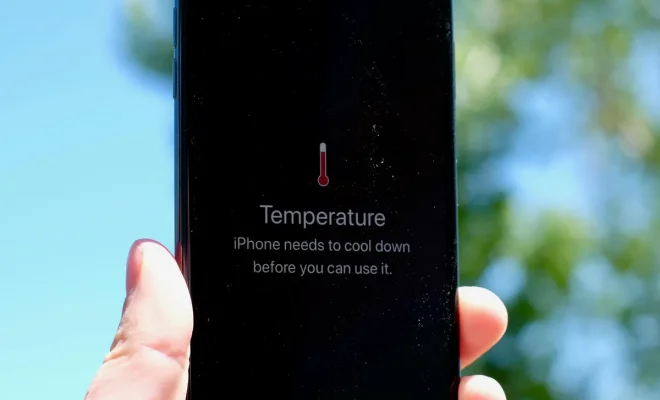
    Why does your phone get so damn hot and how to keep it from overheating?

    May 29, 2023
    By Matthew Lynch

Search

Login & Registration

  • Log in
  • Entries feed
  • Comments feed
  • WordPress.org

Newsletter

Signup for The Tech Edvocate Newsletter and have the latest in EdTech news and opinion delivered to your email address!

About Us

Since technology is not going anywhere and does more good than harm, adapting is the best course of action. That is where The Tech Edvocate comes in. We plan to cover the PreK-12 and Higher Education EdTech sectors and provide our readers with the latest news and opinion on the subject. From time to time, I will invite other voices to weigh in on important issues in EdTech. We hope to provide a well-rounded, multi-faceted look at the past, present, the future of EdTech in the US and internationally.

We started this journey back in June 2016, and we plan to continue it for many more years to come. I hope that you will join us in this discussion of the past, present and future of EdTech and lend your own insight to the issues that are discussed.

Newsletter

Signup for The Tech Edvocate Newsletter and have the latest in EdTech news and opinion delivered to your email address!

Contact Us

The Tech Edvocate
910 Goddin Street
Richmond, VA 23231
(601) 630-5238
[email protected]

Copyright © 2026 Matthew Lynch. All rights reserved.