The Tech Edvocate

Top Menu

  • Advertisement
  • Apps
  • Home Page
  • Home Page Five (No Sidebar)
  • Home Page Four
  • Home Page Three
  • Home Page Two
  • Home Tech2
  • Icons [No Sidebar]
  • Left Sidbear Page
  • Lynch Educational Consulting
  • My Account
  • My Speaking Page
  • Newsletter Sign Up Confirmation
  • Newsletter Unsubscription
  • Our Brands
  • Page Example
  • Privacy Policy
  • Protected Content
  • Register
  • Request a Product Review
  • Shop
  • Shortcodes Examples
  • Signup
  • Start Here
    • Governance
    • Careers
    • Contact Us
  • Terms and Conditions
  • The Edvocate
  • The Tech Edvocate Product Guide
  • Topics
  • Write For Us
  • Advertise

Main Menu

  • Start Here
    • Our Brands
    • Governance
      • Lynch Educational Consulting, LLC.
      • Dr. Lynch’s Personal Website
      • Careers
    • Write For Us
    • The Tech Edvocate Product Guide
    • Contact Us
    • Books
    • Edupedia
    • Post a Job
    • The Edvocate Podcast
    • Terms and Conditions
    • Privacy Policy
  • Topics
    • Assistive Technology
    • Child Development Tech
    • Early Childhood & K-12 EdTech
    • EdTech Futures
    • EdTech News
    • EdTech Policy & Reform
    • EdTech Startups & Businesses
    • Higher Education EdTech
    • Online Learning & eLearning
    • Parent & Family Tech
    • Personalized Learning
    • Product Reviews
  • Advertise
  • Tech Edvocate Awards
  • The Edvocate
  • Pedagogue
  • School Ratings

logo

The Tech Edvocate

  • Start Here
    • Our Brands
    • Governance
      • Lynch Educational Consulting, LLC.
      • Dr. Lynch’s Personal Website
        • My Speaking Page
      • Careers
    • Write For Us
    • The Tech Edvocate Product Guide
    • Contact Us
    • Books
    • Edupedia
    • Post a Job
    • The Edvocate Podcast
    • Terms and Conditions
    • Privacy Policy
  • Topics
    • Assistive Technology
    • Child Development Tech
    • Early Childhood & K-12 EdTech
    • EdTech Futures
    • EdTech News
    • EdTech Policy & Reform
    • EdTech Startups & Businesses
    • Higher Education EdTech
    • Online Learning & eLearning
    • Parent & Family Tech
    • Personalized Learning
    • Product Reviews
  • Advertise
  • Tech Edvocate Awards
  • The Edvocate
  • Pedagogue
  • School Ratings
  • Consumer Reports Reveal Truth – Is Flexigenics Reviews Legit or Scam? (Shocking Findings)

  • Quietum Plus 2026 Review Complaints and Shocking User Findings

  • This Founder’s Rs 75 LPA Sacrifice Crumbled in 30 Days — Here’s Why

  • Urgent: Claude AI Bioweapons — The Unsettling Truth Anthropic Just Revealed

  • Shocking: Three Major Xbox Games Shutting Down Forever in 2026

  • One Man’s Dire Warning: Is AI Already Too Dangerous To Control?

  • The Urgent Parental Consent Debate Over Student Mental Health Screenings

  • LAUSD restricts all students from using AI tools | K-12 Dive

  • Catastrophic Data Breach: 153 Million Driver’s Licenses Exposed on Dark Web

  • Autonomous AI Hackers Weaponize PaperCut Flaws: The Terrifying New Era of Cybercrime

Digital & Mobile Technology
Home›Digital & Mobile Technology›How to Customize the Quick Settings Panel on a Samsung Galaxy Phone

How to Customize the Quick Settings Panel on a Samsung Galaxy Phone
By Matthew Lynch
June 4, 2023
0
Spread the love

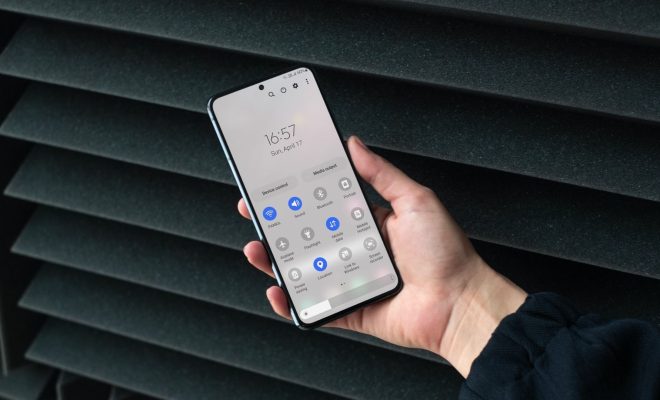
Samsung Galaxy phones come loaded with a ton of features and options, including the Quick Settings panel. The Quick Settings panel is an essential part of the Android experience, giving you quick access to commonly used settings like Wi-Fi, Bluetooth, and more. But did you know that you can customize the Quick Settings panel to include the controls you use most frequently? In this article, we’ll show you how to do just that.

Step 1: Open the Quick Settings Panel

To begin, swipe down from the top of your screen to access the Quick Settings panel. Here, you’ll see a variety of tiles that represent different settings on your phone, such as Wi-Fi, Bluetooth, and screen brightness. If you toggle a setting on or off, the tile will change accordingly.

Step 2: Tap the Edit Button

To customize the Quick Settings panel, you need to tap the “Edit” button. It looks like a pencil and is located in the top right corner of the panel. Once you tap the Edit button, you’ll see a new screen with all of the available Quick Settings tiles.

Step 3: Rearrange or Remove Tiles

From here, you can rearrange or remove the tiles to your liking. To move a tile, simply tap and hold on it until it lifts up, then drag it to a new location. You can also remove a tile by tapping the “-” button in the top left corner of the tile. To add a new tile, scroll down and look for the “+” button. This will show you a list of additional tiles that you can add to the panel, such as Mobile Hotspot, Airplane mode, or even a Link to Facebook profile.

Step 4: Save Your Changes

Once you’ve made all of the changes you want, simply tap the “Done” button. This will save your customized Quick Settings panel and return it to your home screen.

That’s it! You’ve now customized your Quick Settings panel to include the settings and controls that you use most frequently. You can always go back and make changes later if needed. Simply follow these steps again to open the Edit screen and make any necessary changes.

In conclusion, the Quick Settings panel is a handy feature of your Samsung Galaxy phone that can be customized to your preferences. By rearranging, removing, and adding tiles, you can create a Quick Settings panel that’s tailored to your needs. This customization will help you save time and effort in accessing the settings and controls that are most important to you.

Previous Article

What to Do With Your Old iPod

Next Article

Essential Google Chrome Extensions for Twitch Users

Matthew Lynch

Related articles More from author

  • Digital & Mobile Technology

    7 Days to Die Review: A Survival Game Worth Playing

    July 25, 2023
    By Matthew Lynch
  • Digital & Mobile Technology

    A Brief History of the Car Radio

    June 9, 2023
    By Matthew Lynch
  • Digital & Mobile Technology

    How to Access iCloud Photos

    August 3, 2023
    By Matthew Lynch
  • Digital & Mobile Technology

    Watch TV for Free: How to Install an Over-the-Air Indoor Antenna

    April 14, 2023
    By Matthew Lynch
  • Digital & Mobile Technology

    Best 8TB External Hard Drives of 2023

    July 5, 2023
    By Matthew Lynch
  • Digital & Mobile Technology

    How to Use the VLOOKUP Function in Google Sheets

    May 28, 2023
    By Matthew Lynch

Search

Login & Registration

  • Log in
  • Entries feed
  • Comments feed
  • WordPress.org

Newsletter

Signup for The Tech Edvocate Newsletter and have the latest in EdTech news and opinion delivered to your email address!

About Us

Since technology is not going anywhere and does more good than harm, adapting is the best course of action. That is where The Tech Edvocate comes in. We plan to cover the PreK-12 and Higher Education EdTech sectors and provide our readers with the latest news and opinion on the subject. From time to time, I will invite other voices to weigh in on important issues in EdTech. We hope to provide a well-rounded, multi-faceted look at the past, present, the future of EdTech in the US and internationally.

We started this journey back in June 2016, and we plan to continue it for many more years to come. I hope that you will join us in this discussion of the past, present and future of EdTech and lend your own insight to the issues that are discussed.

Newsletter

Signup for The Tech Edvocate Newsletter and have the latest in EdTech news and opinion delivered to your email address!

Contact Us

The Tech Edvocate
910 Goddin Street
Richmond, VA 23231
(601) 630-5238
[email protected]

Copyright © 2026 Matthew Lynch. All rights reserved.