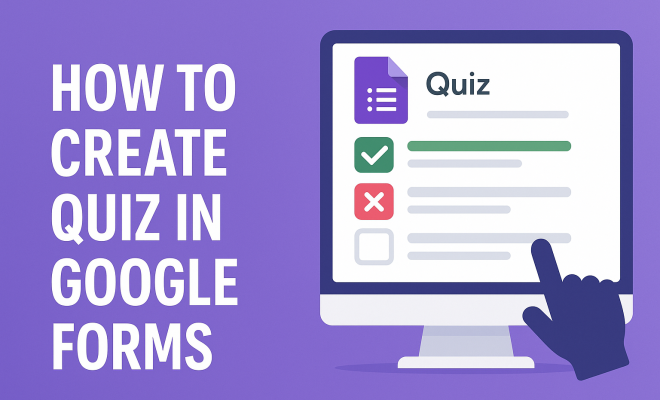
How to create quiz in Google Forms
“`html
Creating a quiz in Google Forms is a powerful way to assess knowledge, gather feedback, and engage with participants in various settings. Whether you’re a teacher looking to evaluate students, a business professional conducting training sessions, or anyone interested in creating interactive content, Google Forms provides a straightforward solution. In this guide, we’ll dive deep into the process, from setup to publishing, ensuring you can create quizzes that not only assess knowledge but also enhance learning experiences.
1. Understanding Google Forms
Google Forms is part of the Google Workspace suite, allowing users to design forms, surveys, and quizzes easily. Launched in 2008, it has become a preferred tool for educators, businesses, and individuals thanks to its user-friendly interface and robust features. The platform enables users to gather responses in real-time, analyze data, and streamline various processes.
While Google Forms is widely known for its survey capabilities, its quiz features allow users to create assessments with multiple question types, automatic grading, and feedback. The ability to embed multimedia elements, such as images and videos, into quizzes makes it an engaging option for users who want to enhance the assessment experience.
2. Setting Up Your Google Form
Before we dive into how to create quiz in Google Forms, let’s start with the basics of setting up your form. First, you need to access Google Forms through your Google account. Simply go to forms.google.com, and you’ll be greeted with options to start a new form or quiz.
Once you’re in Google Forms, choose a blank form or select from existing templates. For quizzes, you might want to select a template specifically designed for assessments. This will give you a head start on formatting and question layout. Don’t forget to give your quiz a title and a brief description to inform participants about its purpose!
3. Choosing the Right Question Types
One of the strengths of Google Forms is its versatility in question types. When you create a quiz in Google Forms, you can choose from multiple-choice questions, checkboxes, short answers, linear scales, and even dropdown menus. Each type serves a different purpose and can elicit various kinds of responses. For example, multiple-choice questions are great for closed-ended queries, whereas short answers can be used for more open-ended responses.
Consider the learning objectives when selecting question types. For a knowledge check, multiple-choice questions work well, while essay-type questions can assess deeper understanding. Additionally, incorporating images or videos can make questions more engaging and suitable for visual learners.
4. Utilizing Quiz Features: Grading and Feedback
To enhance your quiz’s effectiveness, Google Forms allows you to assign point values to questions, making grading seamless. When you create quiz in Google Forms, you can set how many points each question is worth. This feature is particularly useful in educational settings, as it allows for automatic grading once participants submit their answers.
Moreover, you can provide immediate feedback for each answer. This means that after participants complete the quiz, they can see which answers were correct and receive explanations or resources for further learning. Such feedback can greatly enhance the learning experience by addressing misconceptions in real-time.
5. Customizing Your Quiz
Customization is key to making your quiz stand out and resonate with participants. Google Forms allows you to modify themes, colors, and fonts to match your brand or personal style. You can also add images and videos to questions to create a more immersive experience.
Additionally, you can set up sections within your quiz. This helps to break down the content into manageable parts, making it less overwhelming for participants. For longer quizzes, consider using progress bars or section headers to guide participants through the quiz smoothly. (See: Wikipedia page on Google Forms.)
6. Sharing Your Quiz
Once you’ve completed your quiz, it’s time to share it with your audience. Google Forms makes this easy with multiple sharing options. You can send the quiz via email, share a direct link, or embed it on a website. Each method ensures that your quiz reaches the intended participants efficiently.
When sharing your quiz, you can also adjust settings regarding who can respond. For instance, you can limit responses to individuals within your organization, allow anonymous responses, or restrict submissions to one per person. This flexibility is especially useful for managing responses in educational or business contexts.
7. Analyzing and Utilizing Responses
Once participants have submitted their quizzes, the real work begins—analyzing the data. Google Forms provides built-in analytics to help you evaluate the results. You can view summary charts for multiple-choice questions, individual responses, and overall performance metrics.
The insights gained from these results can inform decisions about future content, teaching strategies, or employee training programs. Plus, you can export the data to Google Sheets for deeper analysis or further manipulation. This feature makes it easier to track trends, identify areas of improvement, and adjust your approach accordingly.
8. Best Practices for Creating Effective Quizzes
To ensure your quizzes are effective and engaging, consider these best practices. First, keep your questions clear and concise. Avoid using jargon or overly complex phrasing that may confuse participants. Second, mix up the question types to maintain interest and cater to different learning styles.
Additionally, test your quiz before sharing it widely. Gather feedback from a small group to identify any confusing questions or technical issues. Finally, always provide a variety of question types to assess knowledge comprehensively, ensuring that participants feel challenged but not overwhelmed.
9. Current Relevance and Future of Google Forms Quizzes
As remote learning and digital assessments continue to rise, the relevance of tools like Google Forms cannot be overstated. With its easy-to-use interface and rich functionalities, Google Forms stands out as a go-to solution for educators, trainers, and organizations looking to streamline their assessment processes. The future of quizzes in Google Forms looks promising, with continuous updates and added features likely to enhance user experience further.
Ultimately, learning how to create quiz in Google Forms not only empowers individuals to assess knowledge effectively but also fosters an engaging environment for learning and feedback. Whether you’re a novice or a seasoned user, the potential for creativity and interactivity is virtually limitless.
10. Advanced Features of Google Forms Quizzes
Once you’ve mastered the basics of creating quizzes, it’s time to explore some of Google Forms’ advanced features that can enhance your quizzes even further. One such feature is the ability to use conditional logic. Conditional logic allows you to tailor the quiz experience based on participants’ answers. For example, if a participant answers a question incorrectly, you could direct them to a follow-up question that provides additional context or resources.
This personalization makes quizzes more engaging and educational, as participants can receive tailored content based on their knowledge levels. Using section-based navigation, you can create quizzes that adapt to the user’s performance, allowing those who excel to skip ahead while those who struggle can receive more help.
11. Integrating Google Forms with Other Tools
Enhancing your quiz capabilities can also be done through integration with other tools. Google Forms can easily integrate with Google Sheets, where you can perform more complex analyses or create dashboards to visualize the data. This integration allows you to create automated reports that can track changes over time or highlight areas needing improvement.
Moreover, tools like Zapier or Integromat can connect Google Forms to various platforms, such as learning management systems or customer relationship management software. This means you can automate processes like adding quiz participants to a mailing list or triggering follow-up actions based on quiz results, making your workflow much more efficient. (See: CDC guide on creating surveys.)
12. Creating Interactive Quizzes for Different Audiences
Different audiences have different needs. A quiz aimed at high school students will differ significantly from one designed for corporate training. Understanding your audience is crucial. For younger students, incorporating images, GIFs, or even short videos can make the quiz more engaging. You might also consider gamifying the quiz experience with elements like scores, badges, or even leaderboards to motivate participation.
For corporate environments, it’s beneficial to focus on real-world applications and scenarios that relate directly to the material being covered. Case studies, role-playing questions, or situational judgment questions can make quizzes not only more relevant but also more effective in assessing participants’ capabilities.
13. Mobile Accessibility and User Experience
With the increasing reliance on smartphones and tablets, ensuring that your quiz is mobile-friendly is crucial. Google Forms is designed to be responsive, meaning your quiz will automatically adjust to fit the screen size of the device being used. However, it’s essential to test your quiz on various devices to ensure optimal user experience.
Consider the layout and design elements that may look different on mobile screens. For example, long questions may require scrolling, so keep questions concise. Additionally, ensure that all interactive elements, such as buttons and selections, are easily clickable on smaller screens. A seamless mobile experience can significantly boost participant engagement and response rates.
14. FAQ: Common Questions About Creating Quizzes in Google Forms
Q1: Can I edit my quiz after sharing it?
A1: Yes, you can edit your quiz at any time, even after sharing it. However, be aware that changes may affect the responses already collected, especially if you alter question types or remove questions.
Q2: How can I ensure the security of my quiz?
A2: Google Forms allows you to adjust settings to control who can respond. You can limit responses to people within your organization, require sign-in, or even restrict submissions to specific domains. Always consider these settings based on the sensitivity of the information being collected.
Q3: Is it possible to collect email addresses with my quiz?
A3: Absolutely! You can enable the option to collect email addresses in your quiz settings. This allows you to track participants and communicate results or feedback more effectively.
Q4: How do I prevent multiple submissions from the same person?
A4: To restrict submissions to one per person, ensure that the setting for requiring sign-in is turned on. This way, users can only submit the quiz once using their unique Google account.
Q5: Can I use Google Forms for quizzes in languages other than English?
A5: Yes! Google Forms supports multiple languages, allowing you to create quizzes in whichever language you prefer. Simply change the language settings in your Google account or adjust the form’s settings accordingly.
Q6: What types of multimedia can I include in my quiz?
A6: You can include images, videos, and even audio files in your quiz questions. This adds a rich multimedia component that can enhance engagement and understanding. (See: EDUCAUSE on education technology.)
15. Tips for Improving Engagement in Your Quizzes
Engagement is key when it comes to quizzes, especially in educational settings. Here are some strategies to increase participation and interest in your quizzes:
- Incorporate Gamification: Introduce game-like elements such as points, levels, and rewards. This can motivate participants to complete the quiz and perform better.
- Use Timers: Consider adding a timer for each question or the entire quiz. This can create a sense of urgency and excitement, making the quiz feel more dynamic.
- Mix Question Formats: Alternating between different types of questions—such as multiple-choice, short answer, and true/false—can keep participants on their toes and reduce monotony.
- Provide Meaningful Feedback: Rather than just indicating whether answers are correct or incorrect, provide constructive feedback that helps participants learn. This could include tips for further study or resources for improvement.
16. How to Enhance Learning Through Quizzes
Quizzes can be more than just assessment tools; they can enhance the learning process. Here’s how to leverage quizzes to reinforce knowledge:
- Pre-Assessment: Use quizzes to gauge prior knowledge before starting a new unit or topic. This allows you to tailor your instruction to meet the needs of your participants.
- Post-Assessment: After completing a unit, use quizzes to assess retention and understanding. This can help identify areas that may require additional review.
- Regular Check-Ins: Incorporate quizzes throughout your teaching to continuously assess understanding, rather than relying solely on midterm or final exams. Frequent assessments help to reinforce learning over time.
- Peer Quizzing: Encourage participants to create their own quizzes based on the material. This not only engages them more deeply but also allows them to think critically about what they’ve learned.
17. Case Study: Successful Use of Google Forms Quizzes
To illustrate the effectiveness of using Google Forms for quizzes, let’s look at a case study involving a high school science class.
The teacher implemented a series of quizzes using Google Forms to assess student understanding of complex topics such as ecosystems and the laws of motion. By utilizing a mix of multiple-choice questions, short answers, and even multimedia content, the teacher created an interactive and engaging experience. The quizzes were assigned after each major topic was covered, allowing for immediate feedback and follow-up discussions in class.
The results were striking. Student engagement increased significantly, with many expressing that the quizzes made learning more enjoyable. The teacher noted improved test scores over the semester and credited the immediate feedback provided by the quizzes. This case highlights how effective quizzes in Google Forms can be when thoughtfully designed and integrated into the educational process.
18. Conclusion: The Power of Quizzes in Google Forms
Creating quizzes in Google Forms not only simplifies the assessment process but also offers a collaborative platform for gathering insights and encouraging learning. The versatility of Google Forms, combined with its integration capabilities, makes it an invaluable tool for anyone looking to enhance their quiz creation experience.
Whether you’re designing quizzes for educational purposes, employee training, or customer feedback, the ability to customize, share, and analyze makes Google Forms a go-to resource. With continuous improvements and user-centric features, it’s clear that Google Forms will remain a leader in the field of digital assessments for years to come.
“`
Trending Now
Frequently Asked Questions
How do I create a quiz in Google Forms?
To create a quiz in Google Forms, access forms.google.com, choose a blank form or a quiz template, and give your quiz a title and description. Then, add questions using various formats like multiple choice, short answer, or checkboxes. You can also enable automatic grading and provide feedback for answers.
What types of questions can I use in Google Forms quizzes?
Google Forms allows a variety of question types for quizzes, including multiple choice, checkboxes, dropdowns, short answer, and linear scale. This versatility helps you assess knowledge effectively and engage participants with different question formats.
Can I add images or videos to my Google Forms quiz?
Yes, Google Forms lets you enhance your quiz by embedding images and videos. You can include multimedia elements in questions or as part of the quiz introduction, making the assessment more engaging and informative for participants.
Is Google Forms free to use for creating quizzes?
Yes, Google Forms is free to use for anyone with a Google account. It provides a user-friendly platform to create quizzes, gather responses, and analyze data without any cost, making it an accessible tool for educators and professionals.
How can I analyze responses from my Google Forms quiz?
After participants complete your quiz in Google Forms, you can analyze responses directly within the platform. Google Forms offers built-in tools to view summary charts, individual responses, and export data to Google Sheets for deeper analysis.
What’s your take on this? Share your thoughts in the comments below — we read every one.