How to create dropdown in Google Sheets
“`html
Google Sheets is a powerful tool for organizing and analyzing data, and one of its most useful features is the ability to create dropdowns in Google Sheets. Dropdown menus simplify data entry by providing predefined options, which can minimize errors and enhance the efficiency of your workflows. In this comprehensive guide, we’ll explore everything you need to know about creating dropdowns, including step-by-step instructions, tips for customization, and practical use cases.
1. Understanding Dropdowns in Google Sheets
Before diving into the process of creating dropdowns, it’s crucial to understand what they are and why they are beneficial. Dropdowns in Google Sheets allow users to select an option from a list, making data entry straightforward and reducing the likelihood of errors that can occur with manual input. They are particularly useful in shared documents where multiple users might input data.
Dropdowns can be simple, with just a few choices, or complex, featuring multiple dependencies or links to other datasets. By controlling the data entry process, dropdowns maintain the integrity of your information, ensuring consistency throughout your spreadsheet.
2. Setting Up Your Google Sheets Environment
Before you can create dropdowns in Google Sheets, you need to ensure you have access to the application. Google Sheets is part of Google Workspace (formerly G Suite) and is available for free with a Google account. To get started, navigate to your Google Drive, either through a web browser or the Google Sheets mobile app.
Once you have Google Sheets open, you can either create a new spreadsheet or open an existing one where you want to add dropdowns. It’s a good practice to name your spreadsheet appropriately to reflect its content, making it easier to locate later.
3. Creating Basic Dropdowns
Creating a basic dropdown in Google Sheets is a straightforward process. Here’s how to do it:
- Select the cell or range of cells where you want the dropdown to appear.
- Go to the menu and click on Data, then select Data validation.
- In the Data validation rules dialog, under Criteria, select List of items.
- Enter your list items in the box provided, separated by commas (e.g., Yes, No, Maybe).
- Click Save to finish.
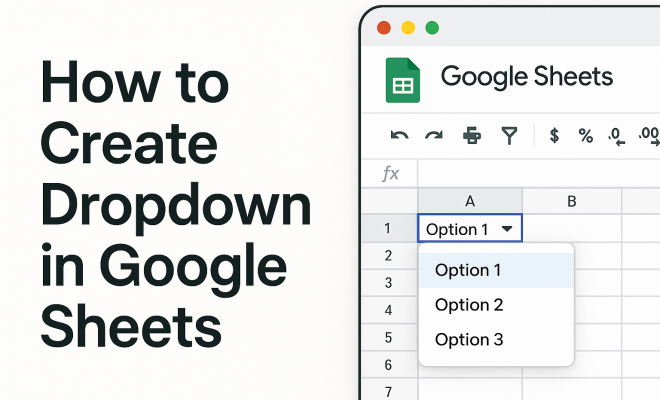
Now, when you click on the designated cell, a dropdown arrow will appear, allowing users to select one of the predefined options. It’s that easy!
4. Using Cell Ranges for Dropdowns
In some cases, you may want to create dropdowns that draw from a range of cells instead of manually entering options. This approach is particularly useful if you have a long list of items or if the list is subject to change. Here’s how to implement it:
- First, list your dropdown options in a separate range of cells (e.g., A1:A10).
- Select the cell or range where you want the dropdown.
- Go to Data > Data validation.
- In the dialog, select List from a range under Criteria.
- Enter the range (e.g., A1:A10) or click on the grid icon to select it directly.
- Click Save.
Now, users can select from the items listed in the designated range, and any updates made to that range will automatically reflect in the dropdown options.
5. Customizing Dropdowns to Fit Your Needs
Google Sheets provides several customization options for dropdowns that can enhance their functionality. You can add a custom error message if someone tries to input data that isn’t on the list. This feature is particularly useful for maintaining data integrity in shared sheets.
To customize: (See: Wikipedia page on Google Sheets.)
- Go to Data validation settings.
- Under On invalid data, select Reject input to prevent invalid entries.
- Check the box for Show warning if you want to allow invalid entries but still notify users.
- Use the Help text field to provide instructions or additional information about the dropdown.
These customization options help guide users and prevent confusion, especially in collaborative settings.
6. Implementing Dependent Dropdowns
Dependent dropdowns are a powerful feature that allows the options in one dropdown to change based on the selection made in another dropdown. This is particularly useful for forms or data entry sheets where relationships exist between different data points, such as categories and subcategories.
To create dependent dropdowns, you’ll first need to set up your primary dropdown. Then, follow these steps:
- List your secondary dropdown options in separate ranges corresponding to each option of the primary dropdown.
- Use the INDIRECT function to reference these ranges in your data validation settings.
- For example, if your primary dropdown is in cell A1 and your secondary options are in B1, C1, and D1, you could use INDIRECT(A1) to point the secondary dropdown to the appropriate list.
This approach greatly enhances the interactivity of your spreadsheet and allows for more nuanced data entry.
7. Visual Enhancements for Dropdown Menus
While dropdowns are primarily functional, enhancing their visual appeal can improve user engagement and make your sheets more intuitive. You can change background colors of cells based on selections using conditional formatting. This helps users visually differentiate between options.
To apply conditional formatting:
- Select the cell or range with the dropdown.
- Go to Format > Conditional formatting.
- Set up a rule based on the dropdown’s value (e.g., if the cell is equal to “Yes”, change the background to green).
- Click Done.
By integrating visual enhancements, you create a more engaging experience for users while maintaining clarity.
8. Common Mistakes to Avoid When Creating Dropdowns
While creating dropdowns in Google Sheets is relatively simple, there are common pitfalls that can lead to frustration. Here are a few mistakes to watch out for:
- Incorrect Range References: Ensure that your ranges are correctly referenced, especially when using dependent dropdowns.
- Neglecting Data Validation: Always set validation rules to prevent erroneous entries. Failing to do so can lead to data integrity issues.
- Overloading Dropdown Options: Too many choices can overwhelm users. Keep dropdown options concise and relevant.
By being aware of these common mistakes, you can ensure that your dropdowns function smoothly and effectively.
9. Advanced Techniques for Google Sheets Dropdowns
If you’re looking to take your dropdowns to the next level, consider these advanced techniques:
- Using Named Ranges: Naming your ranges can make your formulas clearer and easier to manage.
- Employing Scripting: For advanced users, Google Apps Script can be used to create highly customized dropdown functionality.
- Integrating with Google Forms: If you’re collecting data via Google Forms, you can use dropdowns in your form questions to streamline responses.
These advanced techniques can greatly enhance the user experience and expand the capabilities of your spreadsheets.
10. Practical Applications of Dropdowns in Everyday Work
Understanding how to create dropdown in Google Sheets opens the door to countless applications in different fields. Here are a few practical examples:
- Project Management: Use dropdowns for task status updates (e.g., Not Started, In Progress, Completed).
- Data Entry: Simplify data collection by using dropdowns for frequently used terms or categories.
- Survey Forms: Create interactive surveys where respondents can choose options from dropdowns, improving response accuracy.
Incorporating dropdowns into your Google Sheets can streamline processes, enhance data accuracy, and foster collaboration among users. As you become more familiar with this feature, you’ll discover even more innovative ways to leverage it in your work. (See: CDC on data integrity and accuracy.)
11. Integrating Dropdowns with Charts and Reports
One of the powerful aspects of using dropdowns in Google Sheets is their ability to connect with charts and reports. By allowing users to select different criteria through dropdowns, you can create dynamic reports that update automatically based on user selections. This can be particularly useful for data analysis and business presentations.
For example, imagine a sales report where a dropdown lets users select a specific month. Based on the selection, the chart can update to reflect sales data for that month. This interactivity enhances user engagement and makes your reports more informative.
To achieve this, you can pair your dropdowns with functions like FILTER or QUERY. Here’s a simple way to create a dynamic chart based on dropdown selections:
- Create a dropdown menu for months in a designated cell.
- Use the FILTER function to pull data based on the selected month.
- Link your chart data to the filtered results, and the chart will update as the dropdown selection changes.
This technique saves time and increases the visual appeal of your presentations, making them more interactive and informative.
12. Using Dropdowns for Error Tracking and Monitoring
In many workplaces, tracking errors and monitoring processes is essential for maintaining quality and efficiency. Dropdowns can play a vital role in this aspect by allowing users to categorize issues quickly. For example, a dropdown can be set for reporting errors with options such as “Minor,” “Major,” and “Critical.” This categorization helps teams prioritize actions based on the severity of the issues.
To set this up, configure your dropdown to include various error categories, then link it to a tracking sheet. You can employ conditional formatting to highlight critical errors, making them stand out for immediate attention. This way, your team can address the most pressing matters first and maintain high standards in your operations.
13. FAQs About Creating Dropdowns in Google Sheets
What are the benefits of using dropdowns in Google Sheets?
Dropdowns streamline data entry, reduce errors, and maintain consistency across your spreadsheet, especially in collaborative environments.
Can I create a multi-select dropdown in Google Sheets?
Google Sheets does not natively support multi-select dropdowns. However, you can use Google Apps Script to create custom solutions that allow for multi-selection.
How can I change the appearance of my dropdown menus?
You can change the appearance of dropdown menus by using conditional formatting, which allows you to alter cell colors based on the dropdown selection.
Is it possible to create a dropdown that pulls data from another spreadsheet?
Yes, you can create a dropdown in one Google Sheet that references data from another spreadsheet by using the IMPORTRANGE function combined with a named range.
What should I do if my dropdown options are not showing correctly?
Check your data validation settings and ensure that your ranges are properly defined. Also, ensure that there are no leading or trailing spaces in your option lists, as these can affect visibility.
Can I add images to dropdown options?
Currently, Google Sheets does not support adding images directly to dropdown options. However, you can create a visual reference in adjacent cells that provide context for the dropdown selections.
How can I remove a dropdown from a cell?
Select the cell, go to Data > Data validation, and click on Remove validation to remove the dropdown from that cell.
Can dropdowns be used for validation of other fields?
Absolutely. Dropdowns can be utilized to validate data in other fields by restricting input to only the options available in the dropdown. This can be particularly useful in form-like sheets where you want to ensure users can only enter specific values.
How do I create a cascading dropdown in Google Sheets?
A cascading dropdown, or dependent dropdown, can be created by establishing a primary dropdown and multiple secondary lists that are filtered based on the primary selection. Using the INDIRECT function in your data validation settings allows you to dynamically reference the appropriate secondary list based on the primary dropdown’s selection.
14. Tips for Enhancing User Experience with Dropdowns
Creating effective dropdowns is not just about functionality; it’s also about ensuring a smooth user experience. Here are some tips to make your dropdowns more user-friendly:
- Limit Options: Avoid overwhelming users by limiting the number of options in a dropdown. If you have a lengthy list, consider using a search function or breaking it into categories.
- Use Descriptive Labels: Ensure that the options in your dropdown are easily understandable. Use clear and concise labels so users know exactly what each option represents.
- Test for Usability: Before finalizing your dropdowns, test them with potential users. Gather feedback on clarity and ease of use to make necessary adjustments.
- Visual Indicators: If possible, incorporate visual indicators or icons next to dropdown options to enhance recognition and speed up selection. This can be particularly useful in contexts where the options have distinct characteristics.
15. Future of Dropdowns in Google Sheets
The capabilities of Google Sheets are continuously evolving, and developers are always looking to enhance user experience. Future features could potentially include more advanced dropdown functionalities, such as improved multi-select options, the ability to add images directly, and even smarter data validation rules that could learn from user input patterns.
As Google Sheets becomes more integrated with other Google services, we might see enhanced compatibility with tools like Google Forms, allowing for more complex nested dropdown interactions in surveys and data collection forms. Keeping an eye on updates from Google can help you leverage new features as they become available.
16. Conclusion
As you can see, mastering how to create dropdown in Google Sheets can significantly enhance your data management capabilities. Whether you’re managing projects, tracking errors, or creating dynamic reports, dropdowns offer a streamlined and user-friendly approach to data entry. With the insights and techniques shared in this guide, you are now equipped to implement dropdown menus in your spreadsheets efficiently. So go ahead and explore how dropdowns can make your work easier and more effective!
“`
Trending Now
Frequently Asked Questions
How do I create a dropdown list in Google Sheets?
To create a dropdown list in Google Sheets, select the cell or range where you want the dropdown. Then, click on 'Data' in the menu, choose 'Data validation', and under 'Criteria', select 'List of items'. Enter your options separated by commas, and click 'Save' to finalize.
What is the purpose of dropdowns in Google Sheets?
Dropdowns in Google Sheets streamline data entry by providing users with predefined options, reducing manual input errors. They help maintain data integrity and consistency, especially in collaborative environments where multiple users input data.
Can I customize dropdown lists in Google Sheets?
Yes, you can customize dropdown lists in Google Sheets by editing the list of items in the 'Data validation' settings. You can also link dropdowns to other datasets for dynamic options based on user selections.
Are dropdowns in Google Sheets only for single selections?
No, while basic dropdowns allow for single selections, you can create dependent dropdowns or multiple choice lists using advanced techniques like data validation combined with formulas, enabling more complex data entry scenarios.
Is creating a dropdown in Google Sheets free?
Yes, creating dropdowns in Google Sheets is completely free. Google Sheets is part of Google Workspace, which is available at no cost with a Google account, allowing anyone to utilize this feature without any fees.
Agree or disagree? Drop a comment and tell us what you think.