Convert Videos Easily with VLC Media Player
“`html
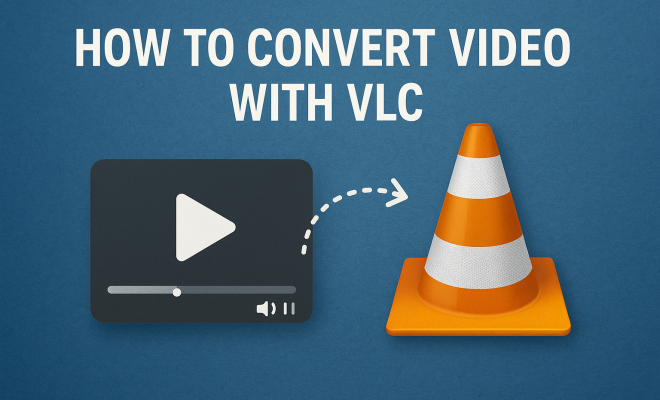
Video conversion is a task many of us encounter, whether it’s for reformatting a home video, preparing content for a client, or simply optimizing a file for a specific device. One of the most powerful tools for this is VLC Media Player, a free, open-source program that’s not just for playback. It’s equipped with a robust set of features, including the ability to convert video with VLC. In this article, we’ll explore how to take advantage of this multimedia powerhouse and convert videos effortlessly.
1. Understanding VLC Media Player
VLC Media Player has been around since 2001, and it has grown into one of the most popular media players globally, with over 3 billion downloads. Developed by the VideoLAN project, VLC supports a vast array of audio and video formats without the need for additional codecs. But VLC is much more than just a player; it’s packed with features that allow you to convert, edit, and stream multimedia content.
One of the key strengths of VLC is its versatility. Available on multiple platforms including Windows, macOS, Linux, Android, and iOS, VLC provides a consistent experience across devices. In addition to conversion, users can leverage its capabilities for tasks like video editing, streaming videos, and capturing media. This ability to convert video with VLC sets it apart from other media players, making it a comprehensive tool for anyone working with digital media.
2. Why Use VLC for Video Conversion?
Choosing VLC for video conversion comes with a plethora of advantages. First and foremost, it’s completely free. Unlike some commercial software options that can come with hefty price tags, VLC is open-source and available for everyone. This democratization of technology makes it an appealing choice for casual users and professionals alike.
Moreover, VLC offers an impressive range of format support. Whether you need to convert MP4 to AVI, MKV to MP3, or any other format, VLC has you covered. Its user-friendly interface, combined with powerful functionalities, allows you to convert video with VLC seamlessly. Additionally, the community behind VLC is continuously working to improve the software, ensuring that it remains up-to-date with new formats and technologies.
3. Supported Formats for Conversion
VLC’s capability to convert video formats is extensive. It supports a variety of input formats including AVI, MKV, MP4, MOV, FLV, and more. When it comes to output formats, the options are equally broad. You can convert to formats like MP4, AVI, MPEG, WMV, and even audio formats like MP3 and WAV. This extensive compatibility means you can handle virtually any media conversion task with VLC.
To give you a clearer picture, here are some common video formats that VLC can handle:
- Input Formats: AVI, MKV, MP4, MOV, FLV, WMV, and more.
- Output Formats: MP4, AVI, MKV, MPEG, WMV, MP3, and more.
This versatility is particularly useful if you’re dealing with different devices or software that require specific formats. Whether you’re preparing a video for social media, a presentation, or personal use, knowing that VLC can convert video with VLC to your desired format is a huge advantage.
4. How to Convert Video with VLC: Step-by-Step Guide
Now that you understand the capabilities of VLC, let’s dive into how to convert video with VLC. The process is straightforward and can be completed in just a few steps. Here’s how: (See: VLC Media Player on Wikipedia.)
- Open VLC: Launch the VLC Media Player on your device.
- Select Media Menu: Click on the “Media” tab in the top left corner and select “Convert / Save” from the dropdown menu.
- Add Your File: In the File tab, click on “Add” to browse and select the video file you want to convert.
- Choose Conversion: After adding your file, click on the “Convert / Save” button.
- Set Your Preferences: In the next window, select the format you want to convert to. You can also choose from presets based on the device you’re targeting.
- Select Destination: Choose where you want to save the converted file by clicking on “Browse” next to the Destination file field.
- Start Conversion: Click on the “Start” button to begin the conversion process.
This simple process allows you to convert any video with VLC quickly. Depending on the size of your video file, the process may take a few moments. Once completed, you’ll find your newly converted file in the destination folder you specified.
5. Advanced Conversion Options
For users looking to fine-tune their video conversion process, VLC offers advanced settings that can enhance the output quality and format. By clicking on the settings icon (the wrench) in the Convert window, you can adjust various parameters.
Some of the advanced options include:
- Codec Selection: You can choose specific video and audio codecs for your output file. This is essential if you want to optimize the file for a particular device or platform.
- Resolution Adjustment: Adjusting the resolution can help you reduce file size while maintaining quality, which is useful for streaming or sharing on social media.
- Bitrate Control: Bitrate settings allow you to increase or decrease the quality and size of the video. Higher bitrates mean better quality but larger files.
Utilizing these advanced options enables you to convert video with VLC in a way that meets your specific needs, enhancing your control over the final product.
6. Troubleshooting Common Issues
While VLC is generally reliable, users may encounter a few common issues during the conversion process. Here are some solutions to help you troubleshoot:
- File Compatibility: If VLC won’t convert your file, check if the format is supported. Sometimes, files might be corrupted or contain unsupported codecs.
- Audio/Video Sync Issues: If the audio doesn’t sync with the video after conversion, try adjusting the codec settings or using a different output format.
- Slow Conversion Speeds: If conversions are taking too long, check your system’s performance. Closing other applications may help speed up the process.
By being aware of these potential issues, you can streamline your experience when converting video with VLC and avoid unnecessary frustrations.
7. Comparing VLC with Other Conversion Tools
While VLC is an excellent tool for converting video, it’s not the only option available. There are several other software tools that offer similar functionalities. Let’s compare VLC with a few popular alternatives:
- HandBrake: This open-source software specializes in video transcoding and is particularly good for compressing videos and altering formats. However, its interface may be less intuitive than VLC for beginners.
- Any Video Converter (AVC): A user-friendly option with a straightforward interface, AVC offers a wide range of format support. However, its free version may include ads and watermarks.
- Freemake Video Converter: Known for its simple drag-and-drop functionality, this tool is great for quick conversions. Still, the free version comes with limitations, and outputs can have watermarks.
Ultimately, your choice of software will depend on your specific needs. If you require advanced settings and extensive format options, VLC is hard to beat. However, for straightforward tasks or specialized needs, other tools may work better.
8. VLC’s Other Features You Might Not Know About
VLC is packed with features that go beyond video conversion. Here are some handy functionalities you might find helpful: (See: Video conversion research on ScienceDirect.)
- Streaming: VLC can stream videos from a network or online source, making it useful for viewing content without downloading it first.
- Screen Recording: You can use VLC to record your screen, which is great for creating tutorial videos or capturing gameplay.
- Video Effects: VLC allows you to apply various filters and effects to videos, enhancing your viewing experience.
These features add tremendous value to VLC and showcase its versatility as a multimedia tool. Whether you’re converting video with VLC or exploring its other capabilities, you’ll find that it has much to offer.
9. Staying Updated with VLC
As technology progresses, so does VLC. The developers consistently release updates that include bug fixes, new features, and enhancements to existing functionalities. Keeping your VLC Media Player updated ensures you benefit from the latest improvements.
To check for updates, simply navigate to the “Help” menu in the VLC interface and select “Check for Updates.” Staying informed about new versions and features can help you maximize your use of VLC and maintain smooth video conversion processes.
10. Real-World Uses of VLC for Video Conversion
You might wonder when you would actually need to convert video with VLC. Here are some practical scenarios where this feature shines:
- Preparing Content for Social Media: Social platforms often have specific video format requirements. You can use VLC to convert your videos to formats like MP4, which is widely accepted.
- Creating Video Tutorials: If you’re making tutorial content, you might want to convert longer videos into shorter clips that focus on specific points. VLC allows you to edit and convert in one go.
- Batch Conversion for Large Projects: If you have multiple files needing conversion, VLC can handle batch processing, saving you time on repetitive tasks.
- Archiving Old Videos: If you have older videos in outdated formats, converting them to a more modern format using VLC ensures they remain playable on current devices.
These examples highlight how VLC can play a vital role in your video workflow, making it easier to adapt to various needs without requiring multiple tools.
11. Statistics and Trends in Video Conversion
Video content consumption has skyrocketed in recent years, with a significant rise in the demand for video conversion tools. According to a report from Cisco, video traffic will account for 82% of all consumer internet traffic by 2022. This trend emphasizes the need for reliable conversion tools like VLC, especially as users increasingly create and share content across multiple platforms.
The rise of mobile devices has also changed how we think about video formats. For instance, videos optimized for mobile viewing often require different specifications compared to traditional desktop formats. This has led to an increased reliance on tools that can quickly adapt files for different uses. VLC’s ability to convert video with VLC across various formats makes it an essential tool in this landscape.
12. Expert Perspectives on Video Conversion Tools
Industry experts often recommend VLC for video conversion due to its reliability and versatility. According to tech analyst Mark Johnson, “VLC is not just a media player; it is a comprehensive suite for handling multimedia files. Its conversion capabilities make it a go-to choice for both amateurs and professionals.” (See: CDC on video communication tools.)
Furthermore, video production experts frequently highlight the importance of having a tool that can handle various formats without losing quality. “When I’m working on a project that requires different output formats, VLC is always in my toolkit. It simplifies the workflow and allows me to focus on creativity,” says Sarah Lee, a digital content creator.
13. FAQs About Converting Video with VLC
If you’re new to converting video with VLC, you might have some questions. Here’s a compilation of frequently asked questions to help you get started:
- What types of files can I convert with VLC?
VLC supports a wide range of formats, including but not limited to AVI, MP4, MOV, MKV, FLV, and more. - Is there a limit to the size of the video I can convert?
There’s no specific limit imposed by VLC, but your computer’s performance may affect how large files can be processed efficiently. - Does VLC maintain video quality during conversion?
Yes, VLC is known for maintaining quality during conversion, especially when using higher bitrates and lossless formats. - Can I convert multiple videos at once?
Absolutely! VLC allows batch conversion, enabling you to queue multiple files for conversion simultaneously. - Is VLC safe to download and use?
Yes, VLC is open-source and has been widely trusted by millions of users worldwide. Just ensure you download it from the official VideoLAN website. - Can I customize my conversion settings?
Yes, VLC offers various customization options, including codec selection, resolution adjustment, and bitrate control.
14. Best Practices for Video Conversion with VLC
To get the most out of VLC when converting videos, consider the following best practices:
- Choose the Right Format: Always select a format that matches your intended use. For instance, MP4 is great for most devices, while MKV is better for high-quality videos.
- Test Before Finalizing: If you’re converting a crucial video, run a test conversion first. This helps ensure that the quality meets your expectations before converting larger files.
- Keep a Backup: Always keep a backup of your original video. This way, if the conversion doesn’t go as planned, you can try again without losing your source material.
- Explore Presets: VLC offers presets for specific devices, which can save you time. Use these to simplify the conversion process, especially if you’re unsure about the best settings.
- Be Mindful of Audio Settings: If your video has multiple audio tracks, ensure you select the right one or adjust your output settings to include the audio you prefer.
15. Future of Video Conversion Tools
The landscape of video conversion is continuously evolving, with advancements in technology influencing how users approach media formats. The push toward higher resolutions, like 4K and 8K, has increased the demand for powerful conversion tools that can handle heftier data loads without compromising quality. VLC, with its robust development community, is poised to adapt to these changes effectively.
As cloud storage and sharing continue to dominate, the need for tools that can convert and compress files for easy sharing will grow. Integrating AI features for automatic format detection and optimization could be the next frontier for tools like VLC. Keeping an eye on these trends and the capabilities VLC offers can ensure users stay ahead in the video conversion game.
In summary, converting video with VLC is not only possible but also straightforward, efficient, and accessible. With its extensive format support, advanced settings, and a range of other features, VLC stands out as a top choice for media conversion. Whether you’re a beginner or a seasoned pro, mastering this tool can significantly enhance your multimedia experience.
“`
Trending Now
Frequently Asked Questions
How do I convert a video using VLC?
To convert a video using VLC, open the app, go to 'Media' and select 'Convert/Save'. Add the video file you want to convert, then click 'Convert/Save'. Choose your desired output format and destination, then click 'Start' to begin the conversion process.
What formats can VLC convert videos to?
VLC supports a wide range of formats for video conversion, including popular options like MP4, AVI, MKV, and MP3. This versatility makes it a great choice for converting videos to the format that best suits your needs.
Is VLC Media Player free to use?
Yes, VLC Media Player is completely free and open-source. It provides a comprehensive set of features, including video conversion, without any hidden costs or subscription fees, making it accessible to everyone.
Can VLC convert videos on all platforms?
Absolutely! VLC Media Player is available on multiple platforms, including Windows, macOS, Linux, Android, and iOS. This cross-platform support allows users to convert videos seamlessly, regardless of their operating system.
What are the advantages of using VLC for video conversion?
Using VLC for video conversion offers several advantages, including its free and open-source nature, extensive format support, and user-friendly interface. It also allows for additional features like video editing and streaming, making it a versatile tool for multimedia tasks.
Agree or disagree? Drop a comment and tell us what you think.