Convert HEIC to JPG: Your Guide to Image Compatibility
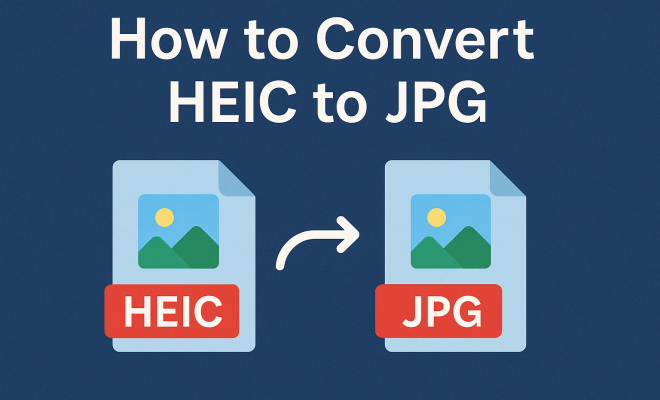
“`html
1. Understanding HEIC and JPG Formats
Before diving into how to convert HEIC to JPG, it’s crucial to understand the differences between these two image formats. HEIC (High Efficiency Image Coding) is a relatively new format introduced by Apple with iOS 11. It offers better compression than JPG, meaning you can store high-quality images in much smaller file sizes. For instance, a photo that might take 5 MB in JPG can be reduced to about 2 MB in HEIC without noticeable quality loss.
On the other hand, JPG (Joint Photographic Experts Group) is one of the oldest and most widely used image formats. Its compatibility across various devices and platforms makes it the go-to choice for many users. However, JPG images often suffer from quality loss due to compression, especially when edited multiple times. Understanding these differences can help you appreciate why converting HEIC to JPG might be necessary for your needs.
2. Why Convert HEIC to JPG?
There are several reasons to convert HEIC to JPG. The most significant one is compatibility. While HEIC is gaining traction, many older devices and applications still do not support it. For example, if you want to share images with someone who uses a non-Apple device, they may not be able to view HEIC files. Converting to JPG ensures that your images can be easily accessed and viewed by anyone, anywhere.
Another reason is editing capabilities. Many popular photo editing software and applications do not support HEIC files. If you’re looking to enhance your photos with filters, cropping, or other adjustments, converting to JPG simplifies the process. This is particularly important for photographers and graphic designers who rely on specific tools that may not be compatible with HEIC.
Additionally, some online platforms, like social media sites, may not support HEIC format at all. If you’re planning to upload photos to such sites, converting them to JPG beforehand will save you the hassle of dealing with unsupported formats.
Lastly, some printing services might only accept JPG images. If you’re planning to print your HEIC photos, converting them to JPG ensures that you avoid any issues with printing quality or compatibility.
3. How to Identify HEIC Files
Identifying HEIC files is relatively straightforward, especially on Apple devices. If you’re using an iPhone or an iPad, the images you take are automatically saved in HEIC format unless you change the settings. You can recognize HEIC files by their .heic or .heif file extension. On macOS devices, you can view these images directly in the Preview app or Photos app.
If you’re unsure whether an image is HEIC or JPG, you can check the file details. Right-click on the file and select ‘Get Info’ on Mac or ‘Properties’ on Windows. This will display the file type. If you encounter a HEIC file on a Windows computer, you may need to install a codec from the Microsoft Store to view it directly.
Moreover, third-party applications such as file managers can also help identify file types. Many offer a bulk view option that can quickly show you the formats of multiple files, which is convenient when managing large photo libraries.
4. Methods for Converting HEIC to JPG
There are various methods available for converting HEIC to JPG, ranging from built-in device features to third-party applications. Let’s explore some of the most common approaches:
- Using macOS Preview: On a Mac, open the HEIC file with Preview. Go to ‘File’ > ‘Export’, then select ‘JPEG’ as the format and save it.
- Using iOS Settings: For iPhone users, you can adjust the camera settings to save images as JPG. Go to ‘Settings’ > ‘Camera’ > ‘Formats’ and select ‘Most Compatible’. This will save future photos as JPG instead of HEIC.
- Using Online Converters: There are numerous online platforms where you can upload HEIC files and convert them to JPG for free. Websites such as HEICtoJPG.com or CloudConvert.com offer user-friendly interfaces that require no software installation.
- Using Software Applications: Programs like Adobe Lightroom or specialized converters like iMazing HEIC Converter can convert multiple HEIC files to JPG in batches, which is efficient for large collections.
- Using Command Line Tools: For tech-savvy users, command line tools like ImageMagick can be used to convert HEIC files to JPG efficiently. This method is particularly useful for automating conversions with scripts.
5. Step-by-Step: Convert HEIC to JPG on a Mac
If you’re a Mac user, converting HEIC to JPG is a straightforward process using Preview. Here’s a step-by-step guide: (See: High Efficiency Image File Format.)
- Open the HEIC file with Preview by double-clicking the image or right-clicking and selecting ‘Open With’ > ‘Preview’.
- Once the image is open, click on ‘File’ in the menu bar at the top of the screen.
- Select ‘Export’ from the dropdown menu.
- In the dialog box, choose ‘JPEG’ from the Format options.
- Adjust the quality slider if desired, then choose your save location and click ‘Save’.
This process is quick and retains high image quality, making it ideal for anyone looking to convert HEIC to JPG on a Mac.
6. Step-by-Step: Convert HEIC to JPG on Windows
Windows users may find converting HEIC to JPG a bit more tricky since HEIC files are not natively supported. However, with the right tools, it’s still easy:
- First, ensure you have the HEIF Image Extensions installed from the Microsoft Store. This will allow your Windows Photo app to open HEIC files.
- Once installed, open the HEIC file using the Photos app.
- Click on the three dots in the top right corner and select ‘Save As’.
- In the Save As dialog, select ‘JPEG’ as the format and choose your desired location.
Using this method, you can quickly convert HEIC to JPG without needing additional software, making it accessible for most users.
7. Online Conversion Tools: Pros and Cons
Online conversion tools have become increasingly popular for converting HEIC to JPG, but they come with their own set of advantages and disadvantages. The biggest benefit is convenience; you can convert files without needing to install software. This is ideal for those who only need to convert files sporadically.
However, there are drawbacks. Privacy can be a concern since you’re uploading images to a third-party website. If the images are sensitive or personal, this method may not be the best choice. Additionally, internet speed and connection stability can affect the process, especially with large files. Always weigh these factors when deciding on an online tool to convert HEIC to JPG.
Another consideration is the quality of conversion. While many online converters do a great job, some might apply their own compression, which could affect the final image quality. It’s essential to read user reviews or test a few files before committing to a particular service.
For users looking for a balance between convenience and quality, many online tools allow you to select the desired output quality during conversion, so you can choose the best option for your needs.
8. Batch Converting HEIC to JPG: Tools and Techniques
For those who have extensive libraries of HEIC images, batch converting them to JPG can save a significant amount of time. Many applications are designed to handle bulk conversions efficiently. Tools like iMazing HEIC Converter or Aiseesoft HEIC Converter allow you to select multiple files and convert them all at once.
When using batch conversion tools, look for options that allow you to set specific output parameters, such as image quality and file size. This ensures that you maintain control over the final output. Additionally, these tools often support various formats beyond JPG, providing you with flexibility in your conversions.
As an example, using iMazing HEIC Converter, you can simply drag and drop your HEIC files into the application, select the output format and quality, and hit convert. The application then processes your files in a matter of minutes, depending on the number and size of the images.
For users with specific needs, some batch conversion tools also allow you to rename files in bulk or organize them into folders, which can be quite beneficial for keeping your photo library organized.
9. Final Thoughts: Choosing the Right Method for Your Needs
Ultimately, the best method to convert HEIC to JPG depends on your specific needs. If you’re looking for a quick, one-off conversion, using a built-in feature on your device or an online tool might be the best option. However, if you frequently handle HEIC files, investing in dedicated software could make your workflow more efficient.
As technology continues to evolve, the relevance of HEIC will likely grow, particularly with its increased adoption across platforms. Understanding how to convert HEIC to JPG effectively ensures you’re prepared to handle your images in the most compatible format, keeping your digital life hassle-free. (See: CDC on image formats and health.)
10. Frequently Asked Questions (FAQ)
What is the main difference between HEIC and JPG?
HEIC uses advanced compression techniques to store images in smaller file sizes while retaining higher quality compared to JPG. JPG, being an older format, tends to have larger file sizes and more noticeable quality loss when compressed multiple times.
Can I convert HEIC files to JPG on my smartphone?
Yes, several apps are available for both iOS and Android devices that allow you to convert HEIC files to JPG directly on your smartphone. Make sure to choose a reputable app to ensure your images remain secure.
Is there a loss of quality when converting HEIC to JPG?
While converting from HEIC to JPG, there can be a slight quality loss since JPG uses lossy compression. However, if you adjust the quality settings during conversion, you can minimize this loss to an extent.
Are there any free tools for converting HEIC to JPG?
Yes, there are several free tools available, such as online converters like HEICtoJPG.com or desktop applications like iMazing HEIC Converter that allow you to convert HEIC files to JPG without cost.
Can I convert HEIC to JPG in bulk?
Absolutely! Many software applications, including iMazing HEIC Converter and Aiseesoft HEIC Converter, support batch conversion. This means you can convert multiple files at once, saving you time and effort.
Is there a risk of losing metadata when converting from HEIC to JPG?
Yes, converting HEIC to JPG can sometimes result in loss of certain metadata, such as location data or camera settings. It’s advisable to check the settings of your conversion tool to see if it retains metadata during the process.
Can I convert HEIC to JPG without an internet connection?
Yes, if you use a desktop application like Preview on macOS or a dedicated converter, you can convert HEIC to JPG without needing an internet connection. Online tools, however, do require an active internet connection.
What should I do if my HEIC files won’t open?
If your HEIC files won’t open, ensure you have the necessary codecs installed if you’re using Windows. Alternatively, consider using a different application or online tool that supports HEIC format.
11. Comparing the Best Tools for Converting HEIC to JPG
When deciding on the best method to convert HEIC to JPG, it’s helpful to compare various tools based on factors like ease of use, speed, quality, and features. Here’s a rundown of some of the top options:
1. iMazing HEIC Converter
This free application for macOS and Windows is user-friendly and supports batch conversion. It retains the original quality of images and allows users to choose the output quality. It’s a great option for those who frequently work with HEIC files.
2. Adobe Lightroom
For professional photographers who already use Adobe products, Lightroom offers robust editing features alongside the ability to convert HEIC to JPG. However, it requires a subscription, which might not justify the cost for occasional users. (See: New York Times on HEIC and JPG.)
3. Online Conversion Tools
Websites like HEICtoJPG.com provide a quick and easy solution without needing to install software. They are best suited for occasional use, but users should be mindful of privacy when uploading sensitive images.
4. ImageMagick
This command-line tool is perfect for tech-savvy users who need advanced options. It allows for greater flexibility and automation, making it ideal for batch processing a large number of files or integrating into scripts for developers. However, it may have a steeper learning curve for those unfamiliar with command-line operations.
5. Aiseesoft HEIC Converter
This software is designed for both Windows and Mac and offers a straightforward interface and batch conversion options. It is paid software but often comes with trial versions, allowing users to test its capabilities before purchasing.
12. Tips for Maintaining Image Quality During Conversion
To ensure your images maintain their quality during conversion from HEIC to JPG, consider the following tips:
- Use High-Quality Settings: When converting, always choose the highest quality settings available in your conversion tool to minimize quality loss.
- Keep Originals Safe: Always keep a backup of your original HEIC files before conversion in case you need to revert.
- Test Different Tools: If you notice quality issues, try different conversion tools to find the one that maintains the best image quality for your needs.
- Adjust Compression Settings: Some tools allow you to adjust the compression level when saving as JPG. Lower compression levels yield better quality but larger file sizes.
13. Future of HEIC and JPG Formats
As technology progresses, so does the evolution of image formats. HEIC is becoming more mainstream, with support increasing across various platforms. This could mean that in the near future, more devices will natively support HEIC files, reducing the need for conversion.
On the other hand, JPG is a well-established format that’s likely to remain relevant due to its compatibility. However, as image quality demands increase, formats like HEIC may take precedence, especially for new devices and applications designed with modern image standards in mind.
For users, the key is to stay informed about the latest developments in image formats and understand the tools available for converting between them. Whether you choose to convert HEIC to JPG or stick with HEIC largely depends on your specific needs, preferences, and the devices you use.
14. Conclusion
Converting HEIC to JPG is a necessary skill in today’s digital landscape, especially as image formats continue to evolve. Understanding the advantages and limitations of both formats helps you make informed choices about how to handle your images. Whether you opt for built-in features, online tools, or dedicated software depends on your needs and frequency of use. By keeping the tips and information in this article in mind, you can easily manage your image files and ensure quality remains intact during the conversion process.
“`
Trending Now
Frequently Asked Questions
What is the difference between HEIC and JPG?
HEIC (High Efficiency Image Coding) offers better compression than JPG, allowing for high-quality images at smaller file sizes. While HEIC is newer and more efficient, JPG is widely compatible across devices and platforms, making it a popular choice despite potential quality loss due to compression.
Why should I convert HEIC to JPG?
Converting HEIC to JPG ensures compatibility with older devices and applications that may not support HEIC files. It also facilitates easier editing, as many photo editing software programs do not support HEIC, making JPG a more practical format for enhancements.
Can I edit HEIC files directly?
Many popular photo editing applications do not support HEIC files, which can limit your editing options. Converting HEIC images to JPG allows for seamless editing with various tools and software, making it easier to enhance your photos.
Is JPG better than HEIC for image quality?
While JPG is widely used, it often suffers from quality loss due to compression, especially after multiple edits. HEIC provides better image quality at smaller sizes, but JPG is more compatible with various platforms, making it a preferred choice for sharing.
How can I convert HEIC to JPG?
You can convert HEIC to JPG using various methods, including online converters, dedicated software, or built-in features on devices like iPhones and Macs. Each method offers a straightforward process to ensure your images are accessible in the JPG format.
Have you experienced this yourself? We’d love to hear your story in the comments.