The Tech Edvocate

Top Menu

  • Advertisement
  • Apps
  • Home Page
  • Home Page Five (No Sidebar)
  • Home Page Four
  • Home Page Three
  • Home Page Two
  • Home Tech2
  • Icons [No Sidebar]
  • Left Sidbear Page
  • Lynch Educational Consulting
  • My Account
  • My Speaking Page
  • Newsletter Sign Up Confirmation
  • Newsletter Unsubscription
  • Our Brands
  • Page Example
  • Privacy Policy
  • Protected Content
  • Register
  • Request a Product Review
  • Shop
  • Shortcodes Examples
  • Signup
  • Start Here
    • Governance
    • Careers
    • Contact Us
  • Terms and Conditions
  • The Edvocate
  • The Tech Edvocate Product Guide
  • Topics
  • Write For Us
  • Advertise

Main Menu

  • Start Here
    • Our Brands
    • Governance
      • Lynch Educational Consulting, LLC.
      • Dr. Lynch’s Personal Website
      • Careers
    • Write For Us
    • The Tech Edvocate Product Guide
    • Contact Us
    • Books
    • Edupedia
    • Post a Job
    • The Edvocate Podcast
    • Terms and Conditions
    • Privacy Policy
  • Topics
    • Assistive Technology
    • Child Development Tech
    • Early Childhood & K-12 EdTech
    • EdTech Futures
    • EdTech News
    • EdTech Policy & Reform
    • EdTech Startups & Businesses
    • Higher Education EdTech
    • Online Learning & eLearning
    • Parent & Family Tech
    • Personalized Learning
    • Product Reviews
  • Advertise
  • Tech Edvocate Awards
  • The Edvocate
  • Pedagogue
  • School Ratings

logo

The Tech Edvocate

  • Start Here
    • Our Brands
    • Governance
      • Lynch Educational Consulting, LLC.
      • Dr. Lynch’s Personal Website
        • My Speaking Page
      • Careers
    • Write For Us
    • The Tech Edvocate Product Guide
    • Contact Us
    • Books
    • Edupedia
    • Post a Job
    • The Edvocate Podcast
    • Terms and Conditions
    • Privacy Policy
  • Topics
    • Assistive Technology
    • Child Development Tech
    • Early Childhood & K-12 EdTech
    • EdTech Futures
    • EdTech News
    • EdTech Policy & Reform
    • EdTech Startups & Businesses
    • Higher Education EdTech
    • Online Learning & eLearning
    • Parent & Family Tech
    • Personalized Learning
    • Product Reviews
  • Advertise
  • Tech Edvocate Awards
  • The Edvocate
  • Pedagogue
  • School Ratings
  • iClever Q950 Kids Headphones Review: Premium Sound and Safety for Young Listeners

  • The Reckless Ben Controversy: An Outrageous Fight for Justice

  • Outrageous: The Sydney Sweeney Ad Controversy You Didn’t See Coming — And Why It’s Working

  • The AI CRM War: Why Salesforce Just Made a $2 Billion Bid for a Startup

  • OpenAI’s Navier-Stokes ‘Solution’ Ignites Firestorm: Did They Steal It?

  • Blizzard’s Boldest Bet: Why a StarCraft Shooter in 2030 Could Redefine Gaming

  • Volatile: Why Top AI Bosses Just Triggered a Massive AI Stocks Decline

  • ‘Godfather of AI’ backs Anthropic chief’s call to slow down development

  • Why Millions Are Flocking to Trade Schools as AI Reshapes the Job Market

  • Unmasking the Bizarre ‘Cat in the Hat’ Trend: Why Schools Are Sounding the Alarm

Assistive Technology
Home›Assistive Technology›How to Connect an Android Phone to a Roku TV

How to Connect an Android Phone to a Roku TV
By Matthew Lynch
June 11, 2023
0
Spread the love

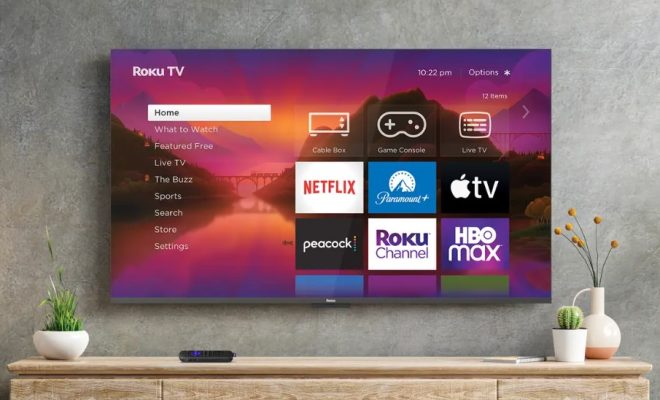
Roku TVs have become increasingly popular among TV enthusiasts in recent years, thanks to its ability to connect to the internet and stream content from various streaming services. Connecting your Android phone to a Roku TV can open up even more possibilities, allowing you to stream content from your phone directly onto your TV. In this article, we’ll discuss how to connect an Android phone to a Roku TV.

Step 1: Check for Compatibility

Before you start, make sure that your Roku TV and Android phone are both compatible with wireless display technology. Your Roku TV should have a screen mirroring feature, which can be found under the System settings menu. On your Android phone, go to the device’s settings and look for “Cast Screen” or “Screen Mirroring.”

Step 2: Turn on Screen Mirroring on Your Roku TV

To turn on screen mirroring on your Roku TV, go to the Settings menu and select “System.” From here, select “Screen Mirroring” and set it to “Always Allow” or “Prompt.” If you choose “Prompt,” you’ll be asked to allow or deny the connection every time a device attempts to connect to the TV.

Step 3: Connect Your Android Phone to Your Roku TV

On your Android phone, swipe down from the top of the screen to view the Quick Settings menu. Look for the “Cast Screen” or “Screen Mirroring” icon and tap on it. Your phone will scan for available devices to connect to, and your Roku TV should appear in the list. Tap on your Roku TV to start the connection.

Step 4: Enjoy Your Content on the Big Screen

Once your device is connected, your TV will display everything that’s on your phone’s screen. You can use your phone to control playback and volume, or you can use the TV remote to do so. You can now stream your favorite videos, music, photos, and other content from your phone directly onto your TV.

In conclusion, connecting an Android phone to a Roku TV is a straightforward process that can open up a whole new world of streaming possibilities. By following these simple steps, you can enjoy your favorite content on the big screen.  

Previous Article

How to Add Page Numbers in PowerPoint

Next Article

What Is Accelerated Graphics Port (AGP)?

Matthew Lynch

Related articles More from author

  • Assistive Technology

    How to Change Your Background on Microsoft Teams

    June 11, 2023
    By Matthew Lynch
  • Assistive Technology

    How to Change the Region on an iPhone

    June 14, 2023
    By Matthew Lynch
  • Assistive Technology

    How to Run EXE Files on a Mac

    June 6, 2023
    By Matthew Lynch
  • Assistive Technology

    Apple Watch Apps Not Installing? How to Fix the Problem

    June 8, 2023
    By Matthew Lynch
  • Assistive Technology

    How to Make an Image Background Transparent in PowerPoint

    June 7, 2023
    By Matthew Lynch
  • Assistive Technology

    The Best Picture Settings for Samsung 4K TV

    June 8, 2023
    By Matthew Lynch

Search

Login & Registration

  • Log in
  • Entries feed
  • Comments feed
  • WordPress.org

Newsletter

Signup for The Tech Edvocate Newsletter and have the latest in EdTech news and opinion delivered to your email address!

About Us

Since technology is not going anywhere and does more good than harm, adapting is the best course of action. That is where The Tech Edvocate comes in. We plan to cover the PreK-12 and Higher Education EdTech sectors and provide our readers with the latest news and opinion on the subject. From time to time, I will invite other voices to weigh in on important issues in EdTech. We hope to provide a well-rounded, multi-faceted look at the past, present, the future of EdTech in the US and internationally.

We started this journey back in June 2016, and we plan to continue it for many more years to come. I hope that you will join us in this discussion of the past, present and future of EdTech and lend your own insight to the issues that are discussed.

Newsletter

Signup for The Tech Edvocate Newsletter and have the latest in EdTech news and opinion delivered to your email address!

Contact Us

The Tech Edvocate
910 Goddin Street
Richmond, VA 23231
(601) 630-5238
[email protected]

Copyright © 2026 Matthew Lynch. All rights reserved.