The Tech Edvocate

Top Menu

  • Advertisement
  • Apps
  • Home Page
  • Home Page Five (No Sidebar)
  • Home Page Four
  • Home Page Three
  • Home Page Two
  • Home Tech2
  • Icons [No Sidebar]
  • Left Sidbear Page
  • Lynch Educational Consulting
  • My Account
  • My Speaking Page
  • Newsletter Sign Up Confirmation
  • Newsletter Unsubscription
  • Our Brands
  • Page Example
  • Privacy Policy
  • Protected Content
  • Register
  • Request a Product Review
  • Shop
  • Shortcodes Examples
  • Signup
  • Start Here
    • Governance
    • Careers
    • Contact Us
  • Terms and Conditions
  • The Edvocate
  • The Tech Edvocate Product Guide
  • Topics
  • Write For Us
  • Advertise

Main Menu

  • Start Here
    • Our Brands
    • Governance
      • Lynch Educational Consulting, LLC.
      • Dr. Lynch’s Personal Website
      • Careers
    • Write For Us
    • The Tech Edvocate Product Guide
    • Contact Us
    • Books
    • Edupedia
    • Post a Job
    • The Edvocate Podcast
    • Terms and Conditions
    • Privacy Policy
  • Topics
    • Assistive Technology
    • Child Development Tech
    • Early Childhood & K-12 EdTech
    • EdTech Futures
    • EdTech News
    • EdTech Policy & Reform
    • EdTech Startups & Businesses
    • Higher Education EdTech
    • Online Learning & eLearning
    • Parent & Family Tech
    • Personalized Learning
    • Product Reviews
  • Advertise
  • Tech Edvocate Awards
  • The Edvocate
  • Pedagogue
  • School Ratings

logo

The Tech Edvocate

  • Start Here
    • Our Brands
    • Governance
      • Lynch Educational Consulting, LLC.
      • Dr. Lynch’s Personal Website
        • My Speaking Page
      • Careers
    • Write For Us
    • The Tech Edvocate Product Guide
    • Contact Us
    • Books
    • Edupedia
    • Post a Job
    • The Edvocate Podcast
    • Terms and Conditions
    • Privacy Policy
  • Topics
    • Assistive Technology
    • Child Development Tech
    • Early Childhood & K-12 EdTech
    • EdTech Futures
    • EdTech News
    • EdTech Policy & Reform
    • EdTech Startups & Businesses
    • Higher Education EdTech
    • Online Learning & eLearning
    • Parent & Family Tech
    • Personalized Learning
    • Product Reviews
  • Advertise
  • Tech Edvocate Awards
  • The Edvocate
  • Pedagogue
  • School Ratings
  • A Visitor’s Guide to Fresno (CA), United States

  • A Visitors Guide to New Orleans (LA), United States

  • A Visitors Guide to Sacramento (CA), United States

  • A Visitors Guide to Lyon, France

  • JisuLife Ultra2 Portable Fan: A Powerful Multi-Function Cooling Solution

  • A Visitors Guide to Viña del Mar, Chile

  • A Visitors Guide to Århus, Denmark

  • A Visitors Guide to Bakersfield (CA), United States

  • A Visitors Guide to Aurora (CO), United States

  • A Visitor’s Guide to Toledo (OH), United States

Digital & Mobile Technology
Home›Digital & Mobile Technology›How to Connect a Laptop to a TV via HDMI

How to Connect a Laptop to a TV via HDMI
By Matthew Lynch
June 1, 2023
0
Spread the love

Connecting your laptop to your TV via HDMI cable is an excellent way to stream content, play games on a bigger screen, or make a presentation. It’s a straightforward process, although some users may find it complex if they have never done it before. Read on for a step-by-step guide on how to connect a laptop to a TV via HDMI.

Step 1: Check both the laptop and the TV

Before you begin, check if both the laptop and the TV have an HDMI port. Most modern laptops and TV sets have an HDMI port, but it’s always a good idea to check first. HDMI ports usually have the ‘HDMI’ logo beside them, so keep an eye out for that.

Step 2: Ensure your TV is switched to the correct input source

Once you’ve established that your TV has an HDMI port, turn it on and make sure it’s set to the correct input source. With most TV sets, you can navigate to the input source by pressing the ‘Input’ or ‘Source’ button on the remote. It’s crucial to make sure it’s on the HDMI input option as there might be several options to choose from. If it’s correctly set, you should see a message that reads, “No Signal.”

Step 3: Connect your laptop to your TV via HDMI

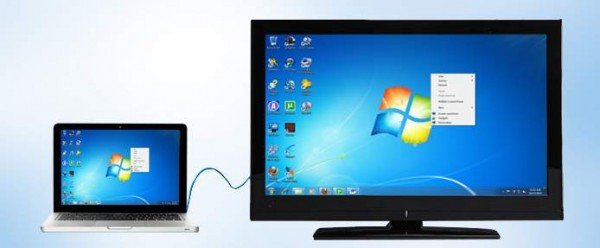
Take your HDMI cable and connect one end to your laptop’s HDMI port and the other end to your TV’s HDMI port. If your laptop has a USB-C port, you will need a USB-C to HDMI adapter. Once the cable is connected, the TV should immediately recognize the laptop, and the laptop screen should be displayed on the TV screen.

Step 4: Adjust the laptop screen display settings

After connecting the laptop to the TV, the display settings may need to be adjusted to suit the TV display size. To do this, right-click on the laptop desktop screen and select ‘Display settings.’ While on the display settings, click on ‘Detect’ under the ‘Multiple displays’ section to allow your laptop to recognize the TV screen. Next, choose the TV display and adjust the resolution settings to match that of the TV screen display.

Step 5: Enjoy

Finally, sit back, relax, and enjoy using your laptop on the big screen!

In conclusion, connecting your laptop to your TV via HDMI is a straightforward and effective way to boost your viewing display. Follow these simple steps, and you’ll be up and running in no time. If you experience any difficulties, be sure to consult your laptop or TV’s user manual or seek assistance from a professional.


Previous Article

How to Change the Voicemail Greeting on ...

Next Article

How to Stop Blocked Numbers Leaving Voicemail ...

Matthew Lynch

Related articles More from author

  • Digital & Mobile Technology

    What Is Depop? Everything You Need to Know About the Resale App

    June 6, 2023
    By Matthew Lynch
  • Digital & Mobile Technology

    Need a Web Scraper? These Chrome Extensions Make It Easy

    June 14, 2023
    By Matthew Lynch
  • Digital & Mobile Technology

    Guide to Making Facebook Photos Private

    July 29, 2023
    By Matthew Lynch
  • Digital & Mobile Technology

    What Is a Gateway and Should You Use One for Your Home Internet?

    June 21, 2023
    By Matthew Lynch
  • Digital & Mobile Technology

    How to Make a Shield in Minecraft

    May 30, 2023
    By Matthew Lynch
  • Digital & Mobile Technology

    60+ of the Best Siri Commands to Use on Your iPhone

    August 2, 2023
    By Matthew Lynch

Search

Login & Registration

  • Register
  • Log in
  • Entries feed
  • Comments feed
  • WordPress.org

Newsletter

Signup for The Tech Edvocate Newsletter and have the latest in EdTech news and opinion delivered to your email address!

About Us

Since technology is not going anywhere and does more good than harm, adapting is the best course of action. That is where The Tech Edvocate comes in. We plan to cover the PreK-12 and Higher Education EdTech sectors and provide our readers with the latest news and opinion on the subject. From time to time, I will invite other voices to weigh in on important issues in EdTech. We hope to provide a well-rounded, multi-faceted look at the past, present, the future of EdTech in the US and internationally.

We started this journey back in June 2016, and we plan to continue it for many more years to come. I hope that you will join us in this discussion of the past, present and future of EdTech and lend your own insight to the issues that are discussed.

Newsletter

Signup for The Tech Edvocate Newsletter and have the latest in EdTech news and opinion delivered to your email address!

Contact Us

The Tech Edvocate
910 Goddin Street
Richmond, VA 23231
(601) 630-5238
[email protected]

Copyright © 2025 Matthew Lynch. All rights reserved.