The Tech Edvocate

Top Menu

  • Advertisement
  • Apps
  • Home Page
  • Home Page Five (No Sidebar)
  • Home Page Four
  • Home Page Three
  • Home Page Two
  • Home Tech2
  • Icons [No Sidebar]
  • Left Sidbear Page
  • Lynch Educational Consulting
  • My Account
  • My Speaking Page
  • Newsletter Sign Up Confirmation
  • Newsletter Unsubscription
  • Our Brands
  • Page Example
  • Privacy Policy
  • Protected Content
  • Register
  • Request a Product Review
  • Shop
  • Shortcodes Examples
  • Signup
  • Start Here
    • Governance
    • Careers
    • Contact Us
  • Terms and Conditions
  • The Edvocate
  • The Tech Edvocate Product Guide
  • Topics
  • Write For Us
  • Advertise

Main Menu

  • Start Here
    • Our Brands
    • Governance
      • Lynch Educational Consulting, LLC.
      • Dr. Lynch’s Personal Website
      • Careers
    • Write For Us
    • The Tech Edvocate Product Guide
    • Contact Us
    • Books
    • Edupedia
    • Post a Job
    • The Edvocate Podcast
    • Terms and Conditions
    • Privacy Policy
  • Topics
    • Assistive Technology
    • Child Development Tech
    • Early Childhood & K-12 EdTech
    • EdTech Futures
    • EdTech News
    • EdTech Policy & Reform
    • EdTech Startups & Businesses
    • Higher Education EdTech
    • Online Learning & eLearning
    • Parent & Family Tech
    • Personalized Learning
    • Product Reviews
  • Advertise
  • Tech Edvocate Awards
  • The Edvocate
  • Pedagogue
  • School Ratings

logo

The Tech Edvocate

  • Start Here
    • Our Brands
    • Governance
      • Lynch Educational Consulting, LLC.
      • Dr. Lynch’s Personal Website
        • My Speaking Page
      • Careers
    • Write For Us
    • The Tech Edvocate Product Guide
    • Contact Us
    • Books
    • Edupedia
    • Post a Job
    • The Edvocate Podcast
    • Terms and Conditions
    • Privacy Policy
  • Topics
    • Assistive Technology
    • Child Development Tech
    • Early Childhood & K-12 EdTech
    • EdTech Futures
    • EdTech News
    • EdTech Policy & Reform
    • EdTech Startups & Businesses
    • Higher Education EdTech
    • Online Learning & eLearning
    • Parent & Family Tech
    • Personalized Learning
    • Product Reviews
  • Advertise
  • Tech Edvocate Awards
  • The Edvocate
  • Pedagogue
  • School Ratings
  • Is the AI Bubble Bursting? OpenAI’s Funding Woes Revealed

  • Why Millions Are Skipping College for These 7 Online Courses Right Now

  • The Astonishing Truth About PS5 Pro vs Xbox Ally X Financing

  • The Urgent Truth About 2026 Privacy Laws: Why Your Business Could Face Catastrophic Fines

  • Shocking: Esports Pros Reveal the Critical Steps to Protect Your Earnings

  • The Staggering Truth About These New Weight Loss Drugs — And Why You Need to Know

  • The Quiet Crisis: Why Your Auto Loan Interest Rates Are Still Skyrocketing

  • Elvis’s Ghost Haunts AI: The $41 Million Anthropic Copyright Lawsuit Explained

  • 7 Micro-SaaS Tools Quietly Transforming Freelance Productivity — Don’t Miss Out!

  • Who Really Owns the Moon? The Shocking Truth About Lunar Real Estate

Digital & Mobile Technology
Home›Digital & Mobile Technology›How to “Clean” a Flash Drive, SD Card, or Internal Drive to Fix Partition and Capacity Problems

How to “Clean” a Flash Drive, SD Card, or Internal Drive to Fix Partition and Capacity Problems
By Matthew Lynch
May 16, 2023
0
Spread the love

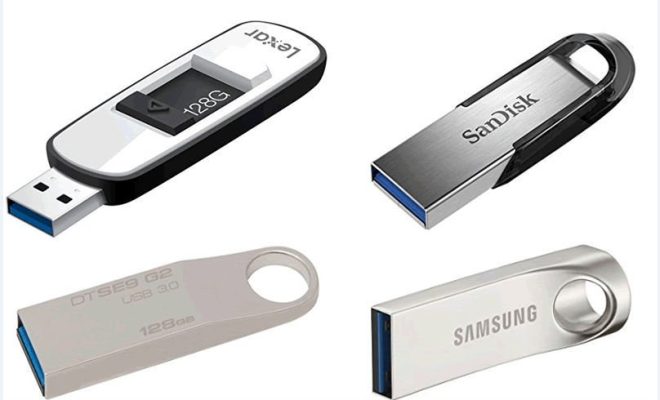
Flash drives, SD cards, and internal drives are all valuable digital storage devices that offer convenience and increased portability, making them popular choices for storing important files and data. However, these devices can sometimes encounter partition and capacity problems, leading to errors and decreased performance. In such cases, cleaning the devices may help resolve issues and restore their functionality.

Here’s how to clean a flash drive, SD card, or internal drive:

Step 1: Back Up Important Data

Before proceeding with the cleaning process, it is crucial to back up all critical data on the drive. This ensures that no data is lost in case of errors or accidental corruption during cleaning. Make a backup copy of all valuable files and data stored on the drive and store them in a separate, safe location.

Step 2: Connect the Device to a Computer

Connect the device to a computer using a USB cable, memory card reader, or other compatible devices. Always use a clean, reliable cable or card reader to prevent potential damage to the device or data loss. Ensure that the computer detects the device and displays its File Explorer window.

Step 3: Open Disk Management (Windows)

Click Start, type “disk management” in the search box, and select the “Create and format hard disk partitions” option from the dropdown list. Alternatively, press the Windows key + X and select Disk Management from the list.

Step 4: Identify the Device in Disk Management

In the Disk Management window, look for the drive that matches the device you want to clean. Locate the device’s name, drive letter, and storage capacity in the list of available drives. Note that some devices may require a driver installation or firmware update to function correctly.

Step 5: Delete the Partition and Reformat the Drive

Right-click the device, and select the “Delete Volume” option from the dropdown list. Confirm the deletion by clicking Yes on the pop-up window. Once the partition is removed, right-click the unallocated space on the device, select “New Simple Volume,” and follow the prompts to format the device. Ensure that the file system is set to NTFS or exFAT, as these are the most commonly supported file systems.

Step 6: Safely Eject the Device

Once formatting is complete, safely eject the drive by right-clicking its icon in the notification area, selecting “Eject,” and physically disconnecting the device from the computer. This ensures that all changes are saved, and the device is ready for use.

In summary, cleaning a flash drive, SD card, or internal drive is a straightforward process that takes only a few steps. Always back up important data before starting, identify the device in Disk Management, delete the partition, reform the device, and safely eject it. With these easy steps, you can resolve partition and capacity problems and restore your devices to optimal performance.

Previous Article

How Secure Are Face ID and Touch ...

Next Article

How Secure Is Your Home Wi-Fi?

Matthew Lynch

Related articles More from author

  • Digital & Mobile Technology

    Car Cassette Adapters: How They Work, and How to Use Them

    July 24, 2023
    By Matthew Lynch
  • Digital & Mobile Technology

    GPU Fans Not Spinning? Here’s How to Fix It

    September 8, 2023
    By Matthew Lynch
  • Digital & Mobile Technology

    Are Email Addresses Case Sensitive?

    June 8, 2023
    By Matthew Lynch
  • Digital & Mobile Technology

    How to Lock the Photos App on Your iPhone

    August 5, 2023
    By Matthew Lynch
  • Digital & Mobile Technology

    Windows Admin: Using Event Viewer to Troubleshoot Problems

    May 29, 2023
    By Matthew Lynch
  • Digital & Mobile Technology

    Best Mechanical Keyboards for Mac

    August 4, 2023
    By Matthew Lynch

Search

Login & Registration

  • Log in
  • Entries feed
  • Comments feed
  • WordPress.org

Newsletter

Signup for The Tech Edvocate Newsletter and have the latest in EdTech news and opinion delivered to your email address!

About Us

Since technology is not going anywhere and does more good than harm, adapting is the best course of action. That is where The Tech Edvocate comes in. We plan to cover the PreK-12 and Higher Education EdTech sectors and provide our readers with the latest news and opinion on the subject. From time to time, I will invite other voices to weigh in on important issues in EdTech. We hope to provide a well-rounded, multi-faceted look at the past, present, the future of EdTech in the US and internationally.

We started this journey back in June 2016, and we plan to continue it for many more years to come. I hope that you will join us in this discussion of the past, present and future of EdTech and lend your own insight to the issues that are discussed.

Newsletter

Signup for The Tech Edvocate Newsletter and have the latest in EdTech news and opinion delivered to your email address!

Contact Us

The Tech Edvocate
910 Goddin Street
Richmond, VA 23231
(601) 630-5238
[email protected]

Copyright © 2026 Matthew Lynch. All rights reserved.