The Tech Edvocate

Top Menu

  • Advertisement
  • Apps
  • Home Page
  • Home Page Five (No Sidebar)
  • Home Page Four
  • Home Page Three
  • Home Page Two
  • Home Tech2
  • Icons [No Sidebar]
  • Left Sidbear Page
  • Lynch Educational Consulting
  • My Account
  • My Speaking Page
  • Newsletter Sign Up Confirmation
  • Newsletter Unsubscription
  • Our Brands
  • Page Example
  • Privacy Policy
  • Protected Content
  • Register
  • Request a Product Review
  • Shop
  • Shortcodes Examples
  • Signup
  • Start Here
    • Governance
    • Careers
    • Contact Us
  • Terms and Conditions
  • The Edvocate
  • The Tech Edvocate Product Guide
  • Topics
  • Write For Us
  • Advertise

Main Menu

  • Start Here
    • Our Brands
    • Governance
      • Lynch Educational Consulting, LLC.
      • Dr. Lynch’s Personal Website
      • Careers
    • Write For Us
    • The Tech Edvocate Product Guide
    • Contact Us
    • Books
    • Edupedia
    • Post a Job
    • The Edvocate Podcast
    • Terms and Conditions
    • Privacy Policy
  • Topics
    • Assistive Technology
    • Child Development Tech
    • Early Childhood & K-12 EdTech
    • EdTech Futures
    • EdTech News
    • EdTech Policy & Reform
    • EdTech Startups & Businesses
    • Higher Education EdTech
    • Online Learning & eLearning
    • Parent & Family Tech
    • Personalized Learning
    • Product Reviews
  • Advertise
  • Tech Edvocate Awards
  • The Edvocate
  • Pedagogue
  • School Ratings

logo

The Tech Edvocate

  • Start Here
    • Our Brands
    • Governance
      • Lynch Educational Consulting, LLC.
      • Dr. Lynch’s Personal Website
        • My Speaking Page
      • Careers
    • Write For Us
    • The Tech Edvocate Product Guide
    • Contact Us
    • Books
    • Edupedia
    • Post a Job
    • The Edvocate Podcast
    • Terms and Conditions
    • Privacy Policy
  • Topics
    • Assistive Technology
    • Child Development Tech
    • Early Childhood & K-12 EdTech
    • EdTech Futures
    • EdTech News
    • EdTech Policy & Reform
    • EdTech Startups & Businesses
    • Higher Education EdTech
    • Online Learning & eLearning
    • Parent & Family Tech
    • Personalized Learning
    • Product Reviews
  • Advertise
  • Tech Edvocate Awards
  • The Edvocate
  • Pedagogue
  • School Ratings
  • A Visitors Guide to Long Beach (CA), United States

  • A Visitor’s Guide to Fresno (CA), United States

  • A Visitors Guide to New Orleans (LA), United States

  • A Visitors Guide to Sacramento (CA), United States

  • A Visitors Guide to Lyon, France

  • JisuLife Ultra2 Portable Fan: A Powerful Multi-Function Cooling Solution

  • A Visitors Guide to Viña del Mar, Chile

  • A Visitors Guide to Århus, Denmark

  • A Visitors Guide to Bakersfield (CA), United States

  • A Visitors Guide to Aurora (CO), United States

Tech Advice
Home›Tech Advice›How to Change Your Windows 11 Wallpaper in 5 Easy Steps

How to Change Your Windows 11 Wallpaper in 5 Easy Steps
By Matthew Lynch
July 17, 2023
0
Spread the love

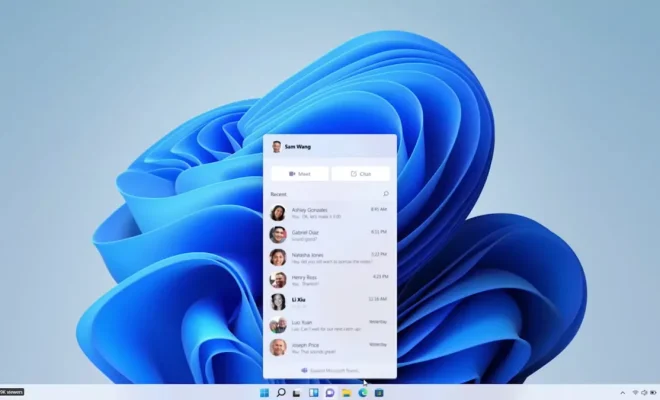
Windows 11 introduces a fresh and modern user interface, including the ability to customize your desktop wallpaper. Personalizing your computer’s background with an image of your choice can enhance visual appeal and reflect your style. If you’re eager to change your Windows 11 wallpaper, follow these simple steps:

Step 1: Access Settings

To begin changing your Windows 11 wallpaper:

1. Click on the Start button located in the bottom-left corner of the screen or press the Windows key on your keyboard.

2. From the Start menu, select “Settings” represented by a gear-shaped icon.

Step 2: Open Personalization Options

Within Settings:

1. Look for “Personalization” in the left-hand sidebar and click on it.

2. A new window will open with various customization options.

Alternatively:

• You can right-click anywhere on an empty space on your desktop and select “Personalize” from the context menu that appears.

Step 3: Choose Background Settings

In the Personalization settings window:

1. Select “Background” from among different customization categories listed (e.g., General, Colors).

2 . You will see preview thumbnails displaying available wallpapers along with additional options like solid colors or slideshow backgrounds.

Step 4: Select Your New Wallpaper

To choose a new wallpaper:

1 . Browse through available wallpapers by scrolling vertically within thumbnail previews. – By default, you’ll find several pre-installed images categorized as “Windows,” but you can also click on “+ Add Picture” if you want to use an image of your own.

2 . Clicking any thumbnail will instantly apply that image as your new desktop background.

If using “+ Add Picture”:

• Navigate through file explorer windows until finding desired image file—select it then click/tap Choose picture.
Please note that selecting multiple pictures within slideshow category enables automatic rotation of wallpapers at specified intervals.

Step 5: Customize Wallpaper Settings (Optional)

Windows 11 also offers additional customization options for your wallpaper:

1 . To access these settings, click on “Choose a fit” located below thumbnail previews.

– Options include Fill, Fit, Stretch, Tile, and Center—each providing different methods to adjust how the selected wallpaper appears on your desktop.

2 . After choosing a desired fit option:

– Close the Personalization window to save changes automatically.

By following these five easy steps, you can quickly change your Windows 11 wallpaper and give your computer’s desktop a fresh look that suits your style and preferences. Experiment with different images or even use slideshow backgrounds to keep things dynamic and visually appealing.

Remember that changing wallpapers is not limited to just pictures provided by Windows—you can always add personal images from your own collection or download new ones online. Enjoy customizing your Windows 11 experience!


Previous Article

How to Create a Facebook Profile Video

Next Article

It’s Free and Easy to Combine Multiple ...

Matthew Lynch

Related articles More from author

  • Tech Advice

    The Best Apple Arcade Games for 2023

    July 19, 2023
    By Matthew Lynch
  • Tech Advice

    9 Ways to Fix White Screen on Samsung and Other Android Phones

    February 21, 2024
    By Matthew Lynch
  • Tech Advice

    10 Healthy and Affordable Meal Prepping Tips for a Budget-Friendly Lifestyle

    July 7, 2023
    By Matthew Lynch
  • Tech Advice

    WD Black P10 Game Drive Review

    July 20, 2023
    By Matthew Lynch
  • Tech Advice

    No More Night Sweats: Reasons Why You Sleep Hot and 4 Ways to Stop It

    July 7, 2023
    By Matthew Lynch
  • Tech Advice

    Best PSVR 2 Games of 2023: Resident Evil, Gran Turismo and more

    July 15, 2023
    By Matthew Lynch

Search

Login & Registration

  • Register
  • Log in
  • Entries feed
  • Comments feed
  • WordPress.org

Newsletter

Signup for The Tech Edvocate Newsletter and have the latest in EdTech news and opinion delivered to your email address!

About Us

Since technology is not going anywhere and does more good than harm, adapting is the best course of action. That is where The Tech Edvocate comes in. We plan to cover the PreK-12 and Higher Education EdTech sectors and provide our readers with the latest news and opinion on the subject. From time to time, I will invite other voices to weigh in on important issues in EdTech. We hope to provide a well-rounded, multi-faceted look at the past, present, the future of EdTech in the US and internationally.

We started this journey back in June 2016, and we plan to continue it for many more years to come. I hope that you will join us in this discussion of the past, present and future of EdTech and lend your own insight to the issues that are discussed.

Newsletter

Signup for The Tech Edvocate Newsletter and have the latest in EdTech news and opinion delivered to your email address!

Contact Us

The Tech Edvocate
910 Goddin Street
Richmond, VA 23231
(601) 630-5238
[email protected]

Copyright © 2025 Matthew Lynch. All rights reserved.