The Tech Edvocate

Top Menu

  • Advertisement
  • Apps
  • Home Page
  • Home Page Five (No Sidebar)
  • Home Page Four
  • Home Page Three
  • Home Page Two
  • Home Tech2
  • Icons [No Sidebar]
  • Left Sidbear Page
  • Lynch Educational Consulting
  • My Account
  • My Speaking Page
  • Newsletter Sign Up Confirmation
  • Newsletter Unsubscription
  • Our Brands
  • Page Example
  • Privacy Policy
  • Protected Content
  • Register
  • Request a Product Review
  • Shop
  • Shortcodes Examples
  • Signup
  • Start Here
    • Governance
    • Careers
    • Contact Us
  • Terms and Conditions
  • The Edvocate
  • The Tech Edvocate Product Guide
  • Topics
  • Write For Us
  • Advertise

Main Menu

  • Start Here
    • Our Brands
    • Governance
      • Lynch Educational Consulting, LLC.
      • Dr. Lynch’s Personal Website
      • Careers
    • Write For Us
    • The Tech Edvocate Product Guide
    • Contact Us
    • Books
    • Edupedia
    • Post a Job
    • The Edvocate Podcast
    • Terms and Conditions
    • Privacy Policy
  • Topics
    • Assistive Technology
    • Child Development Tech
    • Early Childhood & K-12 EdTech
    • EdTech Futures
    • EdTech News
    • EdTech Policy & Reform
    • EdTech Startups & Businesses
    • Higher Education EdTech
    • Online Learning & eLearning
    • Parent & Family Tech
    • Personalized Learning
    • Product Reviews
  • Advertise
  • Tech Edvocate Awards
  • The Edvocate
  • Pedagogue
  • School Ratings

logo

The Tech Edvocate

  • Start Here
    • Our Brands
    • Governance
      • Lynch Educational Consulting, LLC.
      • Dr. Lynch’s Personal Website
        • My Speaking Page
      • Careers
    • Write For Us
    • The Tech Edvocate Product Guide
    • Contact Us
    • Books
    • Edupedia
    • Post a Job
    • The Edvocate Podcast
    • Terms and Conditions
    • Privacy Policy
  • Topics
    • Assistive Technology
    • Child Development Tech
    • Early Childhood & K-12 EdTech
    • EdTech Futures
    • EdTech News
    • EdTech Policy & Reform
    • EdTech Startups & Businesses
    • Higher Education EdTech
    • Online Learning & eLearning
    • Parent & Family Tech
    • Personalized Learning
    • Product Reviews
  • Advertise
  • Tech Edvocate Awards
  • The Edvocate
  • Pedagogue
  • School Ratings
  • 100 Best Apps for Building a Second Brain

  • 100 Best Apps for Second Brain

  • A Casino Bonus Is Not Its Cash Value: How to Read Reviews Clearly

  • 100 Best Apps for Zettelkasten

  • 100 Best Apps for Bullet Journaling

  • 100 Best Apps for Getting Things Done

  • 100 Best Apps for GTD Method

  • 100 Best Apps for Overcoming Writer’s Block

  • 100 Best Apps for Beating Procrastination

  • 100 Best Apps for Fighting Distractions

Digital & Mobile Technology
Home›Digital & Mobile Technology›How to Change the Trusted Phone Number for Your Apple ID

How to Change the Trusted Phone Number for Your Apple ID
By Matthew Lynch
June 15, 2023
0
Spread the love

Changing the trusted phone number associated with your Apple ID is important if you want to ensure the safety and privacy of your Apple account. With the increase in cyber attacks and the use of personal information for fraudulent activities, it is crucial that you regularly update your trusted phone number to prevent unauthorized access to your Apple ID account. If you’re wondering how to change the trusted phone number associated with your Apple ID, then follow the steps outlined below.

Step 1: Open your Apple ID Account Page

The first step towards changing the trusted phone number for your Apple ID is to access your Apple ID account page. To do this, open the web browser on your computer or smartphone and type in appleid.apple.com. You’ll be asked to enter your Apple ID credentials to log in to your account page.

Step 2: Navigate to Security Settings

Once you’re logged in to your Apple ID account, navigate to the “Security” section of your account page. You’ll find this option located in the left-hand sidebar menu.

Step 3: Edit the Trusted Phone Number

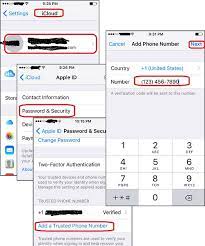
Scroll down to the “Two-Step Verification” or “Two-Factor Authentication” section and click “Edit” to change the trusted phone number associated with your account. If you have Two-Step Verification enabled, you will need to answer some security questions to proceed.

Step 4: Select “Add a Trusted Phone Number”

Under the “Trusted Phone Numbers” section, you’ll see your current trusted phone numbers listed. Click on “Add a Trusted Phone Number” to add a new phone number.

Step 5: Enter Your New Phone Number

Enter the new phone number you want to use as your trusted number. You can enter the number manually or choose to receive a verification code to verify the number. Once you’ve entered your new number, click on “Continue”.

Step 6: Verify Your New Phone Number

Depending on whether you opted to receive a verification code, Apple will either send you a code to your new number or ask you to enter the code they sent you. Follow the instructions provided, and once you’ve verified your new number, it will be added to your list of trusted numbers.

Step 7: Remove the Old Phone Number

To ensure that only the new phone number can be used to verify your identity, you should remove the old phone number from the trusted numbers list. Click “Edit”, and beside the old phone number, click “Remove”.

In conclusion, changing the trusted phone number for your Apple ID account is a straightforward process that ensures the safety and security of your account. Follow the above steps to add a new phone number and remove the old one, and you’ll have peace of mind knowing that your account is well-protected from unauthorized access.


Previous Article

Why Are Graphics Cards So Expensive?

Next Article

How to Change HTML Font Size in ...

Matthew Lynch

Related articles More from author

  • Digital & Mobile Technology

    What Is the Client Server Runtime Process? Is It Important?

    June 13, 2023
    By Matthew Lynch
  • Digital & Mobile Technology

    How to Safely Sign Out of iCloud on a Mac, iPhone, or iPad

    June 23, 2023
    By Matthew Lynch
  • Digital & Mobile Technology

    What Is a Windows 10 Theme?

    July 4, 2023
    By Matthew Lynch
  • Digital & Mobile Technology

    How to Lock the Photos App on Your iPhone

    August 5, 2023
    By Matthew Lynch
  • Digital & Mobile Technology

    Marvel’s Netflix Shows, Reviewed and Ranked on Disney+

    June 21, 2023
    By Matthew Lynch
  • Digital & Mobile Technology

    The 9 Best Gifts to Buy for Animators in 2023

    June 15, 2023
    By Matthew Lynch

Search

Login & Registration

  • Log in
  • Entries feed
  • Comments feed
  • WordPress.org

Newsletter

Signup for The Tech Edvocate Newsletter and have the latest in EdTech news and opinion delivered to your email address!

About Us

Since technology is not going anywhere and does more good than harm, adapting is the best course of action. That is where The Tech Edvocate comes in. We plan to cover the PreK-12 and Higher Education EdTech sectors and provide our readers with the latest news and opinion on the subject. From time to time, I will invite other voices to weigh in on important issues in EdTech. We hope to provide a well-rounded, multi-faceted look at the past, present, the future of EdTech in the US and internationally.

We started this journey back in June 2016, and we plan to continue it for many more years to come. I hope that you will join us in this discussion of the past, present and future of EdTech and lend your own insight to the issues that are discussed.

Newsletter

Signup for The Tech Edvocate Newsletter and have the latest in EdTech news and opinion delivered to your email address!

Contact Us

The Tech Edvocate
910 Goddin Street
Richmond, VA 23231
(601) 630-5238
[email protected]

Copyright © 2026 Matthew Lynch. All rights reserved.