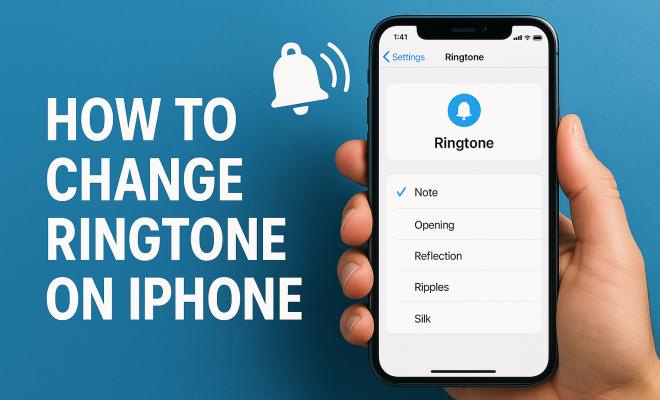
How to change ringtone on iPhone
“`html
For many iPhone users, the ringtone is more than just a sound; it’s a personal expression and a signal of identity. Whether you want to stand out in a crowd or just get a little tired of that classic ‘Marimba’, knowing how to change ringtone on iPhone is essential. Thankfully, Apple has made it relatively straightforward to customize your ringtone experience; however, many users are unaware of the various methods available. This article will guide you through seven different ways to change your iPhone ringtone, ensuring you find the perfect sound to match your personality.
1. Using the Settings App
The most direct way to change ringtone on iPhone is through the built-in Settings app. This method is suitable for users who prefer a quick solution without needing any additional software.
Start by opening the Settings app on your iPhone. Scroll down and tap on Sounds & Haptics. Then, select Ringtone. You’ll see a list of available ringtones that come pre-installed with your device. Simply tap on the ringtone you wish to use, and it will be set immediately. This method is ideal for casual users who want a quick and easy way to customize their notifications.
2. Using iTunes on Your Computer
If you’re looking to personalize your ringtone further, you might consider creating a custom ringtone using iTunes. This method allows you to use snippets from your favorite songs or audio files. Here’s how you can do it:
- Open iTunes on your computer and select the song you want to use.
- Right-click on the song and select Get Info. Go to the Options tab and set the start and stop times to create a 30-second clip.
- After creating the clip, right-click the song again and select Duplicate. Then, change the file extension from .m4a to .m4r, which is the format for ringtones.
- Drag the .m4r file back into iTunes and sync your iPhone.
This method provides more flexibility, allowing you to customize exactly how your ringtone sounds.
3. Using GarageBand to Create Custom Ringtones
If you own an iPhone, you likely have GarageBand installed. This app can be used to create stunning custom ringtones effortlessly. Not only is it user-friendly, but it also provides a variety of tools to edit audio.
First, open GarageBand and select Audio Recorder. Record yourself or use existing audio. Once you’ve created your desired sound, trim the audio clip to 30 seconds or less. Tap on the down arrow icon, choose My Songs, and hold down on your project to rename it. Once saved, tap on the share icon and select Ringtone. Finally, export your new ringtone, and it will be available in your settings.
This method is perfect for those who want to get creative and have fun with their ringtone choices.
4. Using Third-Party Apps
There are numerous third-party apps available for iPhone users that offer extensive libraries of ringtones and easy customization options. Apps like Zedge, Ringtone Maker, and Ringtones for iPhone allow users to browse through thousands of options.
To use these apps, simply download the app, browse through the catalog, and select a ringtone you like. Most apps will walk you through the steps to download and add the ringtone to your iPhone’s settings. While some apps may have a free version, premium features often require payment, so consider what you’re willing to spend based on your needs.
Utilizing third-party apps can be especially advantageous if you’re looking for a wider variety of sounds than what Apple provides.
5. Setting Ringtones for Specific Contacts
Are you tired of hearing the same ringtone for every call? You can personalize your experience even further by assigning unique ringtones for specific contacts. This way, you’ll immediately know who’s calling without even looking at your phone.
To set a unique ringtone for a contact, go to your Contacts app, select the contact you want to customize, and tap Edit. Scroll down and tap on Ringtone to select a new ringtone from your library. Once you’ve made your choice, tap Done. Now, you’ll recognize specific callers instantly, adding a personal touch that enhances your phone experience.
6. Vibration Settings: More Than Just Sound
While changing the sound is important, customizing the vibration patterns can elevate your ringtone experience as well. You can create unique vibrations that match your chosen ringtones or stand out on their own.
To adjust vibration settings, go to Settings, then Sounds & Haptics. Tap on Ringtone and select Vibration at the top. From here, you can choose from preset patterns or create your own by tapping Create New Vibration. This can be a great way to enhance your phone’s notifications, especially for situations where sound isn’t an option.
7. Siri: Change Ringtone with Voice Commands
In our fast-paced lives, convenience is key, and Siri is here to help. You can change the ringtone on iPhone using simple voice commands, making it an efficient choice when your hands are busy.
To use Siri for changing your ringtone, just activate Siri by saying, “Hey Siri” or pressing the side button. You can say something like, “Change my ringtone to [Ringtone Name]”. Siri will handle the rest, simplifying the process to just a quick command. This is particularly beneficial for users on the go or those who may not want to dig through settings.
8. Exploring the Apple Music Ringtone Library
With the integration of Apple Music, users now have access to a vast library of songs that can be transformed into ringtones. If you’re an Apple Music subscriber, you can select any song from the library and use it as your ringtone. This feature opens up new possibilities for ringtone customization, allowing you to choose from an extensive catalog of current hits and timeless classics.
To use a song from Apple Music as a ringtone, you’ll still need to follow a process similar to creating a custom ringtone in iTunes. First, find the song you want, create a 30-second clip, and then save it as a .m4r file. Sync it back to iTunes, and you’re all set! This option is especially appealing for those who love music and want their favorite songs to be the first thing they hear when their phone rings.
9. Using iCloud to Sync Ringtones Across Devices
If you own multiple Apple devices, you can easily sync your ringtones across all devices using iCloud. This feature is perfect for users who frequently switch between their iPhone, iPad, or Mac and want to maintain the same ringtone experience across all devices.
To set this up, ensure that you have iCloud Drive enabled on all your devices. Once you’ve created or downloaded your ringtones, they will automatically sync to all devices connected to the same iCloud account. This makes it easy to have a consistent and personalized ringtone experience, no matter which device you’re using.
10. Statistics on Ringtone Preferences
Understanding the popularity of different ringtones can provide insights into user preferences and trends. According to various surveys, approximately 60% of smartphone users prefer custom ringtones over default tones. Among these users, 45% create their own ringtones from music, while 30% utilize third-party apps. Interestingly, nostalgia plays a significant role in ringtone choices, with older users often favoring classic tones like ‘Marimba’ or ‘Opening’ while younger users lean towards contemporary pop songs and sounds from viral videos.
This data highlights the importance of personalization in the digital age, showing that people want their devices to reflect their identity and preferences. As technology continues to evolve, so will the methods available for creating and customizing ringtones, allowing users to express themselves even more.
11. Frequently Asked Questions (FAQ)
How do I change the default ringtone on my iPhone?
To change the default ringtone, go to Settings > Sounds & Haptics > Ringtone. Choose any of the available options to set a new default ringtone for incoming calls.
Can I use songs from my Spotify playlist as ringtones?
No, currently, Spotify does not allow users to download songs for use as ringtones. However, you can use songs from your local library or Apple Music.
What file format do I need for a custom ringtone?
Custom ringtones for iPhone must be in .m4r format. You can convert audio files to this format using various software or apps.
Are there any free ringtone apps available?
Yes, apps like Zedge offer free ringtones. Just be sure to check the permissions and the app’s reputation before downloading.
Can I use voice memos as ringtones?
Yes, you can create a ringtone from a voice memo. Just export the memo as an audio file, convert it to .m4r format, and sync it to your iPhone.
12. Considerations for Choosing a Ringtone
When selecting a ringtone, there are a few factors to consider to ensure you pick the best one for your lifestyle. First, think about your environment. If you’re often in quiet places, you might want a softer tone that won’t disturb others. On the other hand, if you’re frequently in loud settings, a more distinct ringtone can help ensure you hear your notifications.
Another consideration is the tone’s length. Shorter ringtones can be more effective, as they can grab attention quickly without being overly intrusive. Additionally, consider the emotional response you want to evoke. A cheerful song might uplift your mood, while a calm melody can provide a sense of peace. Ultimately, your ringtone should resonate with who you are and how you wish to be represented in your daily interactions.
13. Creating a Ringtone from a Video
Did you know you can also create a ringtone from a video? If you have a favorite scene or song from a video, you can extract the audio and turn it into a ringtone. There are various apps available, such as iMovie or third-party video editing software, that can help you cut the audio to your desired length. Once you have your audio extracted, follow the same process of converting it to .m4r and syncing it to your iPhone. This can add a unique touch to your ringtone selection.
14. Best Practices for Ringtone Management
As your ringtone library grows, managing your selections can become challenging. Here are some best practices to keep your ringtones organized:
- Regularly Review Your Selections: Periodically check which ringtones you still enjoy and which you may want to remove.
- Create Categories: Group ringtones by mood, genre, or purpose (like work vs. personal) to make it easier to find what you need.
- Backup Your Ringtones: Consider keeping a backup of your custom ringtones on your computer or in cloud storage. This ensures they are safe and easily accessible if you ever need to restore them.
15. How to Share Ringtones with Friends
If you’ve created a fantastic ringtone and want to share it with friends, you can do so easily! Here’s how:
- Export the ringtone from your iTunes or GarageBand as a .m4r file.
- Send the file via email or a cloud service such as Dropbox or Google Drive.
- Your friend will need to download the file, then add it to their iTunes, sync it with their iPhone, and they’re good to go!
This can be a fun way to share unique sounds and personalize each other’s devices.
16. Future of Ringtones
As technology evolves, so does the way we think about ringtones. With advancements in AI and sound design, we can expect more innovative ways to create ringtones that can respond to our environments or moods. Imagine a ringtone that changes based on your location, or one that adapts its tone depending on the time of day. This could provide a more personalized experience, making your iPhone feel truly unique to you.
Additionally, with the growing popularity of smart home devices, we might see integration where your ringtone can sync with other devices, creating a multi-sensory notification system that enhances your overall user experience.
17. Conclusion
Changing the ringtone on your iPhone doesn’t have to be a mundane task. With these numerous methods and tips, you can explore your creativity, personalize your device, and enjoy a sound that truly represents you. Whether you stick with the basics or dive into custom audio creation, there’s a solution for everyone. Don’t just settle for the default: take the time to experiment with your ringtone settings and find something that brings a smile to your face every time your phone rings.
“`
Trending Now
Frequently Asked Questions
How do I change the ringtone on my iPhone?
To change the ringtone on your iPhone, open the Settings app, go to Sounds & Haptics, and tap Ringtone. You'll see a list of available ringtones; simply select the one you want to use.
Can I create a custom ringtone for my iPhone?
Yes, you can create a custom ringtone using iTunes on your computer. By editing a song's start and stop times, you can create a 30-second clip and save it in the .m4r format to use as a ringtone.
What are the steps to set a ringtone using iTunes?
To set a ringtone using iTunes, select a song, edit its info to create a clip, change the file extension from .m4a to .m4r, and then sync it with your iPhone. This allows for more personalized ringtones.
Are there free ringtones available for iPhone?
Yes, there are many free ringtones available for iPhone. You can find them on various websites or use apps that offer free ringtone downloads, which can then be synced to your device via iTunes.
How can I preview ringtones on my iPhone?
To preview ringtones on your iPhone, go to Settings, tap Sounds & Haptics, and then select Ringtone. You can tap on each ringtone option to hear a preview before selecting it as your default ringtone.
Agree or disagree? Drop a comment and tell us what you think.