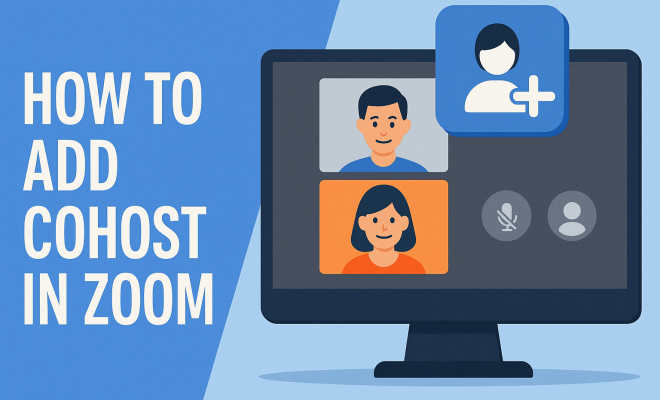
How to add cohost in Zoom
“`html
Zoom has revolutionized the way we connect, collaborate, and communicate, especially in a world that has become increasingly remote. One of the essential features that enhance Zoom meetings is the ability to add a cohost in Zoom. This functionality allows for smoother management of meetings, especially when dealing with larger groups or complex presentations. In this comprehensive guide, we’ll explore the importance of cohosting, the steps to add a cohost, and best practices to make the most out of this powerful feature.
1. Understanding the Role of a Cohost
A cohost in Zoom is someone who assists the host in managing the meeting. This role is particularly vital in larger meetings where the host might find it challenging to oversee all aspects alone. A cohost can help with tasks such as muting participants, managing breakout rooms, sharing screens, and even facilitating discussions.
Having a cohost can significantly reduce the logistical burden on the primary host. This allows the host to focus on content delivery and engagement, vital for maintaining participant interest. In scenarios such as webinars, conferences, or classes, effective cohosting is crucial to ensure that everything runs smoothly.
2. Benefits of Adding a Cohost in Zoom
The advantages of adding a cohost in Zoom extend beyond just shared responsibilities. Here are some critical benefits:
- Enhanced Engagement: A cohost can interact with participants in the chat, keeping them engaged while the host focuses on the presentation.
- Technical Support: If technical issues arise, a cohost can quickly address them without disrupting the flow of the meeting.
- Effective Time Management: With two people managing the meeting, it’s easier to stick to the agenda and ensure that discussions remain on track.
These benefits make it evident why the option to add a cohost in Zoom is a game changer for many users. Cohosts can elevate the overall meeting experience for both hosts and participants.
3. Who Can Be a Cohost?
Not everyone can be designated as a cohost. Only individuals who have been invited to the meeting can take on this role. Typically, cohosts are either participants who are directly invited to the meeting or individuals who hold administrative privileges in the Zoom account used for hosting.
It’s essential to choose the right person for this role. The ideal cohost should be familiar with Zoom’s features, demonstrate strong communication skills, and ideally, have a good grasp of the subject matter being discussed. This ensures they can effectively assist the host and engage participants.
4. How to Enable the Cohost Feature
Before you can add a cohost in Zoom, you’ll need to ensure that the cohost feature is enabled on your account. Here’s how to do it:
- Log in to your Zoom account on the Zoom website.
- Navigate to the Settings tab on the left side of the screen.
- Scroll down to the In Meeting (Basic) section.
- Look for the Cohost option and toggle it on.
Once this setting is enabled, you’re ready to add cohosts during your meetings.
5. Steps to Add a Cohost during a Meeting
After enabling the cohost feature, adding a cohost is straightforward. Here’s how you can do it during a live session:
- Start your Zoom meeting as the host.
- In the participants’ window, find the participant you want to promote to cohost.
- Click on their name and select More.
- Choose Make Cohost.
Once this step is complete, the participant will be granted cohost privileges, allowing them to assist you effectively throughout the meeting. (See: Video conferencing technology overview.)
6. Managing Cohost Privileges
As the host, you have control over what your cohosts can do during the meeting. Cohosts typically have permissions similar to the host, including muting participants, managing breakout rooms, and sharing their screens. However, it’s crucial to clarify their responsibilities beforehand, so everyone knows what to expect.
One important aspect to consider is how to manage cohost privileges. If at any point you feel a cohost is not performing their duties adequately or is disrupting the meeting, you can easily revoke their cohost status by accessing the participants’ window, selecting their name, and clicking More, then choosing Remove Cohost.
7. Best Practices for Effective Cohosting
To truly maximize the benefits of adding a cohost in Zoom, consider these best practices:
- Pre-Meeting Briefing: Before the meeting, have a discussion with your cohost about the agenda, roles, and any specific tasks they should manage.
- Use Meeting Tools: Familiarize your cohost with Zoom’s features, including breakout rooms, polls, and chat functions, so they can assist effectively.
- Stay in Communication: Use non-verbal cues or the chat function to communicate during the meeting without interrupting the flow.
Implementing these practices can enhance the collaboration between you and your cohost, leading to more productive meetings.
8. Troubleshooting Common Issues
Even with careful planning, issues can arise during meetings. Here are some common problems when trying to add a cohost in Zoom and how to tackle them:
- Cohost Option Missing: If the option to make someone a cohost is unavailable, double-check that the cohost feature is enabled in your settings.
- Cohost Not Receiving Permissions: Ensure that the participant you want to designate as a cohost is connected with a stable internet connection and has the appropriate Zoom client version.
- Technical Difficulties: If your cohost experiences technical issues, have a backup plan in place, such as a designated third person who can step in if needed.
By anticipating these potential problems and having solutions ready, you can ensure that your Zoom meetings run seamlessly.
9. Real-World Examples of Effective Cohosting
Understanding how cohosting can benefit meetings is best illustrated through real-world scenarios. For instance, during a large corporate webinar, the host may focus on presenting a complex project update while the cohost manages questions from attendees, ensuring that the session remains interactive. This setup not only keeps the audience engaged but also allows the host to deliver content without interruptions.
In educational settings, a teacher hosting a class can utilize a cohost who assists with managing breakout sessions, allowing students to engage in smaller groups. This collaborative approach fosters a more enriching learning environment and enhances student participation.
10. The Future of Cohosting in Zoom
As remote work and virtual meetings continue to gain prominence, the role of cohosting will likely evolve. Zoom is consistently updating its platform to enhance user experience. Future updates may include more advanced cohost capabilities, such as AI assistance for managing meetings or improved analytics for understanding participant engagement.
For now, mastering how to add a cohost in Zoom allows you to leverage the full potential of your meetings. By embracing this feature, hosts can promote better collaboration and engagement, ultimately leading to more productive and enjoyable virtual interactions.
11. Statistics on Virtual Meetings and Cohosting
Understanding the impact of cohosting in virtual meetings can be backed by statistics. According to a report by Statista, the global video conferencing market is projected to reach approximately $6.7 billion by 2024, indicating a significant rise in online communication tools. Additionally, a study by Microsoft revealed that 73% of remote workers feel more productive when they have the ability to collaborate online, underscoring the importance of tools like Zoom.
Furthermore, a survey conducted by HubSpot found that teams that utilize cohosts during meetings report a 30% increase in meeting engagement levels. This shows that participants are more likely to contribute and stay focused when there are multiple facilitators managing the flow of the meeting. (See: Guidance on virtual meetings during COVID-19.)
12. Expert Perspectives on Cohosting
Industry experts often highlight the importance of cohosting in virtual settings. Dr. Barbara Oakley, a professor of engineering at Oakland University, emphasizes that “collaboration is key to successful virtual interactions.” She suggests that having a cohost can not only distribute the workload but also create a more dynamic meeting environment where ideas can flow freely.
Similarly, communication specialists like Nancy Ancowitz advocate for cohosting as a strategy to improve meeting effectiveness. “When there’s a designated cohost, distractions are minimized, and the host can engage with the audience more effectively,” she notes. This perspective is essential for teams looking to enhance productivity in virtual engagements.
13. Frequently Asked Questions about Adding a Cohost in Zoom
What is the difference between a host and a cohost in Zoom?
The host is the primary organizer of the meeting, responsible for starting the session, managing participants, and controlling meeting settings. A cohost, on the other hand, assists the host and shares some responsibilities to facilitate a smoother meeting experience.
Can I add multiple cohosts in Zoom?
Currently, Zoom allows for only one cohost per meeting. However, you can have multiple participants who have certain privileges, such as alternative hosts, depending on your account settings. This setup can help in larger meetings where additional support might be needed.
Is there a limit to the number of participants in a Zoom meeting with a cohost?
The participant limit in a Zoom meeting is determined by your subscription plan, regardless of whether or not you have a cohost. Free accounts typically support up to 100 participants, while paid plans can accommodate larger groups.
Can I remove a cohost during a meeting?
Yes, you can revoke a cohost’s privileges during the meeting. Simply go to the participants’ window, select the cohost’s name, click More, and choose Remove Cohost.
Do I need a paid Zoom account to use the cohost feature?
The cohost feature is available for both free and paid Zoom accounts. However, having a paid account gives you access to additional functionalities that can further enhance your meeting experience.
How can I practice cohosting before a real meeting?
Consider setting up a test meeting with a colleague or friend. This way, you can practice the cohosting features and familiarize yourself with the controls without the pressure of a live audience. You can also discuss specific scenarios with your cohost to ensure a smooth collaboration during the actual meeting.
14. Tips for Choosing the Right Cohost
Selecting a cohost is an important decision that can greatly influence the success of your meeting. Here are some tips to help you choose wisely:
- Consider Expertise: Look for someone knowledgeable about the meeting topic. Their expertise will enhance discussions and provide valuable insights.
- Assess Communication Skills: Choose someone who communicates clearly and effectively. This is essential for managing discussions and ensuring that participants feel heard.
- Trustworthiness: Your cohost should be someone you trust to handle sensitive information and represent you well during the meeting.
- Availability: Ensure that your cohost is available for pre-meeting preparations and can commit to being present during the entire meeting.
By carefully considering these factors, you can select a cohost who complements your style and enhances the meeting experience for everyone involved. (See: How Zoom became essential during the pandemic.)
15. The Impact of Culture on Cohosting
The effectiveness of cohosting can vary based on cultural contexts. In some cultures, hierarchies and formalities may influence how participants engage with each other. Understanding these cultural dynamics can be beneficial when planning your meetings.
For instance, in cultures that value direct communication, a cohost may need to encourage participation actively. Conversely, in cultures where participants are more reserved, a gentle nudge from the cohost might be necessary to draw out contributions. Anticipating these dynamics can help in structuring your meeting for maximum impact.
16. Advanced Features for Cohosts
As Zoom continues to evolve, new features are regularly added that can enhance the cohosting experience. Here are some advanced features to explore:
- Breakout Rooms: Cohosts can assist in managing breakout rooms effectively, ensuring that groups are balanced and discussions are productive.
- Polling: Utilizing polls can be a great way for cohosts to gauge audience engagement and gather feedback during the meeting.
- Live Transcription: This feature can help cohosts provide summaries or highlights of discussions in real-time, ensuring that all participants are on the same page.
- Integrations: Explore third-party integrations that can enhance the meeting experience, such as shared whiteboards or project management tools.
By leveraging these features, cohosts can elevate meetings and create an environment that fosters collaboration and engagement.
17. Preparing for an Unexpected Scenario
Meeting disruptions can happen at any time, whether due to technical issues or unexpected participant behavior. Here’s how to prepare your cohost for such situations:
- Establish a Plan: Discuss in advance what to do if technical issues arise, such as having a backup connection or a secondary device available.
- Role Assignments: Clearly define roles during unexpected scenarios, like who will handle participant questions while the host resolves issues.
- Communication Protocols: Set up a system for discreetly communicating during the meeting, such as using private messages or visual cues.
Being prepared for the unexpected can help maintain professionalism and keep the meeting on track, even when challenges arise.
18. Conclusion: Embracing the Cohosting Feature
Understanding how to add a cohost in Zoom and utilizing this feature effectively can transform your meetings. By sharing responsibilities, enhancing engagement, and ensuring better management of discussions, cohosting can significantly improve the overall quality of your virtual interactions. As remote work continues to be a staple in many industries, mastering cohosting will be an invaluable skill for any professional looking to thrive in the digital space.
“`
Trending Now
Frequently Asked Questions
How do I add a cohost in Zoom?
To add a cohost in Zoom, first start your meeting as the host. Then, click on 'Participants' in the meeting controls. Hover over the participant you want to designate as a cohost, click 'More', and select 'Make Cohost'. Ensure that you have enabled cohost permissions in your account settings beforehand.
What is the role of a cohost in Zoom?
A cohost in Zoom assists the host in managing the meeting. This includes tasks like muting participants, managing breakout rooms, sharing screens, and facilitating discussions, allowing the host to focus on delivering content and engaging with participants.
What are the benefits of having a cohost in Zoom?
Having a cohost in Zoom enhances engagement by allowing one person to manage chat interactions while the host presents. It provides technical support for troubleshooting issues and improves time management, helping keep discussions on track and ensuring the meeting runs smoothly.
Can you have multiple cohosts in a Zoom meeting?
Zoom allows only one cohost per meeting. However, you can assign multiple alternative hosts before the meeting starts. These alternative hosts can manage the meeting in your absence but do not share the cohost functionalities during the session.
Do I need a specific Zoom plan to add a cohost?
Yes, the cohost feature is available for Pro, Business, and Enterprise account holders. If you have a basic Zoom account, you won't be able to assign cohosts, so consider upgrading if you frequently host larger meetings.
Agree or disagree? Drop a comment and tell us what you think.